Using with ROCK 4D
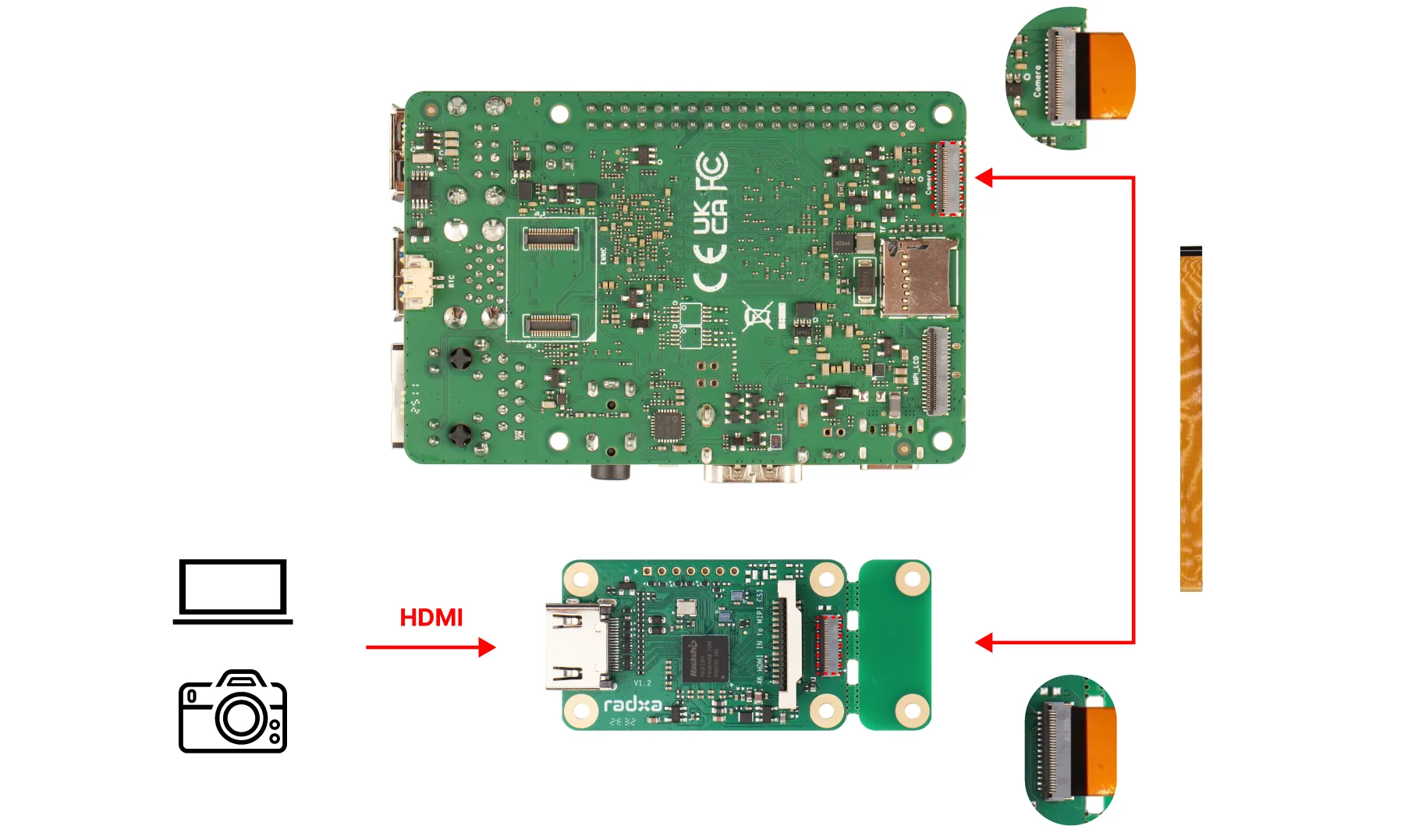
The 4-lane MIPI CSI connector on ROCK 4D can be used with the Radxa 4K HDMI IN to MIPI CSI-2 Adapter to capture HDMI video. The adapter's I2S connector outputs the digital audio extracted from the HDMI signal.
- Video: captured through the 4-lane MIPI CSI connector on ROCK 4D
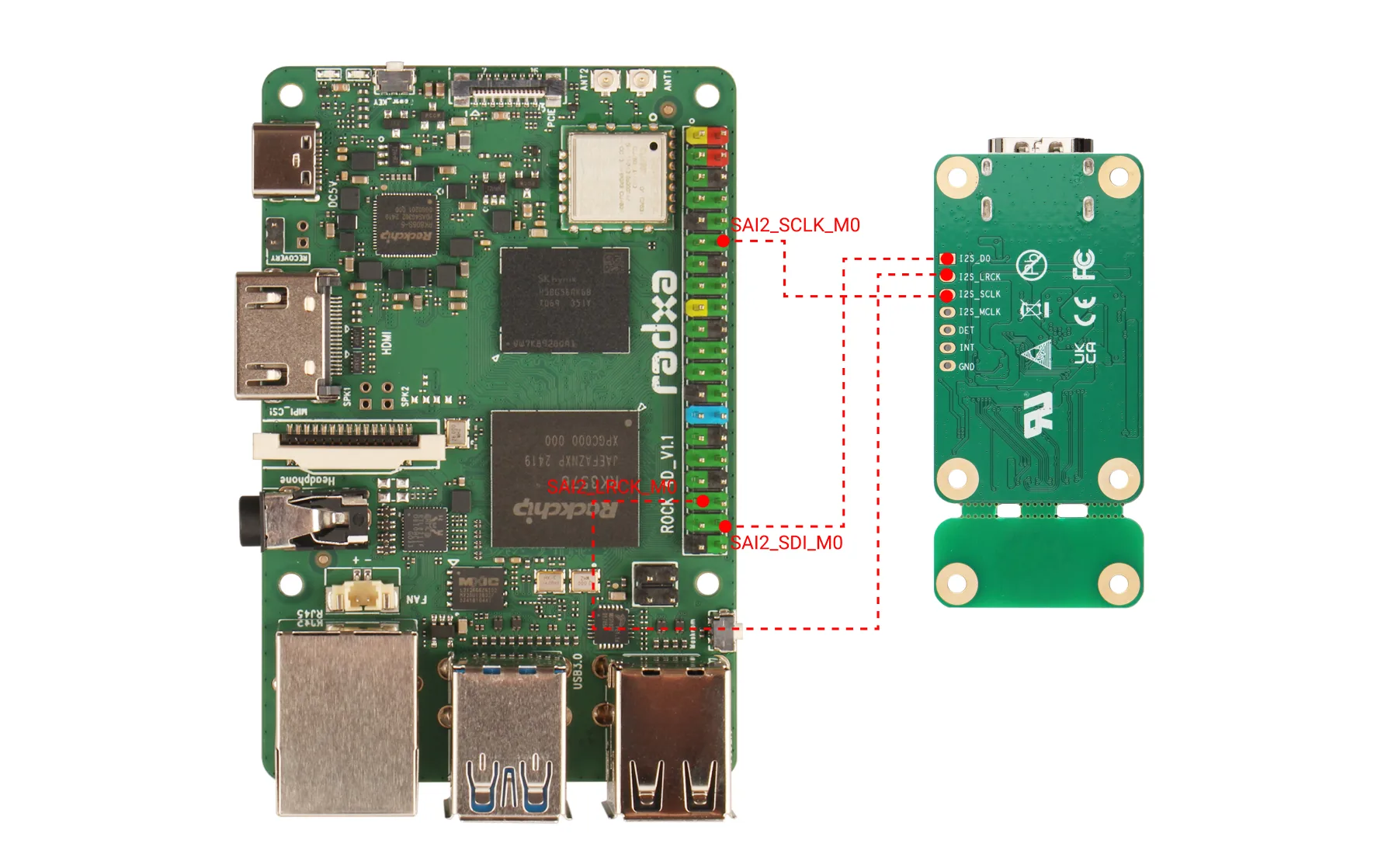
- Audio: captured through SAI2_M0 (I2S) on ROCK 4D
Hardware connection
You can capture HDMI video and/or HDMI audio as needed.
Capture HDMI video
Connect an HDMI output device (for example the HDMI output of a PC) to the HDMI IN connector on the adapter, then use an FPC cable (AC006, 31P 0.3 mm to 31P 0.3 mm, opposite side) to connect the 4-lane MIPI CSI connector on the adapter to the MIPI CSI connector on the board.
Capture HDMI audio
Use Dupont wires to connect the I2S connectors on the board and the adapter.
The FPC cable between the board and the adapter already shares the ground, so no extra GND connection is required when capturing HDMI audio.
Software enablement
Update the Rsetup tool shipped with Radxa OS, then enable the Overlays related to the adapter.
Update the system
Go to System → System Update and follow the prompts to finish the update. The update may include a new kernel, the RK628 driver and new overlays.
sudo rsetup
Enable the devices
Go to Overlays → Manage overlays and select the corresponding options:
- Capture HDMI video:
Enable Radxa 4K HDMI IN to MIPI CSI-2 Adapter on 4-lane CSI - Capture HDMI audio:
Enable SAI2-M0 capture-only dummy sound card
- If you only capture video, you can enable the video option alone; when audio is needed, both options must be enabled.
- Do not enable other overlays that occupy the same MIPI CSI connector or the SAI2_M0 pins.
Save the settings and reboot:
sudo reboot
Check the devices
Use the following command to check whether the RK628 is recognized:
sudo dmesg | grep -i rk628
When it is recognized correctly, output similar to the following appears. Once rk628-csi-v4l2 found and New format show up, you can continue testing:
RK628 I2C driver version: 00.01.00
rk628 version is: RK628F/H (20230321)
rk628-csi-v4l2 found @ 0xa0 (rk3x-i2c)
rk628_csi_format_change: New format: 1920x1080p60.00 (2200x1125)
The MIPI CSI output resolution of the adapter is negotiated between the EDID built into the driver and the HDMI source: the default EDID already contains several common resolutions, and Radxa OS does not currently provide a way to set the output resolution manually on the system side. The New format line in dmesg is the negotiated resolution, and the width / height values in the capture commands must match it.
To change the default EDID (for example to fix a specific output resolution), the driver has to be modified, or the driver needs to expose an interface that loads an EDID dynamically. Please contact Radxa support to confirm.
Capture HDMI video and audio
Capture HDMI video
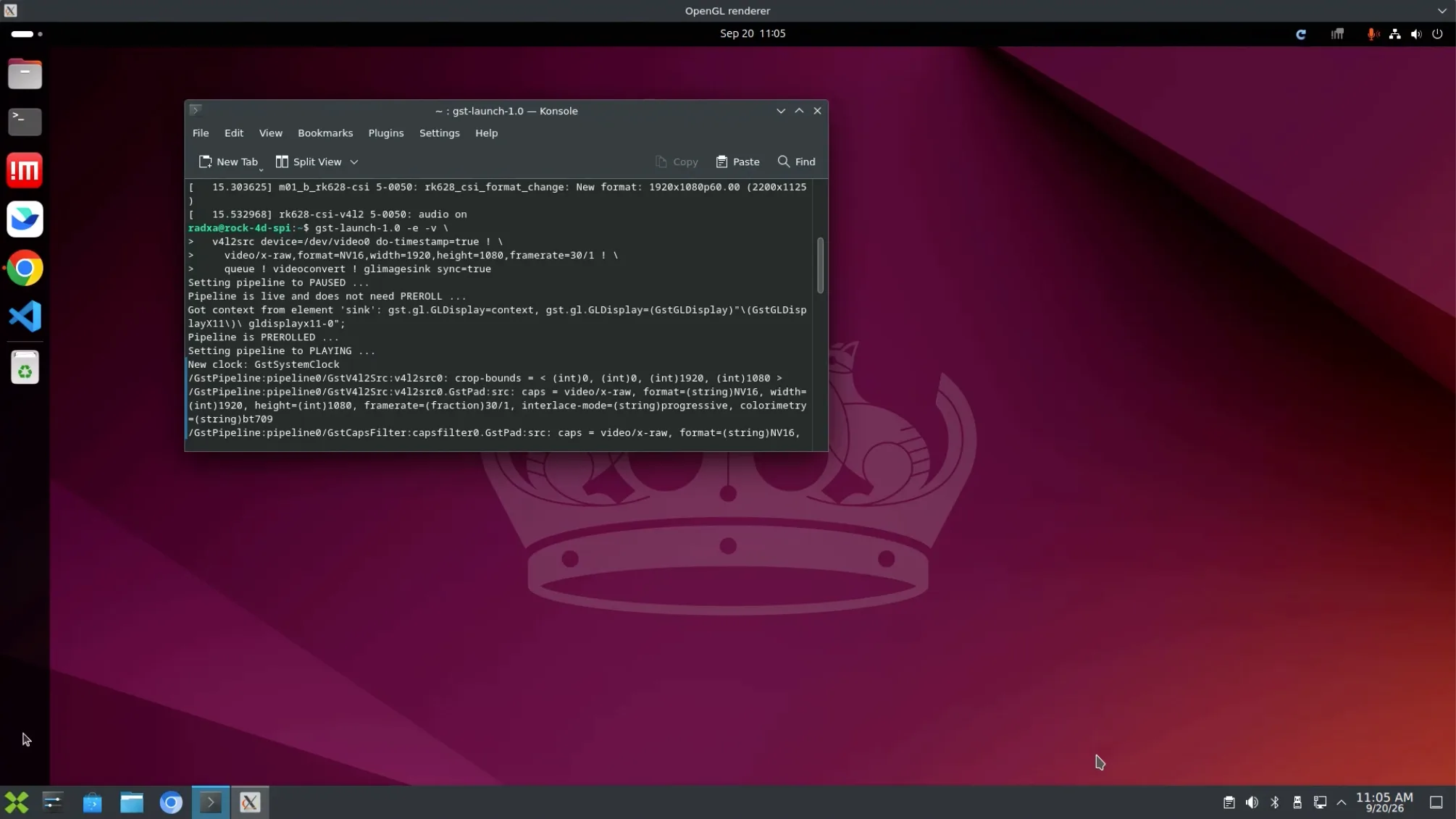
Run the following command in the desktop terminal of the board:
gst-launch-1.0 -e -v \
  v4l2src device=/dev/video0 do-timestamp=true ! \
    video/x-raw,format=NV16,width=1920,height=1080,framerate=30/1 ! \
    queue ! videoconvert ! glimagesink sync=true
The HDMI preview should appear on the desktop. Press Ctrl+C to stop it.
If the picture is corrupted, power off the board, recheck the hardware connection and test again.
Record HDMI audio
Make sure a headphone or speaker is connected to the board, and that the audio of the HDMI output device is routed to HDMI.
The following is a single-line command you can copy and run directly: it keeps the video stream running in the background for about 8 seconds while recording a 5-second WAV file. Because the RK628 audio output requires the video capture pipeline to keep running, the video stream must not be stopped while recording.
bash -c 'v4l2-ctl -d /dev/video0 --set-fmt-video=width=1920,height=1080,pixelformat=NV12 --stream-mmap=3 --stream-poll --stream-count=480 --stream-to=/dev/null >/dev/null 2>&1 & video_pid=$!; sleep 1; arecord -D hw:CARD=sai2capture,DEV=0 -f S16_LE -r 48000 -c 2 -d 5 -t wav rk628-audio.wav; wait "$video_pid"'
The video data is written to /dev/null, so no video file is generated.
Play the recording
aplay -D plughw:CARD=rockchipes8388,DEV=0 rk628-audio.wav
Play video and audio at the same time
Make sure a headphone or speaker is connected to the board, and that the audio of the HDMI output device is routed to HDMI. Then run the following command in the desktop terminal of the board:
gst-launch-1.0 -e -v \
  v4l2src device=/dev/video0 do-timestamp=true ! \
    video/x-raw,format=NV16,width=1920,height=1080,framerate=30/1 ! \
    queue ! videoconvert ! glimagesink sync=true \
  alsasrc device="hw:CARD=sai2capture,DEV=0" do-timestamp=true ! \
    audio/x-raw,format=S16LE,rate=48000,channels=2 ! \
    queue ! audioconvert ! audioresample ! \
    alsasink device="plughw:CARD=rockchipes8388,DEV=0" sync=true
The HDMI picture is displayed on the desktop and the HDMI audio is played through the board's audio output.
FAQ
No RK628 log?
Check whether the overlay has been saved:
grep fdtoverlays /boot/extlinux/extlinux.conf
For video and audio capture it should contain:
rk3576-sai2-2ch-m0-capture-only.dtbo
rock-4d-radxa-hdmi-in-4k-rk628.dtbo
If the RK628 video overlay is missing, go back to rsetup and enable it again, then check whether the hardware connection is correct.
It keeps showing "no signal" or "lock failed"?
These logs may briefly appear during early boot and do not necessarily indicate a fault. If New format never appears afterwards, check:
- whether the HDMI source is powered on and already outputting a signal
- whether the HDMI cable is reliable
- whether the FPC cable is connected correctly
Not sure which video node the RK628 maps to?
The video node number may change between systems or overlay configurations. Use the following steps to find it.
Find the media device that contains the RK628:
for m in /dev/media*; do media-ctl -p -d "$m" 2>/dev/null | grep -qi rk628 && echo "RK628 is on $m"; done
Query the main video capture node:
media-ctl -d /dev/media0 -e 'stream_cif_mipi_id0'
If the output node is not /dev/video0, replace the video node in the tutorial commands with the actual one.
Capture 30 frames to verify the node:
v4l2-ctl --verbose -d /dev/video0 --set-fmt-video=width=1920,height=1080,pixelformat=NV12 --stream-mmap=3 --stream-poll --stream-count=30 --stream-to=/dev/null
If the terminal keeps printing cap dqbuf frame information and finishes normally, the video node is correct.
Not sure which device the HDMI audio maps to?
The sound card number may differ between system versions or hardware configurations, and may also change after a reboot. Use the following steps to find it.
Find the HDMI audio capture device:
arecord -l
After the audio overlay is enabled, a device containing sai2capture should be listed:
- Card name:
sai2capture - Device number:
0 - The recording command should use
hw:CARD=sai2capture,DEV=0
The card N number shown by arecord -l is assigned dynamically by the system and may change after a reboot, so it is not recommended to hard-code hw:N,0 in commands.
If arecord -l does not list sai2capture, check whether the audio overlay is enabled and reboot after saving.
Find the audio playback device:
aplay -l
A device containing rockchipes8388 should be listed, and the corresponding playback device is plughw:CARD=rockchipes8388,DEV=0.
If you use a USB sound card or another playback device, replace the playback device in the tutorial commands with the actual one shown by aplay -l. If you only record audio and play it elsewhere, no playback device lookup is needed.