Radxa Display 4 Luna User Guide
The Radxa Display 4 Luna is plug-and-play and works across multiple operating systems.
Hardware Connection
Use a USB Type-C data cable to connect the display to your SBC or computer. Make sure the cable is capable of power and data transmission.
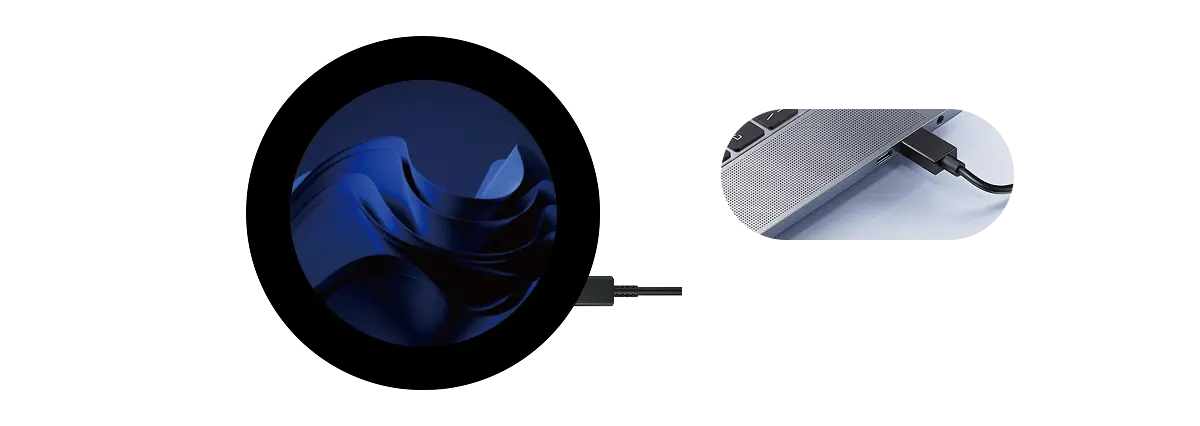
Install the display driver the first time you use the screen; otherwise the panel may stay black after the boot logo.
Driver Installation
When you first connect the Radxa Display 4 Luna, the system mounts a removable disk containing drivers for Linux, Windows, and macOS. Choose the installer that matches your OS.
- Windows
- Ubuntu
- macOS
Open the Windows folder on the removable disk, double-click AicUsbDisplayDriverV_xxx.exe, and follow the wizard.
Enter the Linux folder in the removable disk and run the script to install the driver.
bash install_for_linux.sh
Open the macOS folder on the removable disk, double-click AicUsbDisplayDriverV_xxx.pkg, and follow the wizard.
Display Modes
Once the display is live, configure extended or mirrored display modes from your OS settings panel.