LocateAnything-3B
This guide explains how to run LocateAnything-3B on a host fitted with an 8 GB Radxa AICore AX-M1. The model locates objects in an image from a category or natural-language description and returns bounding boxes or points.
The precompiled model uses W4A16 quantization with a 560 × 560 image input and takes approximately 3.2 GiB of storage. It requires approximately 2.9 GiB of CMM at runtime, so the 8 GB AX-M1 is recommended.
Prerequisites
- An 8 GB AX-M1 installed in an AArch64 Linux host.
- The AXCL driver and firmware installed according to Environment Installation, with
axcl-smiable to detect the AX-M1. - Access to GitHub and Hugging Face, and at least 4 GiB of free storage on the host.
- A user account that can use
sudoto installaxllm.
Steps
Check AX-M1 CMM
Check the total and remaining CMM before loading the model:
axcl-smi info --cmm
The 8 GB AX-M1 should report a total close to:
CMM Total : 7208960 KiB
Ensure that CMM Remain is greater than 3 GiB. Stop other applications using the AX-M1 if there is not enough free CMM.
Install axllm
axllm is the AXERA LLM/VLM inference tool. It supports an interactive terminal and an OpenAI-compatible API. Clone the official repository and run its installer:
cd ~
git clone -b axllm https://github.com/AXERA-TECH/ax-llm.git
cd ax-llm
./install.sh
axllm --version
Confirm that the backend and platform in the version output match the host:
backend          : AXCL
platform         : Linux aarch64
Download the model
Create a Python virtual environment, install the Hugging Face CLI, and download the model:
mkdir -p ~/ax-m1-models
cd ~/ax-m1-models
python3 -m venv .venv
source .venv/bin/activate
pip install -U huggingface_hub
hf download AXERA-TECH/LocateAnything-3B --local-dir ./locate-anything-3b
Confirm that the main runtime files were downloaded:
cd ~/ax-m1-models/locate-anything-3b
test -f config.json
test -f image_encoder_mlp.axmodel
test -f qwen2_post.axmodel
test -f qwen2_5_tokenizer.txt
Run interactive inference
Start the model:
cd ~/ax-m1-models/locate-anything-3b
axllm run .
After the model loads, enter a prompt and the path to the test image:
prompt >> Find the people in the image
media >> ./test_data/locate-anything-online.jpg
The model returns a <ref> tag and one or more <box> tags:
<ref>...</ref><box><342><0><399><55></box><box><646><45><971><1000></box><box><842><0><950><200></box>
Coordinates use a normalized range from 0 to 1000. A bounding box has the following format:
<x_min><y_min><x_max><y_max>
Enter /q to exit the interactive program.
Start the OpenAI-compatible API
Start the service from the model directory:
cd ~/ax-m1-models/locate-anything-3b
axllm serve . --port 8010
After loading the model, the service displays these endpoints:
GET  /health
GET  /v1/models
POST /v1/chat/completions
Open another terminal and check the service status and model ID:
API_BASE="http:"'//127.0.0.1:8010'
curl --fail "${API_BASE}/health"
curl --fail "${API_BASE}/v1/models"
The health endpoint should return "status": "healthy", and the model list should contain:
AXERA-TECH/LocateAnything-3B
The current service supports a maximum concurrency of 1. Applications can send OpenAI-compatible multimodal requests to /v1/chat/completions.
Start the lightweight WebUI
Keep axllm serve running and start the WebUI included in the model package from another terminal:
cd ~/ax-m1-models/locate-anything-3b
API_BASE="http:"'//127.0.0.1:8010'
python3 ./locateanything_webui.py \
  --host 0.0.0.0 \
  --port 7861 \
  --serve-url "${API_BASE}" \
  --image-dir ./pexels-images \
  --model AXERA-TECH/LocateAnything-3B
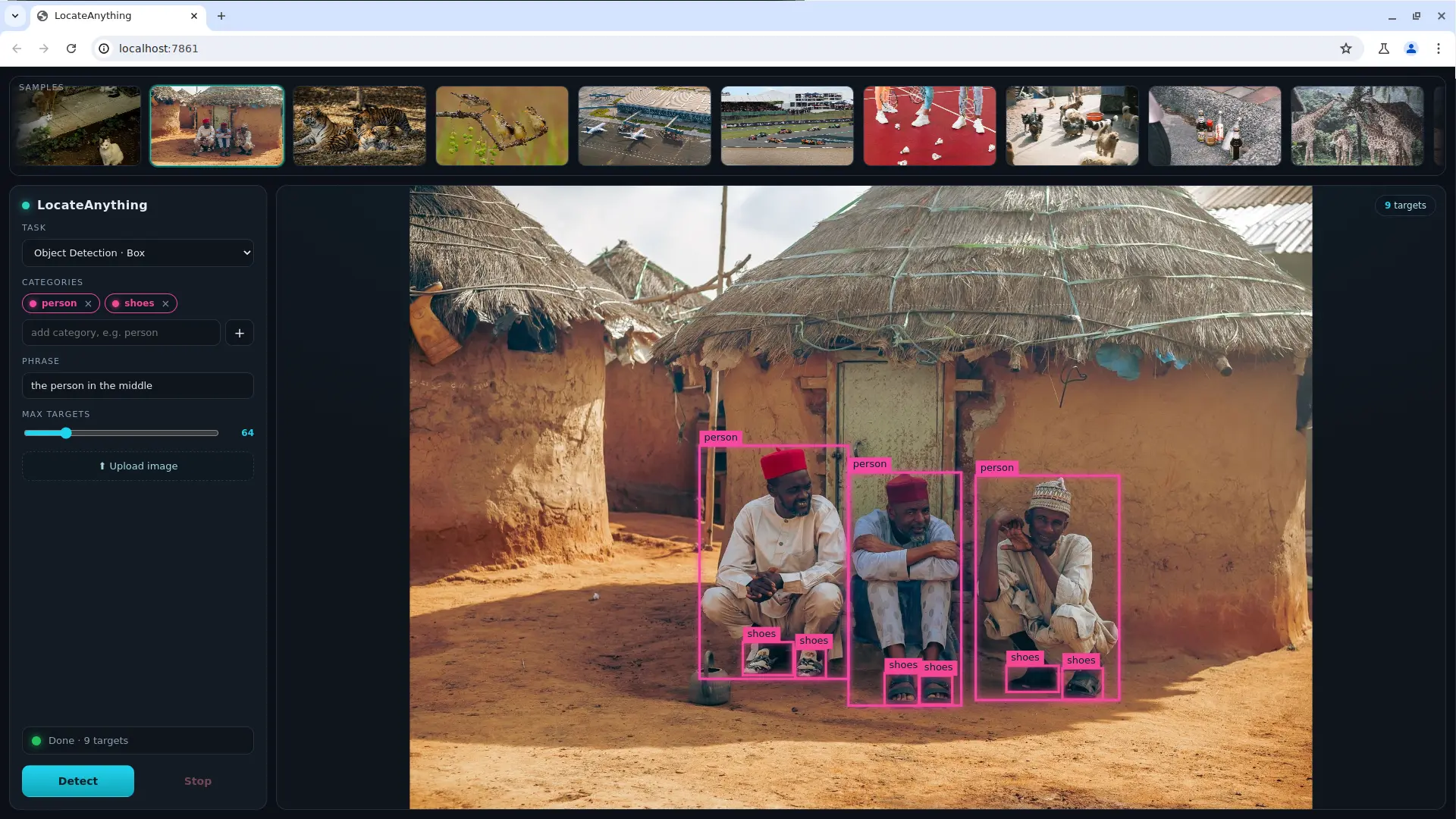
From a browser on the same LAN, open port 7861 on the host device's IP address. The UI supports image uploads, object detection, phrase grounding, text-region localization, document layout analysis, and GUI element localization. It draws the boxes or points returned by the model on a canvas.
After selecting a task and detection categories, preview the image to be processed:
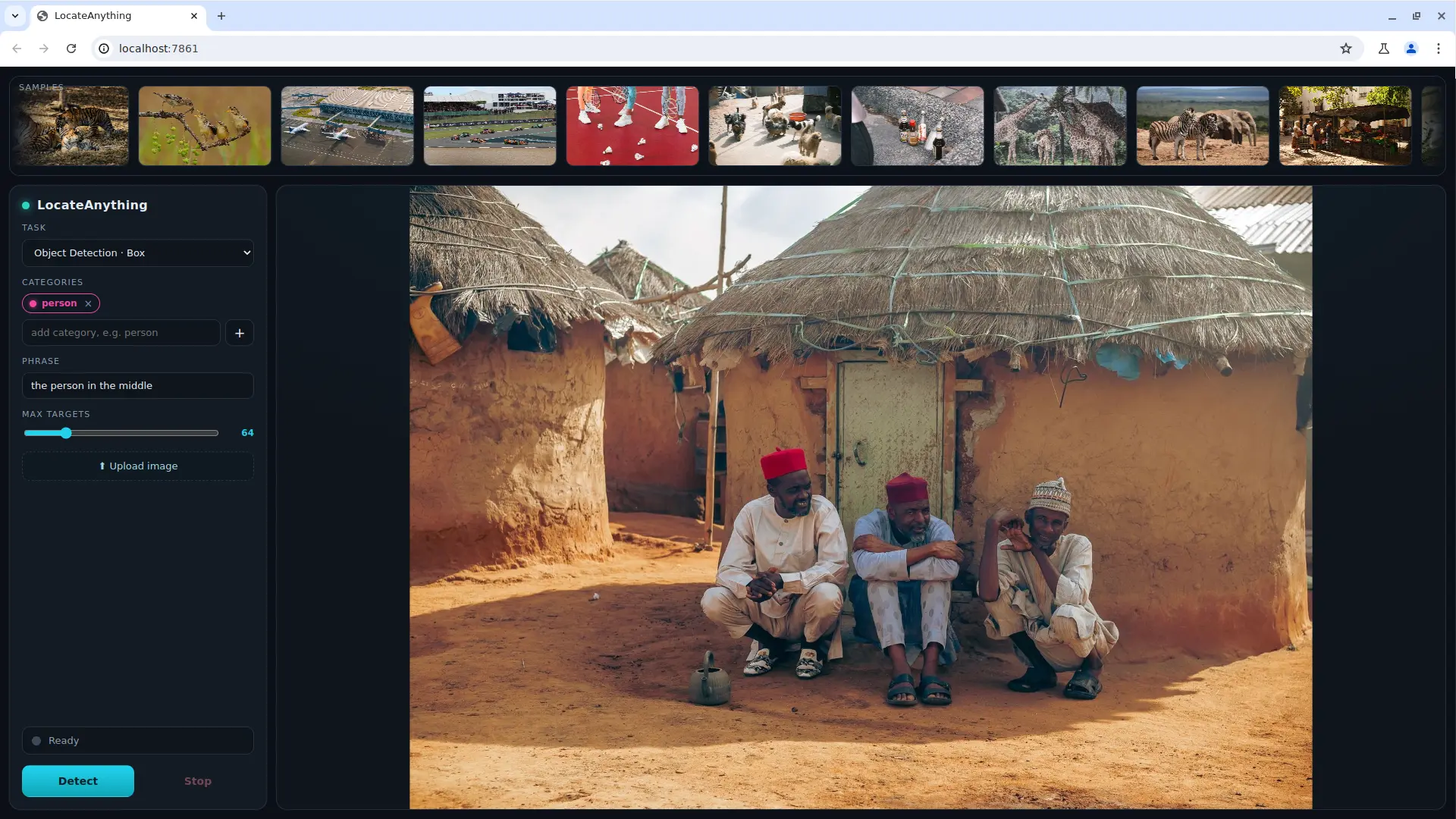
The page provides the person category by default; this example also adds a shoes category. After you click Detect, the result shows that the model can also locate the shoes accurately:
In the current model package, locateanything_webui.py is in the model directory. If the model README still uses scripts/locateanything_webui.py, use the path of the file that was actually downloaded.
The model package also provides a single-process WebUI and a command-line inference mode based on pyaxengine. See the model repository README for their dependencies, parameters, and latest usage.
Expected Output
After axllm run loads the model, it displays prompt >> and returns <ref> and <box> tags after inference. After axllm serve loads the model, it listens on port 8010, the health endpoint returns "status": "healthy", and the model list contains AXERA-TECH/LocateAnything-3B.
The following results were obtained on a ROCK 5B+ with an 8 GB AX-M1 using the test image included with the model. They are provided for performance reference only:
| Metric | Reference value |
|---|---|
| Full model initialization | Approximately 73 seconds |
| Input length | 431 tokens |
| Prefill chunks | 4 |
| TTFT | 2385.18 ms |
| Decode rate | 3.60 tokens/s |
| CMM Used while the model is loaded | 2861176 KiB (approximately 2.73 GiB) |
| CMM Used after the model exits | 18876 KiB (approximately 18 MiB) |
The TTFT result used the vision cache for the test image. Processing a new image for the first time usually produces a higher TTFT. Performance varies with the host, runtime version, prompt length, and image-cache state.
Validation
Complete these checks to confirm a successful deployment:
axllm runloads all model components and returns<ref>and<box>tags.- The health check command returns a healthy status.
/v1/modelsreturns the model IDAXERA-TECH/LocateAnything-3B.- Check CMM again after exiting
axllm:
axcl-smi info --cmm
CMM Used should return to its pre-launch baseline. If it does not, check whether an axllm or WebUI process is still running.
Stop the services
Press Ctrl+C in the terminals running axllm serve and the WebUI. Confirm that the ports are no longer in use:
ss -ltnp | grep -E ':(7861|8010)'
No output means that neither port is being listened on.