Stable Diffusion 1.5 Euler
This document explains how to run the Stable Diffusion 1.5 Euler model for text-to-image inference on a host device equipped with Radxa AX-M1.
This example is based on the solution provided by community user SHANKAR_THAKUR, thanks for their contribution.
Environment Preparation
Before starting, please ensure:
- Radxa AX-M1 is properly installed and connected to the host
- The host (supporting Rock 5B/5B+ or Raspberry Pi 5) has the Radxa official image or other compatible operating system installed
- Network connection is normal and GitHub and HuggingFace are accessible
Raspberry Pi 5 can also be used as the host, as long as AX-M1 is connected and the AXCLRT runtime can run on that operating system.
Please ensure the AX-M1 hardware connection is stable. If inference fails, first check the hardware connection status and device temperature.
Clone the Project Repository
git clone https://github.com/Mojo24x7/SD1.5_AXM1-AX8850_Euler && cd SD1.5_AXM1-AX8850_Euler
Create Virtual Environment
python3 -m venv .venv
Activate Virtual Environment and Upgrade pip
source .venv/bin/activate && pip install -U pip
Install Project Dependencies
pip install -r requirements.txt
Download and Install pyaxengine
pyaxengine is the official Python API library provided by AXERA for running inference on AX-M1.
wget https://github.com/AXERA-TECH/pyaxengine/releases/download/0.1.3.rc3/axengine-0.1.3-py3-none-any.whl
pip install axengine-0.1.3-py3-none-any.whl
Download Pre-trained Model
First, install git-lfs:
sudo apt update && sudo apt install git-lfs
git lfs install
Clone the model repository from HuggingFace:
git clone https://huggingface.co/Mojo24x7/sd15-axm1-euler512-axmodels hf_axmodels
Copy model files to the specified directory:
mkdir -p axmodels
cp -v hf_axmodels/*.axmodel axmodels/
The model files are large and download may take a long time, please be patient.
Run Text-to-Image Inference
python3 scripts/txt2img_axengine_euler.py \
  --weights_dir ./axmodels \
  --tokenizer_dir ./support/tokenizer \
  --scheduler_dir ./support/scheduler \
  --vae_config ./support/vae/config.json \
  --prompt "a cinematic ultra realistic portrait photo" \
  --steps 30 \
  --out ./out/txt2img_euler_512.png
Parameter Description
| Parameter | Description |
|---|---|
--weights_dir | Model weights directory |
--tokenizer_dir | Tokenizer directory |
--scheduler_dir | Scheduler configuration directory |
--vae_config | VAE config file path |
--prompt | Input text prompt |
--steps | Inference steps |
--out | Output image path |
Expected Output
After successful inference, the output image will be saved at ./out/txt2img_euler_512.png.

Run Web UI
The project also provides a Web UI for interactive image generation:
python run_ui.py --base_dir ./ --out_root ./out --venv_py ~/SD1.5_AXM1-AX8850_Euler/.venv/bin/python --token_max_len 100
Please ensure the virtual environment path matches the actual path. If the path is different, modify the --venv_py parameter to point to the correct Python interpreter path.
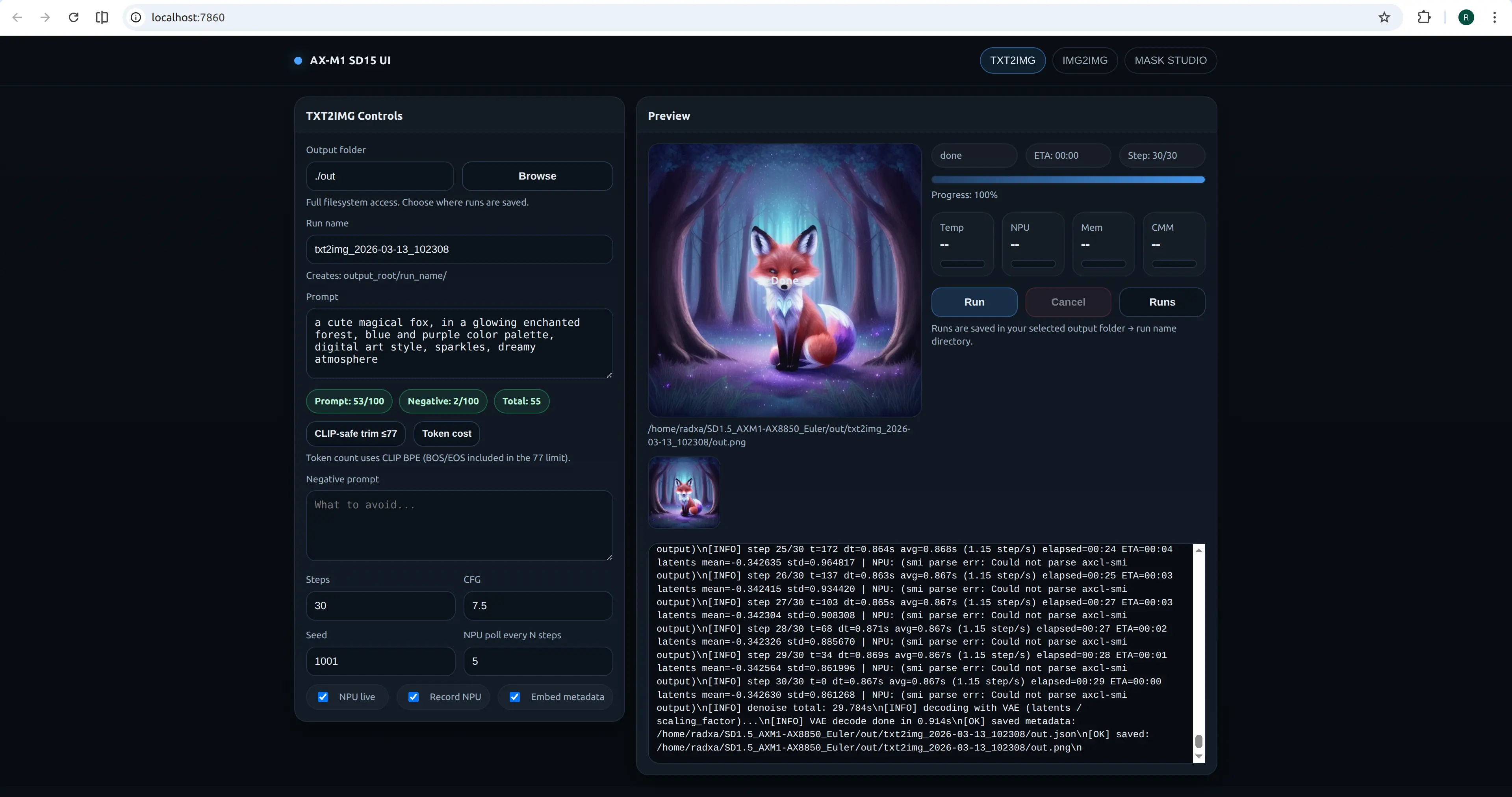
FAQ
How to Troubleshoot Inference Failure?
- Check hardware connection: Ensure the AX-M1 module is properly connected to the M.2 interface
- Check device temperature: High temperature may cause performance degradation or inference failure
- Check virtual environment: Ensure you are using the Python interpreter from the correct virtual environment
- Check log output: Detailed logs usually indicate the specific error cause
What if Model Download Fails?
- Check network connection to ensure HuggingFace is accessible
- Try using a proxy or mirror site
- You can manually download model files and copy them to the corresponding directory
Slow Inference Speed?
- Check AX-M1 heat dissipation, add a heatsink if necessary
- Confirm the NPU is working properly (can be checked with
axcl-smicommand)