Quick Start
This tutorial is designed to help you get started quickly with the Cubie A5E product.
Product Overview
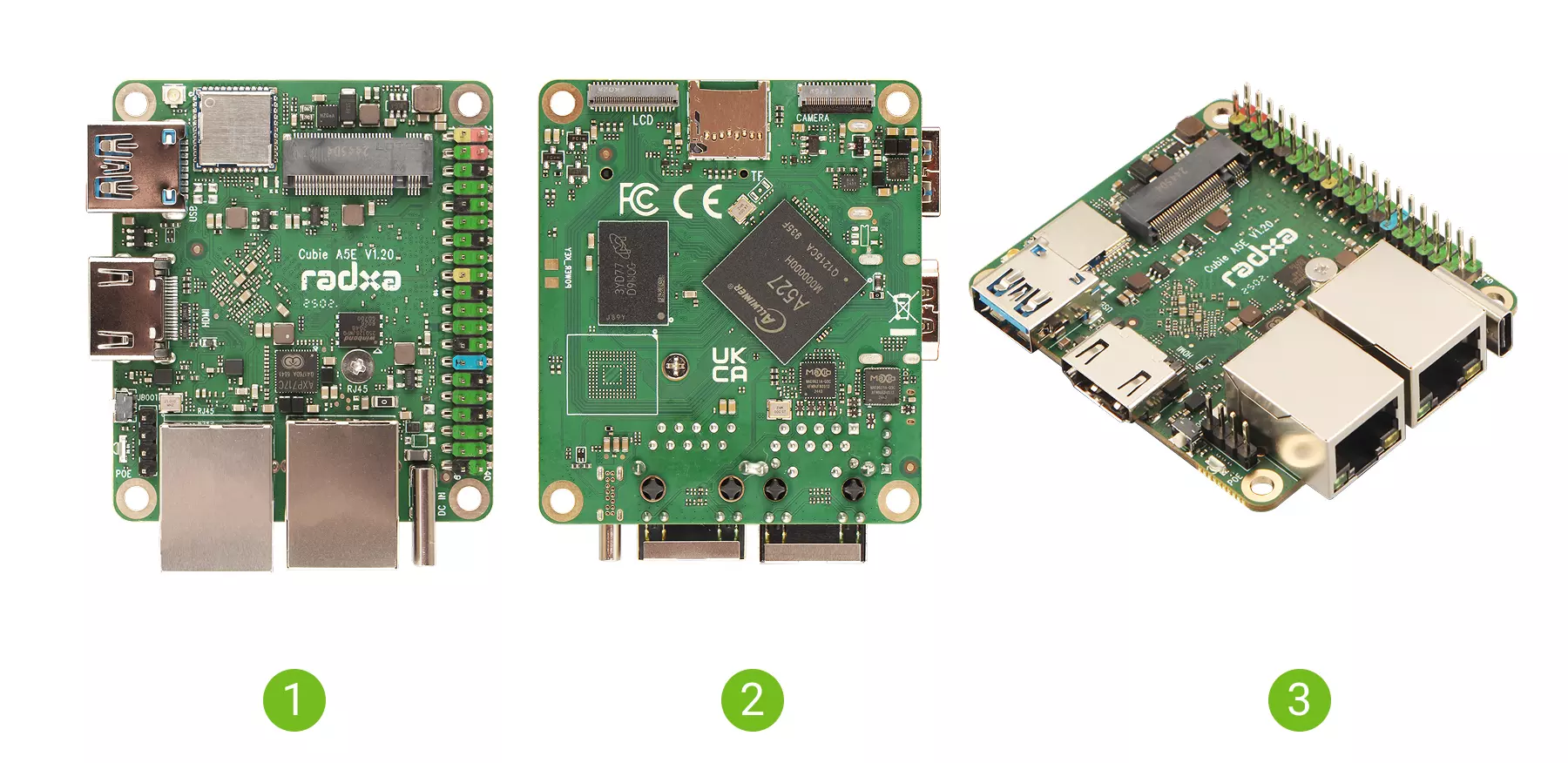
| No. | View | No. | View | No. | View |
|---|---|---|---|---|---|
| ① | Cubie A5E Front View | ② | Cubie A5E Rear View | ③ | Cubie A5E Side View |
Prerequisites
Hardware Requirements
You will need to prepare the following hardware devices in advance:
- Board: Radxa Cubie A5E
- Power Supply: 5V Type-C power adapter
- System Boot Media: microSD card (for system installation and booting)
- Display: HDMI cable and monitor (for graphical interface display)
- Input Devices: Keyboard and mouse (for graphical interface operation)
- Debugging Tools (Optional): USB to UART cable (for serial login, refer to the Serial Login guide) and USB-A hub (for expanding USB peripherals)
It is recommended to use the Cubie A5E with a monitor, keyboard, and mouse.
The Cubie A5E board is compatible with PD protocol 5V Type-C power input. A current of 3A or higher is recommended to ensure stable operation of all peripherals.
Install System
This section mainly introduces how to install the system to a microSD card.
Installing the system will completely format the microSD card, and all data will be permanently deleted!
Please confirm before proceeding:
- There is no important data on the microSD card, or backups have been completed
- You have selected the correct storage device (to avoid accidentally formatting other drives)
Hardware Connection
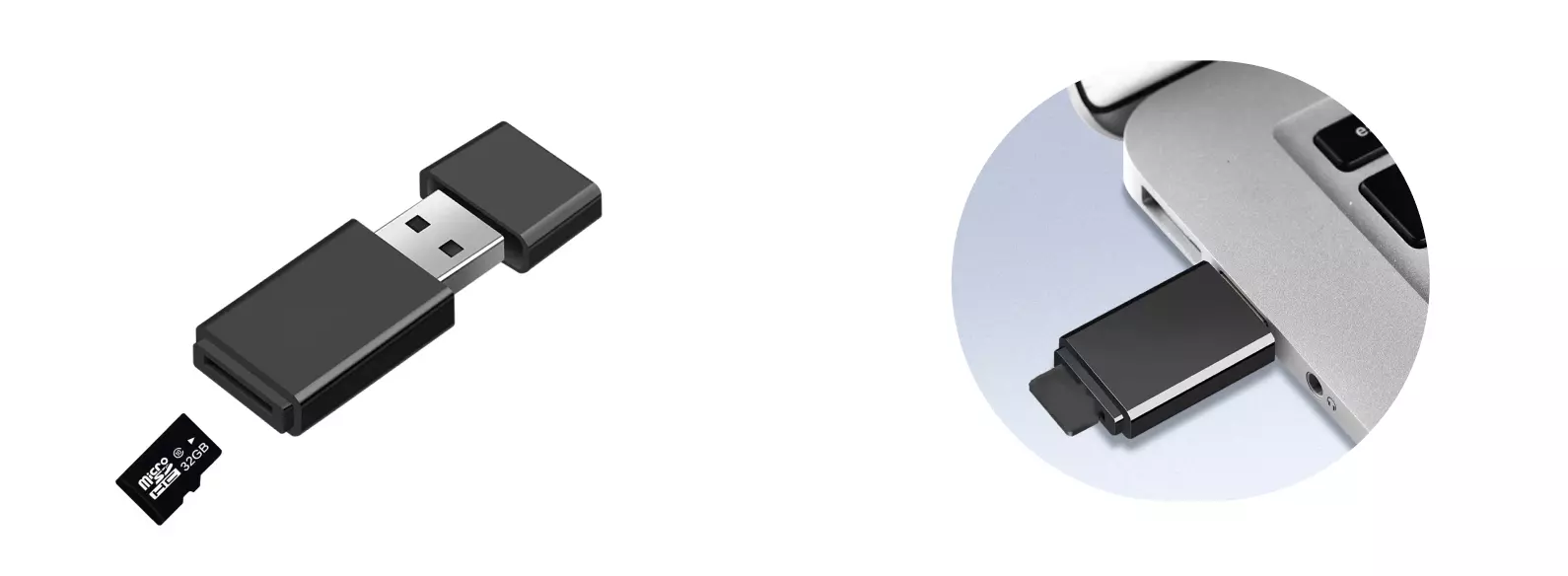
Insert the microSD card into a microSD card reader, then connect the card reader to your computer.
Download System Image
Please visit the Resource Downloads page and download the GPT format Radxa OS official system image as recommended. This image file is a compressed package in .img.xz format. After downloading, it needs to be extracted first to get the .img format image file for use.
The downloaded system image is a compressed file and needs to be extracted before use!
Install System Image
You can use Balena Etcher software to install the system image to the microSD card.
For installation and usage of Balena Etcher, please refer to the Etcher Usage tutorial.
Select System Image
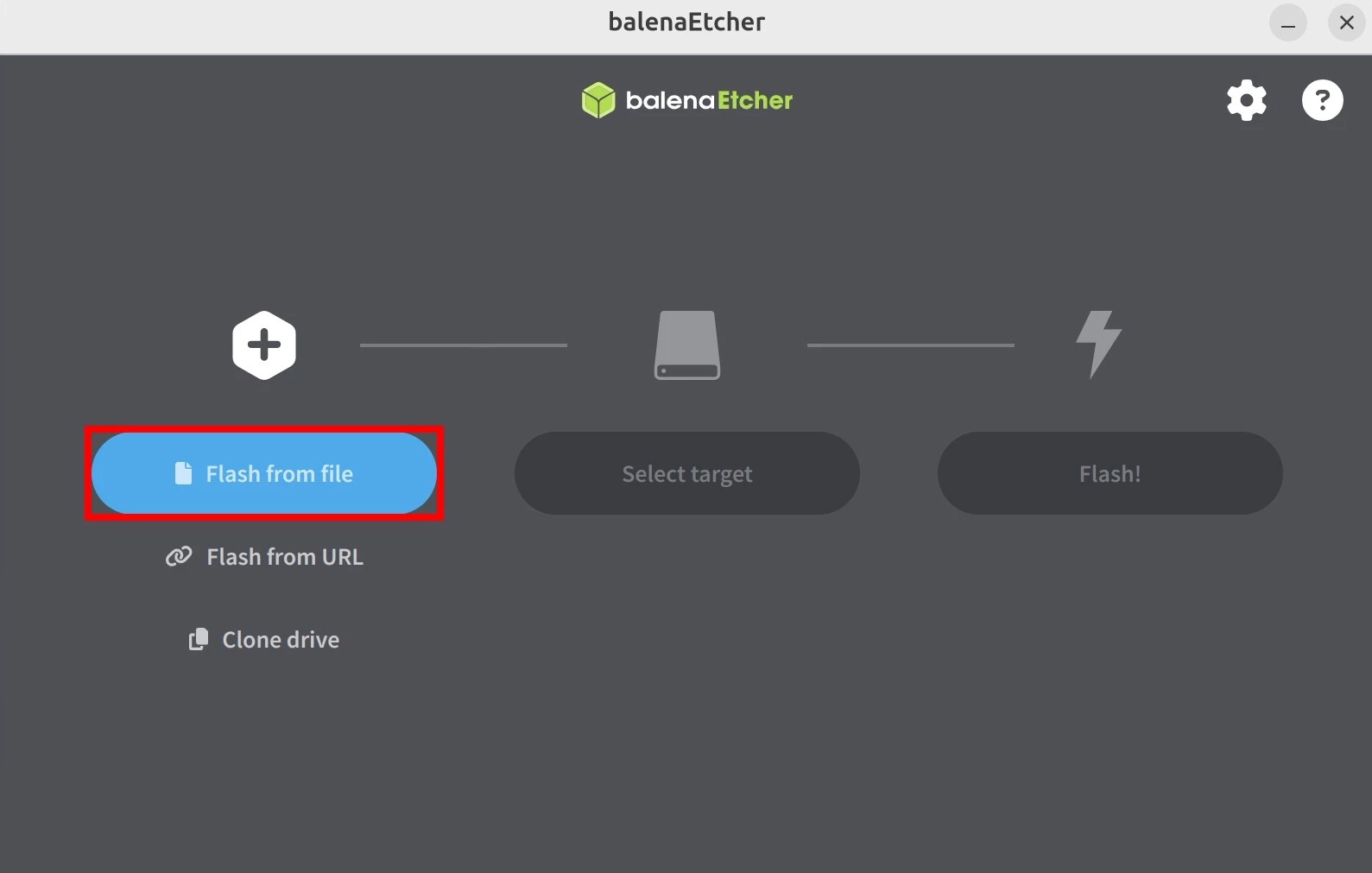
Click the Flash from file option and select the pre-downloaded and extracted system image file.
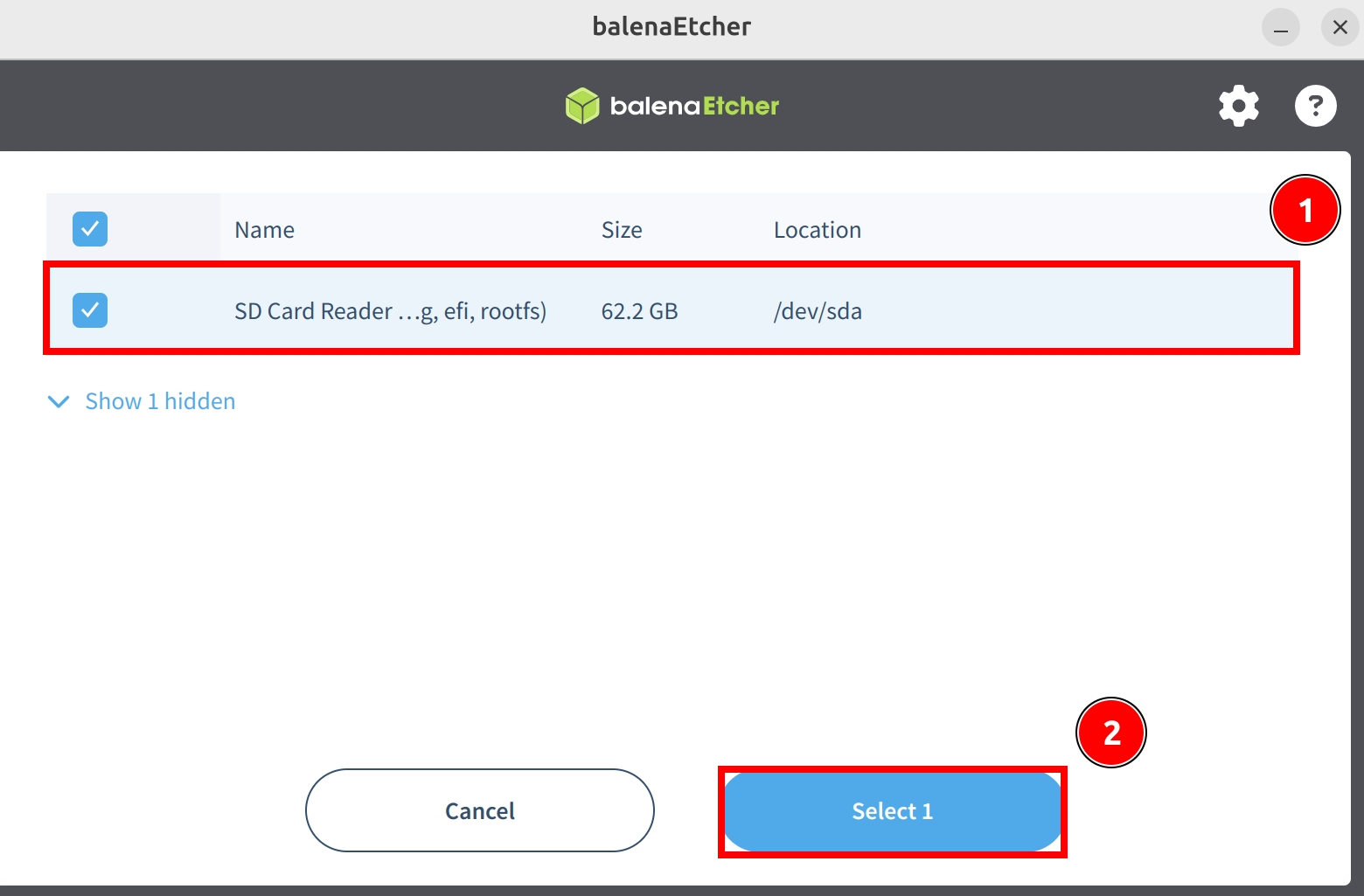
Select Storage Device
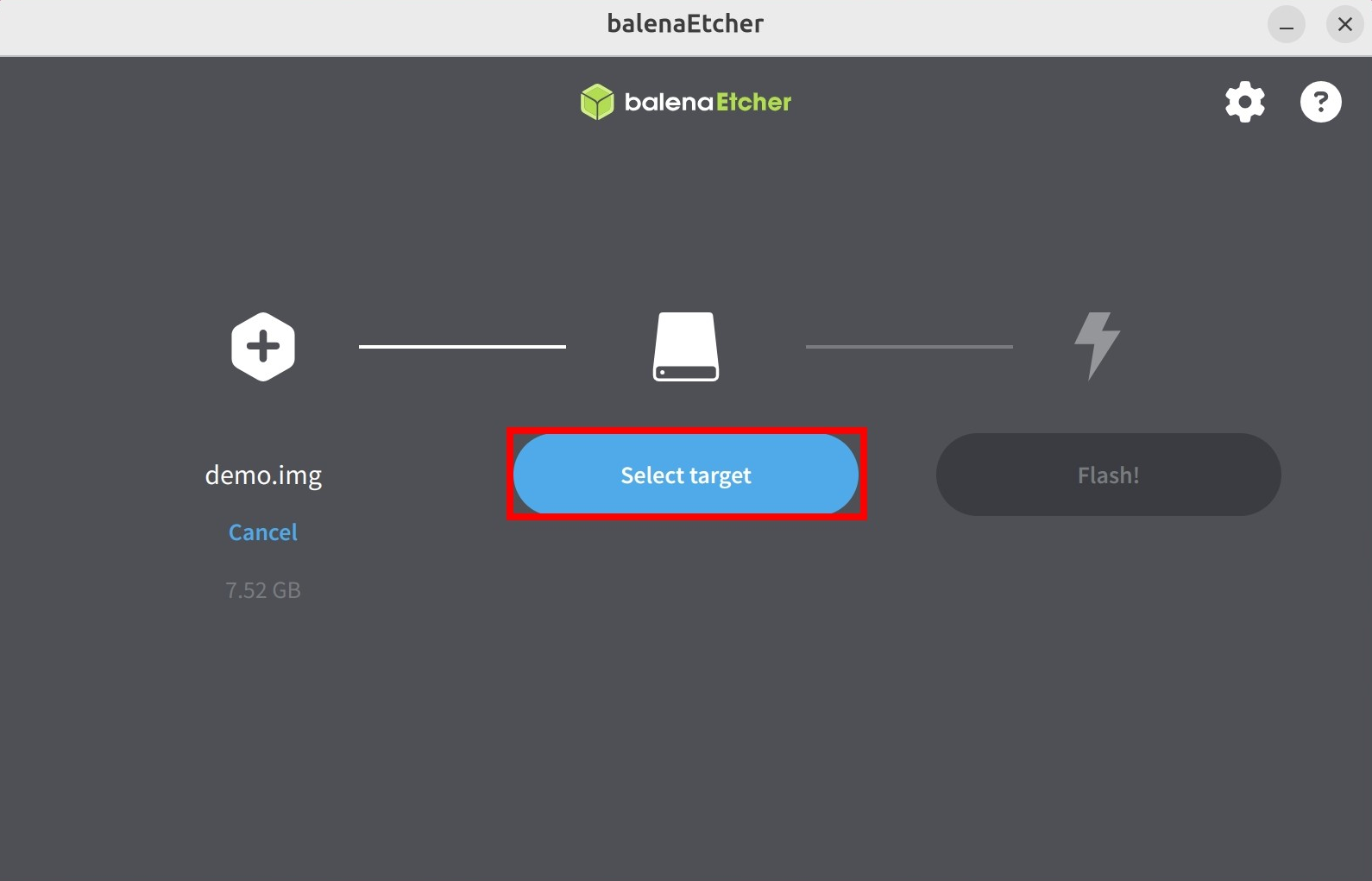
Click the Select target option and choose the microSD card device.
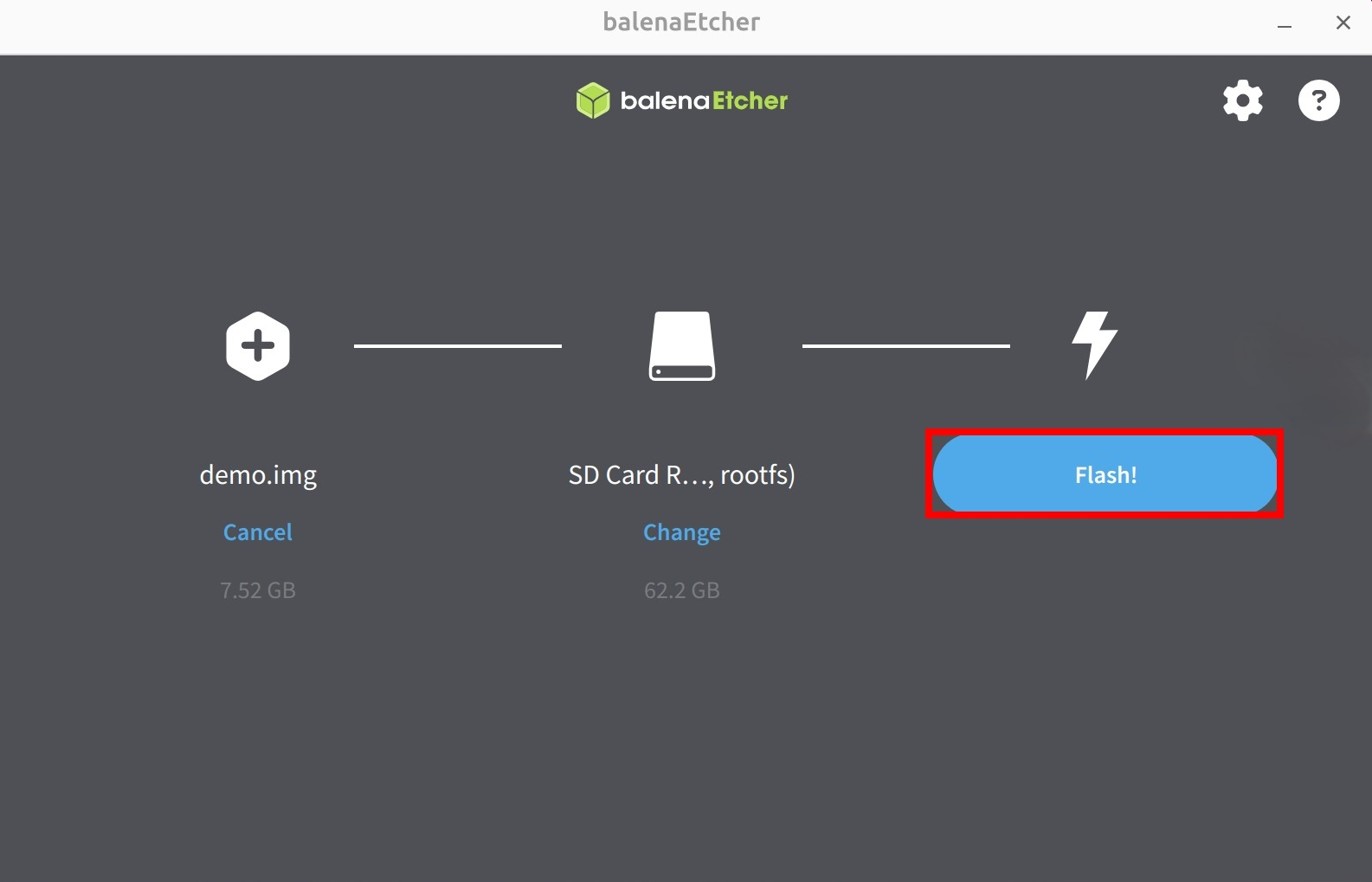
Start Flashing
Click the Flash! button to start writing the system image to the microSD card.
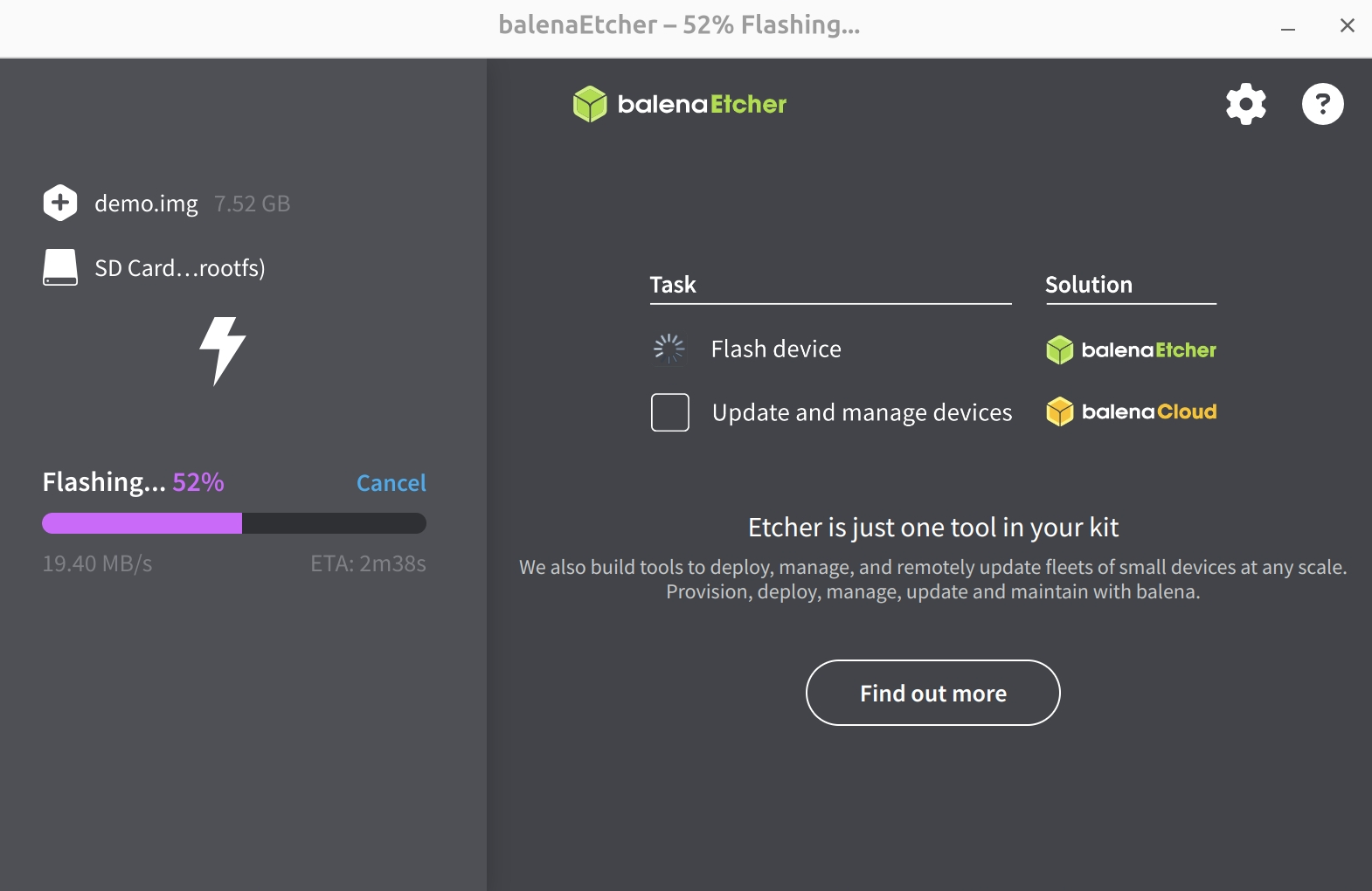
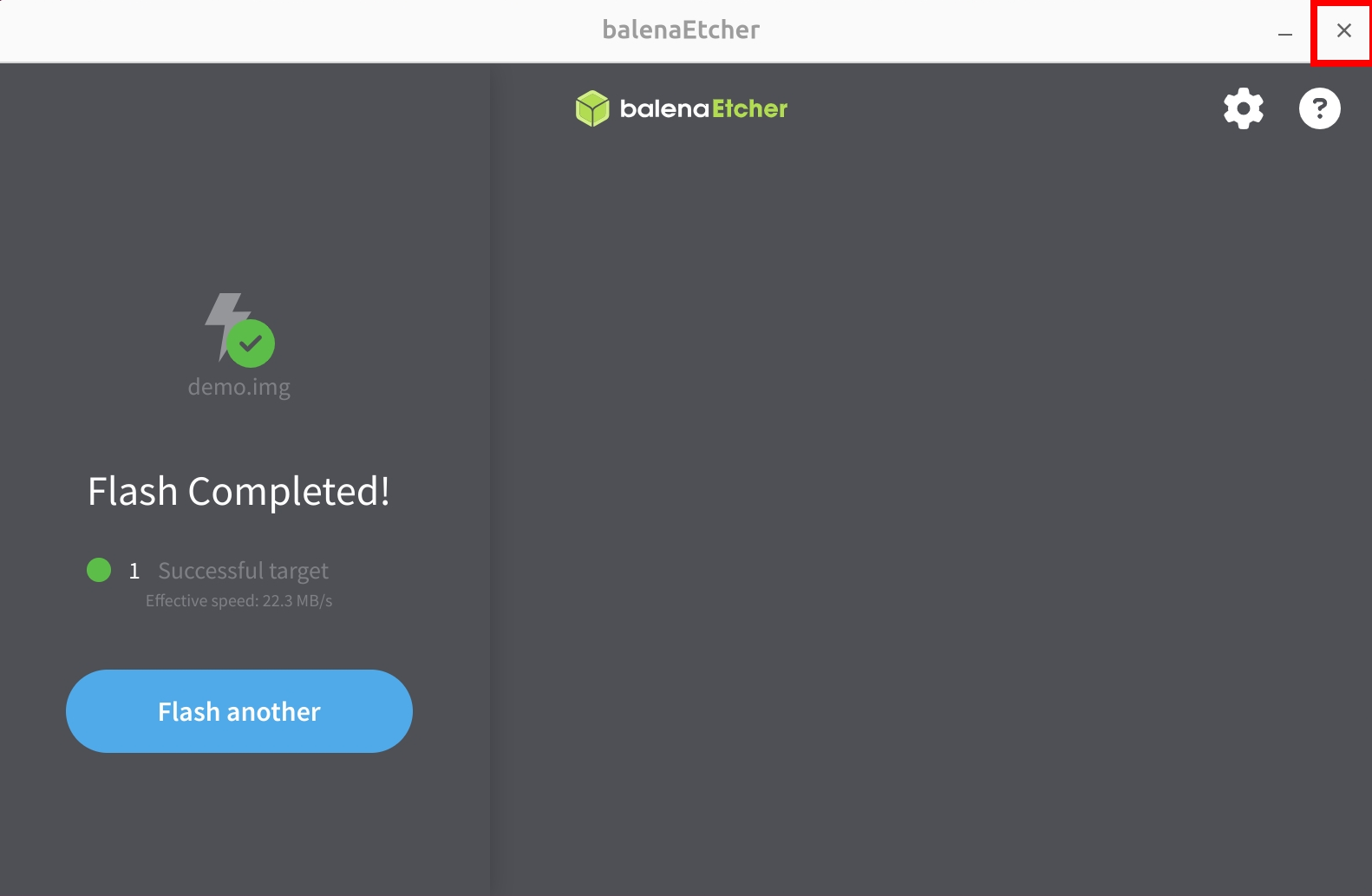
Waiting for system installation to complete
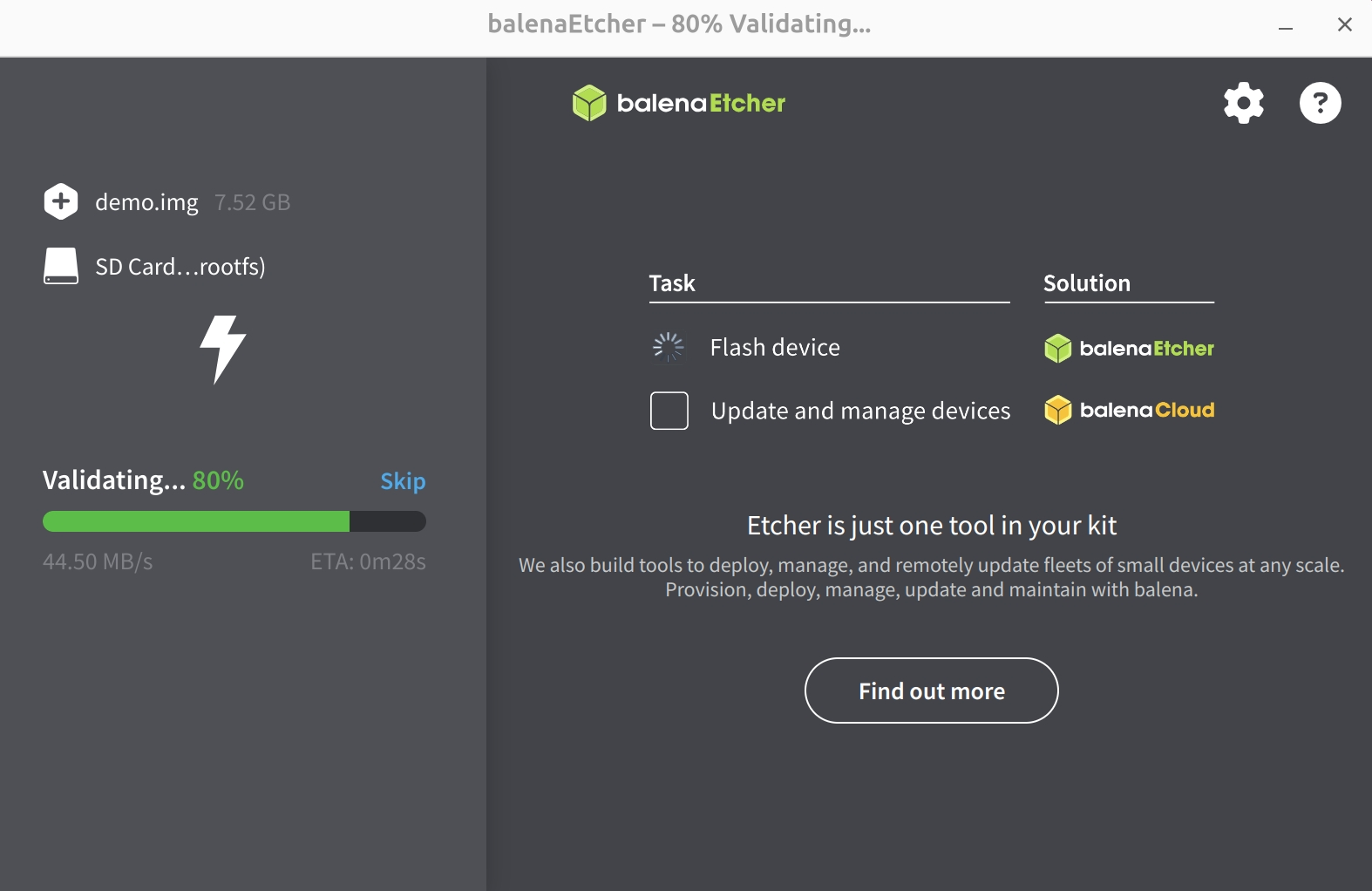
Waiting for system verification to complete
After successfully installing the system image, close the Etcher software!
Boot the System
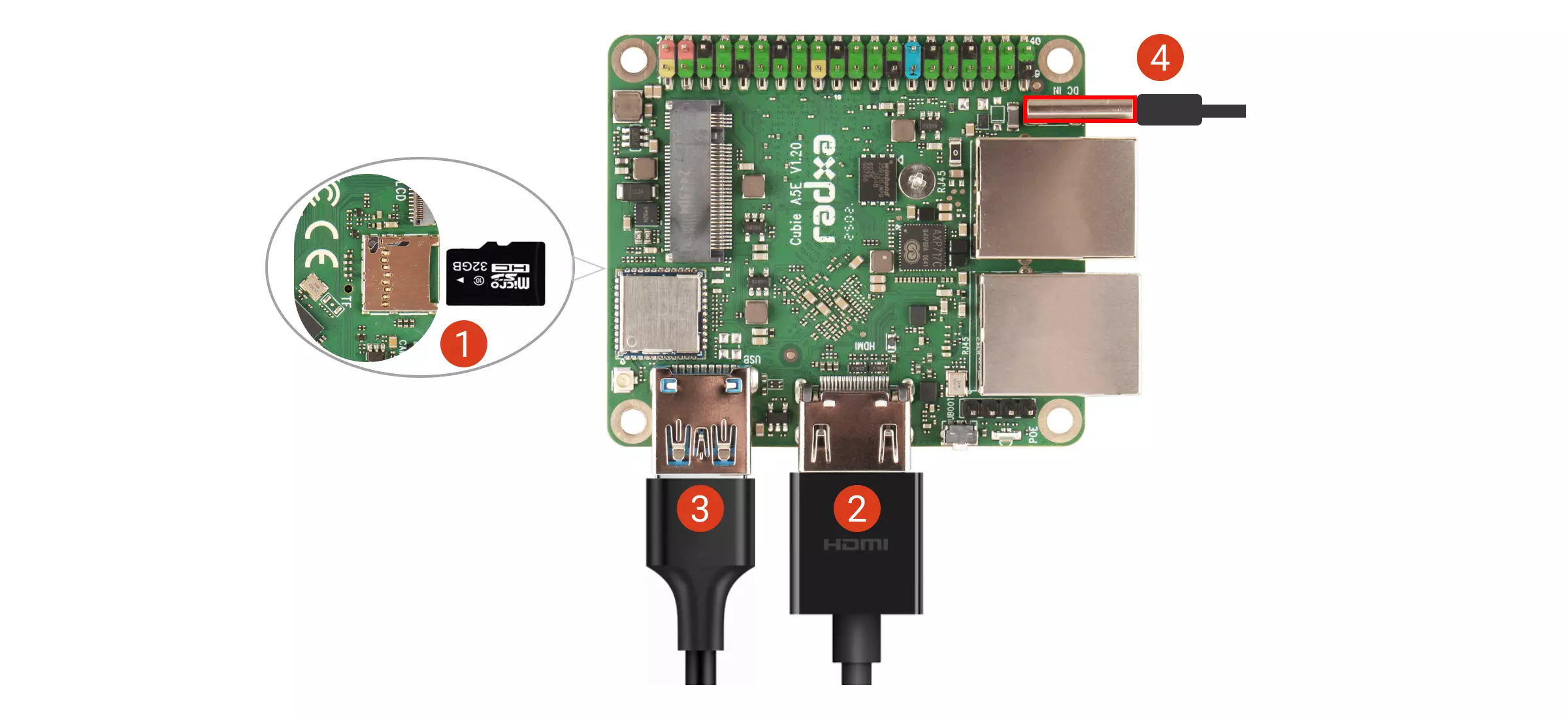
①: Insert the microSD card into the microSD card slot
②: Connect a monitor to the board using an HDMI cable
③: Connect a mouse or keyboard using the USB-A port (if you have a USB-A hub, you can connect the mouse and keyboard through the hub)
④: Power the board using a 5V Type-C power adapter
If the board is powered on correctly, the power indicator LED will light up green. If the system boots normally, the status LED will blink blue.
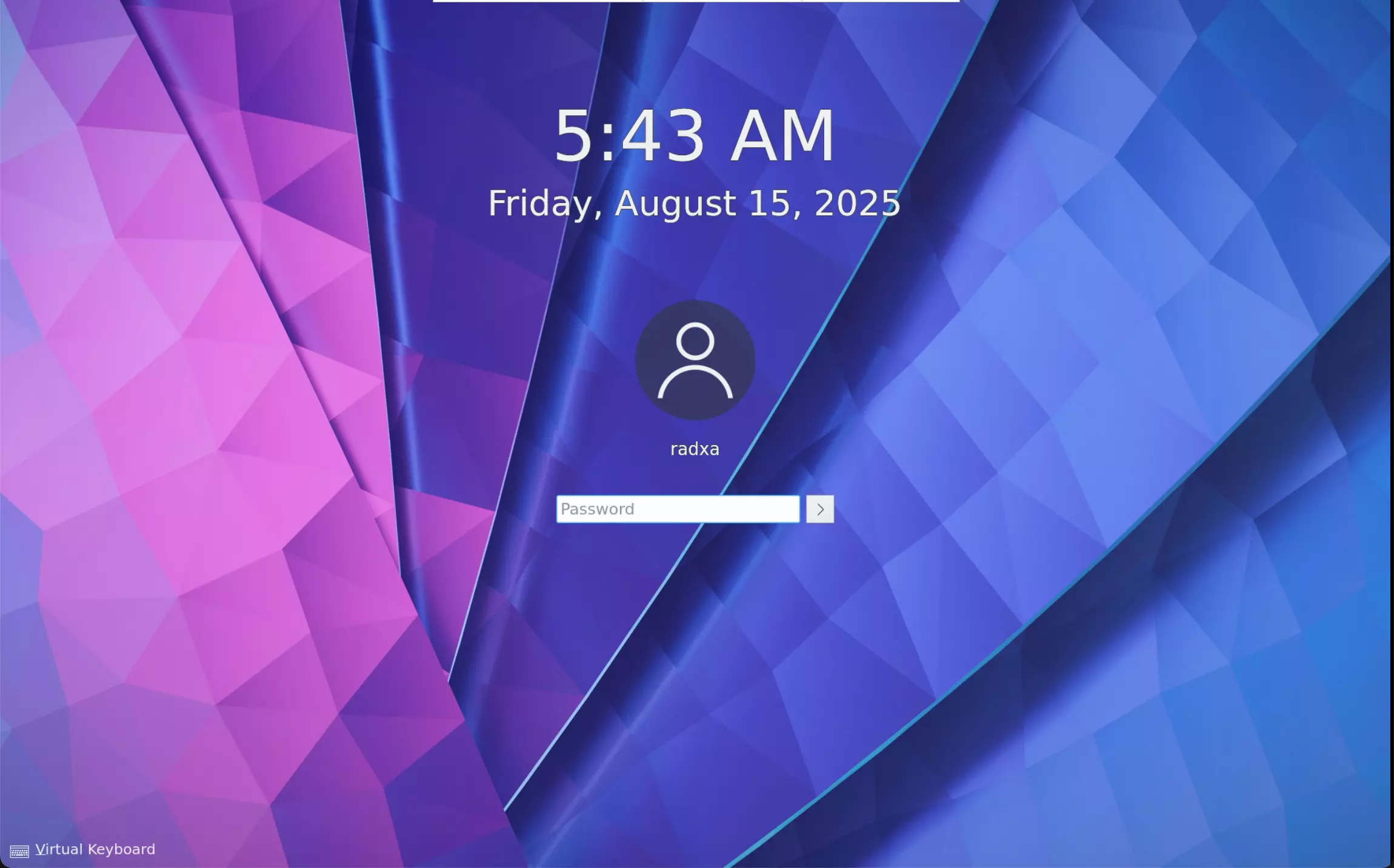
After successfully booting the system, the monitor will display the system desktop.
First Login to System
When you first start the system, you need to log in with the default username and password. The default credentials for Radxa OS are as follows:
| Item | Content |
|---|---|
| Username | radxa |
| Password | radxa |
Using the System
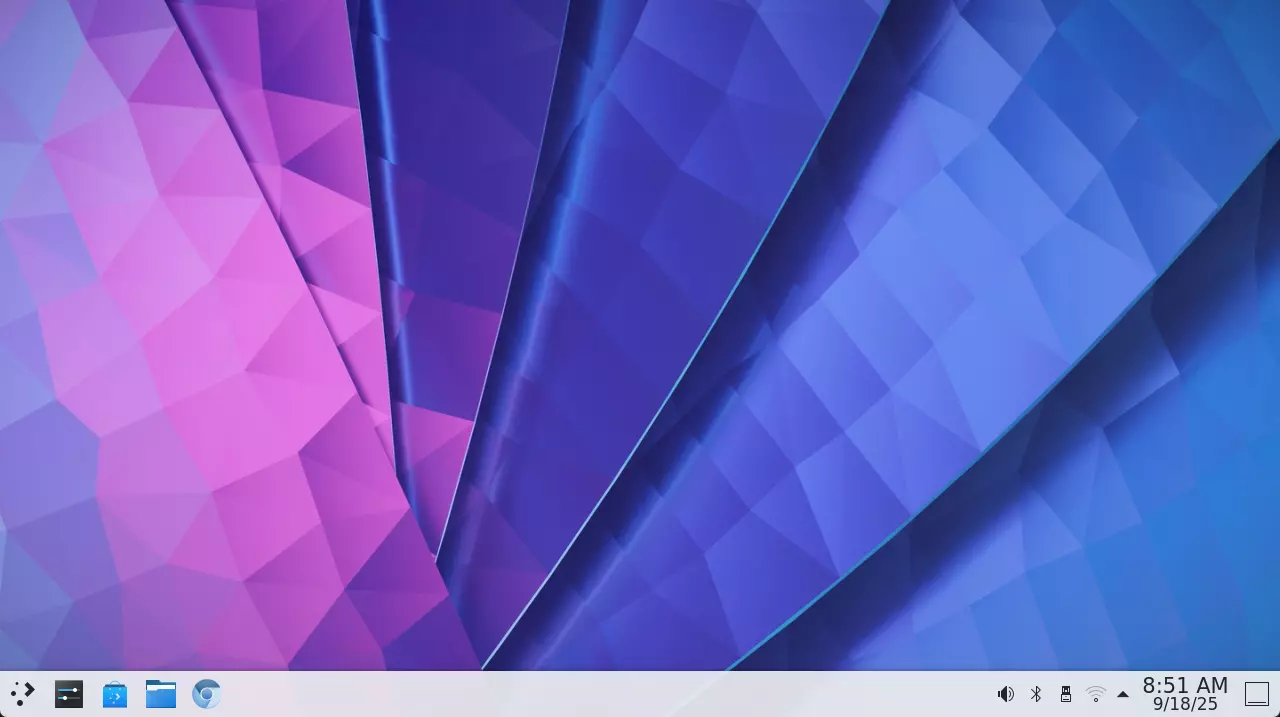
After successfully booting the system, you can start using the Radxa system on your Cubie A5E. For basic usage of the Radxa system, please refer to the System Usage tutorial.
For users who want to boot the system using other methods (such as eMMC or NVMe SSD), please refer to the following tutorials for installing the system to the corresponding boot media: