MIPI DSI Interface
The Radxa Cubie A5E features one onboard 4-lane MIPI DSI interface for connecting DSI displays.
Compatibility List
| Board | DSI Display |
|---|---|
You can refer to the Hardware Information tutorial to locate the corresponding hardware interface.
Hardware Connection
To connect a display using the MIPI DSI interface, follow these steps:
①. Connect to the board's MIPI DSI interface with the golden fingers (metal contacts) facing toward the board
②. Connect to the display interface with the golden fingers (metal contacts) facing toward the display
Software Enablement
Enter the rsetup command in the terminal to configure display options using the Rsetup tool.
rsetup
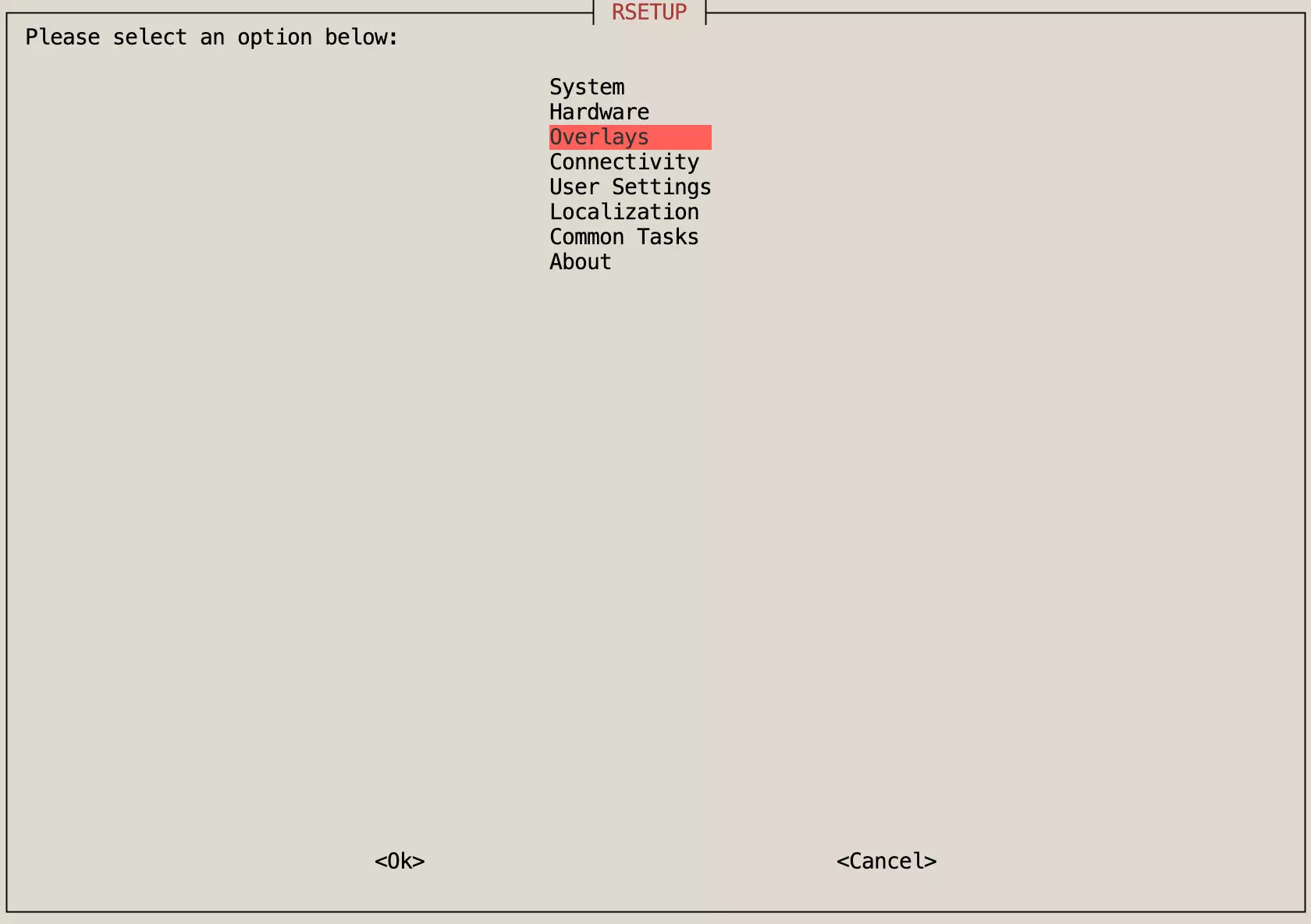
- Use the arrow keys to select the "Overlays" option, then press Enter to confirm.
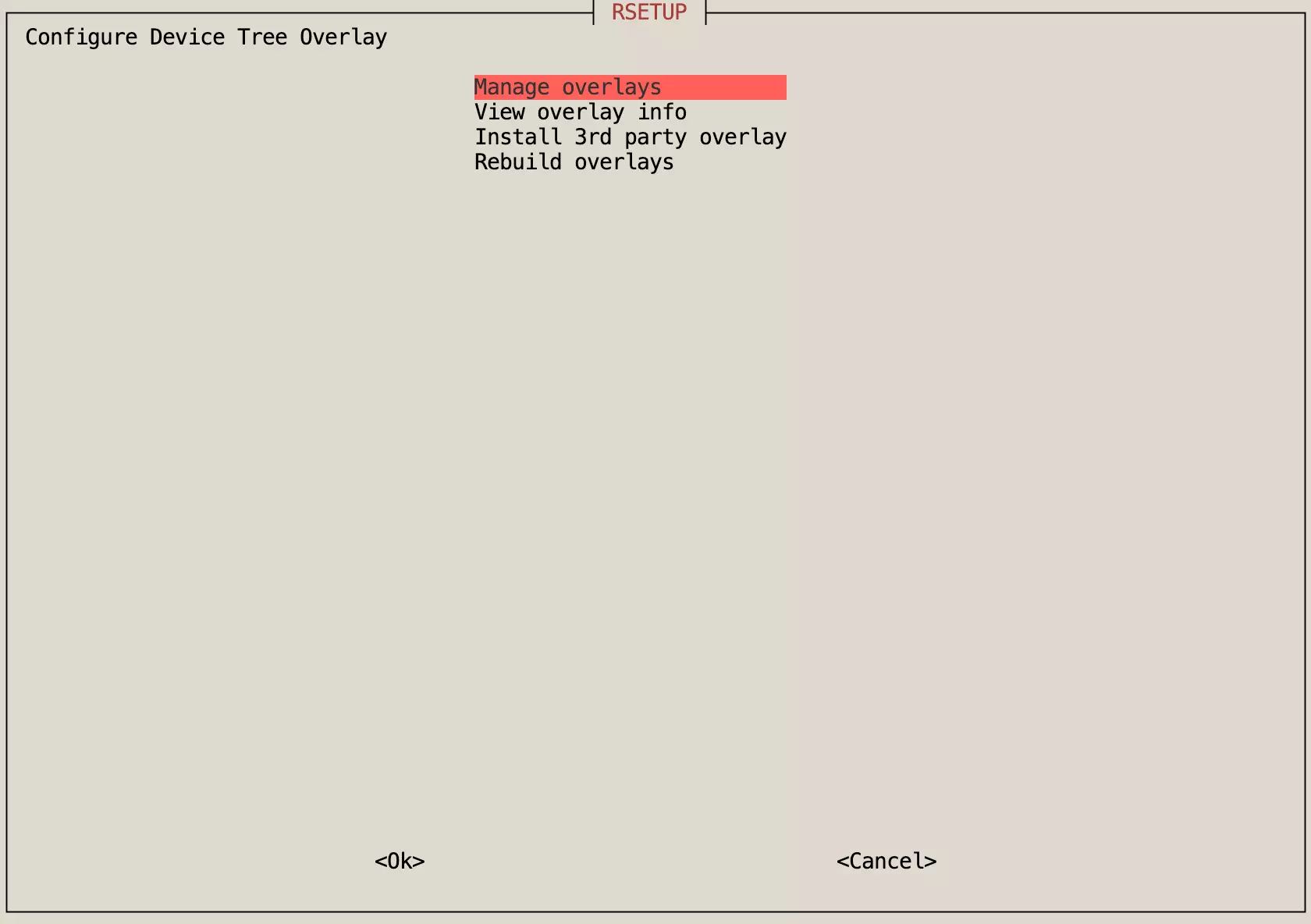
- Use the arrow keys to select the "Manage overlays" option, then press Enter to confirm.
-
Use the arrow keys to select the corresponding Display option, press Space to enable it (indicated by a
*), then press Enter to confirm. -
Reboot the system for the changes to take effect.
Interface Pin Definition
For the hardware schematic, please refer to the Resource Downloads page.