USB Type-A / C Interfaces
The Radxa Cubie A5E board comes with 1x USB 3.0 Type-A port and 1x USB 2.0 Type-C port.
-
USB 3.0 Type-A
- Data Transfer: Supports HOST mode
-
USB 2.0 Type-C
- Data Transfer: Supports OTG mode and FEL mode for firmware flashing
- Power Supply: Supports 5V power input
Since the USB 3.0 Type-A interface shares pins with the PCIe interface, the USB 3.0 functionality is disabled by default, and it operates in USB 2.0 mode.
To enable the USB 3.0 Type-A interface, you need to enter the rsetup configuration interface and enable the Enable USB 3.0 and disable PCIe option under Overlays -> Manage overlays.
Usage Guide
Refer to the Hardware Information tutorial to locate the corresponding hardware interfaces.
USB 2.0 Type-C
Board Power Supply
Use a 5V Type-C power adapter for power supply, with a recommended current of 3A or higher.
Firmware Flashing Mode
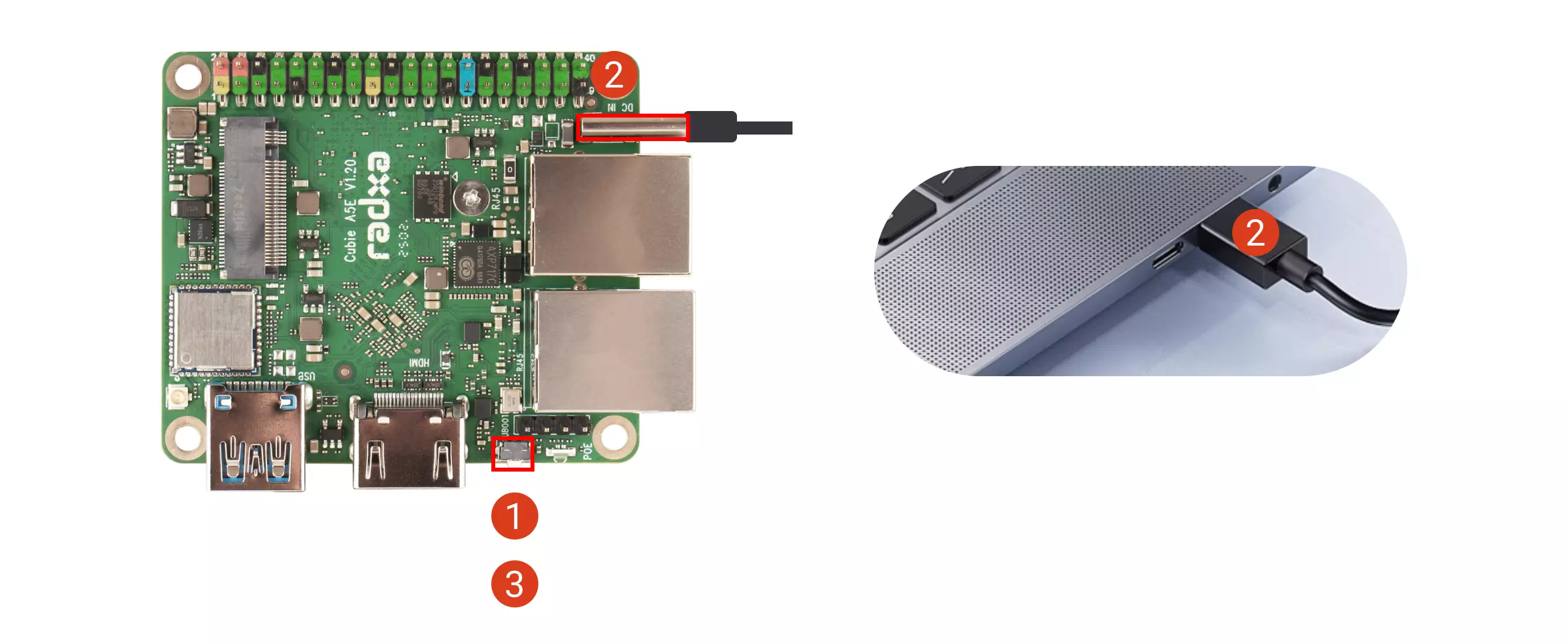
To enter FEL mode, connect the board to a PC using a USB Type-C cable for both power and data transfer.
The board will enter FEL mode only if the UBOOT button is detected as being pressed during the power-on process.
Detailed steps:
① Press and hold the UBOOT button on the board
② Connect the board's OTG port to your PC using a USB cable
③ Release the UBOOT button
USB 3.0 Type-A
Basic Functionality
Connect devices such as mice and keyboards to the USB 3.0 Type-A interface to test if the system can recognize and use them properly.
By comparing tests with and without peripherals connected, you can determine if the USB 3.0 Type-A interface can recognize devices normally. After recognition, verify if the devices function correctly.
- Without peripherals
Use the lsusb command to view the devices currently recognized by the system.
lsusb
Terminal output example:
Bus 002 Device 001: ID 1d6b:0003 Linux Foundation 3.0 root hub
Bus 001 Device 004: ID a69c:8d81 AICSemi AIC 8800D80
Bus 001 Device 002: ID 1a40:0101 Terminus Technology Inc. Hub
Bus 001 Device 001: ID 1d6b:0002 Linux Foundation 2.0 root hub
- With peripherals connected
Connect devices such as card readers, mice, or keyboards to the USB port, then use the lsusb command to check for any newly added devices.
lsusb
Terminal output example: I have a card reader connected to the USB port
Bus 002 Device 001: ID 1d6b:0003 Linux Foundation 3.0 root hub
Bus 001 Device 004: ID a69c:8d81 AICSemi AIC 8800D80
Bus 001 Device 002: ID 1a40:0101 Terminus Technology Inc. Hub
Bus 001 Device 001: ID 1d6b:0002 Linux Foundation 2.0 root hub
Bus 002 Device 003: ID 067b:2731 Prolific Technology, Inc. USB SD Card Reader
By comparing the output before and after connecting the device, you can confirm that the new USB device has been properly recognized, with the new device ID being 067b:2731.
Once the USB device is recognized, you can proceed to test if the device functions normally.
Read/Write Testing
Connect a card reader or USB flash drive to the USB 3.0 Type-A port and use the dd command to test read/write speeds.
Identify Storage Device
Use the lsblk command to identify the device name of your USB drive.
lsblk
Terminal output example: In this case, sda is the device name of my USB drive. Please replace it according to your actual device name.
NAME        MAJ:MIN RM  SIZE RO TYPE MOUNTPOINTS
sda           8:0    1   58G  0 disk
mtdblock0    31:0    0   16M  0 disk
mmcblk1     179:0    0   58G  0 disk
├─mmcblk1p1 179:1    0   16M  0 part /config
├─mmcblk1p2 179:2    0  300M  0 part /boot/efi
└─mmcblk1p3 179:3    0 57.6G  0 part /
zram0       253:0    0  1.9G  0 disk [SWAP]
Test Write Performance
sudo dd if=/dev/zero of=/dev/sda bs=1M count=100
dd: A command-line utility in Linux used for copying and converting files.if=/dev/zero: Specifies the input file as/dev/zero, a special file that provides an infinite stream of null bytes.of=/dev/sda: Specifies the output file as/dev/sda, which is the USB drive device.bs=1M: Sets the block size to 1MB.count=100: Specifies to copy 100 blocks.
This command will write 100MB of null bytes to the USB drive and display the write speed.
Terminal output example:
100+0 records in
100+0 records out
104857600 bytes (105 MB, 100 MiB) copied, 3.40424 s, 30.8 MB/s
Test Read Performance
sudo dd if=/dev/sda of=/dev/null bs=1M count=100
dd: A command-line utility in Linux used for copying and converting files.if=/dev/sda: Specifies the input file as/dev/sda, which is the USB drive device.of=/dev/null: Specifies the output file as/dev/null, a special file that discards all written data.bs=1M: Sets the block size to 1MB.count=100: Specifies to copy 100 blocks.
This command will read 100MB of data from the USB drive to /dev/null and display the read speed.
Terminal output example:
100+0 records in
100+0 records out
104857600 bytes (105 MB, 100 MiB) copied, 4.0582 s, 25.8 MB/s