VNC Login
Prerequisites
For VNC remote access, both devices must be on the same local network, and the target device must have the VNC service enabled.
VNC remote control is suitable for systems with a graphical interface. If the system does not have a graphical desktop, SSH remote control is recommended.
Using VNC (Remote Device)
Download VNC Viewer
We need to install VNC Viewer software on the remote device to control the board.
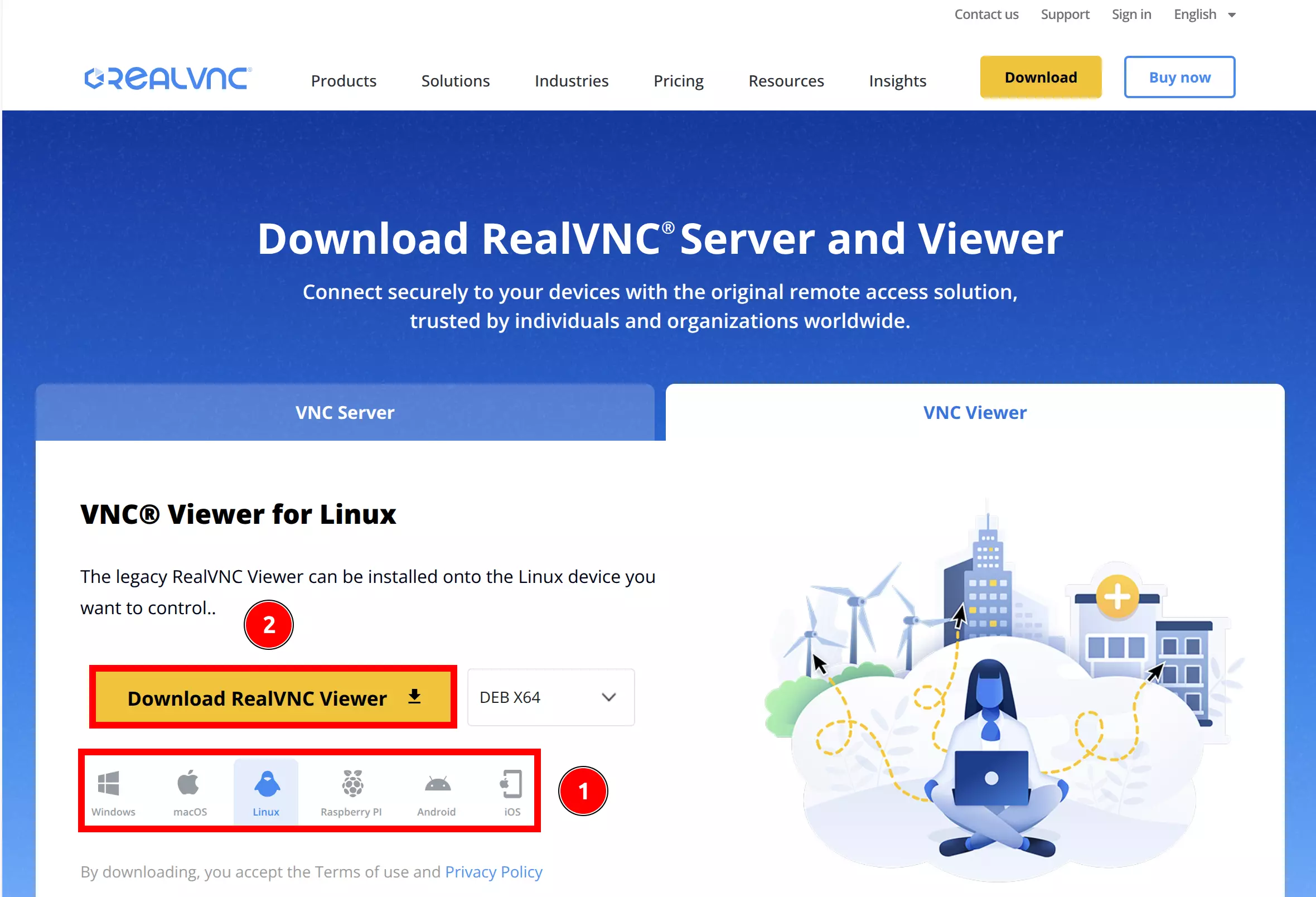
Visit the RealVNC official website to download the VNC Viewer installer.
① : Select the operating system of the remote device
② : Download the VNC Viewer installer
Install VNC Viewer
- Windows
- Linux
After downloading the Windows version *.exe installer:
- Run the installer
Run the VNC-Viewer-<version>.exe installer as administrator.

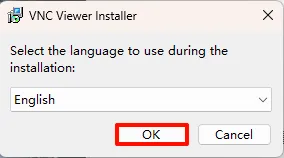
- Software language
Select English language, then click OK to proceed.
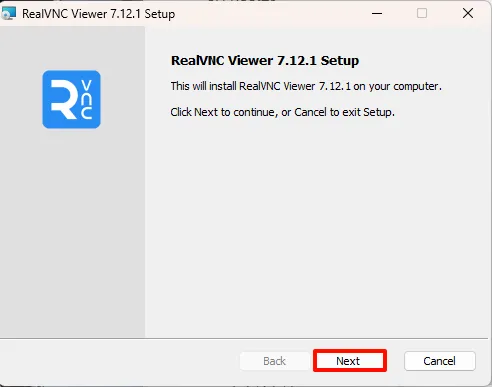
- Begin installation
Click Next to start the installation wizard.
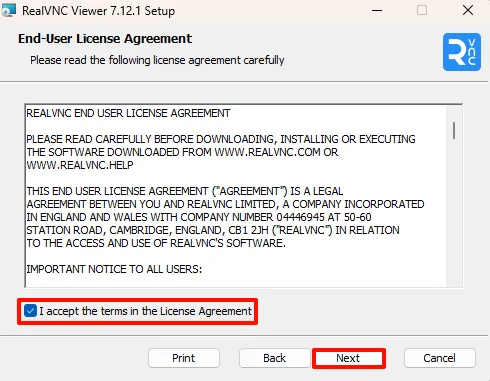
- Accept license agreement
Check the I accept the terms in the License Agreement option, then click Next to continue.
- Installation path
It is recommended to use the default installation path. Click Next to continue.
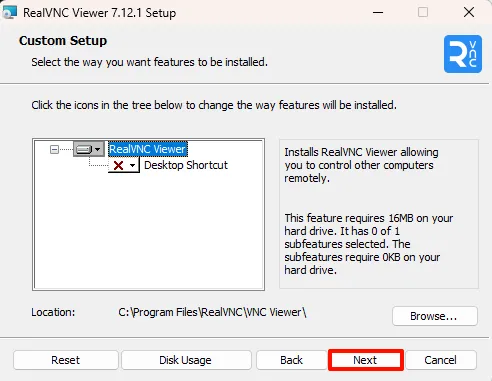
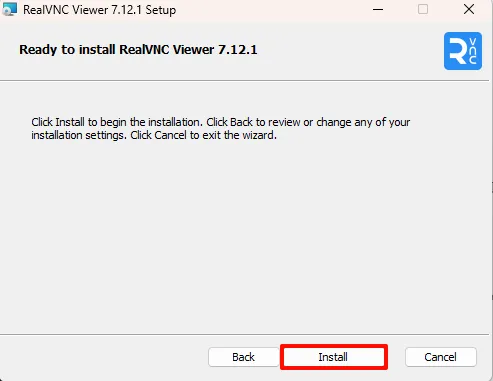
- Start installation
Click Install to begin the installation.
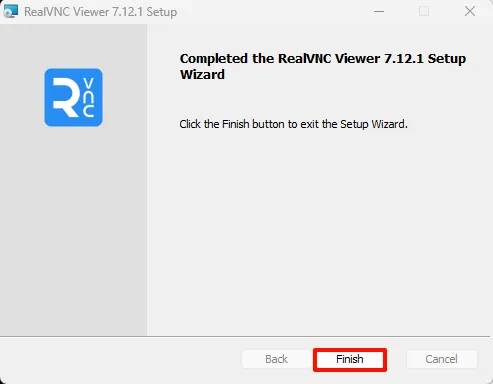
- Complete installation
Click Finish to complete the installation.
After downloading the Linux version *.deb package, run the following command in the terminal to install VNC Viewer:
sudo dpkg -i VNC-Viewer-<version>.deb
Run VNC Viewer
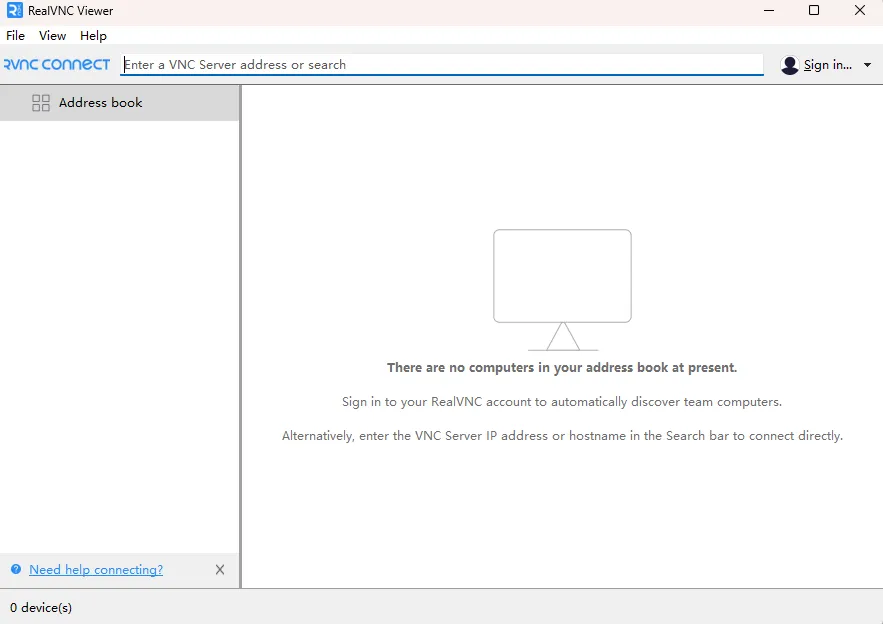
After installation, open the VNC Viewer software. You can choose to use VNC Viewer without logging into an account.
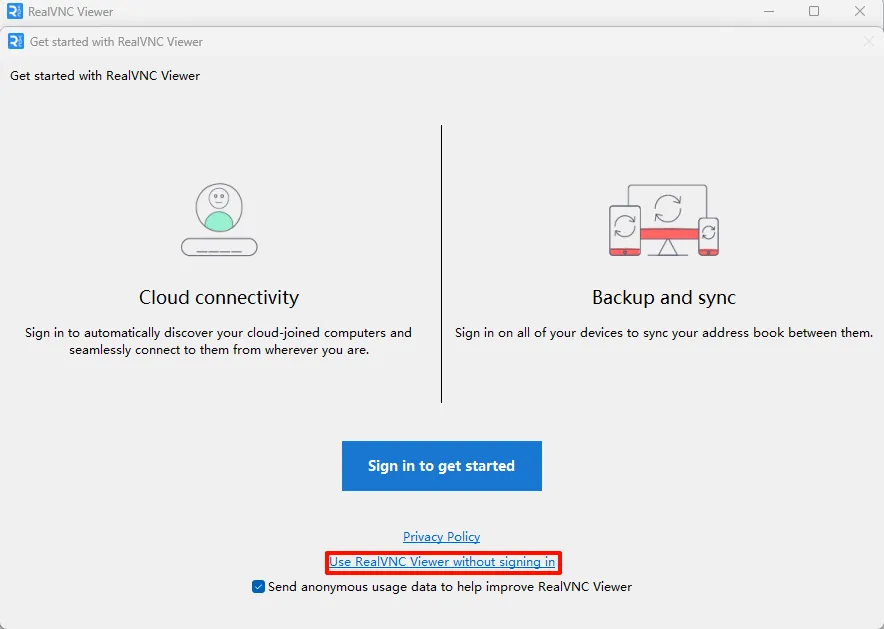
VNC Viewer Interface
Using VNC (Board)
Install VNC Server
Run the following command on the board's terminal to install the VNC server:
sudo apt update
sudo apt install tigervnc-standalone-server tigervnc-common -y
Set VNC Remote Password
Run the following command on the board's terminal to set the VNC remote password:
vncpasswd
The password and confirmation will not be displayed on the screen. When prompted to create a view-only password, select n (no).
After setting the password, the system will display a message similar to:
Password:
Verify:
Would you like to enter a view-only password (y/n)? n
A view-only password is not used
Configure VNC Startup File
Edit the ~/.vnc/xstartup file on the board:
sudo vi ~/.vnc/xstartup
Modify the ~/.vnc/xstartup file with the following content:
#!/bin/sh
unset SESSION_MANAGER
unset DBUS_SESSION_BUS_ADDRESS
export XDG_SESSION_TYPE=x11
export DESKTOP_SESSION=plasma
exec startplasma-x11
After editing the ~/.vnc/xstartup file, you need to make it executable:
sudo chmod +x ~/.vnc/xstartup
Start VNC Server
Run the following command on the board's terminal to start the VNC server. Use the -localhost no parameter to allow remote access.
vncserver -localhost no
After successful startup, the terminal will display a message similar to the following, indicating the VNC server's port number:
New Xtigervnc server ***:1 (radxa)' on port 5901 for display :1.
Use xtigervncviewer -SecurityTypes VncAuth -passwd /tmp/tigervnc.VQ4DfI/passwd :1 to connect to the VNC server.
Check VNC Server Status
Run the following command on the board's terminal to check the VNC server status:
vncserver -list
The terminal will display output similar to:
TigerVNC server sessions:

X DISPLAY # RFB PORT # RFB UNIX PATH PROCESS ID # SERVER
1 5901 3283 Xtigervnc
Stop VNC Server
Run the following command on the board's terminal to stop the VNC server. The :1 in the command represents the VNC server's display number.
vncserver -kill :1
After stopping the VNC server, the VNC Viewer software will automatically disconnect.
VNC Remote Login
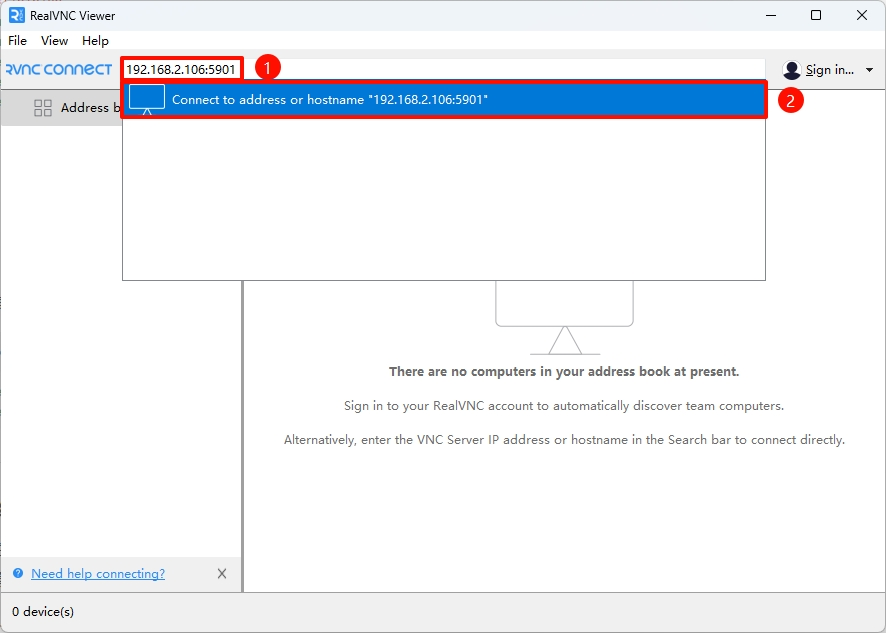
On another device, open the VNC Viewer software and connect to the board using its IP address and port number.
① : Enter the board's IP address and port number
② : Click Connect to address ··· to connect to the board
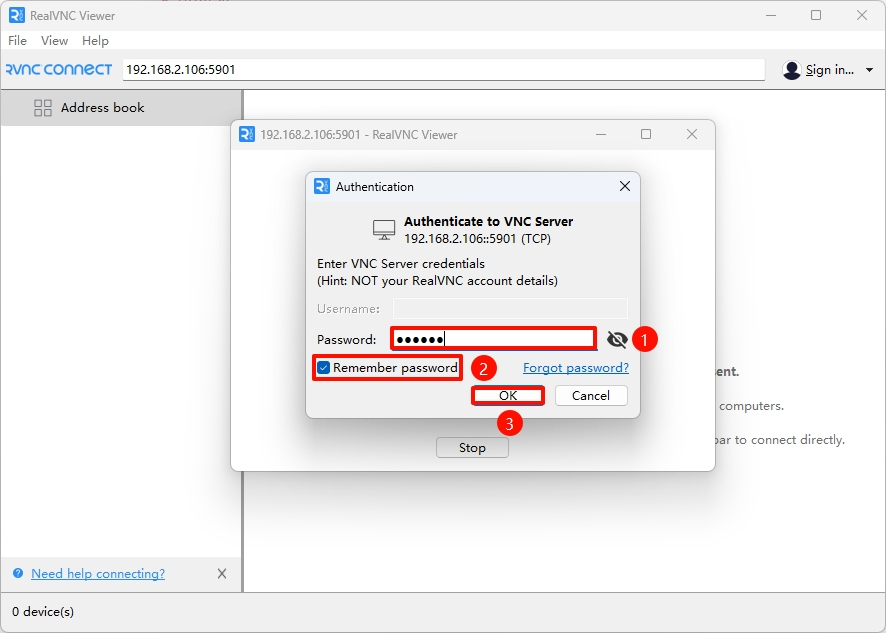
① : Enter the VNC remote password you set
② : Check the Remember password option to save the password for future logins
③ : Click OK to connect
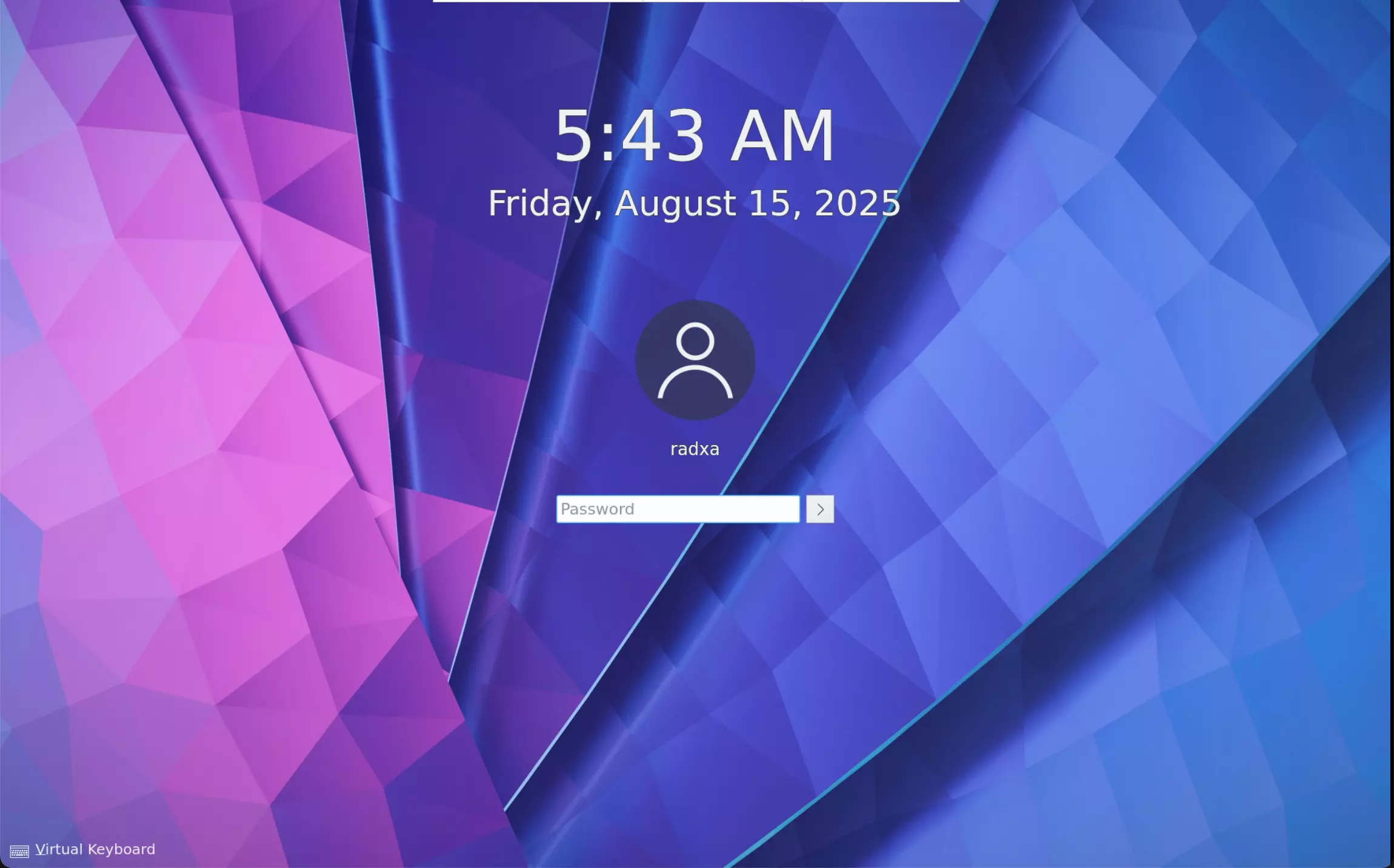
If you encounter a black screen when logging in via VNC, check if the system's auto-login option is enabled. If it is, you need to disable the auto-login option.