Wired Network
This guide explains how to connect to a wired network and test network bandwidth.
Wired Network
Connect the board's Gigabit Ethernet port to a router using an Ethernet cable. Once connected, the router will automatically assign an IP address to the board.
- Graphical Interface
- Command Line
Connect the board's Ethernet port to a router using an Ethernet cable. Once connected, the router will automatically assign an IP address to the board.
-
Click the network icon
-
Select the
Detailsoption to view network connection details such as IP address, subnet mask, gateway address, etc.
For example, 192.168.4.129 is the IP address assigned by the router.
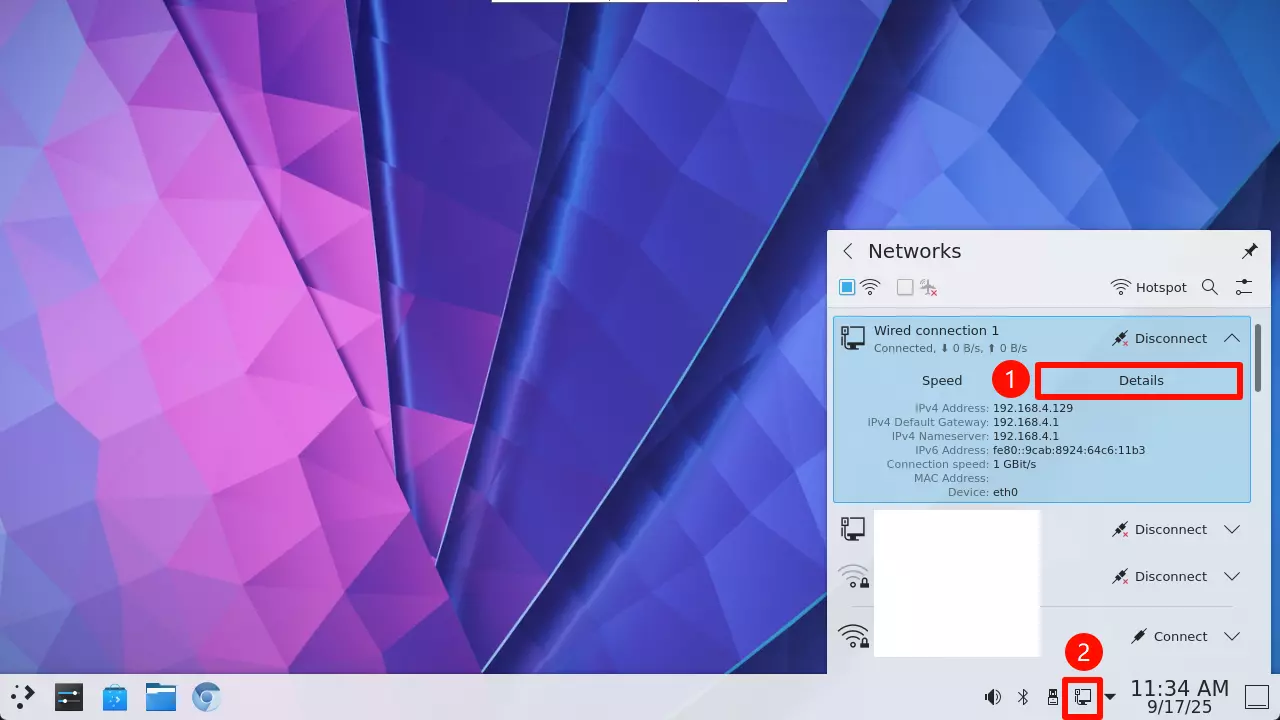
Enter the following command in the terminal to view detailed network connection information:
ip a
The terminal will display output similar to the following, where 192.168.2.186 is the IP address assigned by the router.
1: lo: <LOOPBACK,UP,LOWER_UP> mtu 65536 qdisc noqueue state UNKNOWN group default qlen 1000
    link/loopback 00:00:00:00:00:00 brd 00:00:00:00:00:00
    inet 127.0.0.1/8 scope host lo
       valid_lft forever preferred_lft forever
    inet6 ::1/128 scope host
       valid_lft forever preferred_lft forever
2: sit0@NONE: <NOARP> mtu 1480 qdisc noop state DOWN group default qlen 1000
    link/sit 0.0.0.0 brd 0.0.0.0
3: eth0: <BROADCAST,MULTICAST,UP,LOWER_UP> mtu 1500 qdisc mq state UP group default qlen 1000
    link/ether 00:e8:ec:f4:6f:8b brd ff:ff:ff:ff:ff:ff
    inet 192.168.2.186/24 brd 192.168.2.255 scope global dynamic noprefixroute eth0
       valid_lft 3212sec preferred_lft 3212sec
    inet6 240e:3b7:3240:6e00::b09/128 scope global dynamic noprefixroute
       valid_lft 3210sec preferred_lft 3210sec
    inet6 fdaa::b09/128 scope global dynamic noprefixroute
       valid_lft 3210sec preferred_lft 3210sec
    inet6 fdaa::7ebe:84a2:306f:4271/64 scope global noprefixroute
       valid_lft forever preferred_lft forever
    inet6 240e:3b7:3240:6e00:9f8b:e83d:3c56:18e5/64 scope global dynamic noprefixroute
       valid_lft 219073sec preferred_lft 132673sec
    inet6 fe80::f69d:bf6f:3d68:cef1/64 scope link noprefixroute
       valid_lft forever preferred_lft forever
4: wlan0: <NO-CARRIER,BROADCAST,MULTICAST,UP> mtu 1500 qdisc mq state DOWN group default qlen 1000
    link/ether 76:13:0d:bc:43:06 brd ff:ff:ff:ff:ff:ff permaddr 2c:c6:82:85:8d:fe
Testing Network Bandwidth Performance
Use the iperf tool to test network bandwidth (throughput) performance. It is recommended to run multiple tests and take the average.
Prerequisites
- Hardware Requirements
You will need two devices: one to act as the server and the other as the client.
Server: Can be a PC, server, or similar device.
Client: The device to be tested, such as a Cubie A7A.
- Same Local Network
The server and client must be on the same local network and able to ping each other.
Installing iperf
Both the server and client need to have iperf installed.
sudo apt update
sudo apt install iperf
Testing Steps
Server (PC)
Open a terminal and enter the following command to start the server:
iperf -s
After successful startup, the terminal will display output similar to the following:
-----------------------------------------------------------
Server listening on 5201 (test #1)
-----------------------------------------------------------
Client (Board)
- Upload Test
Open a terminal and enter the following command to test the client's upload bandwidth. Replace <server_ip> with the actual server IP address (you can check it using the ip a command).
iperf -c <server_ip> -t <time>
# Example
iperf -c 192.168.2.104 -t 60
Parameter explanation:
<server_ip>: Server IP address.<time>: Test duration in seconds.
- Download Test
Open a terminal and enter the following command to test the client's download bandwidth. Replace <server_ip> with the actual server IP address (you can check it using the ip a command).
iperf -c <server_ip> -t <time> -R
# Example
iperf -c 192.168.2.104 -t 60 -R
Parameter explanation:
<server_ip>: Server IP address.<time>: Test duration in seconds.-R: Reverse test, where the client acts as the server and the server acts as the client.