40 Pin GPIO Interface
Radxa Cubie A7A features an onboard 40-Pin GPIO (General Purpose Input/Output) interface, providing highly flexible support for hardware expansion.
Users can connect various sensors, actuators, communication modules, displays, and other embedded peripherals to the 40-Pin GPIO interface, enabling rapid prototyping and functional verification for IoT, robotics control, industrial automation, and other fields.
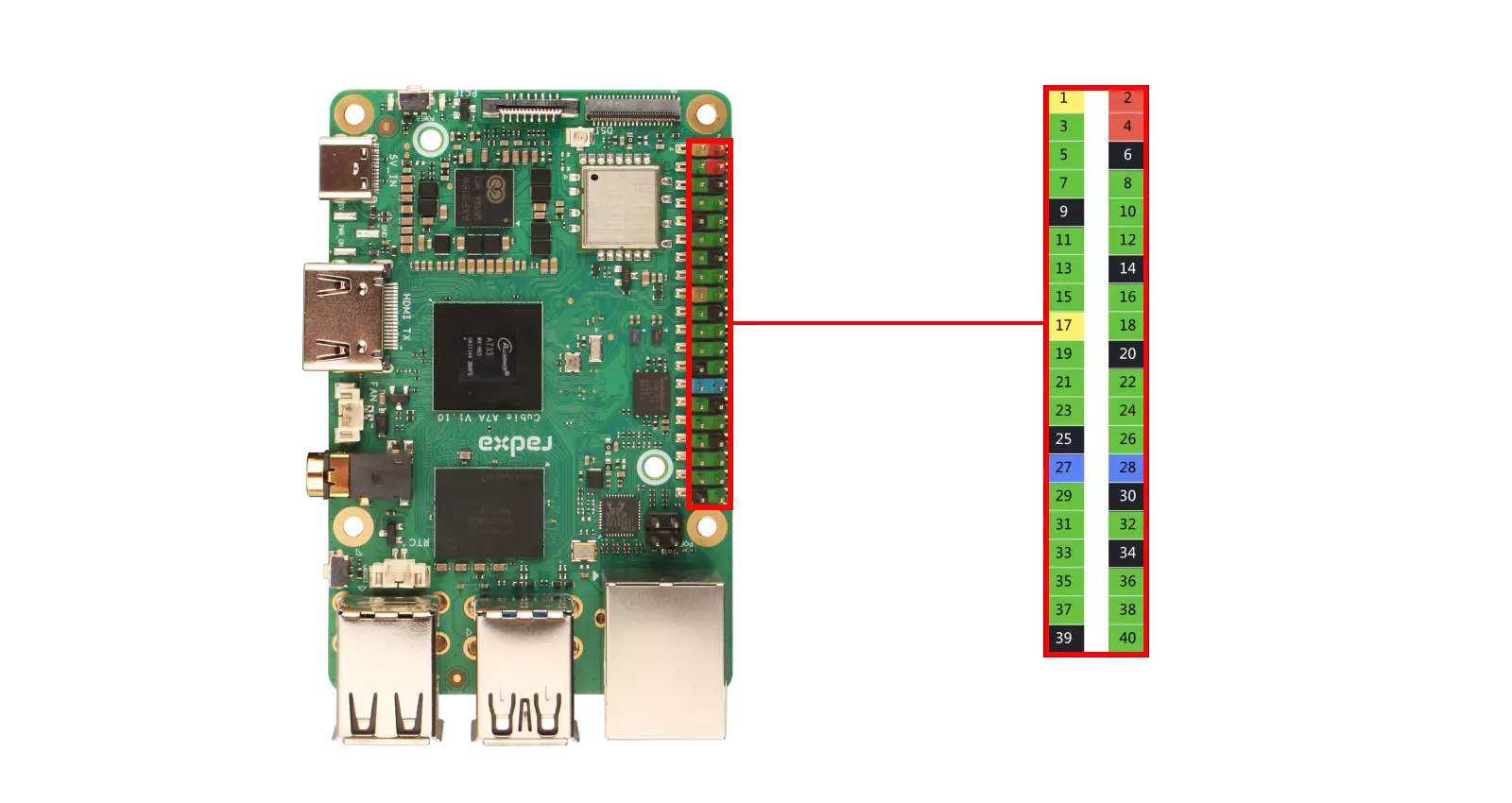
When using the 40-Pin GPIO interface, please pay attention to the wiring of the pins and peripherals. Make sure the pin connections are correct, as improper operation may cause hardware damage to the device.
GPIO Functions
Cubie A7A supports connecting external devices to the onboard GPIO pins, supporting UART, SPI, I2C, ADC, and more.
| FUNC9 | FUNC8 | FUNC7 | FUNC6 | FUNC5 | FUNC4 | FUNC3 | FUNC2 | FUNC1 | Pin# | Pin# | FUNC1 | FUNC2 | FUNC3 | FUNC4 | FUNC5 | FUNC6 | FUNC7 | FUNC8 | FUNC9 |
|---|---|---|---|---|---|---|---|---|---|---|---|---|---|---|---|---|---|---|---|
| +3.3V | 1 | 2 | +5.0V | ||||||||||||||||
| PJ-EINT23 | TWI11-SDA | TWI3-SDA | TWI7-SDA | UART2-CTS | UART3-RX | PWM1-5 | PJ23 | 3 | 4 | +5.0V | |||||||||
| PJ-EINT22 | TWI11-SCK | TWI3-SCK | TWI7-SCK | UART2-RTS | UART3-TX | PWM1-4 | PJ22 | 5 | 6 | GND | |||||||||
| PB-EINT0 | JTAG-MS | SPI2-CS0 | UART0-TX | UART2-TX | PB0 | 7 | 8 | PB9 | UART0-TX | I2S0-DIN2 | I2S0-DOUBT2 | PWM1-1 | WATCHDOG-SIG | TWI8-SCK | TWI0-SCK | PB-EINT9 | |||
| GND | 9 | 10 | PB10 | UART0-RX | I2S0-DIN3 | I2S0-DOUBT3 | PWM1-2 | PLL-LOCK-DBG | TWI8-SDA | TWI0-SDA | PB-EINT10 | ||||||||
| PB-EINT1 | JTAG-CK | SPI2-CLK | UART0-RX | UART2-RX | PB1 | 11 | 12 | PK0 | MCSIA-D0N | UART6-DCD | I2S4-BCLK | HDMI-CEC | TWI1-SDA | NCSI1-HSYNC | SGPIO-SLOAD | PK-EINT0 | |||
| PL-EINT6 | S-PWM0-4 | S-IR-RX | S-SPI0-MOSI | S-UART0-TX | S-JTAG-DO | PL6 | 13 | 14 | GND | ||||||||||
| PL-EINT7 | S-PWM0-5 | S-SPI0-MISO | S-UART0-RX | S-JTAG-DI | PL7 | 15 | 16 | PJ24 | PWM1-6 | UART4-TX | TWI4-SCK | SPI3-CLK | PJ-EINT24 | ||||||
| +3.3V | 17 | 18 | PJ25 | PWM1-7 | UART4-RX | TWI4-SDA | SPI3-MOSI | PJ-EINT25 | |||||||||||
| PD-EINT12 | PWM1-2 | SPI1-MOSI | EINK-D12 | DSI1-D1P | LVDS1-D1P | PD12 | 19 | 20 | GND | ||||||||||
| PD-EINT13 | PWM1-3 | SPI1-MISO | EINK-D13 | DSI1-D1N | LVDS1-D1N | PD13 | 21 | 22 | PL10 | S-UART0-TX | S-TWI2-SCK | S-UART1-TX | S-PWM0-8 | PL-EINT10 | |||||
| PD-EINT11 | PWM1-1 | SPI1-CLK | EINK-D11 | DSI1-D0N | LVDS1-D0N | PD11 | 23 | 24 | PD10 | LVDS1-D0P | DSI1-D0P | EINK-D10 | SPI1-CS0 | PWM1-0 | PD-EINT10 | ||||
| GND | 25 | 26 | PD14 | LVDS1-D2P | DSI1-CKP | EINK-D14 | SPI1-HOLD | UART3-RTS | PD-EINT14 | ||||||||||
| PD-EINT1 | UART3-RX | TWI2-SDA | EINK-LEH | DSI1-D2N | LVDS1-CKN | PD17 | 27 | 28 | PD16 | LVDS1-CKP | DSI1-D2P | EINK-OEH | TWI2-SCK | UART3-TX | PD-EINT16 | ||||
| PK-EINT5 | JTAG-MAS-CK | NCSI1-D14 | SPI3-CLK | PWM1-9 | PWM1-8 | PCIE-CLKREQN | MCSIA-CKP | PK5 | 29 | 30 | GND | ||||||||
| PK-EINT6 | JTAG-MAS-DO | NCSI1-D13 | SPI3-MOSI | UART2-RTS | UART4-TX | TWI2-SCK | MCSIA-D2N | PK6 | 31 | 32 | PD20 | TWI0-SCK | EINK-CKV | PCIE-CLKREQN | UART4-TX | TWI3-SCK | PWM0-2 | ||
| PK-EINT7 | JTAG-MAS-DI | NCSI1-D12 | SPI3-MISO | UART2-CTS | UART4-RX | TWI2-SDA | MCSIA-D2P | PK7 | 33 | 34 | GND | ||||||||
| PK-EINT2 | SGPIO-SDATAIN | NCSI1-PCLK | TWI5-SDA | HDMI-SDA | I2S4-LRCK | UART6-DTR | MCSIA-D1N | PK2 | 35 | 36 | PK1 | MCSIA-D0P | UART6-DSR | I2S4-MCLK | HDMI-SCL | TWI1-SCK | NCSI1-VSYNC | SGPIO-SCLK | PK-EINT1 |
| PK-EINT8 | JTAG-MAS-NTRST | NCSI1-D11 | SPI3-CS1 | UART2-TX | UART4-RTS | MCSI0-MCLK | MCSIA-D3N | PK8 | 37 | 38 | PK3 | MCSIA-D1P | UART6-RI | I2S4-DIN0 | I2S4-DOUBT1 | TWI5-SCK | NCSI1-MCLK | SGPIO-SDATAOUT | PK-EINT3 |
| GND | 39 | 40 | PK4 | MCSIA-CKN | PCIE-WAKEN | I2S4-DOUBT0 | I2S4-DIN1 | SPI3-CS0 | NCSI1-D15 | JTAG-MAS-MS | PK-EINT4 |
GPIO Pin Numbering
To control a specific pin, you need to calculate the pin number using the following formula:
| GPIO Chip | Pin Range | Calculation Formula |
|---|---|---|
| GPIOCHIP0 | A ~ K | NUM + 32 * (A ~ K) |
| GPIOCHIP1 | L ~ | NUM + 32 * (L ~ ) |
Calculation Example:
- PB10
GPIOCHIP0 -> 10 + 32 * (A ~ K) -> 10 + 32 * 1 -> 42
- PK4
GPIOCHIP1 -> 4 + 32 * (A ~ K) -> 4 + 32 * 10 -> 324
GPIO Usage
Through the 40-Pin GPIO interface, demonstrate common GPIO usage.
Install python-periphery
Use the python-periphery library to control GPIO pins.
sudo pip3 install python-periphery
GPIO Input
Hardware Preparation
- Board
- Dupont wire
Software Preparation
The following code is used to read the high and low level of the PK4 pin using the python-periphery library.
gpio_input.py
from periphery import GPIO
import time

def read_gpio_input():
    # Configure GPIO input (modify pin number according to actual hardware)
    # Using pin 324 of /dev/gpiochip0 here (corresponds to PK4)
    try:
        # Initialize GPIO in input mode
        gpio_in = GPIO("/dev/gpiochip0", 324, "in")

        print("Starting GPIO input reading (press Ctrl+C to exit)")
        while True:
            # Read pin value
            value = gpio_in.read()
            print(f"GPIO input value: {value} (True=High, False=Low)")
            time.sleep(1)  # Read once per second

    except KeyboardInterrupt:
        print("\nProgram exited")
    except Exception as e:
        print(f"Error occurred: {e}")
    finally:
        # Ensure resources are released
        try:
            gpio_in.close()
        except:
            pass

if __name__ == "__main__":
    read_gpio_input()
Test Steps
-
Connect the PK4 pin to the GND or 3.3V pin
-
Save the code as
gpio_input.py -
Run the test code using
python3 gpio_input.py
Experimental Phenomenon
The terminal will output False or True information.
False represents a low level, True represents a high level.
GPIO Output
Hardware Preparation
- Board
- Dupont wire
Software Preparation
Test Code
The following code is used to control the PK3 pin to output high and low levels, and then read the high and low levels of the PK3 pin through the PK4 pin.
gpio_output.py
from periphery import GPIO
import time

def gpio_output_with_feedback():
    # GPIO Configuration (modify pin numbers based on your hardware)
    # PK3 (output) → maps to pin 323 of /dev/gpiochip0
    # PK4 (input)  → maps to pin 324 of /dev/gpiochip0
    OUTPUT_PIN_CHIP = "/dev/gpiochip0"
    OUTPUT_PIN_NUMBER = 323  # PK3 (output pin, controlled by the script)
    INPUT_PIN_NUMBER = 324   # PK4 (input pin, reads PK3's output state)

    # Initialize GPIO objects as None first (for safe release later)
    gpio_out = None
    gpio_in = None

    try:
        # Initialize PK3 as OUTPUT mode
        gpio_out = GPIO(OUTPUT_PIN_CHIP, OUTPUT_PIN_NUMBER, "out")
        # Initialize PK4 as INPUT mode
        gpio_in = GPIO(OUTPUT_PIN_CHIP, INPUT_PIN_NUMBER, "in")

        # Print test initialization info
        print("=== GPIO Output-Input Feedback Test Started ===")
        print(f"Controlled Pin (PK3): {OUTPUT_PIN_CHIP} - Pin {OUTPUT_PIN_NUMBER} (OUTPUT)")
        print(f"Monitoring Pin (PK4): {OUTPUT_PIN_CHIP} - Pin {INPUT_PIN_NUMBER} (INPUT)")
        print("Test Behavior: PK3 toggles HIGH/LOW every 1s; PK4 verifies PK3's state")
        print("Press Ctrl+C to stop the test\n")

        # Main loop: Toggle PK3 and read PK4 feedback
        while True:
            # 1. Set PK3 to HIGH level
            gpio_out.write(True)
            time.sleep(0.1)  # Short delay for signal stabilization (avoid read lag)
            pk4_reading = gpio_in.read()
            print(f"PK3 Output: HIGH (True) | PK4 Reading: {pk4_reading}")

            # Keep PK3 HIGH for 1 second
            time.sleep(1)

            # 2. Set PK3 to LOW level
            gpio_out.write(False)
            time.sleep(0.1)  # Short delay for signal stabilization
            pk4_reading = gpio_in.read()
            print(f"PK3 Output: LOW (False) | PK4 Reading: {pk4_reading}")

            # Keep PK3 LOW for 1 second
            time.sleep(1)

    # Handle user-initiated exit (Ctrl+C)
    except KeyboardInterrupt:
        print("\n\nTest stopped by user (Ctrl+C)")
    # Handle other unexpected errors (e.g., GPIO access failure)
    except Exception as e:
        print(f"\nError during test: {str(e)}")
    # Ensure GPIO resources are released even if an error occurs
    finally:
        print("\nReleasing GPIO resources...")
        # Safely close PK3 (set to LOW first to avoid residual high level)
        if gpio_out:
            try:
                gpio_out.write(False)
                gpio_out.close()
                print(f"Successfully closed PK3 (Pin {OUTPUT_PIN_NUMBER})")
            except Exception as close_err:
                print(f"Failed to close PK3 (Pin {OUTPUT_PIN_NUMBER}): {str(close_err)}")
        # Safely close PK4
        if gpio_in:
            try:
                gpio_in.close()
                print(f"Successfully closed PK4 (Pin {INPUT_PIN_NUMBER})")
            except Exception as close_err:
                print(f"Failed to close PK4 (Pin {INPUT_PIN_NUMBER}): {str(close_err)}")
        print("Resource release complete.")

# Run the test when the script is executed directly
if __name__ == "__main__":
    gpio_output_with_feedback()
Test Steps
-
Short the PK3 pin and PK4 pin
-
Save the code as
gpio_output.py -
Run the test code using
sudo python3 gpio_output.py
Experimental Phenomenon
The terminal will output False or True information.
False represents a low level, True represents a high level.
PWM Output
Hardware Preparation
- Board
- LED
- Dupont wire
Software Preparation
Test Code
The following code is used to test PWM output using the python-periphery library.
pwm_output.py
from periphery import PWM
import time

def pwm_test():
    try:
        # Configure PWM parameters - modify according to your hardware
        # Common PWM paths: /sys/class/pwm/pwmchip0/pwm0, etc.
        PWM_CHIP = 10       # PWM chip number
        PWM_CHANNEL = 2     # PWM channel number

        # Initialize PWM
        pwm = PWM(PWM_CHIP, PWM_CHANNEL)

        print(f"PWM Test: Using PWM{PWM_CHIP}.{PWM_CHANNEL} (Pin: PD12)")

        # Set PWM frequency to 1kHz
        frequency = 1000  # 1000 Hz
        pwm.frequency = frequency
        print(f"  Set frequency: {frequency} Hz")

        # Enable PWM output
        pwm.enable()
        print("  PWM enabled")

        # Test different duty cycles (0% to 100%)
        duty_cycles = [0.0, 0.25, 0.5, 0.75, 1.0]

        for duty in duty_cycles:
            pwm.duty_cycle = duty
            print(f"  Set duty cycle: {duty*100:.1f}%")
            time.sleep(1)  # Maintain current duty cycle for 1 second

        # Cleanup
        pwm.disable()
        pwm.close()
        print("  PWM disabled and closed")
        print("PWM Test completed successfully")

    except Exception as e:
        print(f"PWM Test failed: {e}")

if __name__ == "__main__":
    print("Starting PWM Signal Test...\n")
    pwm_test()
Test Steps
-
Enter
rsetup->Overlay->Manage overlaysand check theEnable PWM1-2option, then restart the system -
Connect the positive terminal of the LED to the PD12 pin
-
Connect the negative terminal of the LED to the GND pin
-
Save the code as
pwm_output.py -
Run the test code using
sudo python3 pwm_output.py
Experimental Phenomenon
The connected LED will flash with different brightness, from bright to dark.
UART Usage
UART(Universal Asynchronous Receiver/Transmitter) is a widely used serial communication protocol, used for asynchronous serial data transmission between embedded systems, computers, and peripherals.
Hardware Preparation
- Board
- Dupont wire
Software Preparation
Test Code
The following code is used to test UART4 loopback communication using the python-periphery library.
uart_example.py
from periphery import Serial
import time

def uart_test():
    try:
        # Modify the serial device path according to your hardware, common paths include /dev/ttyS0, /dev/ttyS1, /dev/ttyUSB0, etc.
        # PJ24(TX)  PJ25(RX)
        UART_DEVICE = "/dev/ttyAS4"
        BAUDRATE = 115200

        # Initialize serial port
        serial = Serial(UART_DEVICE, BAUDRATE)

        print(f"UART Test: Opening serial port {UART_DEVICE}, baud rate {BAUDRATE}")

        # Send test data
        test_message = "Hello, UART Test!\n"
        serial.write(test_message.encode())
        print(f"  Sent data: {test_message.strip()}")

        # Wait for data transmission
        time.sleep(0.1)

        # Try to read data (if loopback or other device responds)
        if serial.input_waiting() > 0:
            received_data = serial.read(serial.input_waiting())
            print(f"  Received data: {received_data.decode().strip()}")
        else:
            print("  No data received (normal unless loopback is connected)")

        serial.close()
        print("UART test completed")

    except Exception as e:
        print(f"UART test failed: {e}")

if __name__ == "__main__":
    uart_test()
Test Steps
-
Enter
rsetup->Overlay->Manage overlaysand check theEnable UART4option, then restart the system -
Short the PJ24 pin and PJ25 pin
-
Save the code as
uart_example.py -
Run the test code using
sudo python3 uart_example.py
Experimental Phenomenon
The terminal will output the sent and received information, and you can judge whether the UART loopback test is successful based on the terminal output information.
I2C Usage
I2C is a widely used synchronous serial communication protocol developed by Philips (now NXP), mainly used for short-distance chip-to-chip communication.
Hardware Preparation
- Board
- I2C device (e.g., OLED display, its corresponding I2C address is 0x3C)
- Dupont wire
Software Preparation
Test Code
The following code is used to test I2C communication using the python-periphery library.
i2c_example.py
from periphery import I2C

def i2c_device_detection():
    """I2C Test - Check if device exists
    Pin reference: PJ23 (SDA), PJ22 (SCL)
    """
    # Modify according to your hardware connection
    # Common I2C bus devices: /dev/i2c-0, etc.
    I2C_BUS = "/dev/i2c-7"
    TARGET_ADDR = 0x3C  # Target address to check

    i2c = None  # Initialize I2C object reference
    try:
        # Initialize I2C object
        i2c = I2C(I2C_BUS)

        # Attempt a simple read/write operation to detect device
        # Sending a single 0x00 byte as test communication
        msgs = [I2C.Message([0x00])]
        i2c.transfer(TARGET_ADDR, msgs)

        print(f"I2C Test: Device found at address 0x{TARGET_ADDR:02X}")
        return True

    except Exception as e:
        # Exception (e.g., IOError) usually indicates no device or no response
        print(f"I2C Test: No device or no response at address 0x{TARGET_ADDR:02X}: {e}")
        return False
    finally:
        # Ensure I2C resources are released
        if i2c is not None:
            try:
                i2c.close()
            except:
                pass

if __name__ == "__main__":
    print("Starting I2C Device Detection...")
    i2c_device_detection()
    print("I2C Test completed")
Test Steps
-
Enter
rsetup->Overlay->Manage overlaysand check theEnable TWI7option, then restart the system -
Connect the SCL pin of the OLED display to the PJ22 pin, connect the SDA pin of the OLED display to the PJ23 pin, connect the VCC to 5V, and connect the GND to GND
-
Save the code as
i2c_example.py -
Run the test code using
sudo python3 i2c_example.py
Experimental Phenomenon
The script function is to check if a specific I2C device exists on the specified I2C bus, and can determine if the I2C device is working normally.
SPI Usage
SPI (Serial Peripheral Interface) is a high-speed, full-duplex, synchronous serial communication protocol developed by Motorola (now NXP), mainly used for short-distance chip-to-chip communication, commonly used in data transmission between sensors, storage devices (such as Flash), and displays.
Hardware Preparation
- Board
- Dupont wire
Software Preparation
Test Code
The following code is used to test SPI loopback communication using the python-periphery library.
spi_example.py
from periphery import SPI

def spi_communication_test():
    # Data to be transmitted (4 bytes)
    transmit_data = [0xAA, 0xBB, 0xCC, 0xDD]

    try:
        # Initialize SPI resource
        # Parameters: SPI device path, mode 0, 1MHz clock frequency
        spi = SPI("/dev/spidev3.0", 0, 1000000)

        # Transmit data and receive response simultaneously
        # SPI is full-duplex, so data is sent and received at the same time
        received_data = spi.transfer(transmit_data)

        # Print test results
        print("SPI Test:")
        print("  Transmitted data: [0x{:02x}, 0x{:02x}, 0x{:02x}, 0x{:02x}]".format(*transmit_data))
        print("  Received data:    [0x{:02x}, 0x{:02x}, 0x{:02x}, 0x{:02x}]".format(*received_data))

    except Exception as e:
        print(f"SPI Test failed: {e}")
    finally:
        # Ensure SPI resource is released
        try:
            spi.close()
        except:
            pass

if __name__ == "__main__":
    print("Starting SPI Communication Test...\n")
    spi_communication_test()
    print("\nSPI Test completed")
Test Steps
-
Enter
rsetup->Overlay->Manage overlaysand check theEnable spidev on SPI3option, then restart the system -
Connect the PK6 pin and PK7 pin
-
Save the code as
spi_example.py -
Run the test code using
sudo python3 spi_example.py
Experimental Phenomenon
The terminal will output the sent and received information, and you can judge whether the SPI loopback test is successful based on the terminal output information.