Install System to UFS Module
This section mainly describes how to install the system to the UFS module.
Installing the system will format the UFS module. Please back up any important data in advance!
Hardware Preparation
You need to prepare the following hardware in advance:
- Board: Radxa Cubie A7A
- System boot medium: UFS Module
- Power/Data cable: USB Type A to Type C data cable
- Power adapter: 5V Type-C power adapter
Recommended accessories:
Hardware Description
The Cubie A7A board supports standard PD protocol 5V power input. A current of 3A or above is recommended to ensure stable operation of all peripherals.
- Power/Data cable
Mainly used to power the Cubie A7A and transfer data. You can use a USB Type A to Type C data cable to flash the system image to the UFS module.
- Power adapter
After the system image is flashed to the UFS module, you can use a Type-C power adapter to power the Cubie A7A, avoiding insufficient power issues during later development.
Hardware Connection
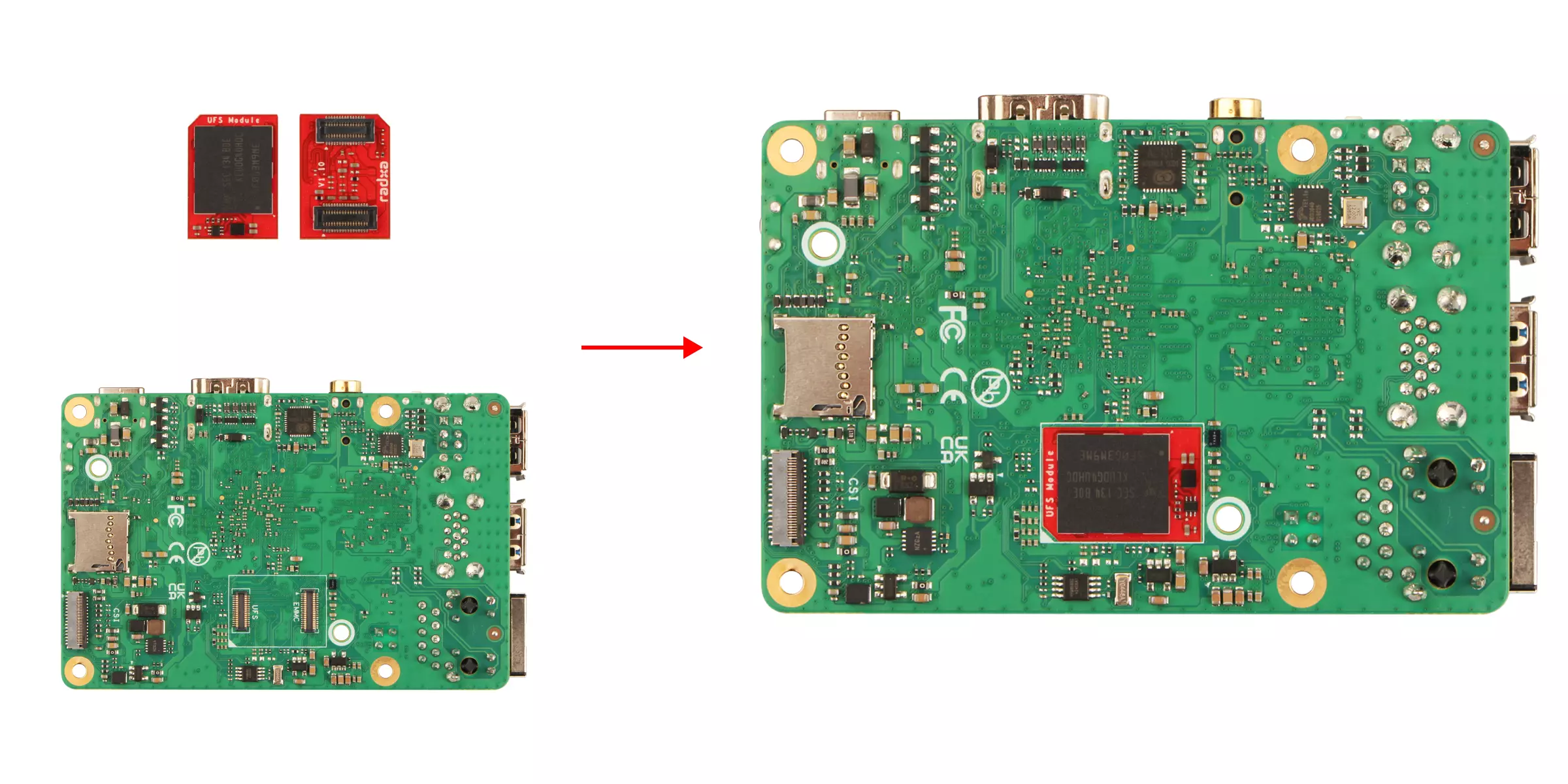
Install the UFS module into the Cubie A7A's eMMC and UFS combo interface.
- Installation steps:
- Ensure the notch on the UFS module aligns with the direction of the Cubie A7A's eMMC and UFS combo interface.
- Ensure the bottom slot of the UFS module aligns with the Cubie A7A's eMMC and UFS combo interface.
- Gently press one end of the UFS module connector until you hear a click, indicating successful installation. Repeat for the other end to ensure the UFS module is securely installed.
Software Preparation
To flash the Phoenix system image to the UFS module, you need to use the tool provided by Allwinner. You can download the software from the Resources Download page.
PhoenixSuit: A Windows-based tool that can be used to flash the system image to the UFS module.
LiveSuit: A Linux-based tool that can be used to flash the system image to the UFS module.
- Windows
- Linux
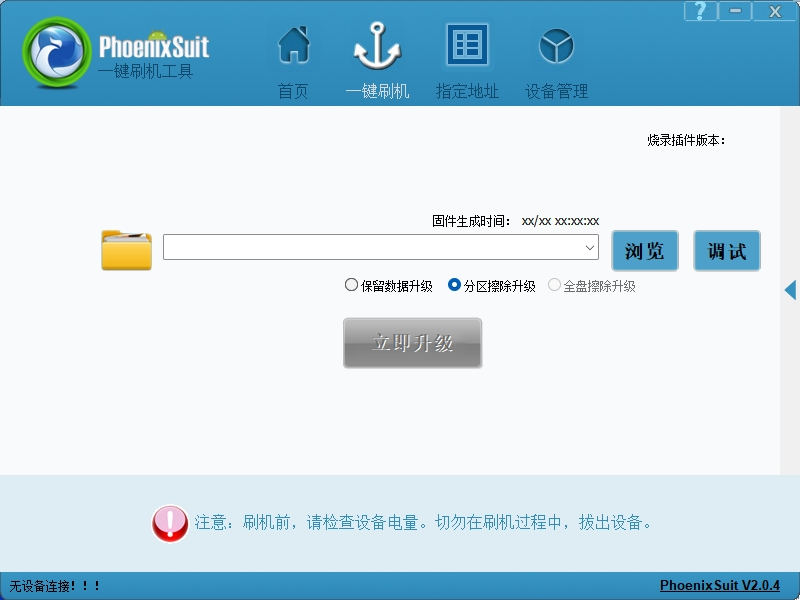
Using the PhoenixSuit tool on Windows.
If you are using Windows 11, go to Windows Security Center → Device Security → Core Isolation and turn off all options inside, otherwise you may encounter driver issues or installation failures.
- Install Driver
Extract the downloaded PhoenixSuit archive, go to the PhoenixSuit --> Drivers --> AW_Driver directory;
Run InstallUSBDriver.exe as administrator to install the driver.
After successful installation, you can see the USB Device(VID_1f3a_PID_efe8) device recognized in Device Manager.
- Using PhoenixSuit Tool
Go to the PhoenixSuit directory and run PhoenixSuit.exe.
Using the LiveSuit tool on Ubuntu.
- Install dependencies
sudo apt update
sudo apt install dkms
- Add executable permissions
Extract the downloaded archive, enter the LiveSuit directory, and run the following command to add executable permissions.
sudo chmod +x LiveSuit.run
- Run LiveSuit.run installer
Run the LiveSuit.run installer.
./LiveSuit.run
After successful installation, you will see output similar to the following. user_name is your current login username.
========***********LiveSuit installed completely***********===========
LiveSuit  has been installed in /home/user_name/Bin/livesuit
========***********LiveSuit installed completely***********===========
- Run LiveSuit tool
Enter the program directory and run the LiveSuit tool with the following command.
sudo ./LiveSuit
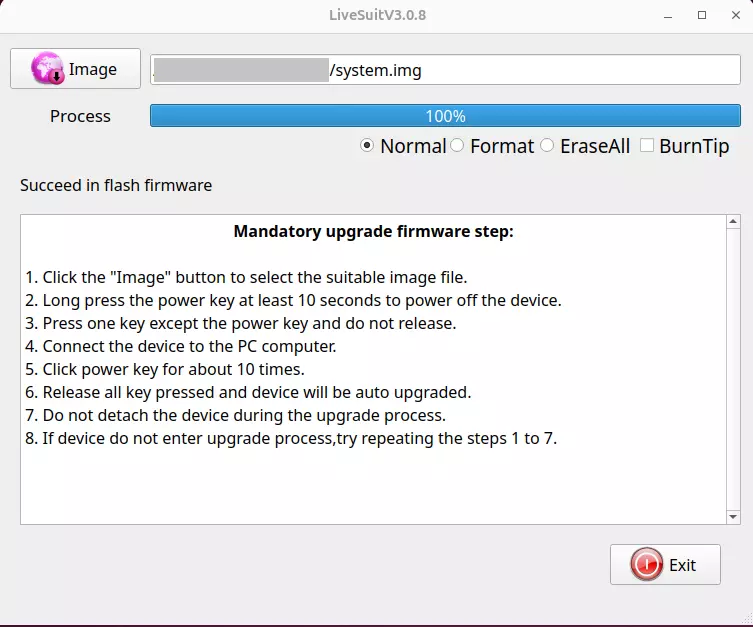
If you get an error about missing libpng12.so.0 when running the program, you can fix it with the following commands.
mkdir libpng
cd libpng/
wget https://ppa.launchpadcontent.net/linuxuprising/libpng12/ubuntu/pool/main/libp/libpng/libpng_1.2.54.orig.tar.xz
tar -xvf libpng_1.2.54.orig.tar.xz
cd libpng-1.2.54
./configure
make
sudo make install
sudo ln -s /usr/local/lib/libpng12.so.0.54.0 /usr/lib/libpng12.so
sudo ln -s /usr/local/lib/libpng12.so.0.54.0 /usr/lib/libpng12.so.0
Install System
Enter FEL Mode
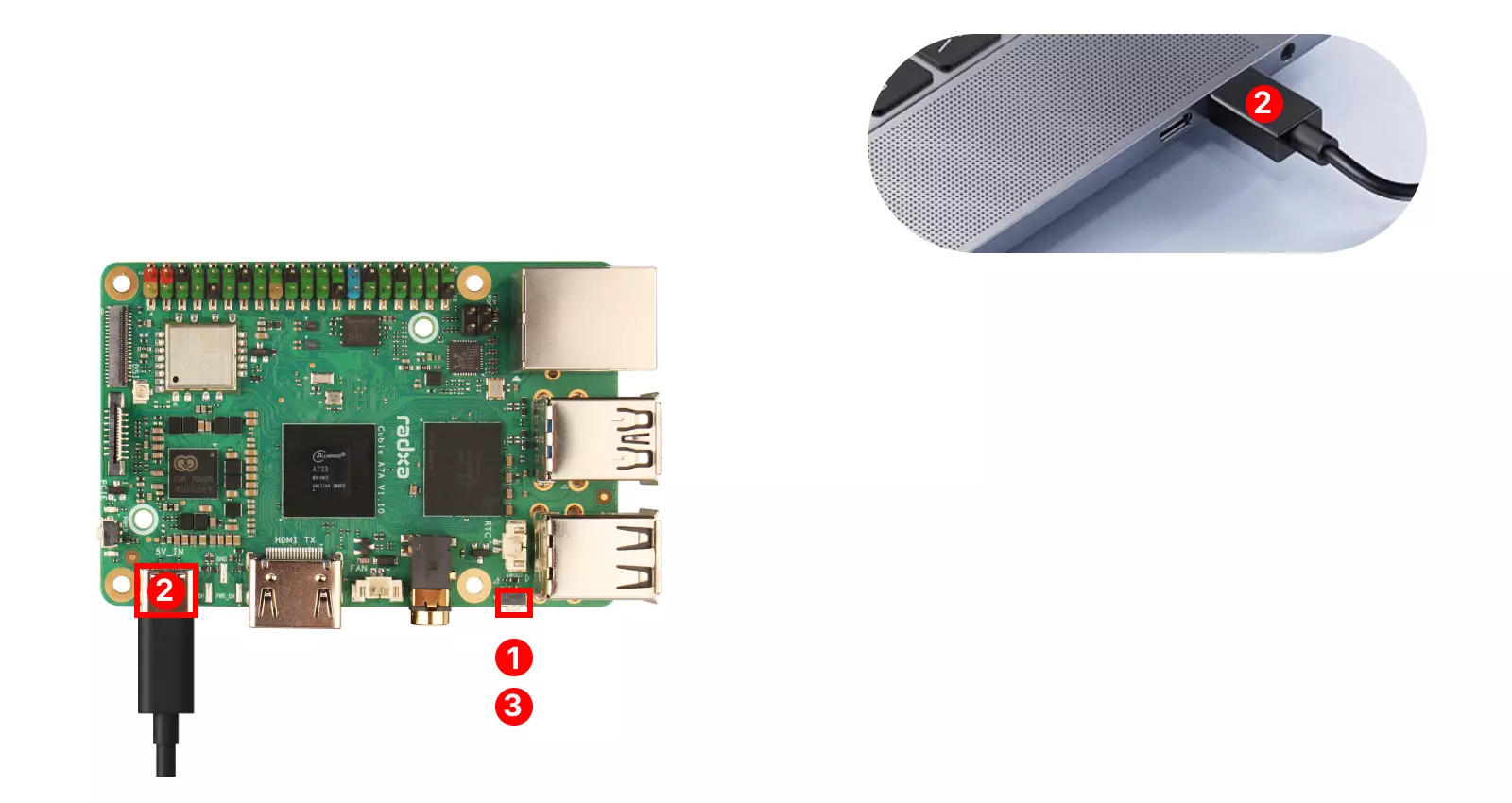
The board needs to enter FEL mode to flash the system image to the UFS module.
① : Press and hold the UBOOT key on the Cubie A7A
② : Use a USB Type A to Type C data cable to connect the Cubie A7A's USB Type C port to the PC's USB Type A port
③ : Release the UBOOT key on the Cubie A7A
Flash System Image
Open the Allwinner system image flashing tool according to your platform.
- Windows
- Linux
On Windows, open the PhoenixSuit tool to flash the system image.
- Flashing the image
Download the system image file in advance from the Resources Download page. The system image file must be extracted before it can be flashed to the UFS module.
① : Select the Browse option and locate the corresponding system image file (choose the actual extracted system file)
② : Select the Erase All Upgrade option
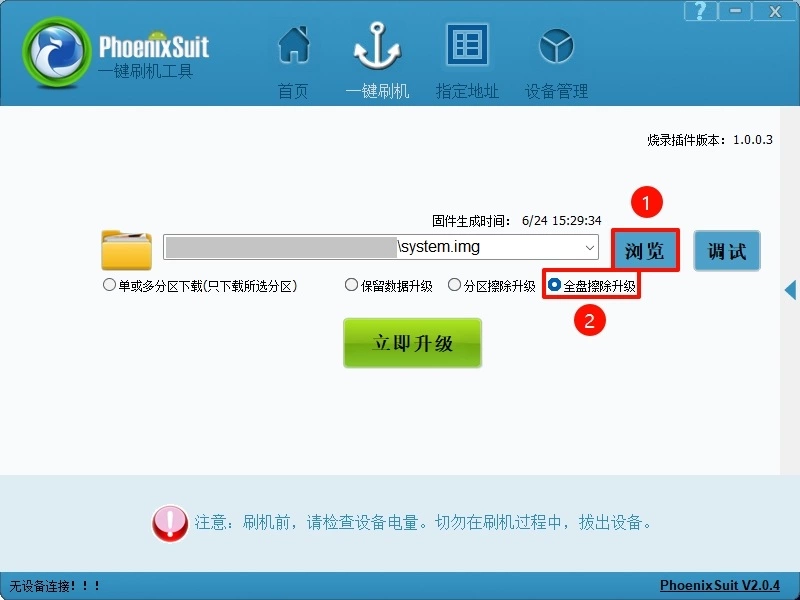
If the software does not automatically start flashing the system, you can let the board re-enter FEL mode and observe the flashing progress in the software.
- Flashing complete
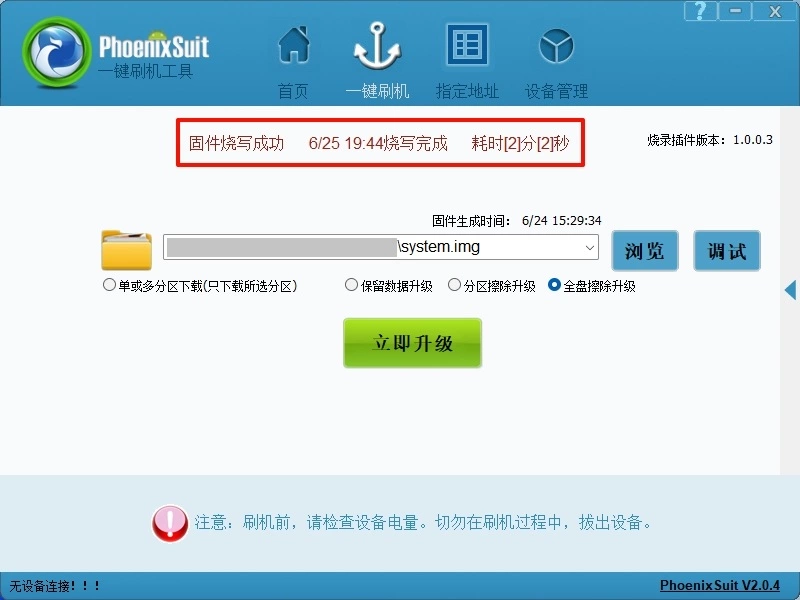
When the software shows Firmware Write Successful, the system image has been flashed successfully. You can now close the PhoenixSuit tool.
On Linux, open the LiveSuit tool to flash the system image.
- Flashing the image
Download the system image file in advance from the Resources Download page. The system image file must be extracted before it can be flashed to the UFS module.
① : Select the Image option and locate the corresponding system image file (choose the actual extracted system file)
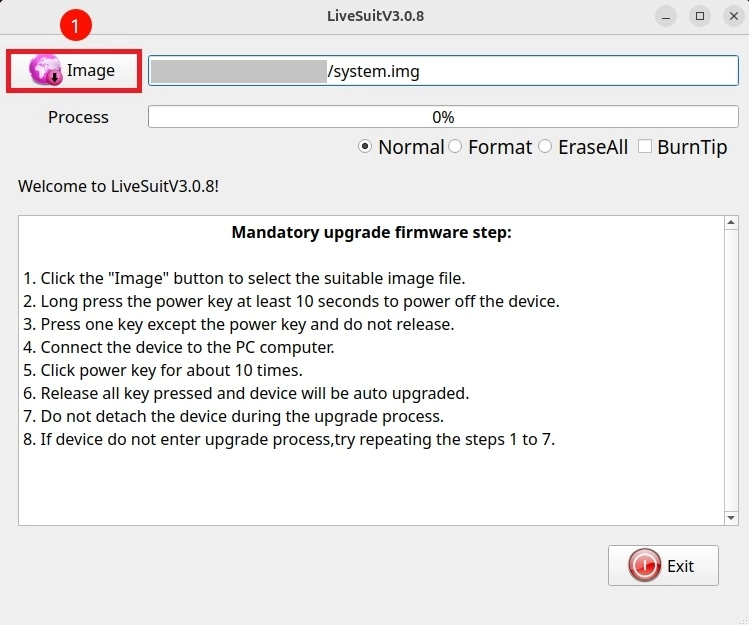
If the software does not automatically start flashing the system, you can let the board re-enter FEL mode and observe the terminal output and software progress bar.
- Flashing complete
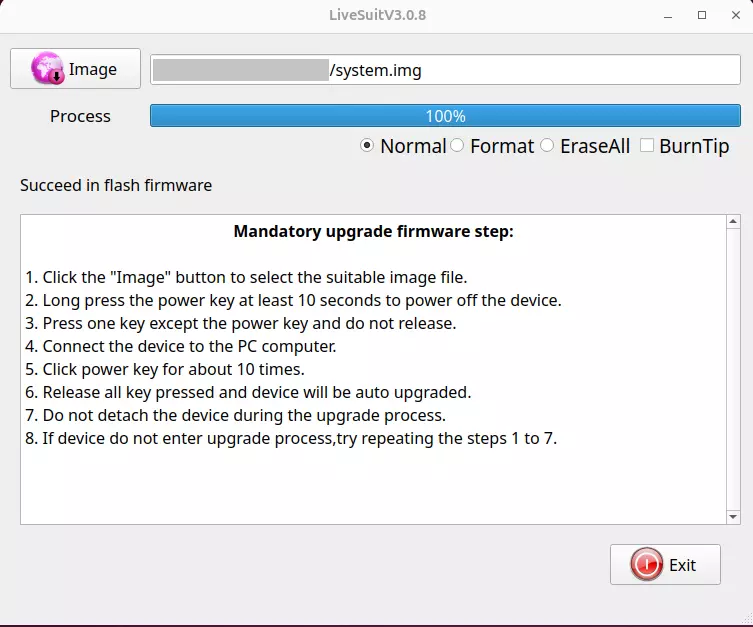
When the progress bar shows 100%, the system image has been flashed successfully. You can now close the LiveSuit tool.
System Information
When using the system image we provide, you need to use the username and password we set for the first login.
- radxa
User account: radxa
User password: radxa