Auto login
This guide explains how to use the Rsetup tool on Radxa boards to configure automatic desktop login.
Enabling automatic desktop login allows you to skip entering your username and password every time you start the system.
For more information about using the Rsetup tool, refer to:
Rsetup Tool
Open a terminal and enter the following command to launch the Rsetup tool:
sudo rsetup
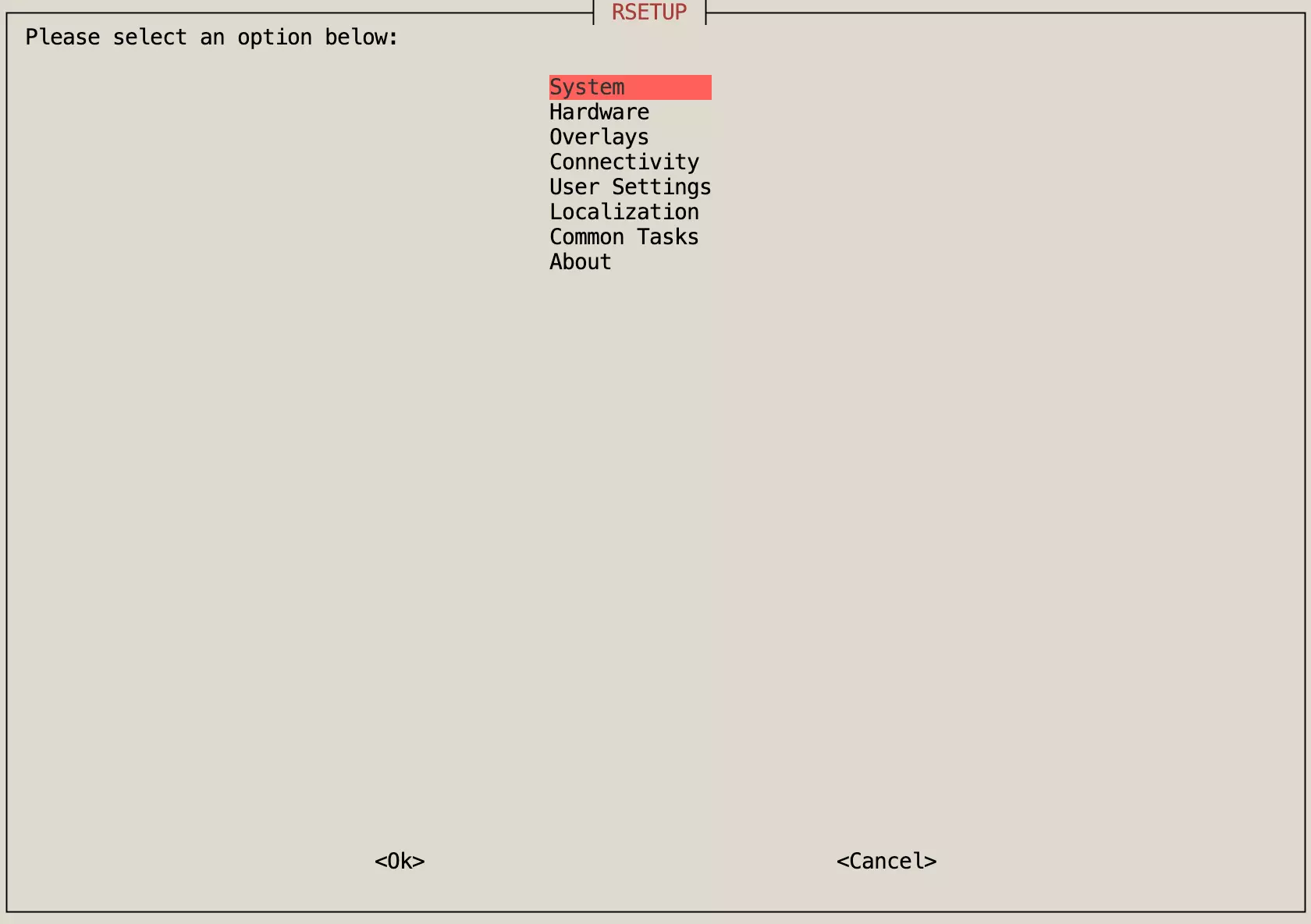
Configure Automatic Login
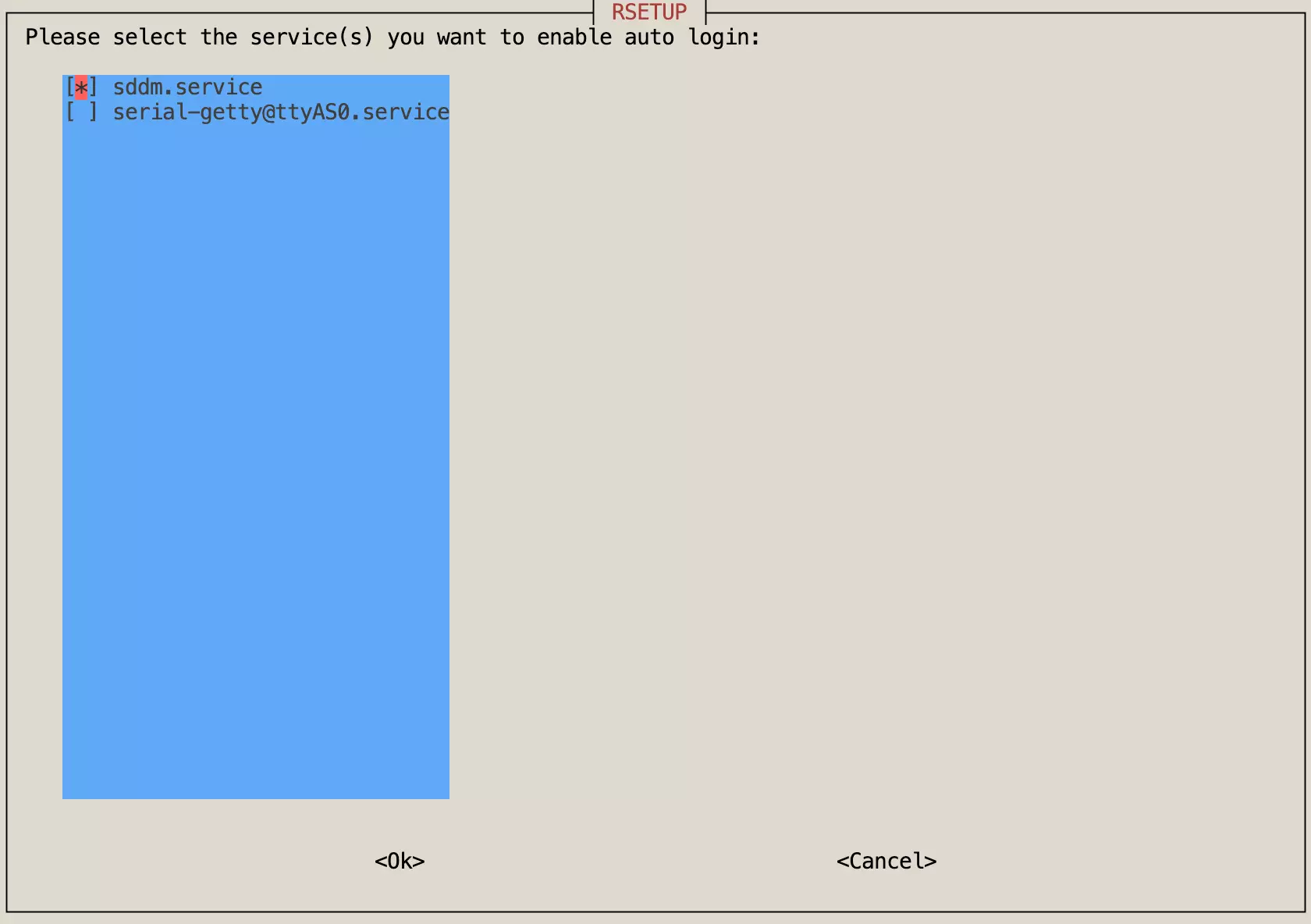
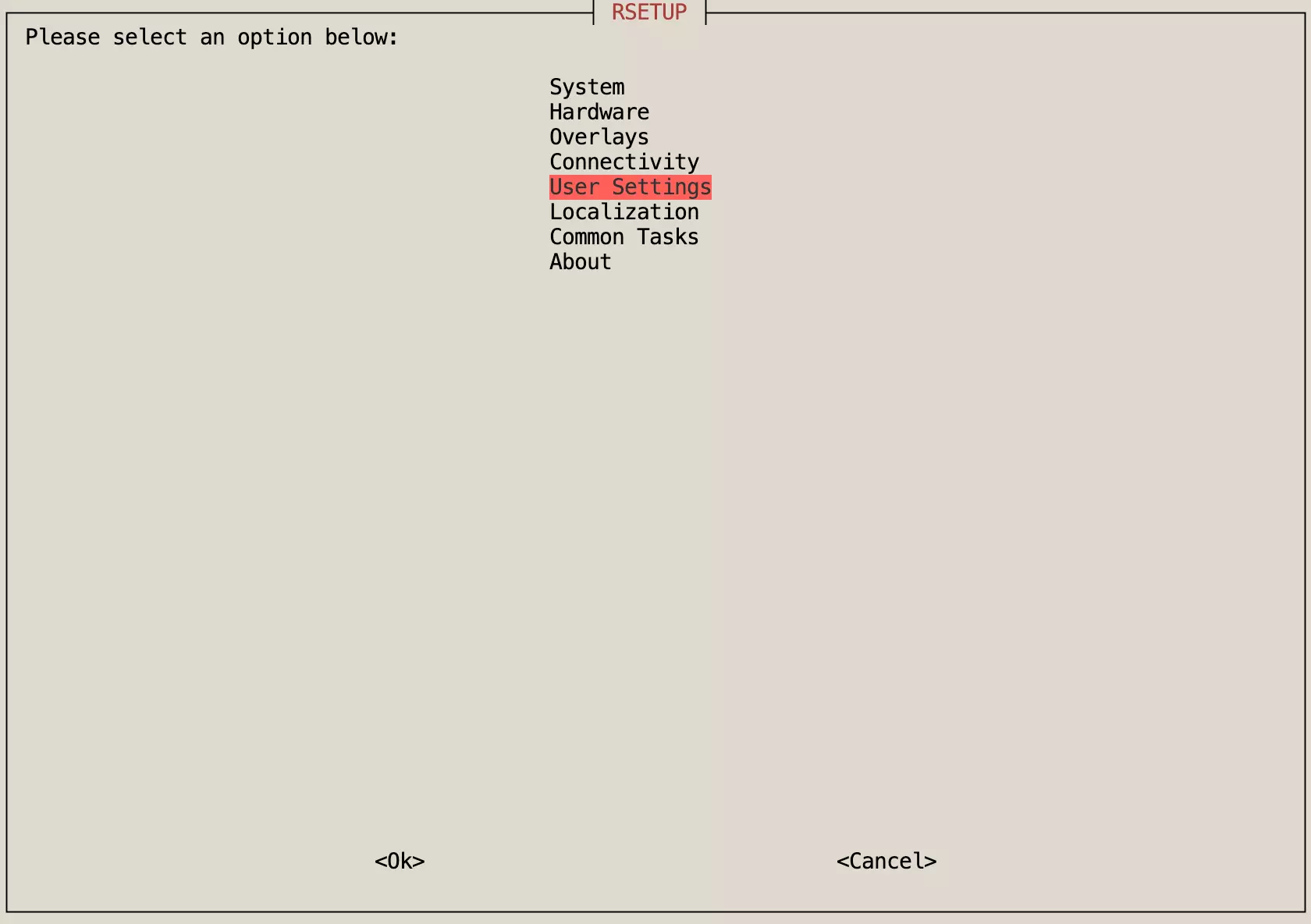
In the Rsetup tool, navigate to User Settings -> Configure auto login, enable sddm.service, and follow the on-screen instructions to complete the setup.
To avoid repeated keyring unlock pop-ups in auto-login scenarios, RadxaOS desktop images do not enable the user's KDE Wallet / keyring for you in advance. This is convenient for kiosk-style or auto-start deployments, but it can also lead to the following side effects:
- Chromium, Chrome, or other Electron apps may not be able to save passwords normally
- SSH public/private key workflows may not integrate with the desktop credential manager as expected
- Other applications that rely on the system keyring to store credentials may behave unexpectedly
If you need these features, open System Settings -> KDE Wallet after logging into the desktop, then follow the on-screen prompts to enable the wallet and set a password manually. If your device uses auto login, decide whether to keep a wallet password based on your own security requirements.
- User Settings
- Configure auto login
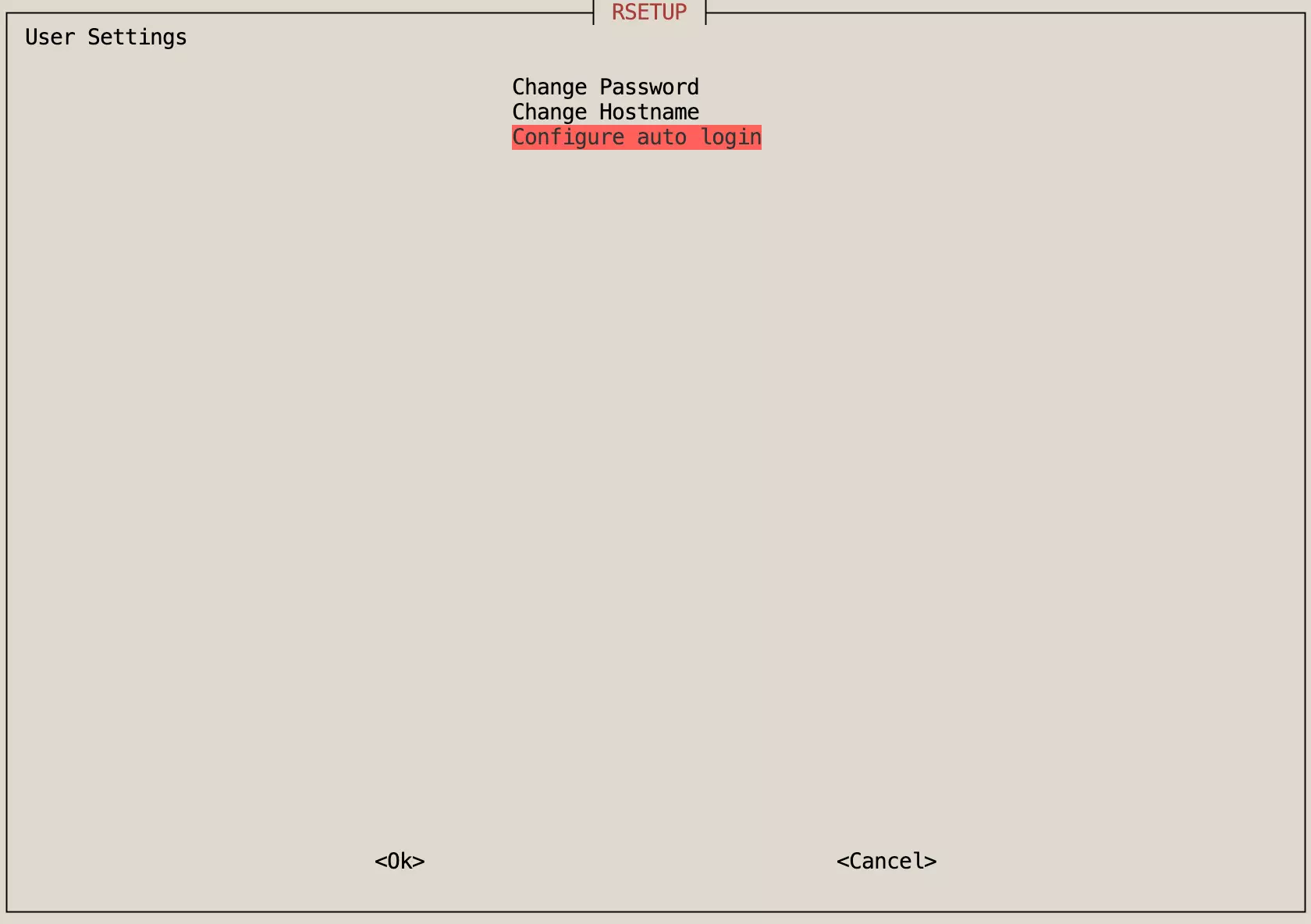
- SDDM