WiFi Usage
This guide explains how to connect to a WiFi network, set up a WiFi hotspot, and test network bandwidth.
- Connecting to a WiFi Network
When the board connects to a WiFi network, it typically obtains an IP address automatically through the router's DHCP service.
- Setting Up a WiFi Hotspot
When the board is set up as a WiFi hotspot (AP mode), the system usually starts the DHCP service automatically to assign IP addresses to connected devices. If you need to customize network parameters, you can configure the DHCP service manually as needed.
Connecting to a WiFi Network
- Graphical Interface
- Command Line Mode
-
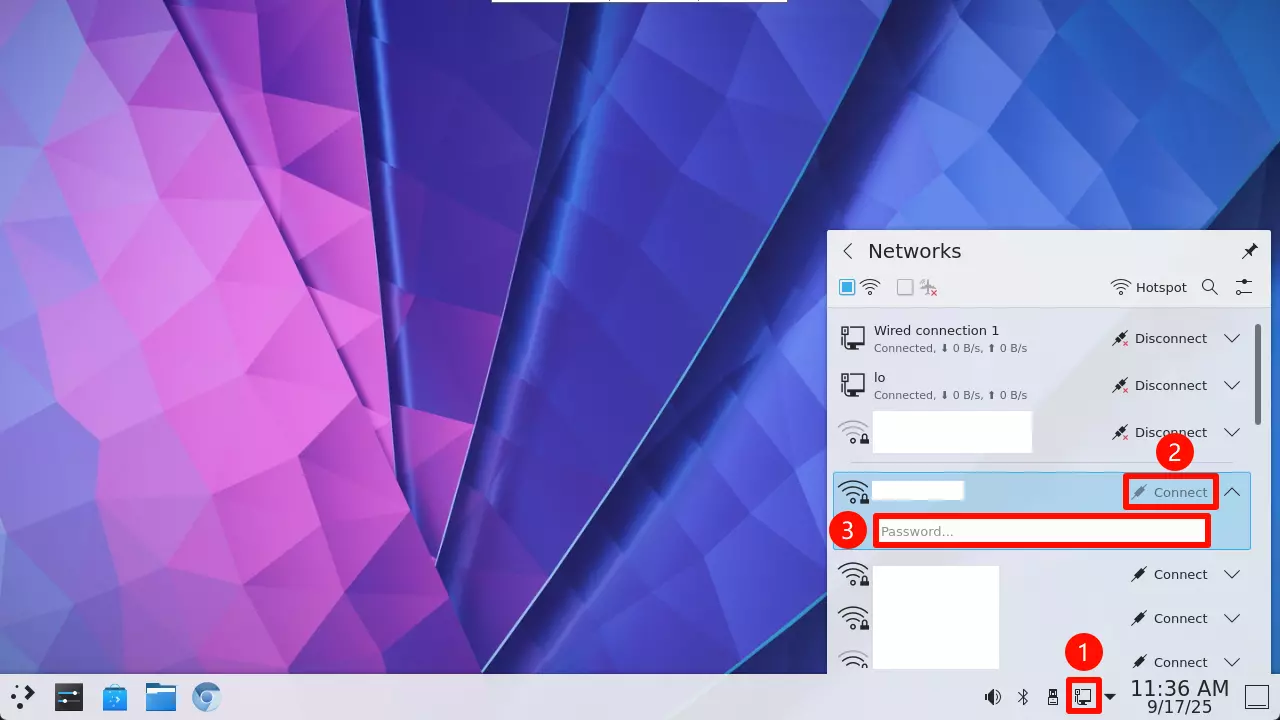
Click the network icon
-
Click the
Connectbutton next to the WiFi network name you want to connect to -
Enter the WiFi password and follow the prompts to complete the connection
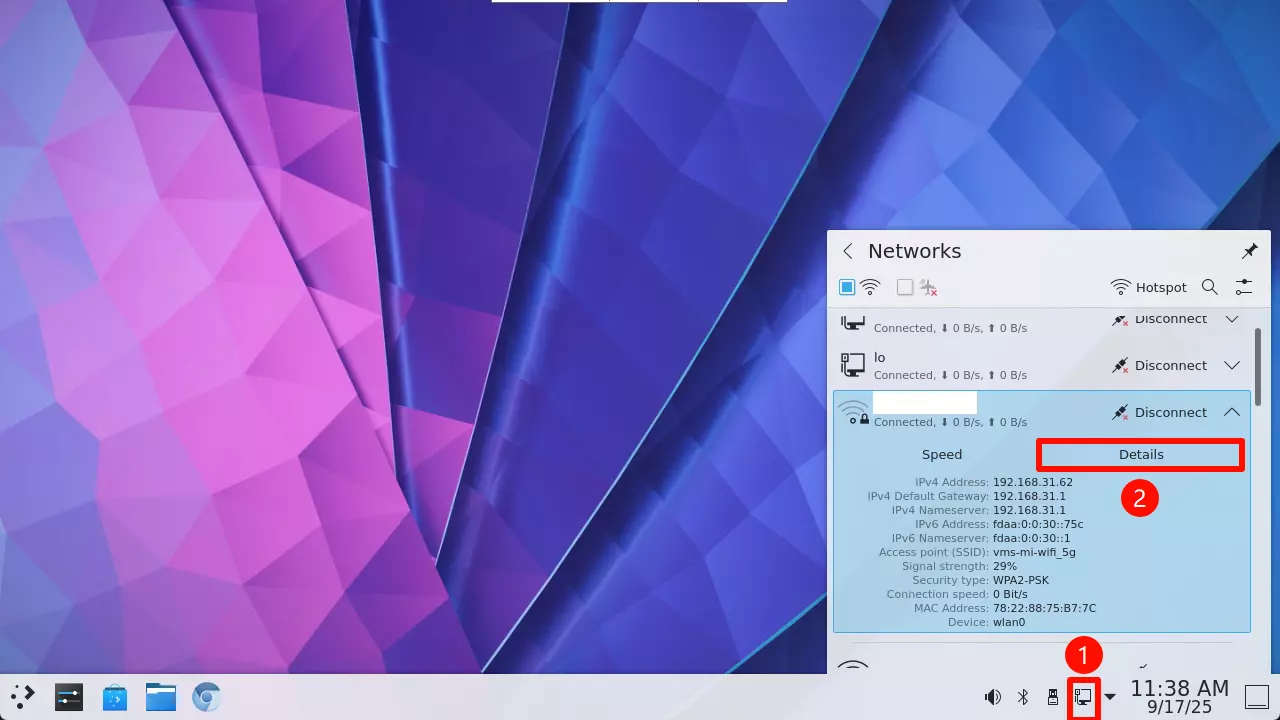
After a successful connection, select the Details option to view detailed network connection information, such as IP address, subnet mask, gateway address, etc.
For example, 192.168.31.62 is the IP address assigned by the router.
We will use the nmcli command-line tool to connect to a WiFi network.
nmcli (NetworkManager Command Line Interface) is the command-line management tool for NetworkManager, used to configure and manage network connections on Linux systems.
Enable WiFi
sudo nmcli radio wifi on
Scan for WiFi Networks
If WiFi is enabled but no networks are found, you can try restarting the system.
sudo nmcli device wifi list
Connect to a WiFi Network
sudo nmcli device wifi connect <SSID> password <PASSWORD>
# Example
sudo nmcli device wifi connect wifi-demo password 12345678
After a successful connection, the terminal will display output similar to the following:
Device 'wlan0' successfully activated with '<connection-uuid>'.
View Detailed Network Connection Information
ip a
The terminal will display output similar to the following. For example, 192.168.31.104 is the IP address assigned by the router.
1: lo: <LOOPBACK,UP,LOWER_UP> mtu 65536 qdisc noqueue state UNKNOWN group default qlen 1000
    link/loopback 00:00:00:00:00:00 brd 00:00:00:00:00:00
    inet 127.0.0.1/8 scope host lo
       valid_lft forever preferred_lft forever
    inet6 ::1/128 scope host
       valid_lft forever preferred_lft forever
2: sit0@NONE: <NOARP> mtu 1480 qdisc noop state DOWN group default qlen 1000
    link/sit 0.0.0.0 brd 0.0.0.0
3: eth0: <BROADCAST,MULTICAST,UP,LOWER_UP> mtu 1500 qdisc mq state UP group default qlen 1000
    link/ether 00:e8:ec:f4:6f:8b brd ff:ff:ff:ff:ff:ff
    inet 192.168.2.186/24 brd 192.168.2.255 scope global dynamic noprefixroute eth0
       valid_lft 3432sec preferred_lft 3432sec
    inet6 240e:3b7:3246:1e0::b09/128 scope global dynamic noprefixroute
       valid_lft 3383sec preferred_lft 3383sec
    inet6 fdaa::b09/128 scope global dynamic noprefixroute
       valid_lft 3383sec preferred_lft 3383sec
    inet6 fdaa::7ebe:84a2:306f:4271/64 scope global noprefixroute
       valid_lft forever preferred_lft forever
    inet6 240e:3b7:3246:1e0:e07d:77fb:4aa5:ace/64 scope global dynamic noprefixroute
       valid_lft 201116sec preferred_lft 114716sec
    inet6 fe80::f69d:bf6f:3d68:cef1/64 scope link noprefixroute
       valid_lft forever preferred_lft forever
4: wlan0: <BROADCAST,MULTICAST,UP,LOWER_UP> mtu 1500 qdisc mq state UP group default qlen 1000
    link/ether 2c:c6:82:85:8d:fe brd ff:ff:ff:ff:ff:ff
    inet 192.168.31.104/24 brd 192.168.31.255 scope global dynamic noprefixroute wlan0
       valid_lft 1978sec preferred_lft 1978sec
    inet6 240e:3b7:3246:1e2::b09/128 scope global dynamic noprefixroute
       valid_lft 1978sec preferred_lft 1978sec
    inet6 fdaa:0:0:30::b09/128 scope global dynamic noprefixroute
       valid_lft 1978sec preferred_lft 1978sec
    inet6 fdaa::30:ca7:7952:73cf:aa06/64 scope global noprefixroute
       valid_lft forever preferred_lft forever
    inet6 240e:3b7:3246:1e2:7498:9c5:1d2a:f90e/64 scope global dynamic noprefixroute
       valid_lft 201117sec preferred_lft 114717sec
    inet6 fe80::3dfc:b4f1:ffe4:6c50/64 scope link noprefixroute
       valid_lft forever preferred_lft forever
Additional Commands:
sudo nmcli radio wifi off: Turn off WiFi.sudo nmcli connection delete <SSID>: Delete the specified WiFi network.
Setting Up a WiFi Hotspot
We will use the nmcli command-line tool to set up a WiFi hotspot.
Checking WiFi Network Interface
Use the ip a command to check the wireless network interface name.
ip a
The terminal will display output similar to the following, where wlan0 is the wireless network interface name.
1: lo: <LOOPBACK,UP,LOWER_UP> mtu 65536 qdisc noqueue state UNKNOWN group default qlen 1000
    link/loopback 00:00:00:00:00:00 brd 00:00:00:00:00:00
    inet 127.0.0.1/8 scope host lo
       valid_lft forever preferred_lft forever
    inet6 ::1/128 scope host
       valid_lft forever preferred_lft forever
2: sit0@NONE: <NOARP> mtu 1480 qdisc noop state DOWN group default qlen 1000
    link/sit 0.0.0.0 brd 0.0.0.0
3: eth0: <BROADCAST,MULTICAST,UP,LOWER_UP> mtu 1500 qdisc mq state UP group default qlen 1000
    link/ether 00:e8:ec:f4:6f:8b brd ff:ff:ff:ff:ff:ff
    inet 192.168.2.186/24 brd 192.168.2.255 scope global dynamic noprefixroute eth0
       valid_lft 3432sec preferred_lft 3432sec
    inet6 240e:3b7:3246:1e0::b09/128 scope global dynamic noprefixroute
       valid_lft 3383sec preferred_lft 3383sec
    inet6 fdaa::b09/128 scope global dynamic noprefixroute
       valid_lft 3383sec preferred_lft 3383sec
    inet6 fdaa::7ebe:84a2:306f:4271/64 scope global noprefixroute
       valid_lft forever preferred_lft forever
    inet6 240e:3b7:3246:1e0:e07d:77fb:4aa5:ace/64 scope global dynamic noprefixroute
       valid_lft 201116sec preferred_lft 114716sec
    inet6 fe80::f69d:bf6f:3d68:cef1/64 scope link noprefixroute
       valid_lft forever preferred_lft forever
4: wlan0: <BROADCAST,MULTICAST,UP,LOWER_UP> mtu 1500 qdisc mq state UP group default qlen 1000
    link/ether 2c:c6:82:85:8d:fe brd ff:ff:ff:ff:ff:ff
    inet 192.168.31.104/24 brd 192.168.31.255 scope global dynamic noprefixroute wlan0
       valid_lft 1978sec preferred_lft 1978sec
    inet6 240e:3b7:3246:1e2::b09/128 scope global dynamic noprefixroute
       valid_lft 1978sec preferred_lft 1978sec
    inet6 fdaa:0:0:30::b09/128 scope global dynamic noprefixroute
       valid_lft 1978sec preferred_lft 1978sec
    inet6 fdaa::30:ca7:7952:73cf:aa06/64 scope global noprefixroute
       valid_lft forever preferred_lft forever
    inet6 240e:3b7:3246:1e2:7498:9c5:1d2a:f90e/64 scope global dynamic noprefixroute
       valid_lft 201117sec preferred_lft 114717sec
    inet6 fe80::3dfc:b4f1:ffe4:6c50/64 scope link noprefixroute
       valid_lft forever preferred_lft forever
Configuring a WiFi Hotspot
Open the system terminal and enter the following command to set up a WiFi hotspot:
sudo nmcli device wifi hotspot ifname <ifname> con-name <name> ssid <SSID> password <password>
# Example
sudo nmcli device wifi hotspot ifname wlan0 con-name My-Hotspot ssid My-Hotspot password 12345678
Parameter explanation: This creates a WiFi hotspot named My-Hotspot with password 12345678 using the wireless network interface wlan0, and saves the connection as My-Hotspot for future management.
ifname: Specifies the wireless network interface name for creating the hotspot. Use theip acommand to check the wireless interface name.con-name: Specifies the connection name for the hotspot, which can be used to manage (start, stop, delete) the hotspot later.ssid: Specifies the hotspot name, which is the wireless network name visible to other devices.password: Specifies the password for the hotspot.
After successful setup, the terminal will display output similar to the following:
Device 'wlan0' successfully activated with '<connection-uuid>'.
Hint: "nmcli dev wifi show-password" shows the Wi-Fi name and password.
Turning Off the WiFi Hotspot
sudo nmcli connection down My-Hotspot
Turning On the WiFi Hotspot
sudo nmcli connection up My-Hotspot
Deleting a WiFi Hotspot
sudo nmcli connection delete My-Hotspot
Testing Network Bandwidth Performance
Use the iperf tool to test network bandwidth (throughput) performance. It is recommended to run multiple tests and take the average.
Prerequisites
- Hardware Requirements
You will need two devices: one to act as the server and the other as the client.
Server: Can be a PC, server, or similar device.
Client: The device to be tested, such as a Cubie A7A.
- Same Local Network
The server and client must be on the same local network and able to ping each other.
Installing iperf
Both the server and client need to have iperf installed.
sudo apt update
sudo apt install iperf
Testing Steps
Server (PC)
Open a terminal and enter the following command to start the server:
iperf -s
After successful startup, the terminal will display output similar to the following:
-----------------------------------------------------------
Server listening on 5201 (test #1)
-----------------------------------------------------------
Client (Board)
- Upload Test
Open a terminal and enter the following command to test the client's upload bandwidth. Replace <server_ip> with the actual server IP address (you can check it using the ip a command).
iperf -c <server_ip> -t <time>
# Example
iperf -c 192.168.2.186 -t 60
Parameter explanation:
<server_ip>: Server IP address.<time>: Test duration in seconds.
- Download Test
Open a terminal and enter the following command to test the client's download bandwidth. Replace <server_ip> with the actual server IP address (you can check it using the ip a command).
iperf -c <server_ip> -t <time> -R
# Example
iperf -c 192.168.2.186 -t 60 -R
Parameter explanation:
<server_ip>: Server IP address.<time>: Test duration in seconds.-R: Reverse test, where the client acts as the server and the server acts as the client.