CasaOS Introduction
CasaOS is a lightweight cloud operating system specifically designed for home users, with simplicity, security, and reliability as its core features, providing an all-in-one home cloud storage solution. Compared to traditional home NAS (Network Attached Storage) solutions, CasaOS is easier to use and manage, while also offering superior scalability and fun.
Key Features
-
User-Friendly: CasaOS features an intuitive user interface that makes it easy for home users to get started. With simple drag-and-drop operations, users can upload, download, and back up files and photos. Additionally, CasaOS supports multi-device synchronization, allowing family members to easily share files and photos.
-
Secure and Reliable: CasaOS employs multiple encryption and protection measures for data transmission and storage, ensuring the security of user data. It also supports snapshot functionality, allowing for quick recovery to a previous state in case of unexpected issues.
-
Powerful Expandability: CasaOS supports various common storage devices and services, such as USB flash drives, SD cards, hard drives, and cloud storage services. This means users can flexibly expand their storage space based on their needs.
-
Highly Customizable: CasaOS is not just a home cloud storage solution but also an open operating system. It supports various plugins and third-party applications, enabling users to customize and extend its functionality.
CasaOS Installation Guide
Install Docker
Please refer to Docker Install for Docker installation instructions.
Install CasaOS
-
Install CasaOS
Devicecurl -fsSL https://get.casaos.io | sudo bash -
Follow the installation wizard
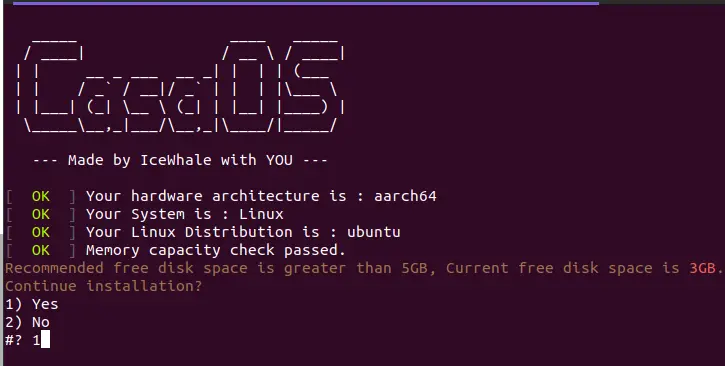
If the root directory space is less than 5GB, you can still force the installation by entering 1.
Uninstall CasaOS
To uninstall CasaOS, you can use the following command.
casaos-uninstall
First-Time Access
-
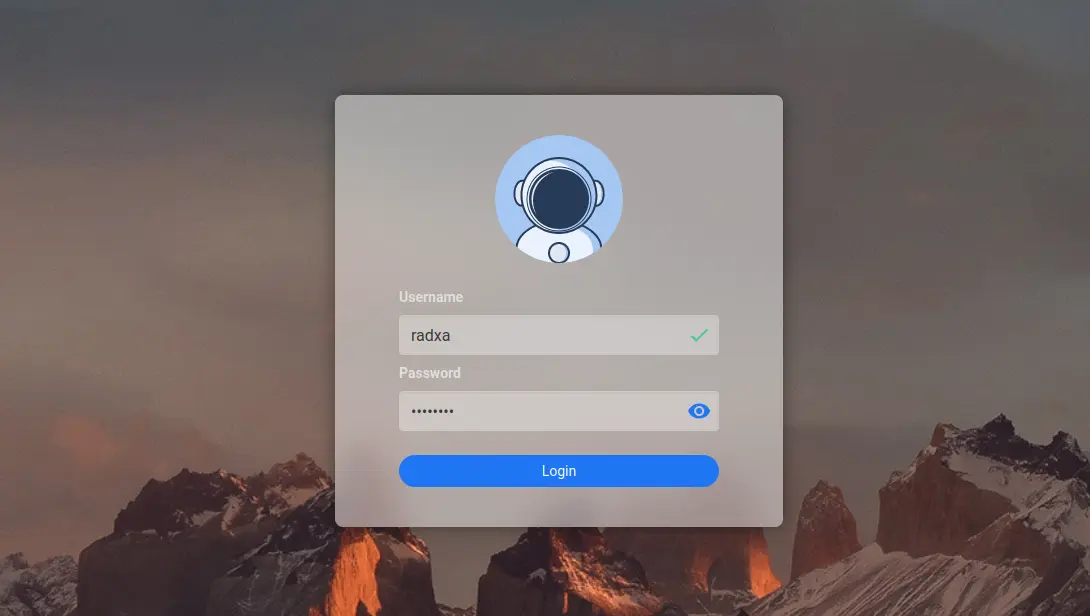
Access CasaOS through port 81. You'll need to create an account on your first visit.
-
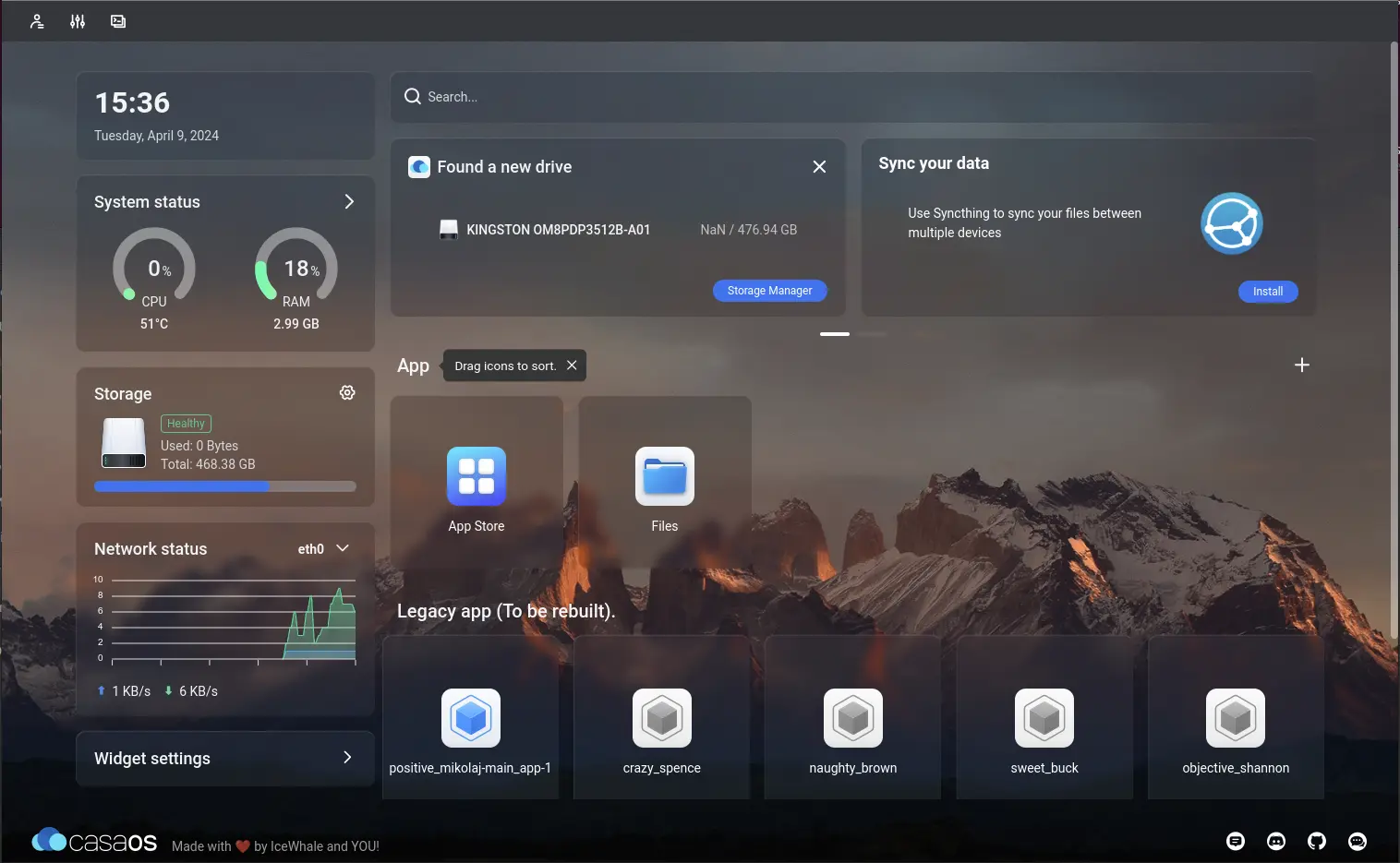
CasaOS System Interface
-
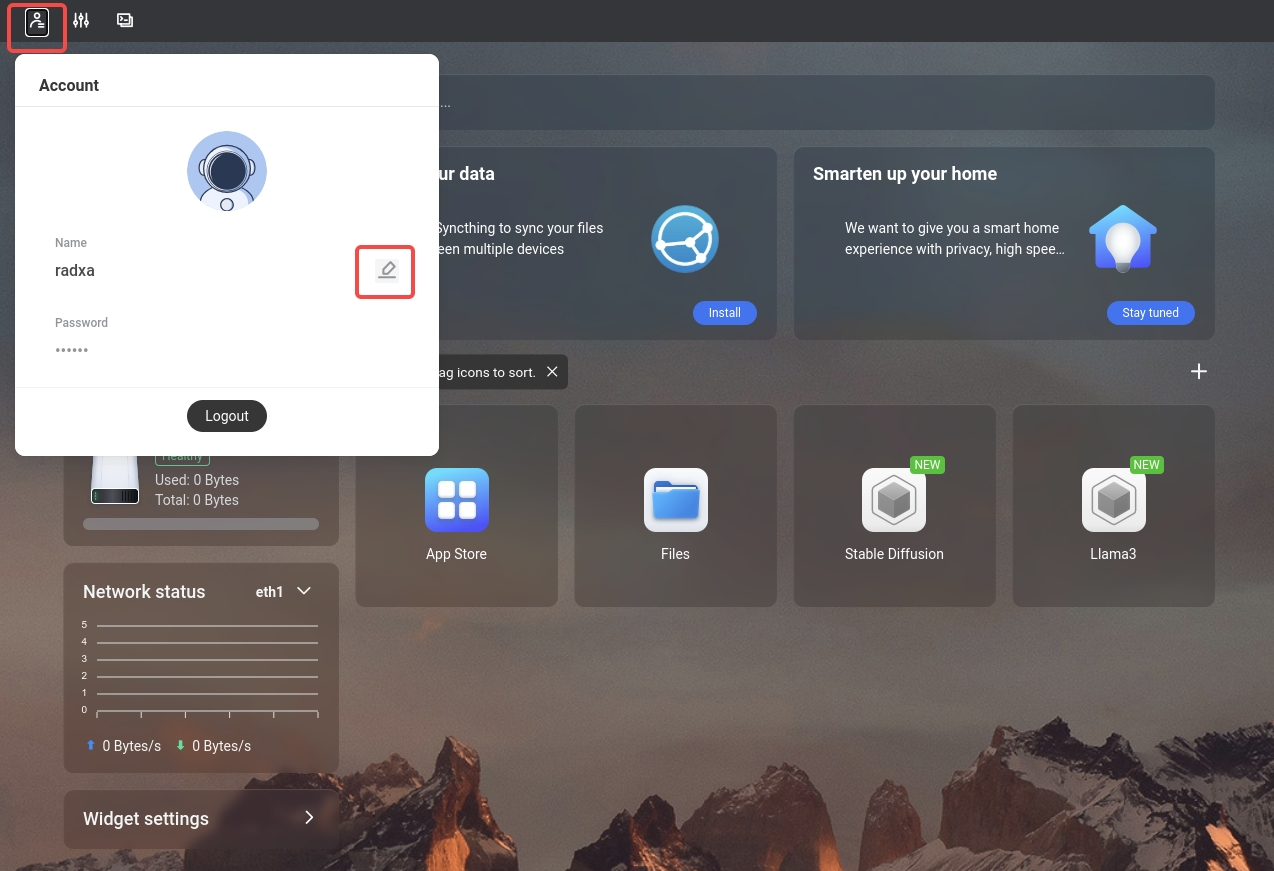
Change CasaOS Username and Password
Click the user icon in the top-left corner, then click the edit icon to change your username. Follow the same process to update your password.