Entering EDL Mode
Qualcomm Download Mode (EDL) is an emergency download mode for Qualcomm processor devices, primarily used for emergency repairs, firmware flashing, or device unlocking.
Entering EDL Mode
Before powering on the motherboard, hold down the EDL button; after powering on the motherboard, release the EDL button to enter EDL mode.
Specific steps:
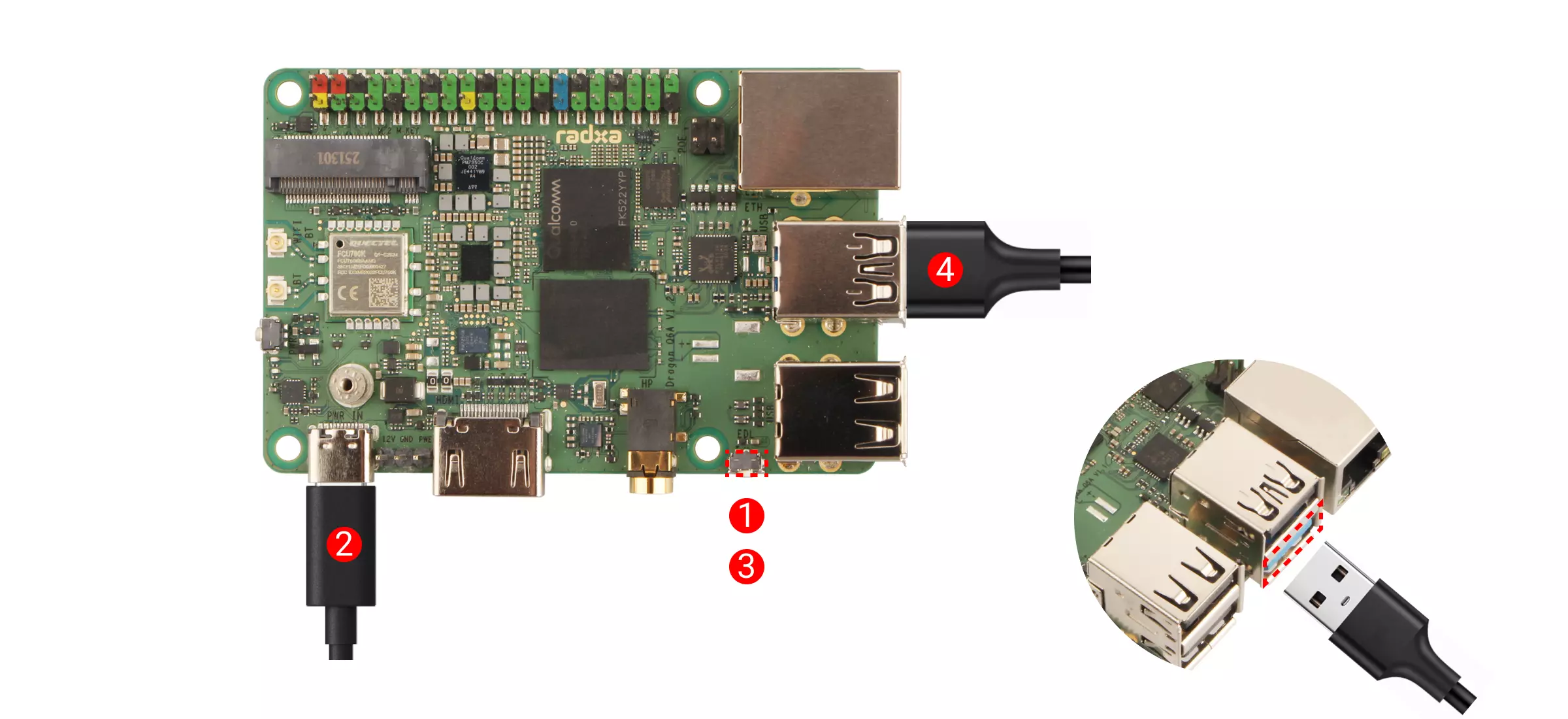
①: Hold down the EDL button
②: Connect a 12V Type-C power adapter (compatible with PD protocol)
③: Release the EDL button
④: Use a dual-headed USB Type-A data cable to connect the Dragon Q6A's USB 3.1 Type-A port to the computer's USB Type-A port
Verify EDL Mode
- Windows
- Linux
- Download EDL Driver
On Windows, you need to go to the Resource Summary Download page to download the EDL driver package.
- Install EDL Driver
Extract the downloaded driver package, then run the Install.bat file as administrator to install the driver.

- Device recognition
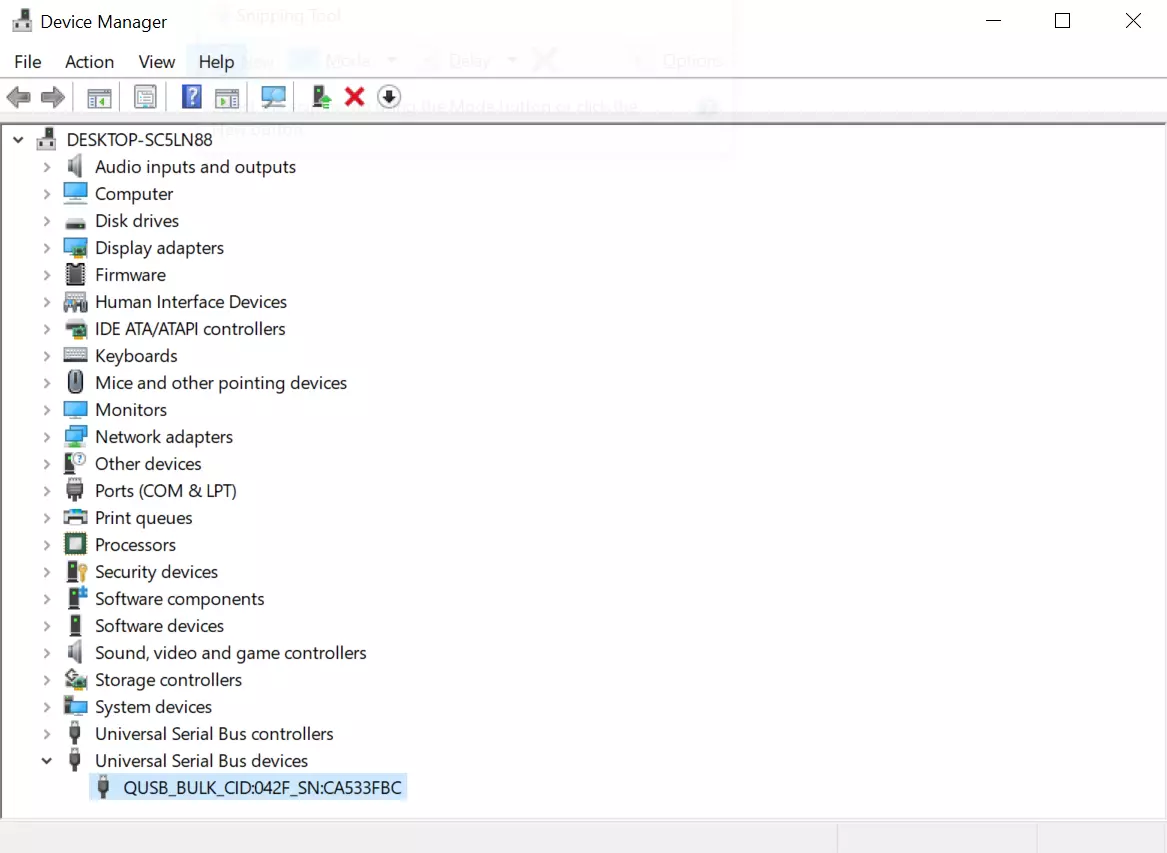
In Windows systems, you can go to the system's Device Manager to check whether the device is being recognized normally.
In Linux systems, you can use the lsusb command to check whether the device has entered EDL mode.
lsusb
After the device enters EDL mode, it will display information similar to the following:
Bus 001 Device 008: ID 05c6:9008 Qualcomm, Inc. Gobi Wireless Modem (EDL mode)