Environment Setup
This guide covers setting up the development environment for Kernel and Radxa OS.
Prerequisites
- Hardware: x86_64 PC
- Software:
- Visual Studio Code + Dev Container extension
- Docker
- Recommended OS: Ubuntu 22.04
Environment Setup
To quickly set up a compilation and development environment for Kernel and Radxa OS, we need to install Visual Studio Code, the Dev Container extension, and Docker on your PC.
Enable binfmt
Enables running cross-architecture binaries.
sudo apt-get update
sudo apt-get install git qemu-user-static binfmt-support
Docker
You can choose to install either Docker Engine or Docker Desktop based on your needs.
- Docker Engine: Core background service with no GUI, primarily operated via command line.
- Docker Desktop: Desktop application that includes Docker Engine and provides a graphical management interface for easier use.
- Docker Engine
- Docker Desktop
This section explains how to install Docker Engine on Linux.
Download Official Script
Use the curl command to download the official Docker installation script.
sudo apt update
sudo apt install curl -y
sudo curl -fsSL https://get.docker.com -o get-docker.sh
Install Docker Engine
Run the installation script with sudo for root privileges.
sudo sh get-docker.sh
Verify Installation
Check if Docker Engine is installed successfully using the docker --version command.
docker --version
If the terminal displays the Docker version information, the installation was successful!
Add User to Docker Group
sudo usermod -aG docker $USER
Restart your system for the Docker configuration to take effect.
This section explains how to install Docker Desktop on Linux.
Download Docker Desktop
Visit the Docker Desktop download page to download Docker Desktop.
Install Docker Desktop
Navigate to the directory containing the Docker Desktop installation package and run the following command to install it.
sudo apt-get install ./docker-desktop-amd64.deb
Verify Installation
Check if Docker Desktop is installed successfully using the docker --version command.
docker --version
If the terminal displays the Docker version information, the installation was successful!
Add User to Docker Group
sudo usermod -aG docker $USER
Restart your system for the Docker configuration to take effect.
Visual Studio Code
Download Visual Studio Code
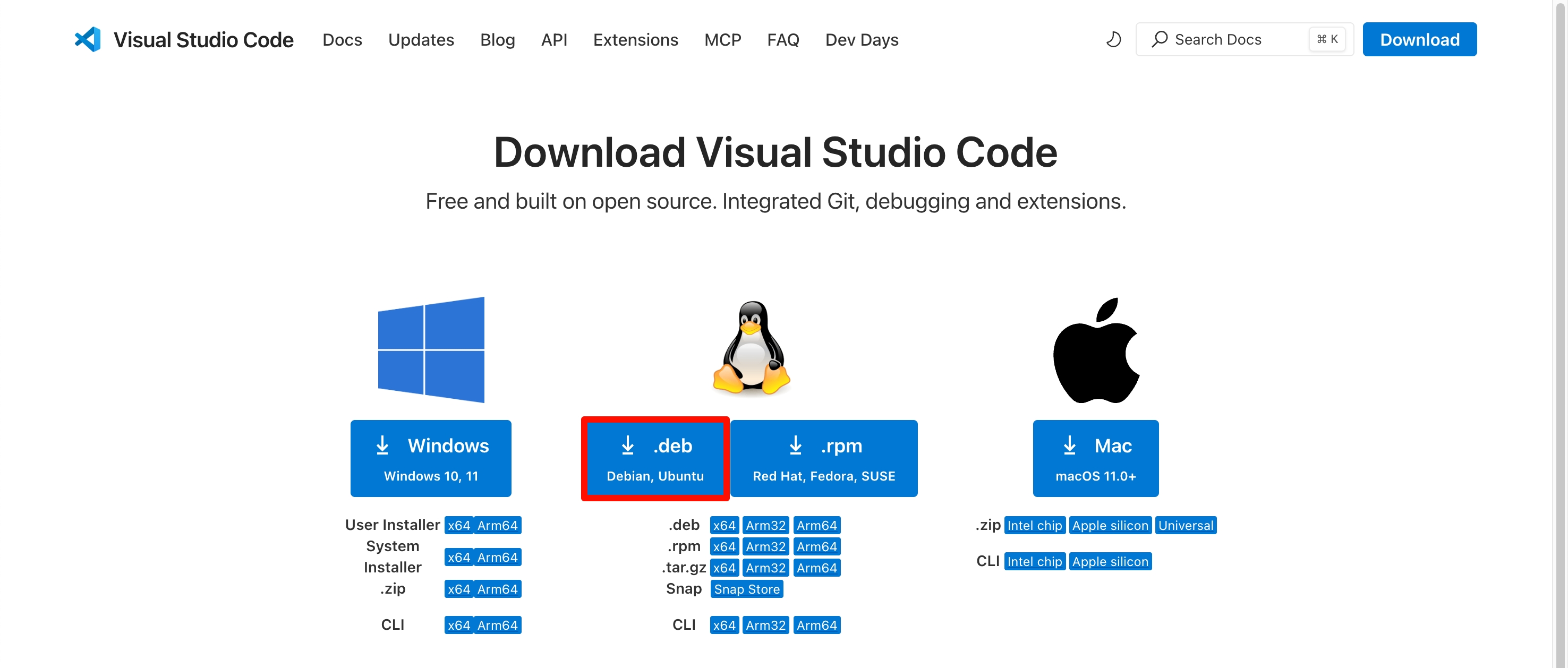
Visit the Visual Studio Code download page and select the appropriate installation package for your system. For Ubuntu, choose the .deb package.
Install Visual Studio Code
Navigate to the directory containing the Visual Studio Code installation package and run the following command to install it.
sudo apt-get install ./code_xxx_amd64.deb
Using Visual Studio Code
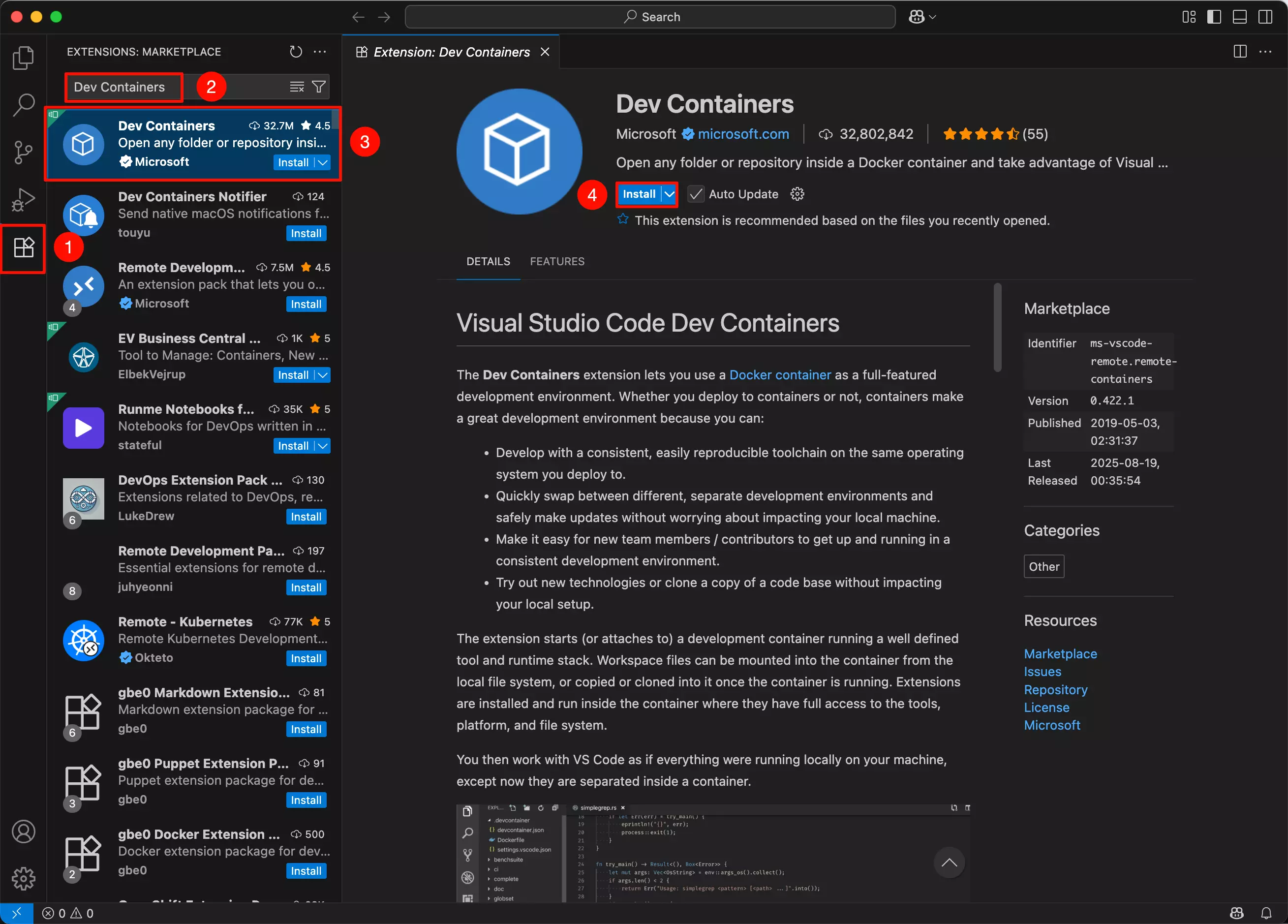
Open Visual Studio Code and install the Dev Container extension.
- Click on the
Extensionsoption - Search for
Dev Containers - Select the Dev Containers extension
- Click
Installto install the Dev Containers extension
How to confirm the environment is ready
After completing the steps above, you can quickly verify the environment with the checklist below:
docker --versionprints the Docker version successfully.- After re-login or reboot, a normal user can run
docker pswithoutsudo. - Visual Studio Code has the
Dev Containersextension installed. - When you later open a source tree that contains a
.devcontainerconfiguration, Visual Studio Code can detect it and offerReopen in Container.
If all of the above are true, the host is ready for subsequent Kernel and Radxa OS build work.
First download and disk space notes
- The first time you use Dev Container, Visual Studio Code will automatically pull the container image and install dependencies.
- This usually downloads several GB of data and also consumes several GB of disk space.
- The exact image size and download time vary with the base image, dependency versions, and your network environment. Under a normal network, the first initialization can still take a while, so reserve enough time and disk space in advance.
Common network issues
If Docker installation, VS Code download, or the first Dev Container startup is very slow, times out, or fails to download, check the following in order:
- Confirm that the host network is working and can access
https://get.docker.comandhttps://code.visualstudio.com/. - If your network restricts Docker Hub or related download endpoints, configure a working proxy or registry mirror according to your environment.
- If Docker is already installed but image pulling fails, run
docker pull hello-worldfirst to verify the basic Docker download path. - If you are on a company network, campus network, or another restricted network, switch to a more stable network before retrying the initial setup to avoid interruption during the first Dev Container pull.
If it still fails, record the exact error message first, then continue troubleshooting Docker networking, proxy, or DNS configuration.