RDP Login
This document describes how to remotely control the board from a PC on the same local network.
Configure RDP (Board)
You need to install and enable the RDP service on the board so that you can remotely control it from Windows / Ubuntu / macOS.
Install the RDP service
sudo apt update
sudo apt install gnome-remote-desktop -y
Enable desktop sharing
Go to Settings --> System --> Remote Desktop --> Desktop Sharing, and enable desktop sharing.
① : Enable desktop sharing
② : Enable remote control
③ : It is recommended to reset the remote login password
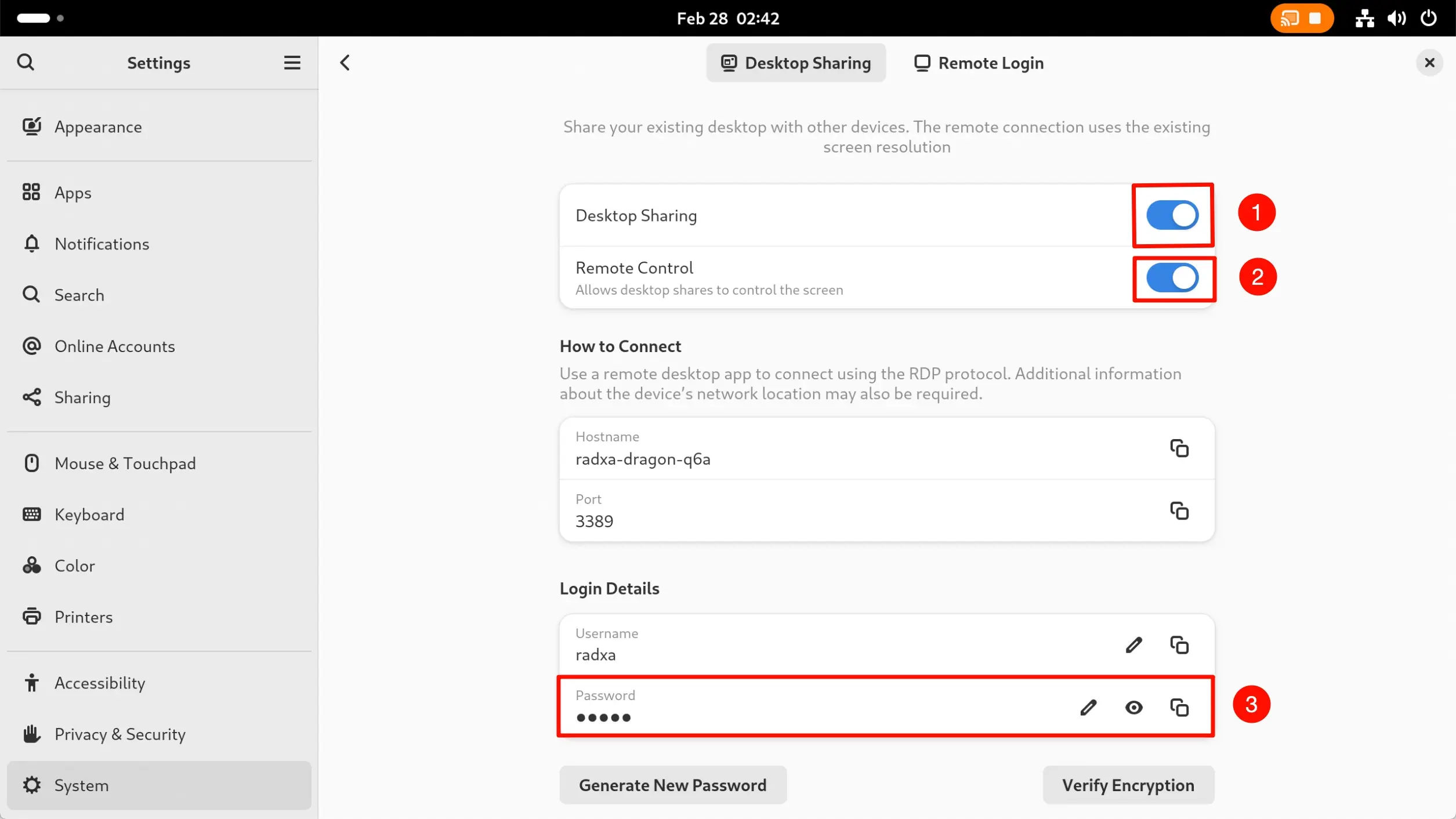
The default port is 3389. If you change the port, you must specify it when connecting.
Example: if the port is set to 6666, enter 192.168.11.100:6666 when connecting.
Configure RDP (PC)
After configuring the RDP service on the board, you can remotely control it from Windows / Ubuntu / macOS.
RDP remote login
- Windows: use
Remote Desktop Connection. - Ubuntu: use
Remmina. - macOS: use
Microsoft APP.
- Windows
- Ubuntu
- macOS
- Open the remote desktop tool
Windows usually includes Remote Desktop Connection. Search for Remote Desktop Connection in Windows.
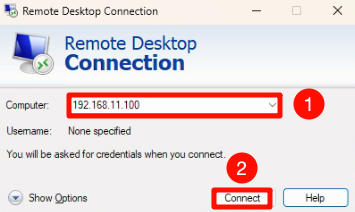
Open Remote Desktop Connection, enter the board IP address, and click Connect.
① -> Enter the board IP address
② -> Click Connect
- Enter user information
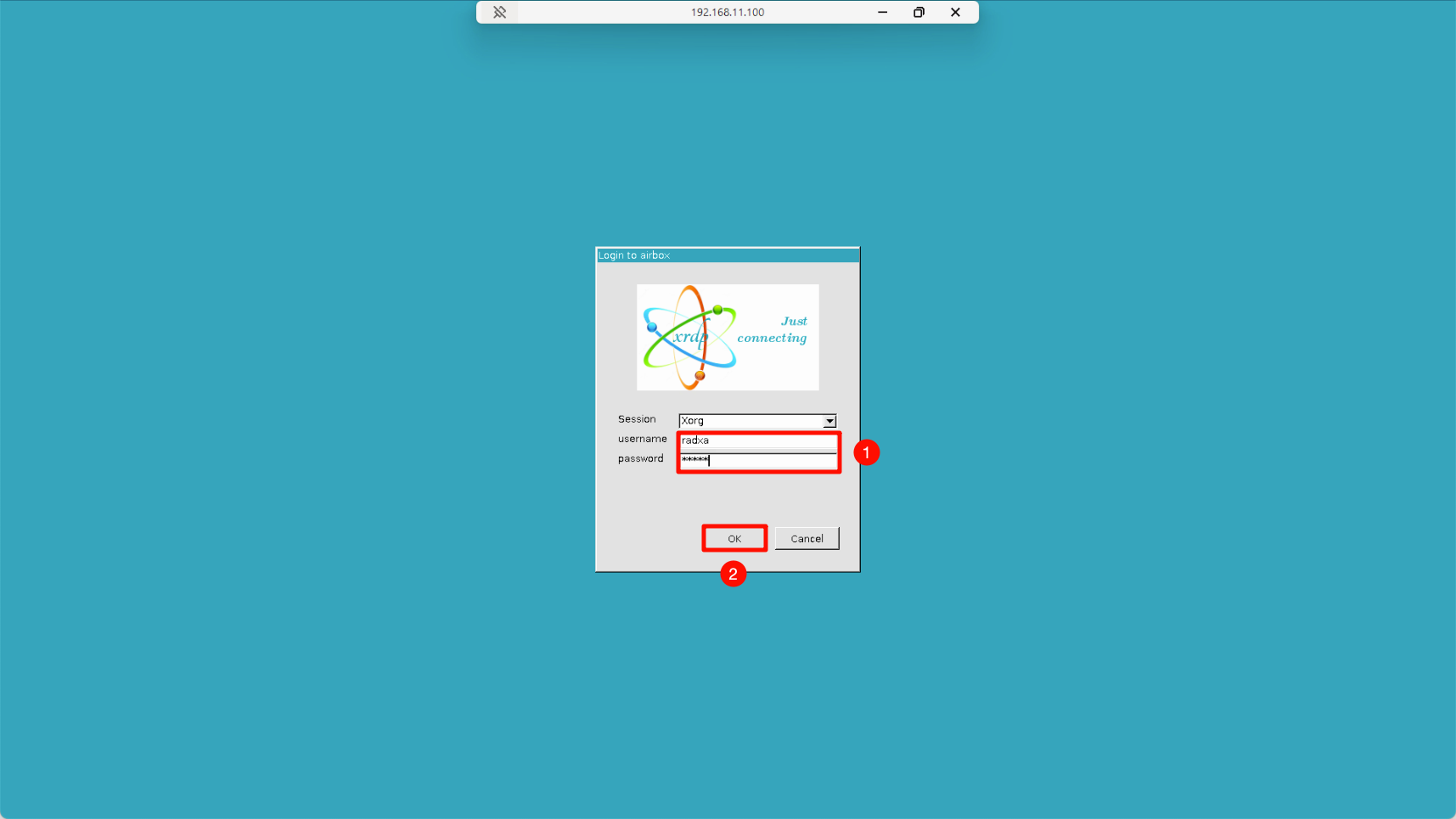
Enter the board system username and password, then click OK.
① -> Enter username and password
② -> Click OK
- Open the remote desktop tool
Ubuntu usually includes Remmina. Open Remmina.
If Remmina is not installed, install it with the following command.
sudo apt install remmina -y
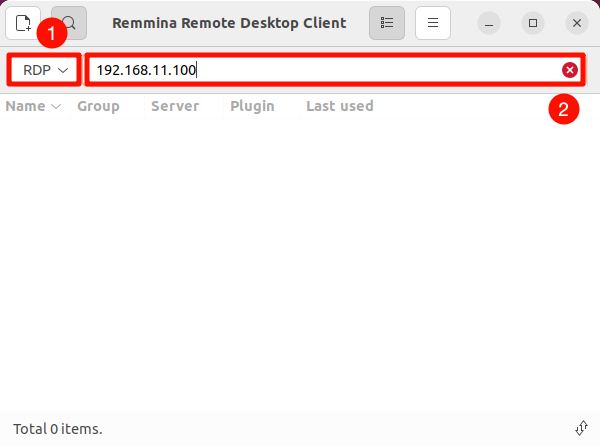
In the Remmina window, select RDP, enter the board IP address, and press Enter to connect.
① -> Select RDP
② -> Enter the board IP address
- Enter user information
Enter the board system username and password, then click OK.
① -> Enter username and password
② -> Click OK
- Install the remote desktop tool
On macOS, install Microsoft APP from the App Store.
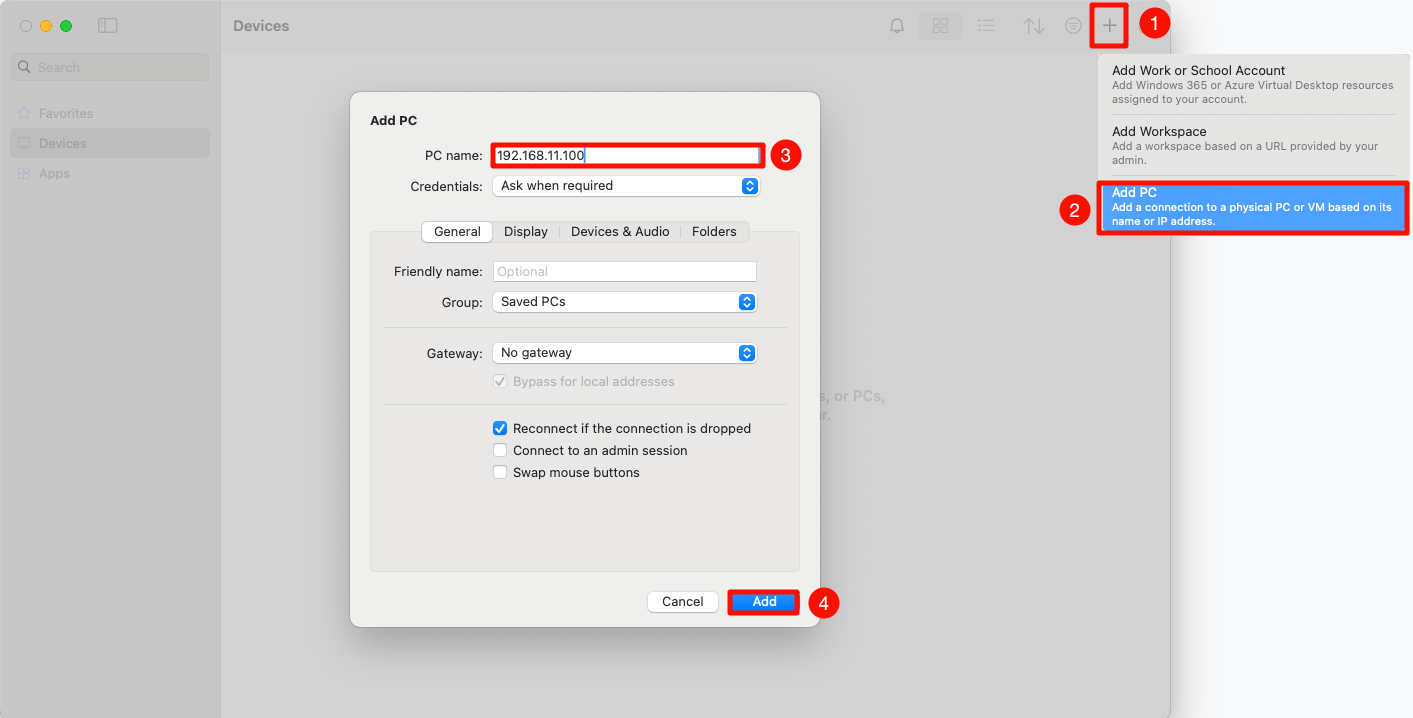
Open Microsoft APP, choose Add PC, enter the board IP address, then click Add.
① -> Select Add PC
② -> Enter the board IP address
③ -> Click Add
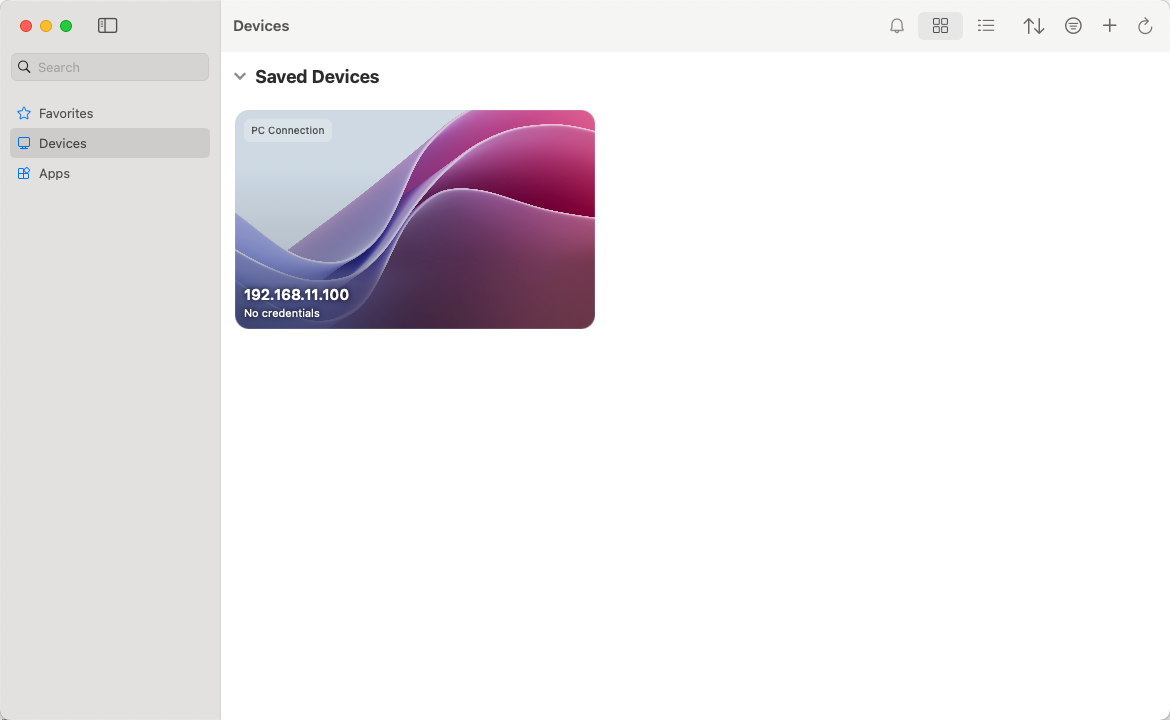
After the device is added, you will see it in the list.
- Enter user information
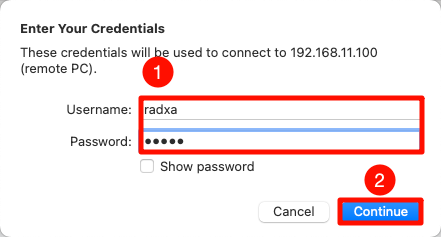
Click the device to connect, then enter the board username and password.
① -> Enter username and password
② -> Click Continue
Remote login successful
After connecting successfully, you will see the board desktop.