UART Debug
UART debugging is a core method in embedded development for interacting with the motherboard through a serial communication interface (UART). It allows you to view system output and perform debugging using serial port tools.
Hardware Connection
① : Power on the motherboard using a power adapter
② : Connect the motherboard's Debug port to your computer's USB port using a USB Type-C cable
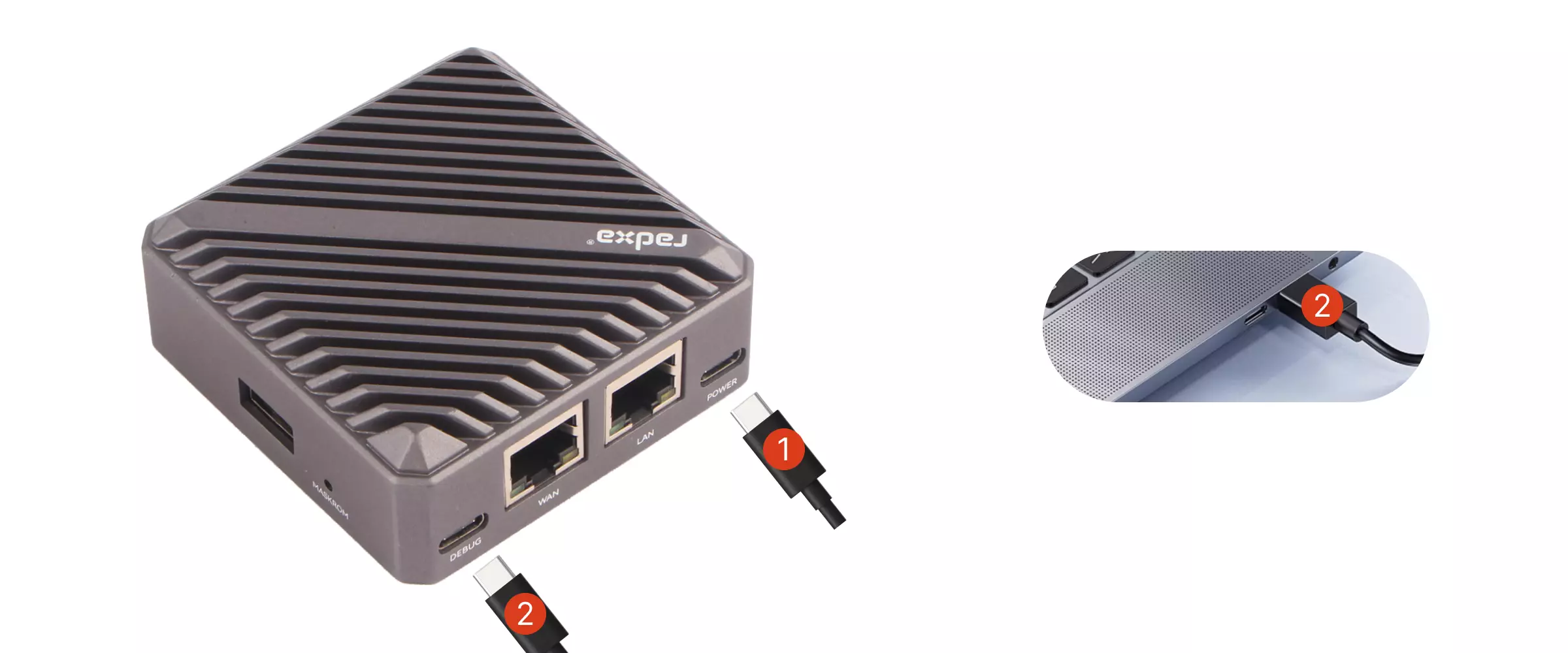
If the motherboard enters Maskrom mode and you connect the Debug port to your computer's USB port using a USB Type-C cable, the system will show two devices, similar to the following information:
Bus 001 Device 014: ID 1a86:7523 QinHeng Electronics CH340 serial converter
Bus 001 Device 015: ID 2207:350c Fuzhou Rockchip Electronics Company
Where Bus 001 Device 014 is the CH340 serial debug device, and Bus 001 Device 015 is the motherboard's Maskrom mode device.
Serial Port Login
Baud Rate: 1500000
Data Bits: 8
Stop Bits: 1
Parity: None
Flow Control: None
Some serial terminal applications (for example Tabby) can drop serial data when the device redraws its output frequently, such as a boot menu that keeps redrawing itself, or apt / dpkg style progress output that rewrites the same line or repositions the cursor. The boot log then shows many half-finished lines and repeated messages, the login prompt never appears, and the board looks like it failed to boot or hung — even though the system actually booted normally.
This is a display issue in the terminal application, not a board fault. If you hit it, use a serial terminal that has been verified to render the same output correctly, such as picocom:
picocom -b 115200 /dev/ttyUSB0
Press Ctrl+A Ctrl+X to exit picocom.
Using Tabby
We recommend using Tabby for serial port login. Tabby is a powerful and user-friendly serial debugging tool that supports multiple protocols including serial port and SSH, and is compatible with mainstream operating systems such as Windows, macOS, and Linux.
Download Tabby
Visit the Tabby official website to download and install the Tabby software.
Install Tabby
Select the appropriate installation package for your operating system and hardware architecture (Windows: tabby-<version>.exe, Linux: tabby-<version>.deb, macOS: tabby-<version>.dmg) to install the Tabby software.
Using Tabby
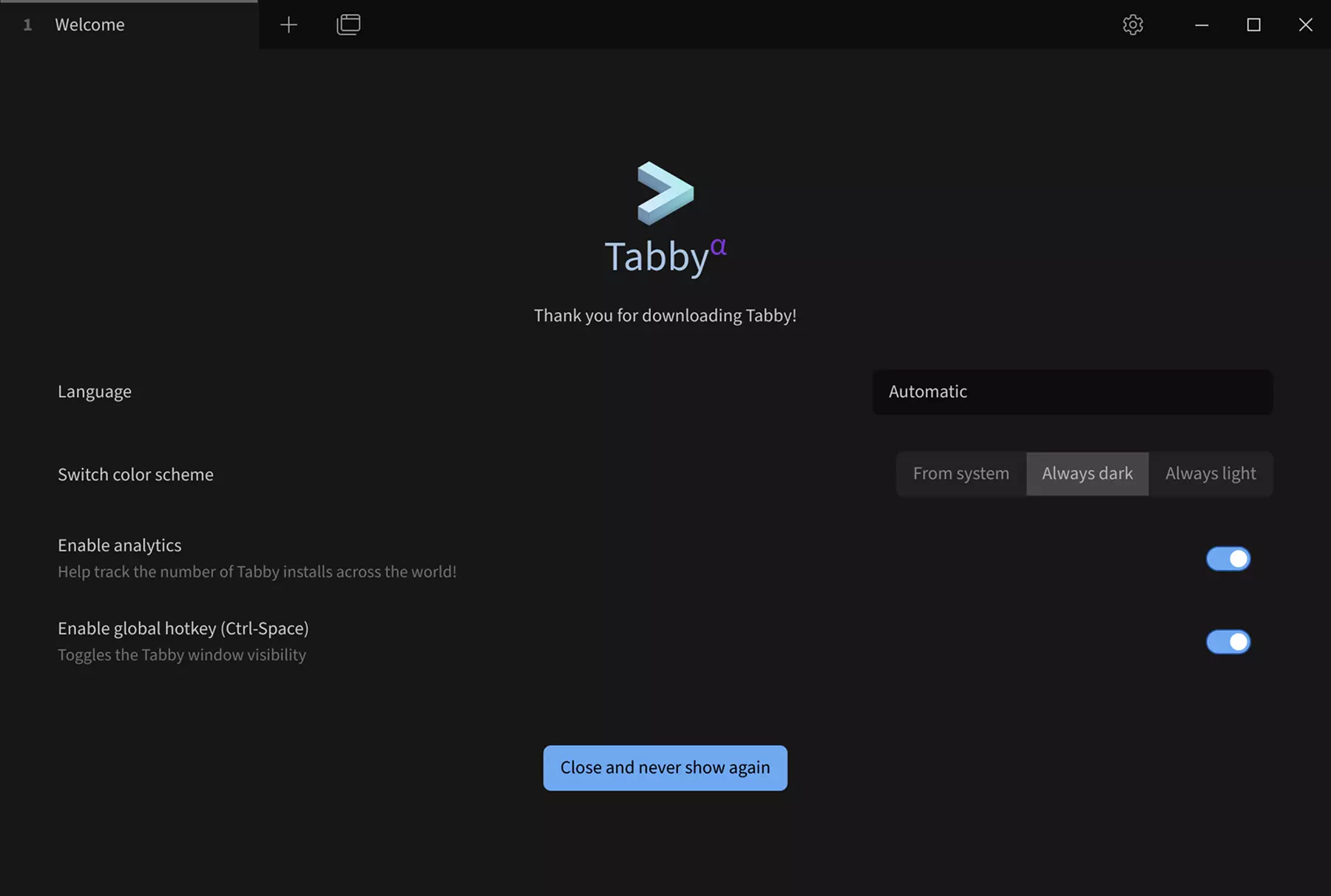
After installation, double-click the Tabby icon to launch the application.
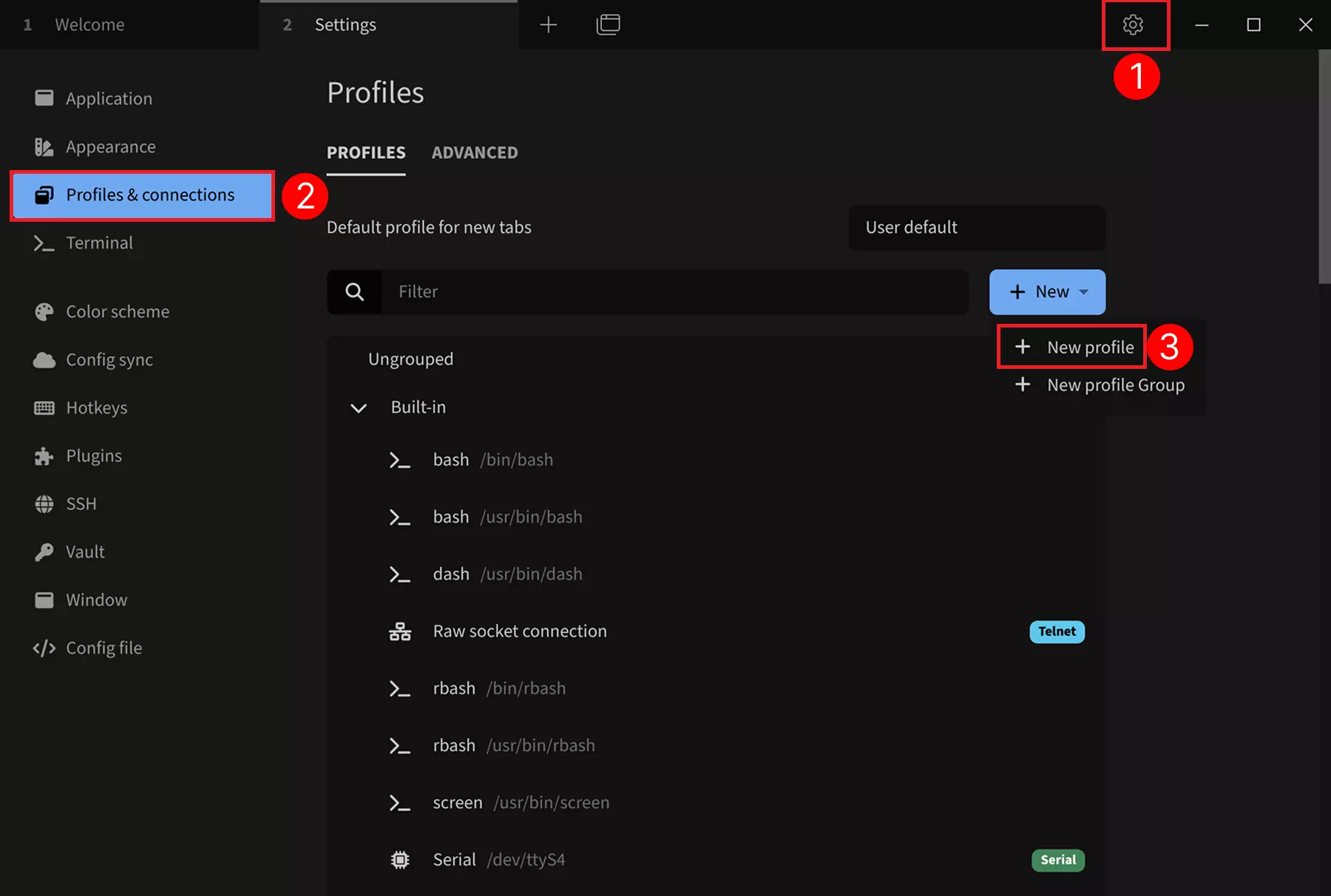
Serial Port Configuration
① --> Settings : Click the settings option
② --> Profiles & connections : Click to configure connection options
③ --> New profile : Click to add a new configuration
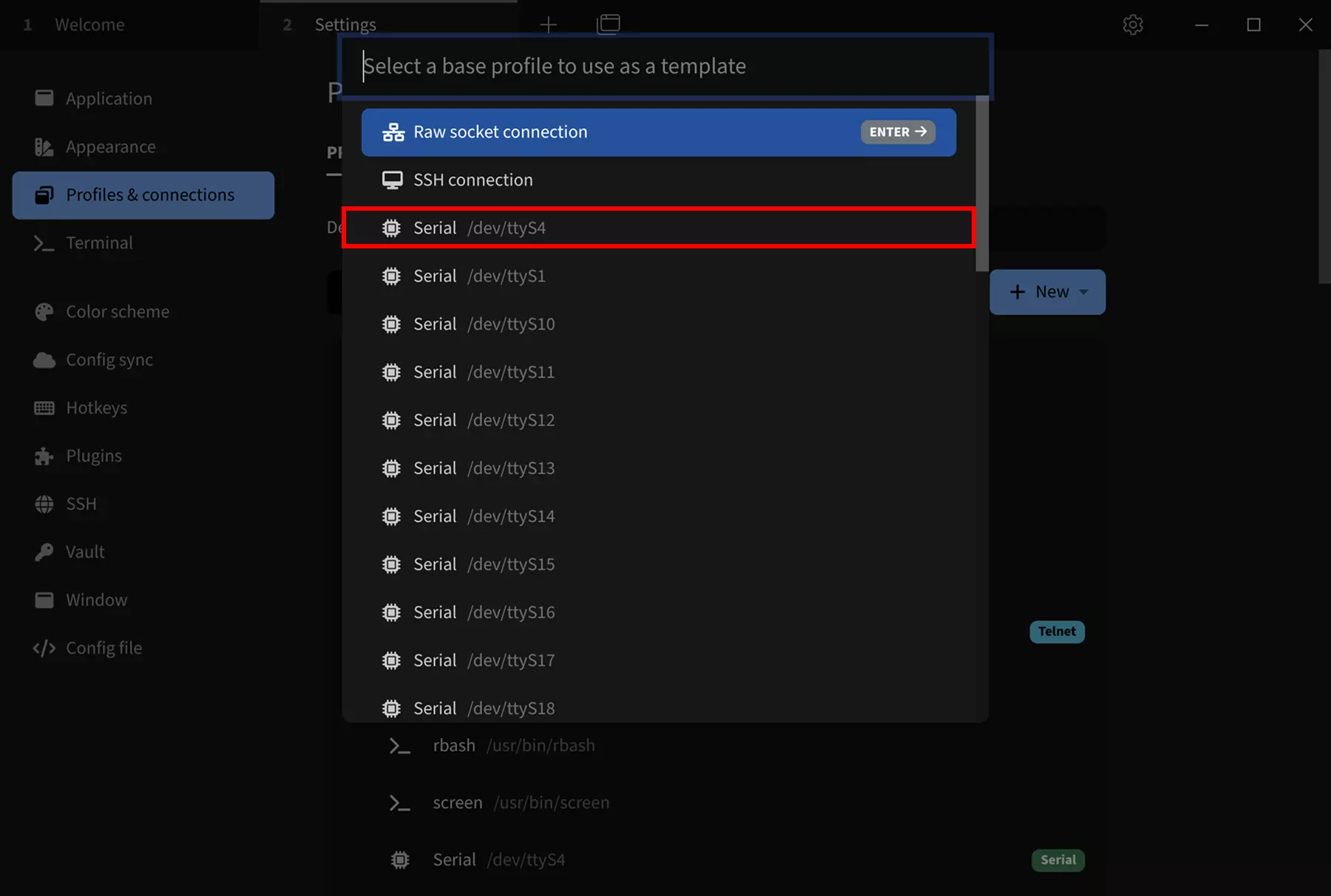
Select Serial Port Template
Choose a base configuration as a template: Select any Serial template. You can modify parameters such as device name, serial port device number, and baud rate in the subsequent configuration interface.
Modify Serial Port Parameters
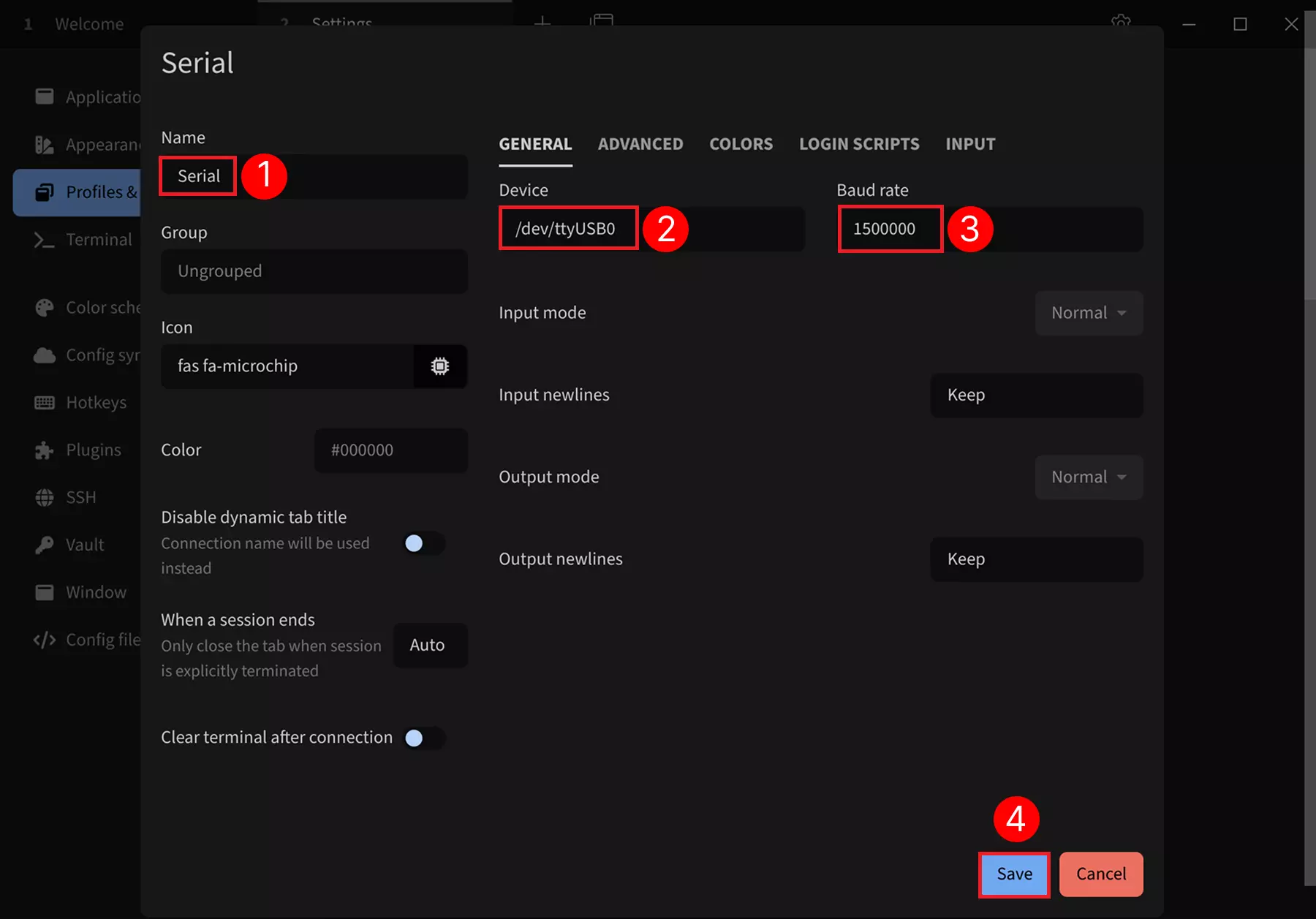
After selecting the Serial template, modify the following parameters:
① --> Name : Set the connection name (recommended to use the product name)
② --> Device : Set the serial port device number (default is /dev/ttyUSB0 if only one serial device is connected to a Linux system)
③ --> Baud rate : Set the baud rate to 1500000
④ --> Save : Save the configuration
For different platforms or when multiple serial devices are connected, you can safely unplug the USB serial cable connected to the board and observe the device number changes to identify the correct device.
Login via Serial Port
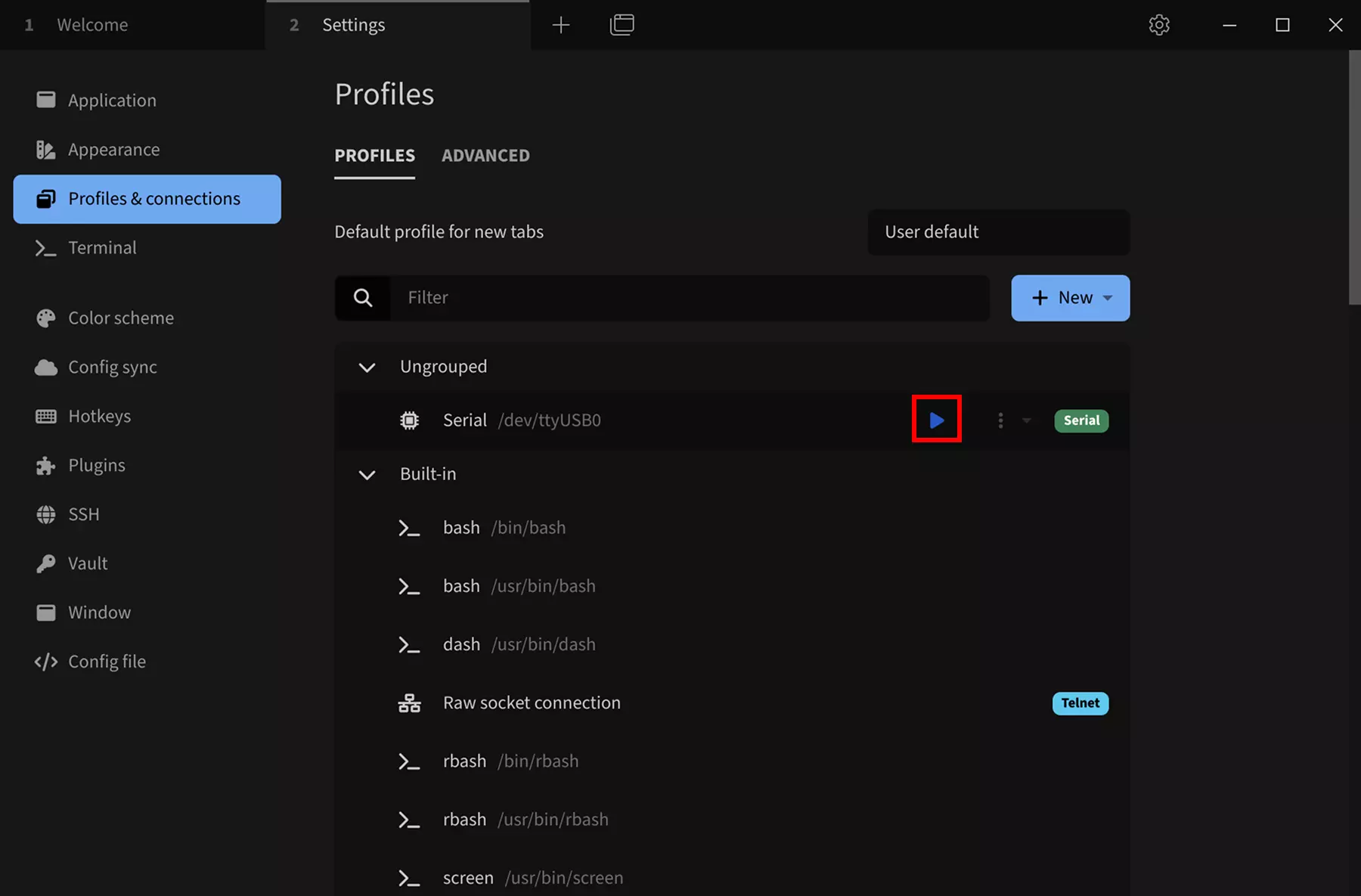
Click the run button to log in to the serial port device.
If you see the error Error: Permission denied, cannot open /dev/ttyUSB*, the current user does not have permission to access the serial port device. First confirm the serial device number corresponding to your board, e.g. /dev/ttyUSB0, then run:
sudo chmod 666 /dev/ttyUSB0
This method may no longer work after a reboot or replugging the device. It is recommended to permanently add the current user to the serial port user group:
sudo usermod -aG dialout "$USER"
After that, log out and log back in for the permission change to take effect.
After a successful connection, press Enter to display the login prompt. Then use the corresponding system username and password to log in (the password will not be displayed as you type; press Enter after entering the password).
Android system login does not require entering user account and password.

Using the Serial Port
After successfully logging in to the system via the serial port, you can view system logs and run commands to test system functionality.