Deploying AI Models on CasaOS
Installing Radxa One-Click Launch Apps
This guide explains how to install Radxa AI applications on CasaOS. Third-party apps in CasaOS are installed as Docker images.
For uploading to the CasaOS App Store, refer here.
Radxa has already uploaded Real-ESRGAN Image Restoration, StableDiffusion, and Genie apps to Docker Hub, supporting secondary development.
| App | Docker Image | Container Port | Supported SoC | Purpose |
|---|---|---|---|---|
| Real-ESRGAN AI Image Restoration | radxazifeng278/qairt-imagerepair:v1.0 | 8977 | QCS6490 | Image Restoration |
| Real-ESRGAN AI Image Restoration | radxazifeng278/qairt-imagerepair-9075:v1.3 | 8977 | QCS9075 | Image Restoration |
| StableDiffusion v1.5 | radxazifeng278/sd1.5-9075:v1.3 | 8978 | QCS9075 | Text-to-Image |
| StableDiffusion v2.1 | radxazifeng278/sd2.1-9075:v1.3 | 8979 | QCS9075 | Text-to-Image |
| Genie APP | radxazifeng278/genie-app-9075:v1.3 | 8976 | QCS9075 | LLM Chat |
-
Click the "+" icon in the CasaOS App bar and select "Install a customized app"
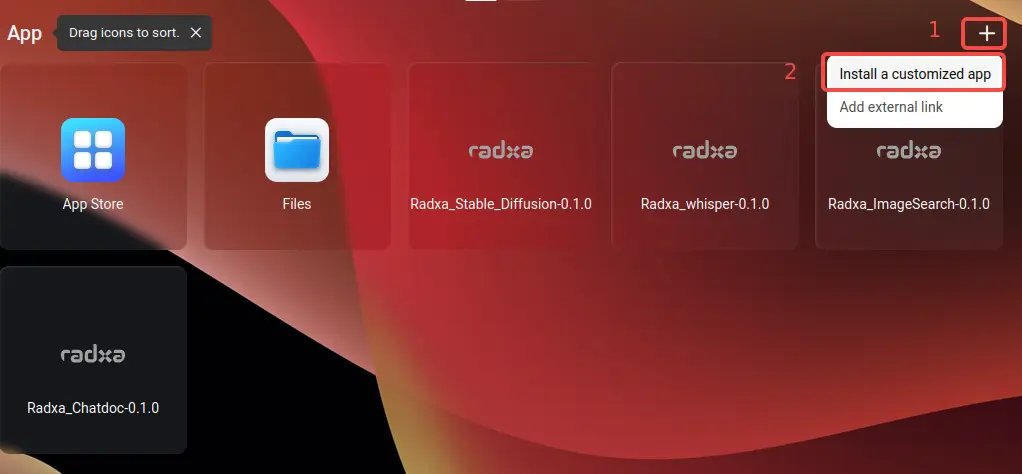
CasaOS App Installation Settings
Installing Real-ESRGAN Image Restoration App (QCS6490)
The Real-ESRGAN AI Image Restoration app can upscale images to a maximum resolution of 2048x2048 and enhance image details.
-
Fill in the required information for installing the Radxa Real-ESRGAN (QCS6490) container
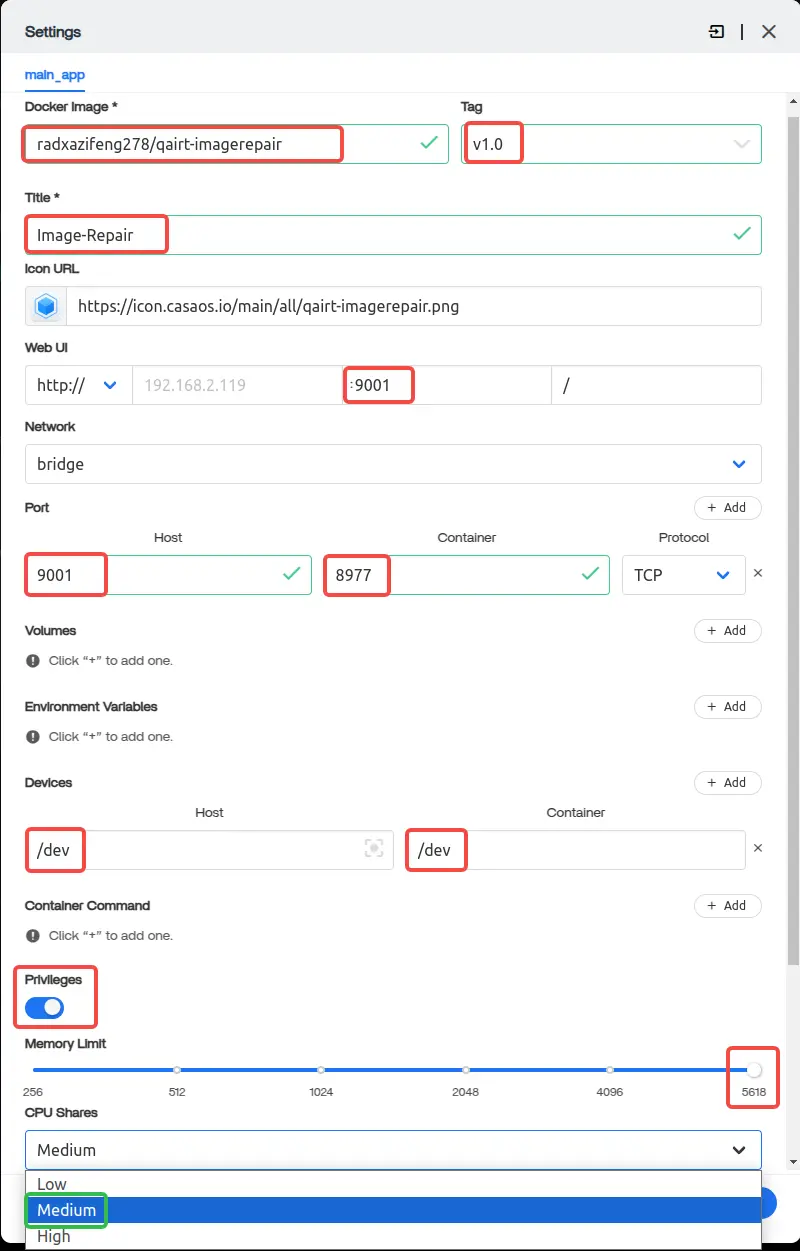
CasaOS App Installation Configuration
-
Configuration Details
Docker Image: The image name that will be automatically pulled from Docker Hub
radxazifeng278/qairt-imagerepair:v1.0Title: App name (user-defined)
Icon URL: App icon (optional)
Web UI Port: The default access port for the app. Recommended to choose between 7000-10000 and must not conflict with other CasaOS app ports
Port: Docker container port mapping. The host port is the Web UI port specified above, container port is 8977
8977Devices: Mount the NPU into the Docker container. It's recommended to mount all devices
- Host:
/dev - Container:
/dev
Privileges: Enable to obtain root privileges
Memory Limit: Container memory limit, recommended to set to maximum, otherwise the service may fail to start
CPU Shares: CPU allocation, recommended: Medium
radxa Real-ESRGAN Docker Image radxazifeng278/qairt-imagerepair:v1.0 Title Image Repair Web UI port 9001 Host Port 9001 Container Port 8977 Host Devices /dev Container Devices /dev Privileges On Memory Limit Max CPU Shares Medium 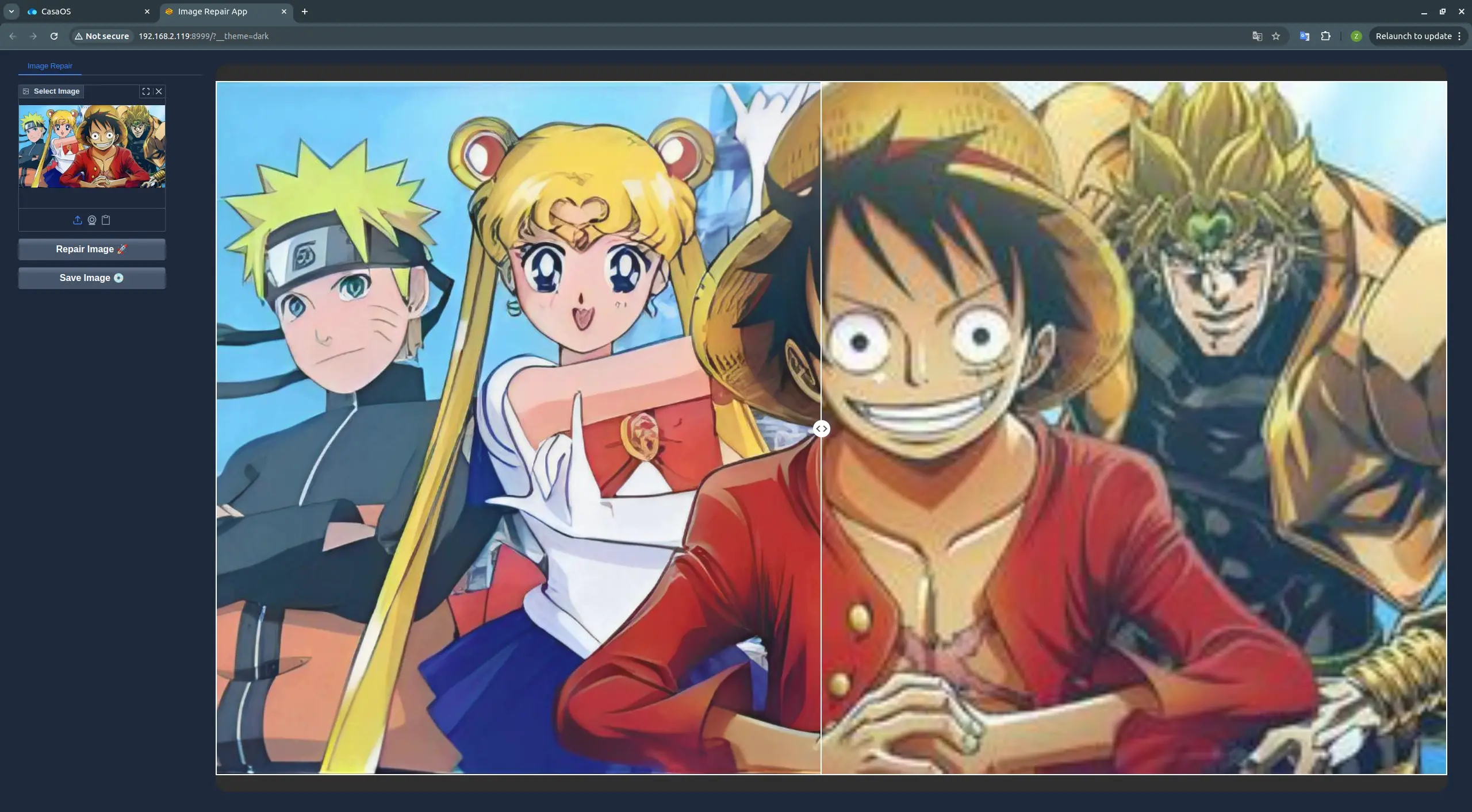
Real-ESRGAN AI Image Restoration App Interface
- Host:
Installing Real-ESRGAN Image Restoration App (QCS9075)
-
Fill in the required information for installing the Radxa Real-ESRGAN (QCS9075) container
radxa Real-ESRGAN Docker Image radxazifeng278/qairt-imagerepair-9075:v1.3 Title Image Repair Web UI port 9001 Host Port 9001 Container Port 8977 Host Devices /dev Container Devices /dev Privileges On Memory Limit Max CPU Shares Medium 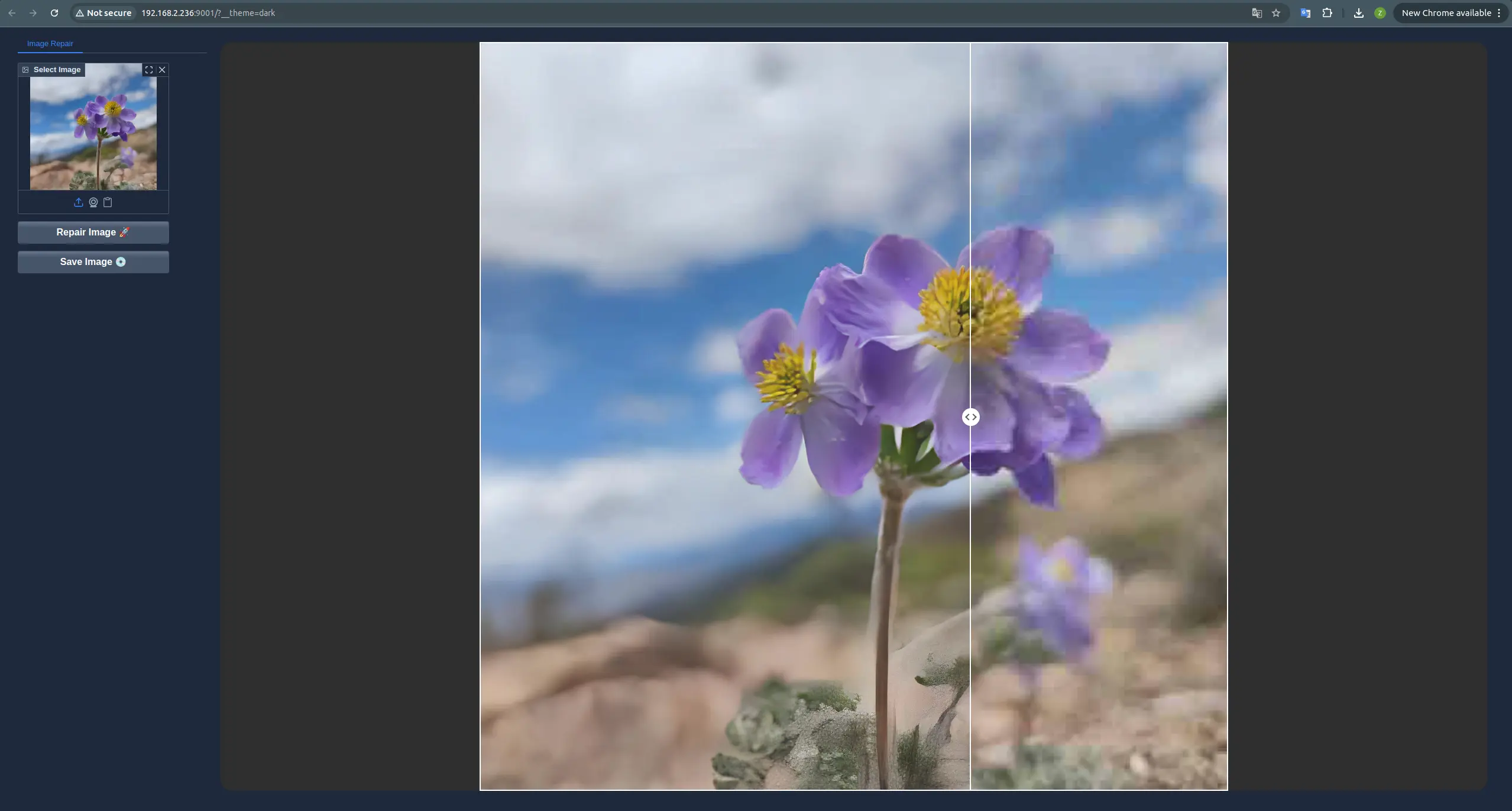
Real-ESRGAN AI Image Restoration App Interface
Installing StableDiffusion v1.5 Text-to-Image App (QCS9075)
-
Fill in the required information for installing the Radxa StableDiffusion v1.5 (QCS9075) container
radxa StableDiffusion v1.5 Docker Image radxazifeng278/sd1.5-9075:v1.3 Title StableDiffusion v1.5 Web UI port 9002 Host Port 9002 Container Port 8978 Host Devices /dev Container Devices /dev Privileges On Memory Limit Max CPU Shares Medium 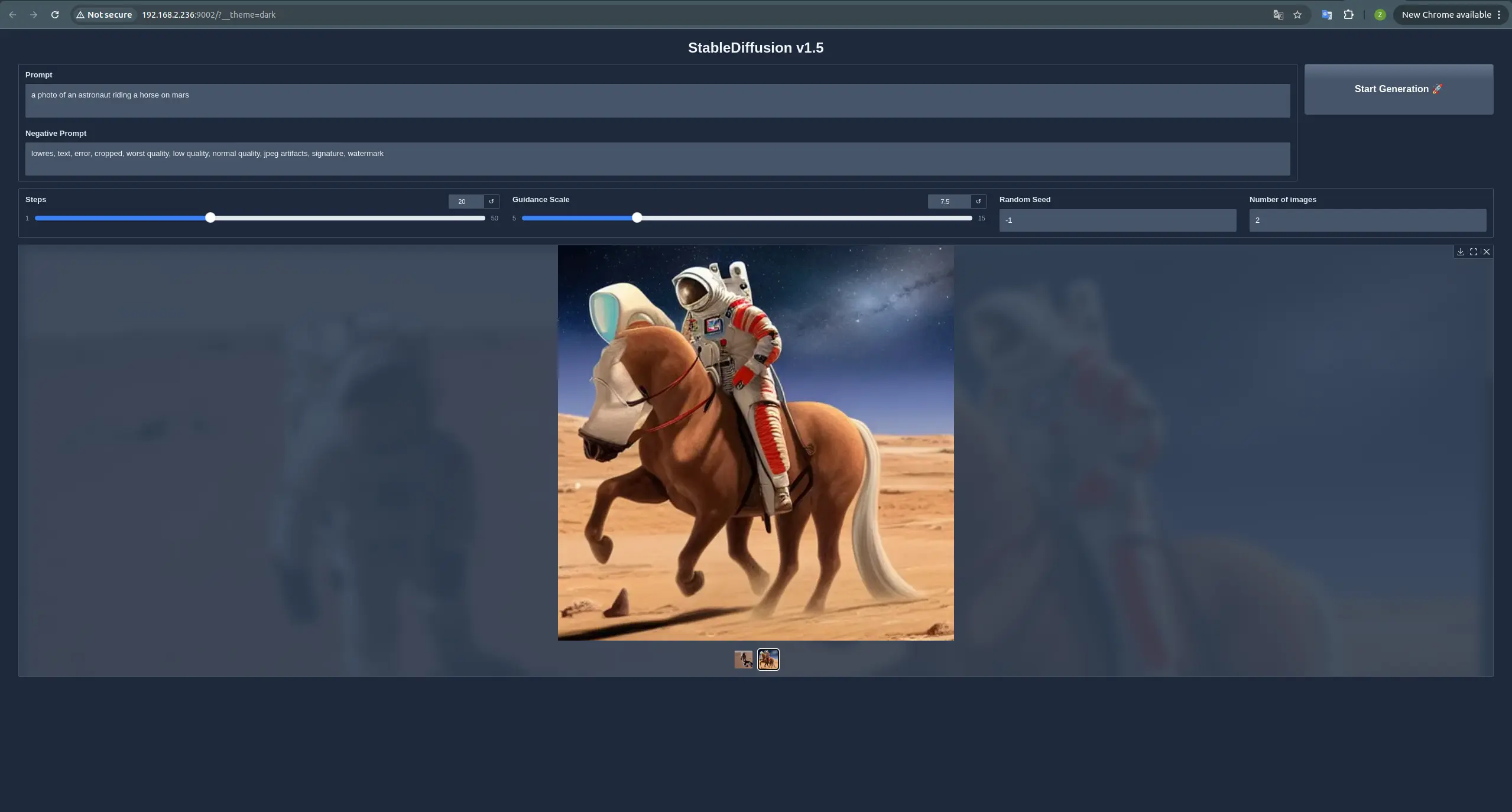
StableDiffusion v1.5 Text-to-Image App Interface
Installing StableDiffusion v2.1 Text-to-Image App (QCS9075)
-
Fill in the required information for installing the Radxa StableDiffusion v2.1 (QCS9075) container
radxa StableDiffusion v2.1 Docker Image radxazifeng278/sd2.1-9075:v1.3 Title StableDiffusion v2.1 Web UI port 9003 Host Port 9003 Container Port 8979 Host Devices /dev Container Devices /dev Privileges On Memory Limit Max CPU Shares Medium 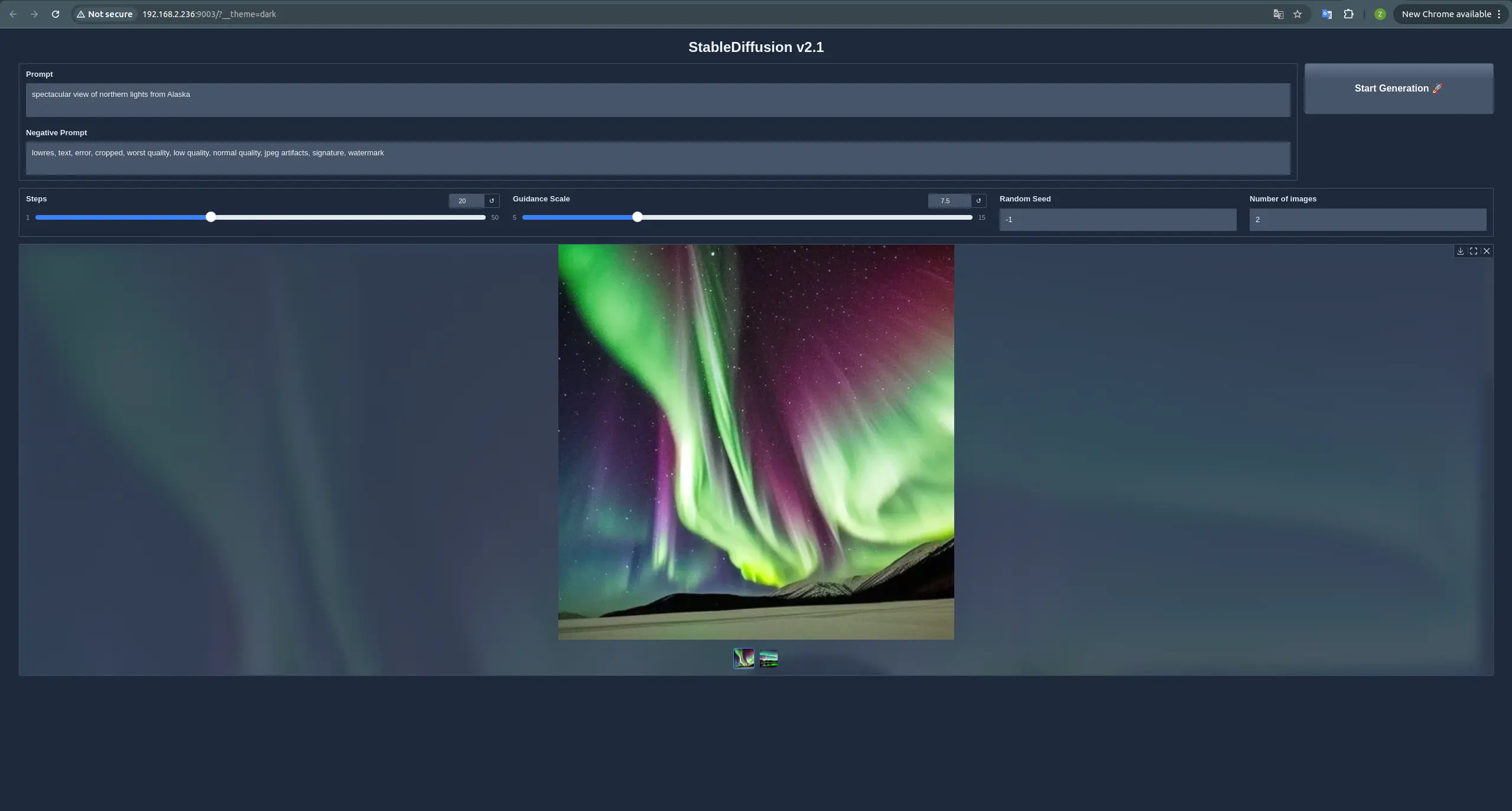
StableDiffusion v2.1 Text-to-Image App Interface
Installing Genie App (QCS9075)
Genie APP is a versatile LLM chat software that integrates IBM Granite v3.1 8B with StableDiffusion v2.1, supporting features such as Q&A with LLM, AI translation, AI document summarization, and text-to-image generation.
-
Fill in the required information for installing the Radxa Genie App (QCS9075) container
radxa genie-app Docker Image radxazifeng278/genie-app-9075:v1.3 Title Genie-APP Web UI port 9004 Host Port 9004 Container Port 8976 Host Devices /dev Container Devices /dev Privileges On Memory Limit Max CPU Shares Medium 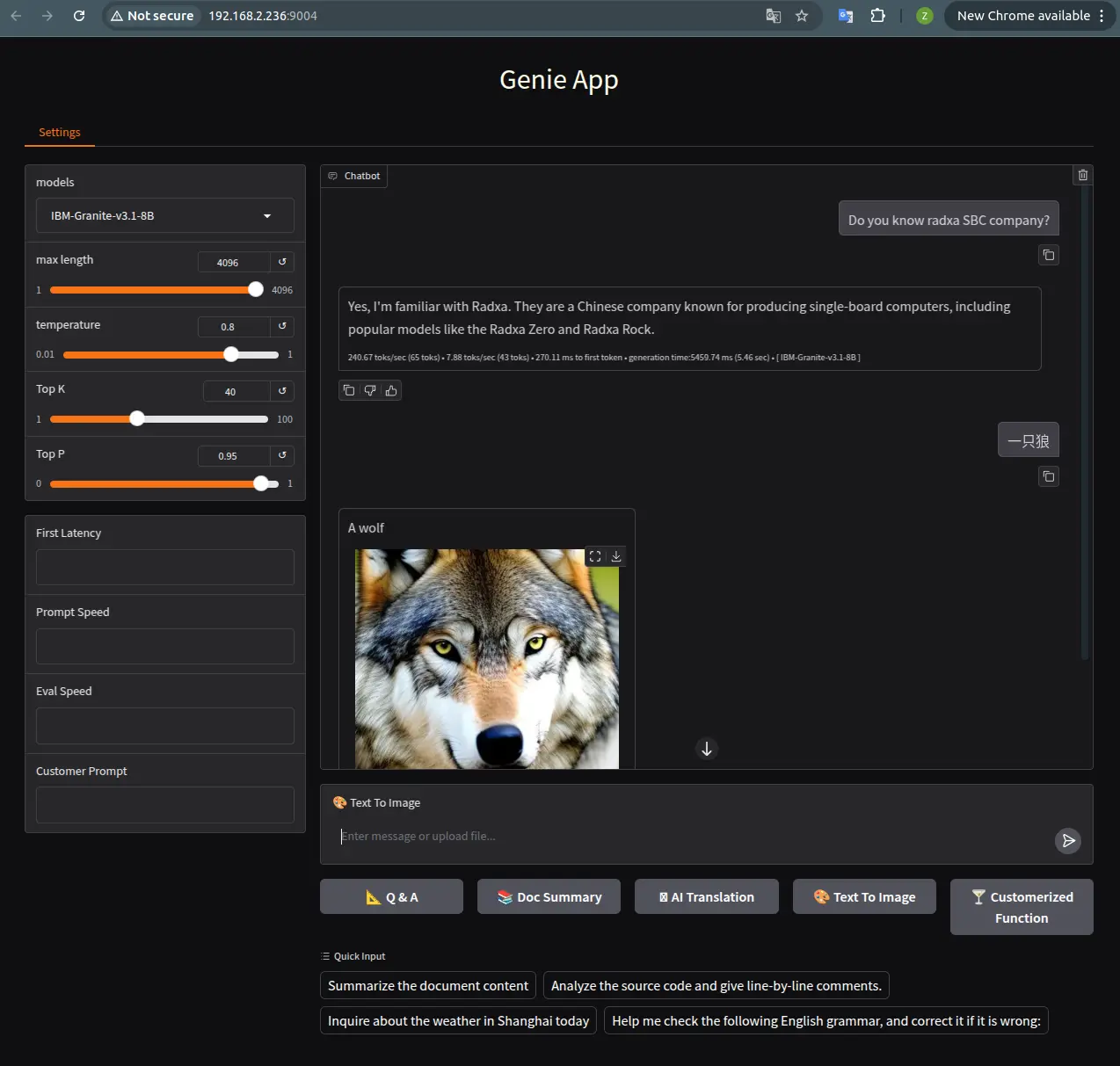
Genie App Interface
Starting and Uninstalling Apps
In CasaOS, an app's status is indicated by its icon color - highlighted when running and grayed out when stopped.
To start an app, simply click on its icon. Alternatively, you can start it from the more options menu in the top-right corner of the selected app.
To uninstall the app, simply click on Uninstall.
