EDL Button
The Fogwise® AIRbox Q900 features an onboard EDL (Emergency Download Mode) button, primarily used for entering emergency download mode to perform tasks such as system firmware flashing and system recovery.
About EDL Mode
Qualcomm's EDL Mode (Emergency Download Mode) is a low-level recovery mechanism specifically designed for Qualcomm chipset devices. It allows for forced firmware flashing or critical data recovery via USB interface when the device cannot boot normally due to system crashes, failed firmware updates, or hardware failures.
Entering EDL Mode
- Press and hold the EDL button before powering on the board.
- After powering on the board, release the EDL button.
- The board will automatically enter EDL mode.
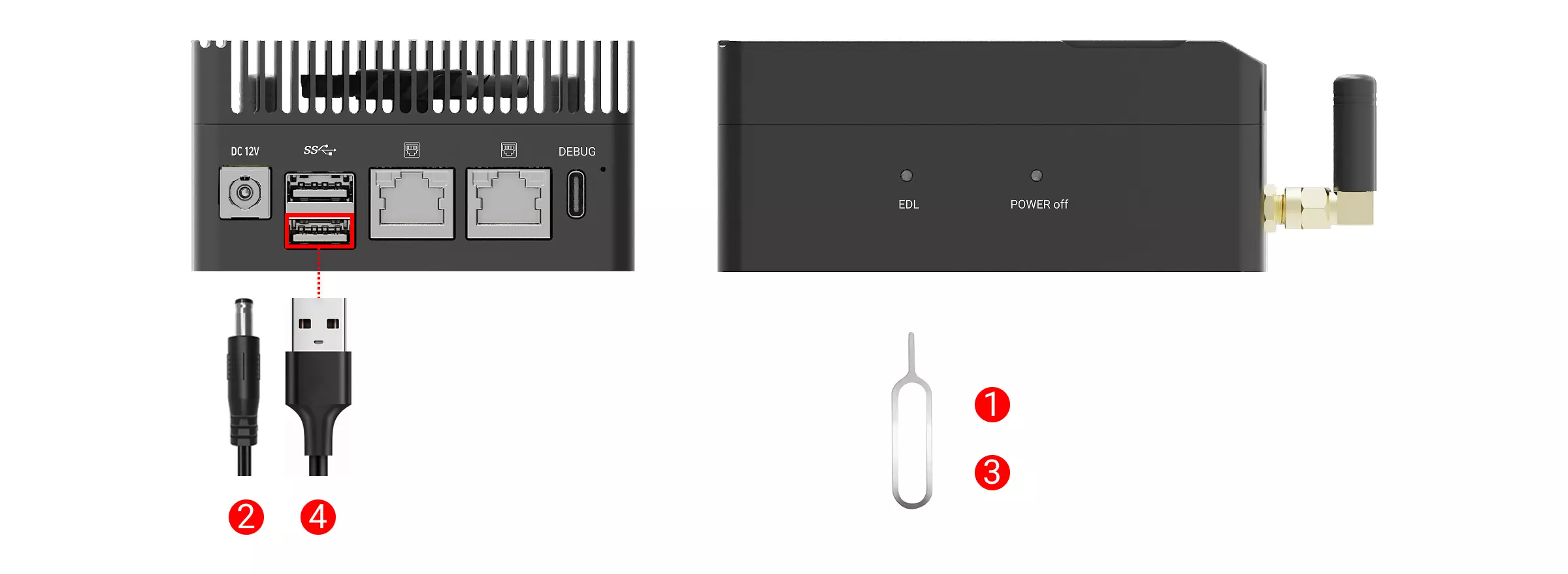
① : Use a pin or toothpick to press and hold the EDL button
② : Power on the board using a 12V DC power adapter
③ : Release the EDL button
④ : Connect the board's USB 3.1 OTG Type-A port to your computer's USB Type-A port using a USB Type-A to Type-A cable
Verifying EDL Mode
This section explains how to verify EDL mode on both Windows and Ubuntu systems.
- Windows
- Ubuntu
- Download QDL Tool
Visit the Resource Downloads page to download and extract the QDL tool (which includes both QDL software and drivers).
- Install QDL Driver
Open the extracted QDL tool folder, locate the qcserlib.inf file, right-click on it, and select Install.
- Verify EDL Mode
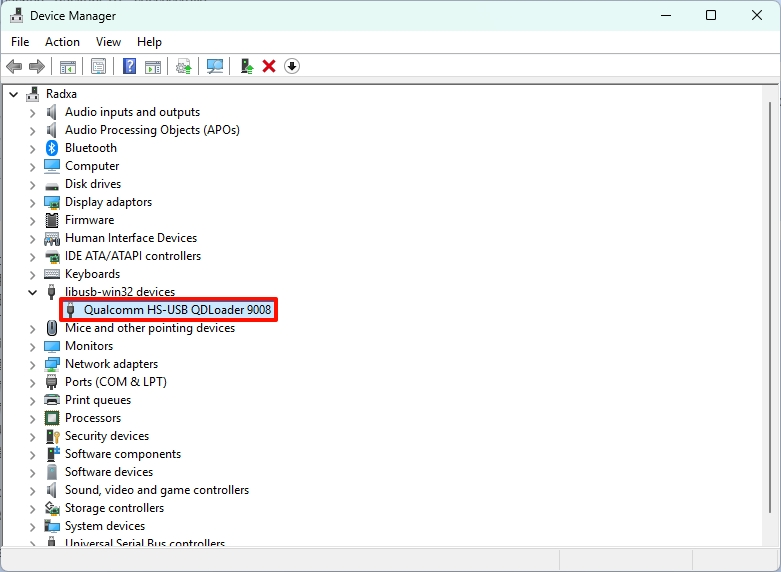
After successfully installing the driver, try unplugging and replugging the USB Type-A cable. Check if the system's Device Manager refreshes and if the Qualcomm HS-USB QDLoader 9008 device appears.
Use the lsusb command to check if the device has entered QDL mode.
lsusb
If the board is in QDL mode, the terminal will display output similar to:
Bus 001 Device 012: ID 05c6:9008 Qualcomm, Inc. Gobi Wireless Modem (QDL mode)