Mini PCIe Slot
The Radxa Fogwise® AIRbox Q900 features one onboard Mini PCIe slot that supports wireless network cards and 4G/5G modules.
Hardware Connection
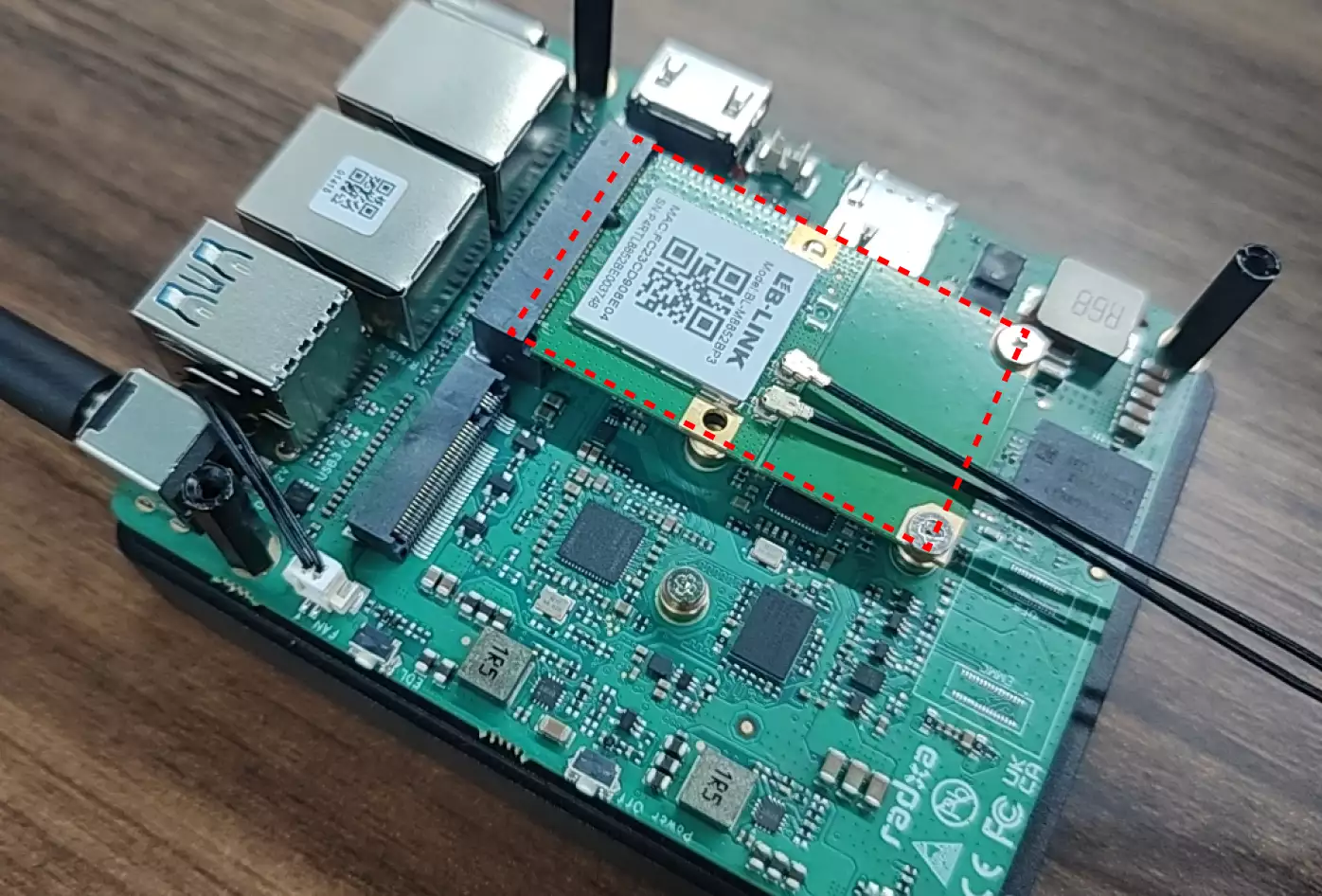
After powering off the motherboard, insert the Mini PCIe wireless network card or 4G/5G module into the Mini PCIe slot, then secure it with an M.2 screw.
- Wireless Network Card
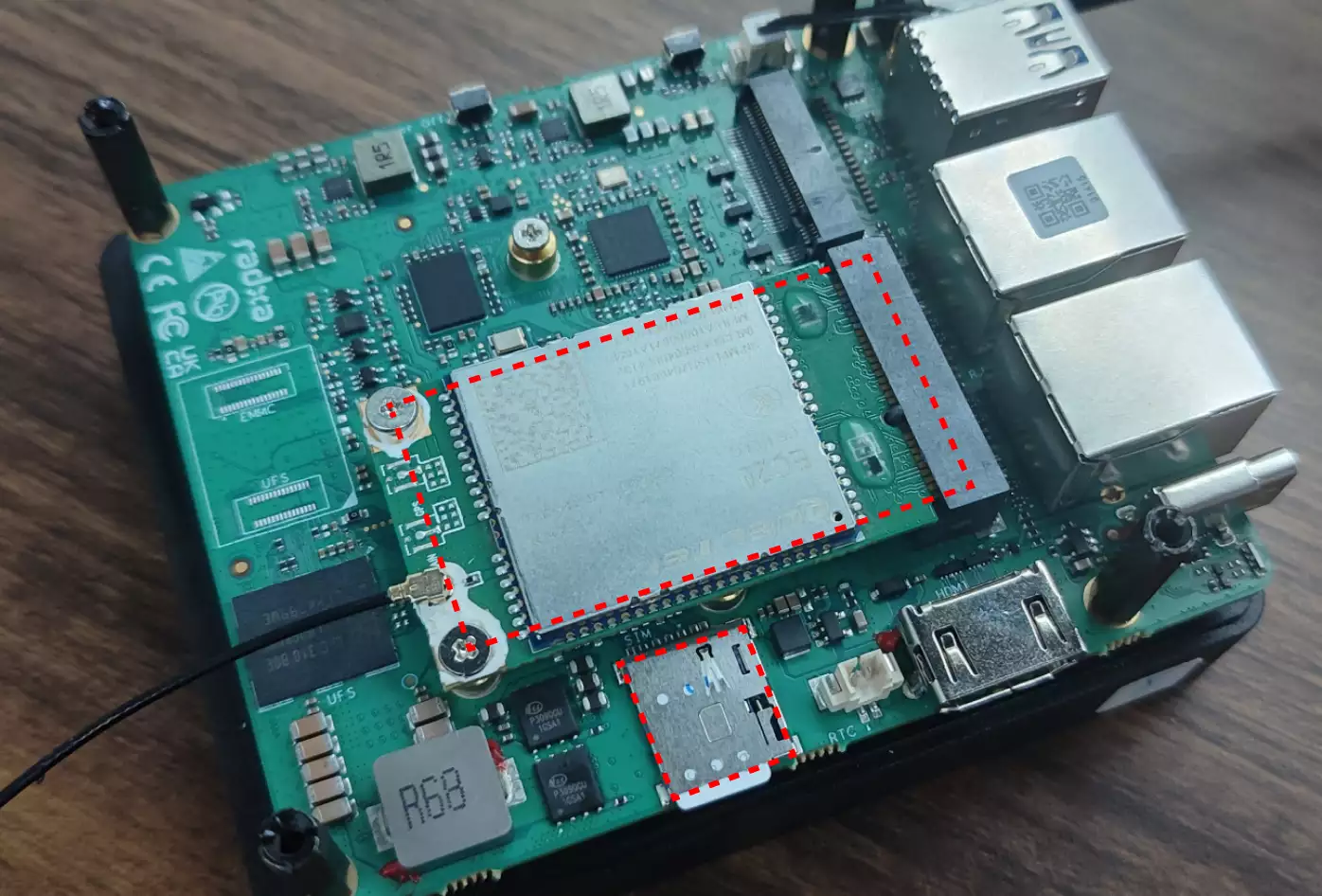
- 4G/5G Module
To enable mobile network, you need to install a 4G/5G module and a Nano SIM card.
Note: This tutorial uses the Quectel LTE EC20 as an example.
User Guide
- Wireless Network Card
- 4G/5G Module
You can use the lspci command to check if the wireless network card is properly recognized.
lspci | grep -i net
If the system recognizes it correctly, the terminal will display output similar to:
0000:01:00.0 Network controller: Realtek Semiconductor Co., Ltd. RTL8852BE PCIe 802.11ax Wireless Network Controller
Use the nmcli command-line tool to connect to a WiFi network.
nmcli (NetworkManager Command Line Interface) is a command-line management tool for NetworkManager, used to configure and manage network connections on Linux systems.
- Enable WiFi
sudo nmcli radio wifi on
- Scan for WiFi Networks
If no WiFi networks are found after enabling WiFi, try restarting the system.
sudo nmcli device wifi list
- Connect to a WiFi Network
sudo nmcli device wifi connect <SSID> password <PASSWORD>
# Example
sudo nmcli device wifi connect wifi-demo password 12345678
After a successful connection, the terminal will display output similar to:
Device 'wlp1s0' successfully activated with 'fb6ae336-87b2-4d36-af8b-ae9ac6b335d4'.
- View Network Connection Details
ip a
The terminal will display output similar to the following, where 192.168.31.231 is the IP address assigned by the router:
...
4: wlp1s0: <BROADCAST,MULTICAST,UP,LOWER_UP> mtu 1500 qdisc noqueue state UP group default qlen 1000
    link/ether fc:23:cd:90:8e:04 brd ff:ff:ff:ff:ff:ff
    inet 192.168.31.231/24 brd 192.168.31.255 scope global dynamic noprefixroute wlp1s0
       valid_lft 3575sec preferred_lft 3575sec
    inet6 fdaa:0:0:30::f12/128 scope global dynamic noprefixroute
       valid_lft 3587sec preferred_lft 3587sec
    inet6 240e:3b7:324c:5782::f12/128 scope global dynamic noprefixroute
       valid_lft 3587sec preferred_lft 3587sec
    inet6 240e:3b7:324c:5782:f7ff:b72a:6f0c:e487/64 scope global temporary dynamic
       valid_lft 252323sec preferred_lft 86195sec
    inet6 240e:3b7:324c:5782:51aa:999e:13aa:20d9/64 scope global dynamic mngtmpaddr noprefixroute
       valid_lft 252323sec preferred_lft 165923sec
    inet6 fdaa::xxxxxxxxxxxxxxxxxxx scope global temporary dynamic
       valid_lft 604787sec preferred_lft 86195sec
    inet6 fdaa::xxxxxxxxxxxxxxxxxxx scope global mngtmpaddr noprefixroute
       valid_lft forever preferred_lft 604787sec
    inet6 240e:3b7:3247:94b2:a9c0:4f94:b63:8735/64 scope global deprecated dynamic mngtmpaddr noprefixroute
       valid_lft 292sec preferred_lft 0sec
    inet6 fe80::cca9:da77:4d73:58bb/64 scope link noprefixroute
       valid_lft forever preferred_lft forever
...
Additional Commands:
sudo nmcli radio wifi off: Disable WiFisudo nmcli connection delete <SSID>: Delete a specific WiFi network
- Set Up WiFi Hotspot
We'll use the nmcli command-line tool to set up a WiFi hotspot.
- Check WiFi Network Interface
Use the ip a command to find the wireless network interface name.
ip a
The terminal will display output similar to the following, where wlp1s0 is the wireless network interface name:
...
4: wlp1s0: <BROADCAST,MULTICAST,UP,LOWER_UP> mtu 1500 qdisc noqueue state UP group default qlen 1000
    link/ether fc:23:cd:90:8e:04 brd ff:ff:ff:ff:ff:ff
    inet 192.168.31.231/24 brd 192.168.31.255 scope global dynamic noprefixroute wlp1s0
       valid_lft 3575sec preferred_lft 3575sec
    inet6 fdaa:0:0:30::f12/128 scope global dynamic noprefixroute
       valid_lft 3587sec preferred_lft 3587sec
    inet6 240e:3b7:324c:5782::f12/128 scope global dynamic noprefixroute
       valid_lft 3587sec preferred_lft 3587sec
    inet6 240e:3b7:324c:5782:f7ff:b72a:6f0c:e487/64 scope global temporary dynamic
       valid_lft 252323sec preferred_lft 86195sec
    inet6 240e:3b7:324c:5782:51aa:999e:13aa:20d9/64 scope global dynamic mngtmpaddr noprefixroute
       valid_lft 252323sec preferred_lft 165923sec
    inet6 fdaa::30:7cba:a8be:78f9:be4e/64 scope global temporary dynamic
       valid_lft 604787sec preferred_lft 86195sec
    inet6 fdaa::xxxxxxxxxxxxxxxxxxx scope global mngtmpaddr noprefixroute
       valid_lft forever preferred_lft 604787sec
    inet6 240e:3b7:3247:94b2:a9c0:4f94:b63:8735/64 scope global deprecated dynamic mngtmpaddr noprefixroute
       valid_lft 292sec preferred_lft 0sec
    inet6 fe80::cca9:da77:4d73:58bb/64 scope link noprefixroute
       valid_lft forever preferred_lft forever
...
- Set Up WiFi Hotspot
Open the system terminal and enter the following command to set up a WiFi hotspot:
sudo nmcli device wifi hotspot ifname <ifname> con-name <name> ssid <SSID> password <password>
# Example
sudo nmcli device wifi hotspot ifname wlp1s0 con-name My-Hotspot ssid My-Hotspot password 12345678
Parameter description: This creates a WiFi hotspot named My-Hotspot with password 12345678 using the wireless network interface named wlp1s0, and saves the connection as My-Hotspot for future management.
ifname: Specifies the wireless network interface name for creating the hotspot. Useip ato find the interface name.con-name: Specifies the connection name for managing (starting, stopping, deleting) the hotspot.ssid: Specifies the hotspot name (SSID) that other devices will see.password: Specifies the hotspot password.
After successful setup, the terminal will display output similar to:
Device 'wlp1s0' successfully activated with 'f680a445-8f38-44a0-9f50-cb1a8daafb30'.
Hint: "nmcli dev wifi show-password" shows the Wi-Fi name and password.
- Disable WiFi Hotspot
sudo nmcli connection down My-Hotspot
- Enable WiFi Hotspot
sudo nmcli connection up My-Hotspot
- Delete WiFi Hotspot
sudo nmcli connection delete My-Hotspot
- Verify 4G/5G Module
You can use the lsusb command to check if the 4G/5G module is properly recognized.
lsusb | grep -i Quectel
If the system recognizes it correctly, the terminal will display output similar to:
Bus 005 Device 002: ID 2c7c:0125 Quectel Wireless Solutions Co., Ltd. EC25 LTE modem
- Check cdc-wdm Device
Use the ls command to check if the system has properly enumerated the cdc-wdm device.
ls /dev/cdc-wdm*
If recognized correctly, the terminal will display output similar to:
/dev/cdc-wdm0
- Install Required Software
Install the necessary packages for dial-up networking.
sudo apt install libqmi-utils modemmanager -y
- Check Data Port Mode
sudo qmicli -d /dev/cdc-wdm0 -e
This should be set to raw-ip. If not, use sudo qmicli -d /dev/cdc-wdm0 -E raw-ip and reboot the board.
- Check Data Network Interface
sudo qmicli -d /dev/cdc-wdm0 -w
This should be set to wwan0. If not, use sudo qmicli -d /dev/cdc-wdm0 -w wwan0 and reboot the board.
- Create Network Interface Configuration
Use the nmcli command to create a network interface configuration.
sudo nmcli connection add type gsm ifname cdc-wdm0
If successful, the terminal will display output similar to:
Connection 'gsm-cdc-wdm0' (6a044568-6947-436e-9b46-51a1f2a9b65d) successfully added.
This step is optional. If you experience network connection issues, you may need to edit the APN, username, password, or other carrier-specific settings.
sudo nmcli connection edit gsm-cdc-wdm0
The terminal will enter an interactive interface. Type help or ? to see available commands.
===| nmcli interactive connection editor |===

Editing existing 'gsm' connection: 'gsm-cdc-wdm0'

Type 'help' or '?' for available commands.
Type 'print' to show all the connection properties.
Type 'describe [<setting>.<prop>]' for detailed property description.

You may edit the following settings: connection, gsm, serial, ppp, match, ipv4, ipv6, hostname, link, tc, proxy
nmcli> set gsm.apn ctlte
nmcli> save
Connection 'gsm-cdc-wdm0' (e26d1d79-ba6b-44f3-9135-1ef7a80d982a) successfully updated.
nmcli> quit
- Verify Network Connection
Use the ip a command to check if the wwan0 interface has been assigned an IP address.
ip a
If connected successfully, the terminal will display output similar to:
...
4: wwan0: <POINTOPOINT,MULTICAST,NOARP,UP,LOWER_UP> mtu 1500 qdisc pfifo_fast state UNKNOWN group default qlen 1000
    link/none
    inet 10.10.24.33/30 brd 10.10.24.35 scope global noprefixroute wwan0
       valid_lft forever preferred_lft forever
...
If the interface doesn't have an IP address, you can restart the network interface using sudo nmcli connection up gsm-cdc-wdm0.
Test the network connection using the ping command.
sudo ping baidu.com -I wwan0 -c 5
If the network is functioning properly, the terminal will display output similar to:
PING baidu.com (220.181.7.203) from 10.10.24.33 wwan0: 56(84) bytes of data.
64 bytes from 220.181.7.203: icmp_seq=1 ttl=52 time=60.6 ms
64 bytes from 220.181.7.203: icmp_seq=2 ttl=52 time=59.5 ms
64 bytes from 220.181.7.203: icmp_seq=3 ttl=52 time=68.7 ms
64 bytes from 220.181.7.203: icmp_seq=4 ttl=52 time=66.9 ms
64 bytes from 220.181.7.203: icmp_seq=5 ttl=52 time=64.2 ms

--- baidu.com ping statistics ---
5 packets transmitted, 5 received, 0% packet loss, time 4006ms
rtt min/avg/max/mdev = 59.494/63.983/68.727/3.540 ms