USB Type-A Ports
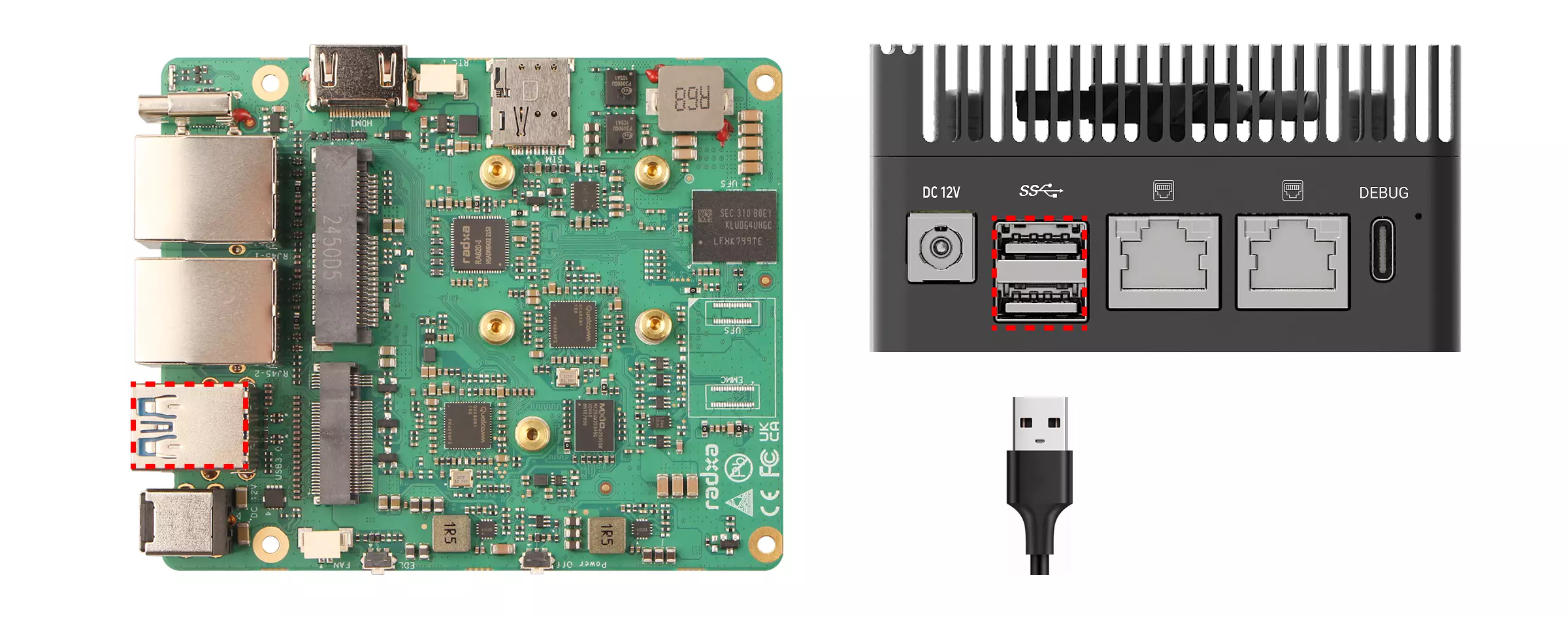
The Radxa Fogwise® AIRbox Q900 features 2 onboard USB Type-A ports (1x USB 3.1 Gen2 OTG Type-A and 1x USB 3.1 Gen2 HOST Type-A) for connecting USB devices.
Note: The orientation of the Fogwise® AIRbox Q900 board is reversed when installed in the metal enclosure, causing the OTG and HOST port positions to be swapped:
- Without enclosure: USB 3.1 Gen2 OTG Type-A (top), USB 3.1 Gen2 HOST Type-A (bottom)
- With enclosure: USB 3.1 Gen2 OTG Type-A (bottom), USB 3.1 Gen2 HOST Type-A (top)
Usage Guide
Basic Functions
Connect devices such as mice, keyboards, and USB flash drives to the USB Type-A ports.
You can use the lsusb command to compare USB peripheral information before and after connecting a device to verify if it's properly recognized.
lsusb
Example: USB Flash Drive
- Without USB flash drive connected
Use the lsusb command to view the current system's USB device information.
lsusb
Example output:
Bus 001 Device 001: ID 1d6b:0002 Linux Foundation 2.0 root hub
Bus 002 Device 001: ID 1d6b:0003 Linux Foundation 3.0 root hub
Bus 003 Device 001: ID 1d6b:0002 Linux Foundation 2.0 root hub
Bus 004 Device 001: ID 1d6b:0003 Linux Foundation 3.0 root hub
Bus 005 Device 001: ID 1d6b:0002 Linux Foundation 2.0 root hub
- With USB flash drive connected
Use the lsusb command to view the current system's USB device information.
lsusb
Example output:
Bus 001 Device 001: ID 1d6b:0002 Linux Foundation 2.0 root hub
Bus 002 Device 001: ID 1d6b:0003 Linux Foundation 3.0 root hub
Bus 002 Device 002: ID 3535:6300 aigo  U330
Bus 003 Device 001: ID 1d6b:0002 Linux Foundation 2.0 root hub
Bus 004 Device 001: ID 1d6b:0003 Linux Foundation 3.0 root hub
Bus 005 Device 001: ID 1d6b:0002 Linux Foundation 2.0 root hub
The line Bus 002 Device 002: ID 3535:6300 aigo U330 shows the connected USB flash drive's device information.
Read/Write Testing
Connect a card reader or USB flash drive to the USB Type-A port and perform read/write tests using the dd command.
sudo dd if=source_file/device of=target_file/device bs=block_size count=block_number
if: Input file or deviceof: Output file or devicebs: Block sizecount: Number of blocks
Example: USB Flash Drive
First, connect a USB flash drive to any USB Type-A port.
- Identifying the storage device
Use the lsblk command to view the system's storage device information (you can compare the output with and without the USB drive connected to identify it).
lsblk
Example output:
NAME    MAJ:MIN RM   SIZE RO TYPE MOUNTPOINTS
sda       8:0    0 114.4G  0 disk
├─sda1    8:1    0   512M  0 part /boot/efi
├─sda2    8:2    0    30M  0 part
└─sda3    8:3    0 113.8G  0 part /
···
sdi       8:128  1  29.3G  0 disk
In this example, sdi is the device identifier for the USB flash drive.
- Write test
Use the dd command to write 1GB of data to the USB flash drive.
sudo dd if=/dev/zero of=/dev/sdi bs=1M count=1024
After completion, the terminal will display the number of bytes written, time taken, and transfer rate.
- Read test
Use the dd command to read 1GB of data from the USB flash drive.
sudo dd if=/dev/sdi of=/dev/null bs=1M count=1024
After completion, the terminal will display the number of bytes read, time taken, and transfer rate.