Deploy AI Large Models on CasaOS
Installing Radxa One-Click AI Model Apps
This guide explains how to install Radxa's large AI model Apps on CasaOS. Third-party Apps in CasaOS are installed as Docker images.
For uploading to the CasaOS App Store, refer here.
Radxa has currently uploaded five major AI model Apps to Docker Hub: Stable Diffusion, Whisper, ChatGLM2 ChatDoc, ImageSearch, and Llama3 Chatbot.
For more details, please refer to App Building Methods.
| App | Docker Image | Container port |
|---|---|---|
| Radxa Stable Diffusion | radxazifeng278/radxa_sd_app:0.3.0 | 8999 |
| Radxa Whisper | radxazifeng278/radxa_whisper_app:0.1.0 | 7860 |
| Radxa ImageSearch | radxazifeng278/radxa_imgsearch_app:0.1.0 | 8501 |
| Radxa ChatGLM2 ChatDoc | radxazifeng278/radxa_chatdoc_app:0.1.0 | 8501 |
| Radxa Llama3 Chatbot | radxazifeng278/radxa_llama3_app:0.1.0 | 8003 |
- Click the "+" icon in the CasaOS App bar and select "Install a customized app"
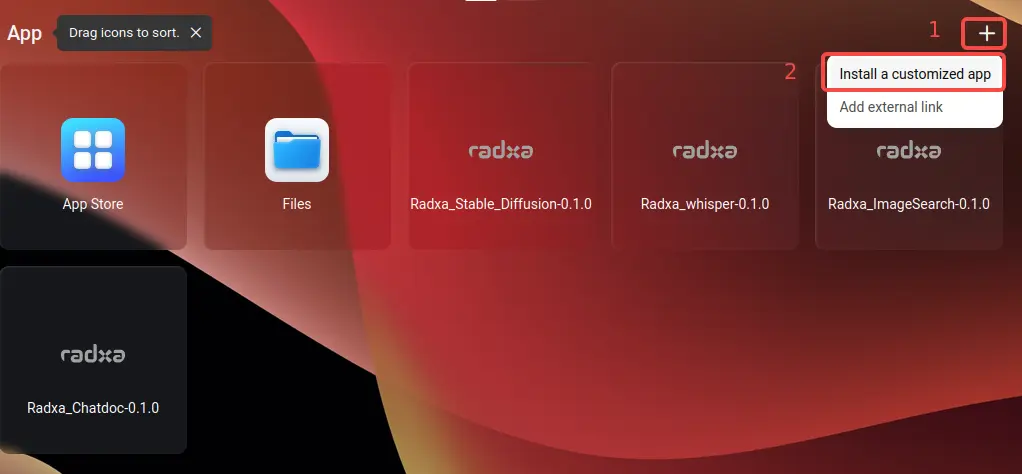
Installing Radxa Stable Diffusion Text-to-Image App
Stable Diffusion comes pre-installed by default.
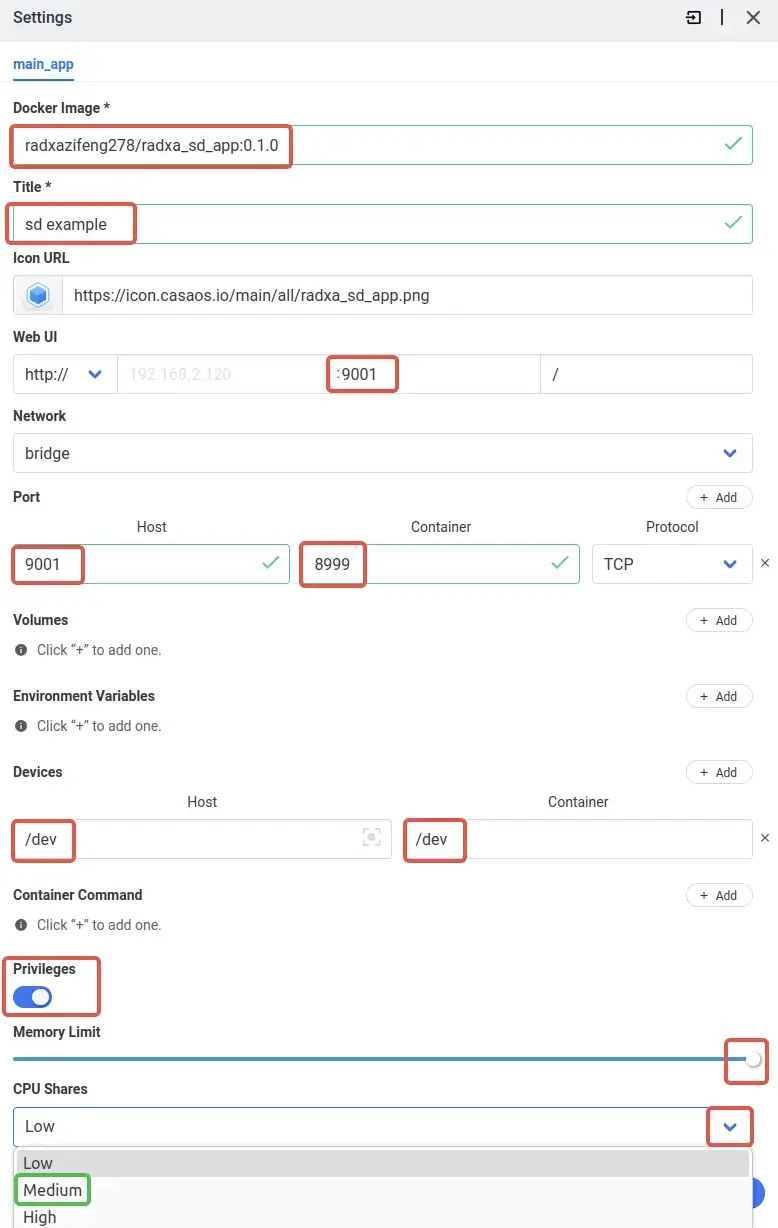
- Fill in the required information to install the Radxa Stable Diffusion container
-
Configuration Details
Docker Image: The name of the image. Entering this will automatically pull the image from Docker Hub.
radxazifeng278/radxa_sd_app:0.3.0Title: App name (user-defined)
Icon URL: App icon (optional)
Web UI Port: The default access port for the app. Recommended to choose between 7000-10000, ensuring it doesn't conflict with other CasaOS apps.
Port: Docker container port mapping. The host port should match the Web UI port. Container port is 8999
8999Devices: Device mounting. Mount the TPU into the Docker container. It's recommended to mount all devices.
- Host:
/dev - Container:
/dev
Privileges: Enable to get the highest permissions
Memory limit: Container memory limit. It's recommended to allocate the maximum, otherwise the service might not start.
CPU Shares: CPU allocation. Recommended: Medium
radxa Stable Diffusion Docker Image radxazifeng278/radxa_sd_app:0.3.0 Title stable diffusion Web UI port 9001 Host Port 9001 Container Port 8999 Host Devices /dev Container Devices /dev CPU Shares Medium - Host:
Installing Radxa Whisper Speech Recognition App
-
Fill in the required information to install the Radxa Whisper container
radxa Whisper Docker Image radxazifeng278/radxa_whisper_app:0.1.0 Title whisper Web UI port 8004 Host Port 8004 Container Port 7860 Host Devices /dev Container Devices /dev CPU Shares Medium
Installing Radxa ImageSearch App
-
Fill in the required information to install the Radxa ImageSearch container
radxa ImageSearch Docker Image radxazifeng278/radxa_imgsearch_app:0.1.0 Title Image_Search Web UI port 8007 Host Port 8007 Container Port 8501 Host Devices /dev Container Devices /dev CPU Shares Medium
Installing Radxa ChatGLM2 ChatDoc App
Before installing ChatDoc, you must modify the SG2300X memory allocation using the Memory Allocation Tool.
Recommended allocation: -NPU 7168, -VPU 2048, -VPP 3072
-
Fill in the required information to install the Radxa ChatGLM2 ChatDoc container
radxa Chatdoc Docker Image radxazifeng278/radxa_chatdoc_app:0.1.0 Title chatglm2 chatdoc Web UI port 8009 Host Port 8009 Container Port 8501 Host Devices /dev Container Devices /dev CPU Shares Medium
Installing Radxa Llama3 Chatbot App
Llama3 comes pre-installed by default.
Please close other TPU-related Apps before starting Llama3 Chatbot to avoid underlying compatibility issues.
-
Fill in the required information to install the Radxa Llama3 Chatbot container
radxa Chatdoc Docker Image radxazifeng278/radxa_llama3_app:0.1.0 Title llama3 chatbot Web UI port 8008 Host Port 8008 Container Port 8003 Host Devices /dev Container Devices /dev CPU Shares Medium
App Launch and Uninstallation
In CasaOS, an active App is indicated by a highlighted icon, while an inactive App shows a grayed-out icon.
To launch an App, simply click on its icon. You can also start it from the more options menu (three dots) in the top-right corner of the selected App.
To uninstall an App, click the 'Uninstall' button.
