Tailscale Remote Access
Linkr KVM has a built-in Tailscale client that can join the device to your Tailscale virtual private network (VPN), allowing you to securely access the KVM management interface from anywhere over an encrypted tunnel, with no public IP or manual port forwarding required.
Tailscale is based on the WireGuard protocol. The Tailscale coordination server handles node discovery and key exchange, and devices establish point-to-point encrypted connections with each other.
Feature Overview
| Capability | Description |
|---|---|
| Built-in client | The firmware pre-installs the tailscale / tailscaled binaries; no extra installation is required |
| Web UI management | Enable, log in, and unbind the Tailscale account in the KVM management interface |
| Auto-start on boot | Once enabled, the configuration persists and tailscaled starts automatically after the device reboots |
| Secure networking | Traffic is encrypted by WireGuard; only devices within the same Tailnet can communicate with each other |
Before You Start
- Tailscale account: Register a personal or team account on tailscale.com (the free plan is sufficient for personal use).
- Network connection: The KVM device must be able to access the Internet (RJ45 wired or Wi-Fi is fine) in order to communicate with the Tailscale coordination server.
- Browser: When binding an account, you need to complete Tailscale authorization in a browser. Please make sure the management browser allows pop-ups.
Operation Steps
1. Go to the Settings Page
- Open the KVM management web interface and log in.
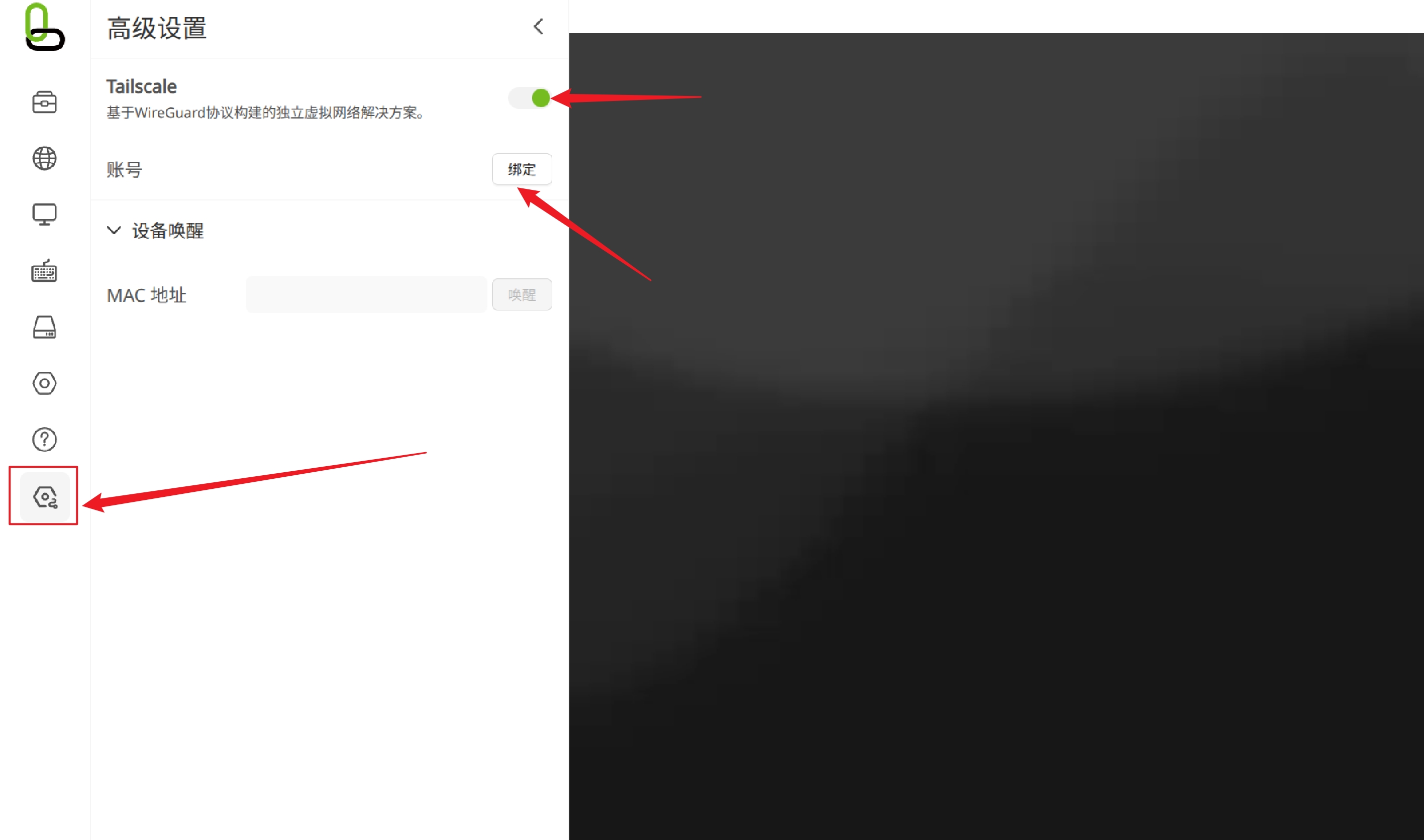
- In the left sidebar, go to System → Advanced Settings.
- Find the Tailscale option.
2. Enable Tailscale
Turn on the Tailscale switch. Once enabled, the device starts the tailscaled background service and writes the setting to the local configuration. The setting persists after a reboot.
Turning off the switch stops the tailscaled service, and the device will be disconnected from the Tailnet (the bound account information is retained, but you need to re-bind the next time you enable it).
3. Bind a Tailscale Account
- Confirm that Tailscale is enabled.
- Click Bind.
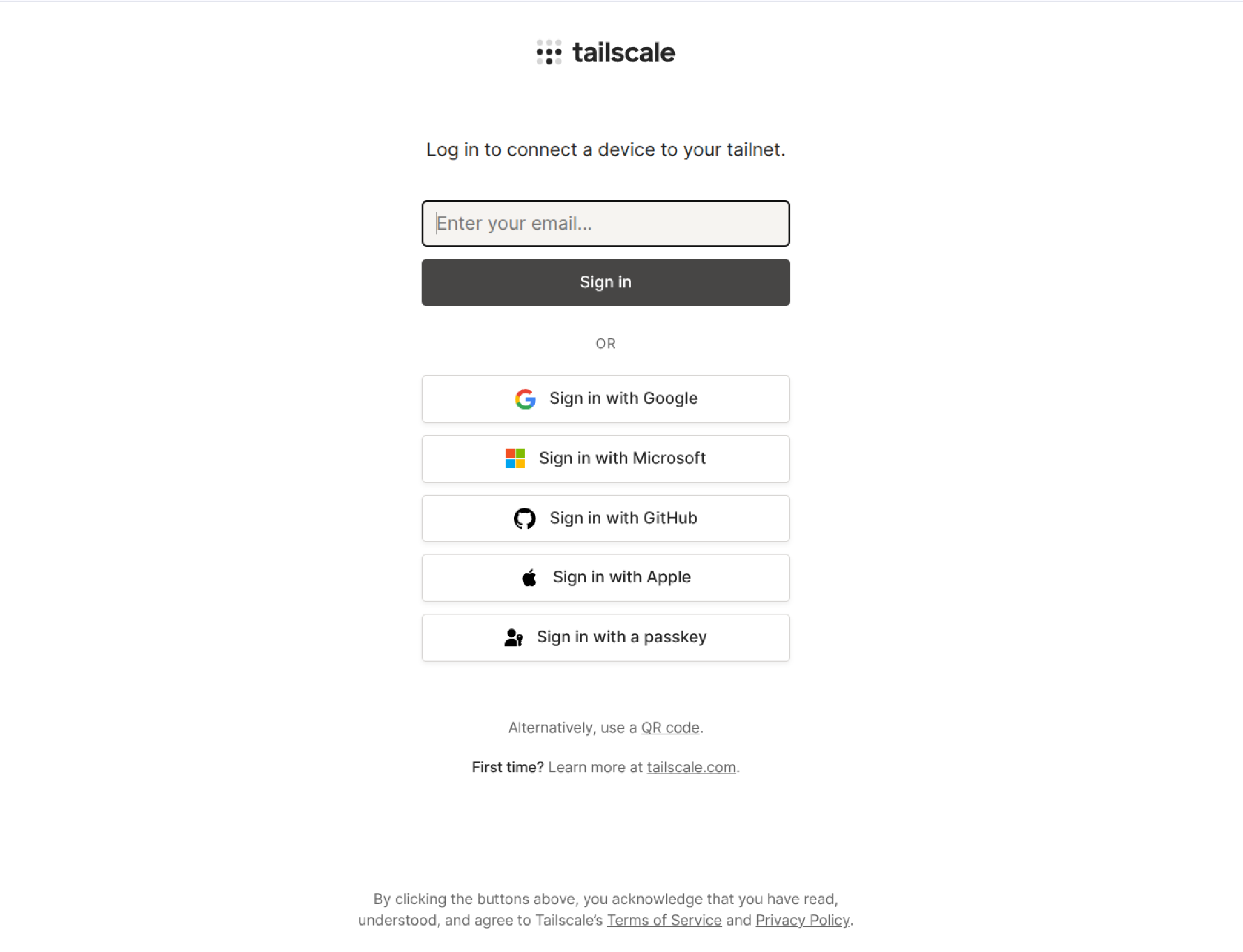
- The system will automatically open a browser window and redirect to the Tailscale login/authorization page.
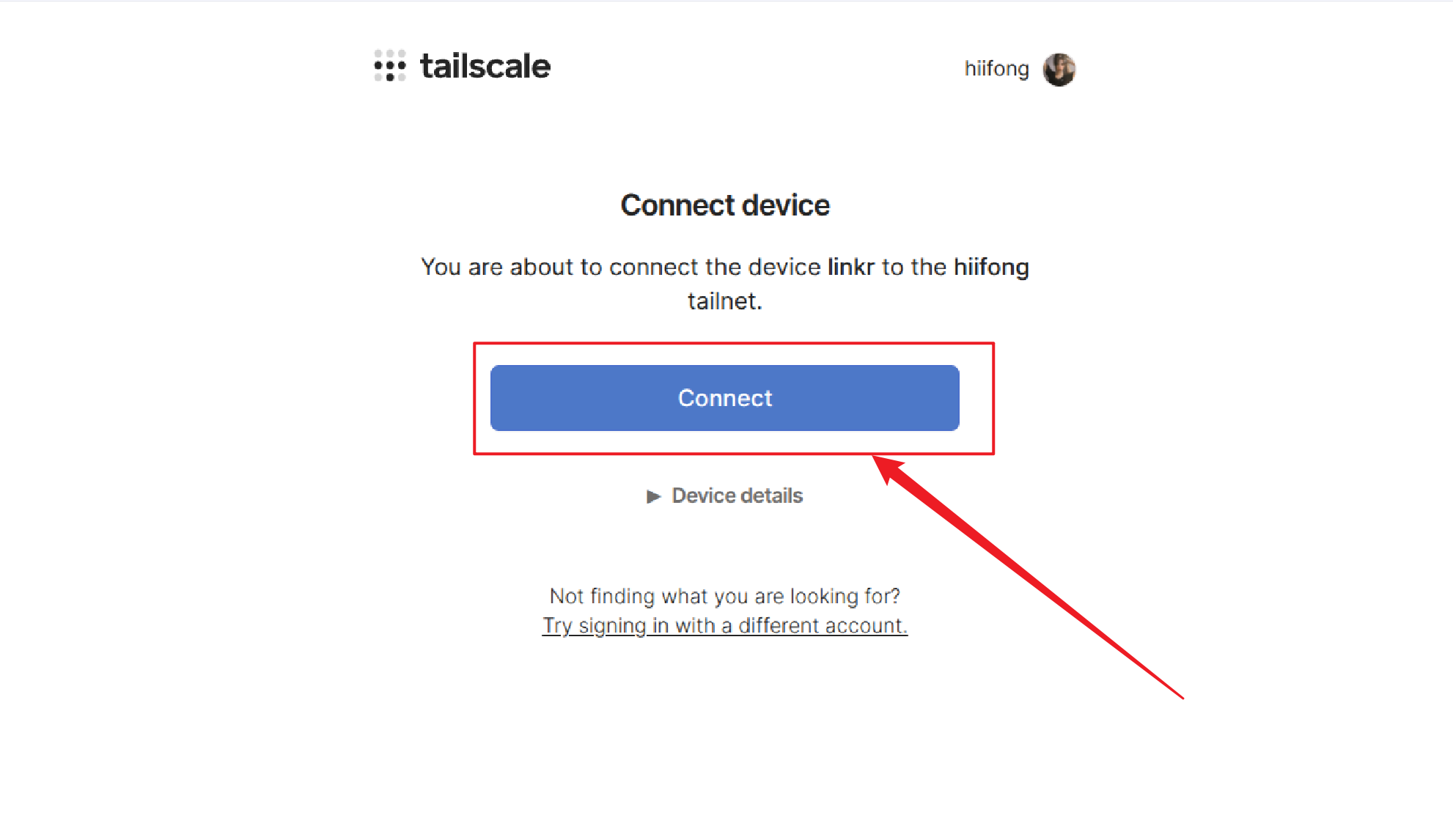
- Log in with your Tailscale account and confirm on the authorization page to add this device to the Tailnet.
- After a successful authorization, the page displays the bound account name, and the status changes to authenticated.
If the pop-up is blocked by the browser, please allow pop-ups for the current site and try again, or manually copy the authorization link to a new tab.
4. Access the KVM via Tailscale
After a successful binding, you can view the Tailscale IP assigned to the device (usually in the 100.x.x.x range) in the Tailscale admin console.
On any device within the same Tailnet, use the following address to access the KVM:
https://<device's Tailscale IP>
You can also use the Tailscale MagicDNS hostname (if MagicDNS is enabled in the Tailnet):
https://<device hostname>.<your-tailnet>.ts.net
When accessing through Tailscale, you still need to use the KVM's local login credentials (username and password). Tailscale only provides network-layer connectivity and does not replace KVM authentication.
5. Unbind the Account
To remove the device from the Tailnet or switch to another account:
- Click Unbind on the Tailscale settings page.
- Wait for the operation to complete; the account information will be cleared.
- You can click Bind again to associate a different Tailscale account.
Interface Status Description
| Status | Meaning |
|---|---|
| Switch off | Tailscale is not enabled; tailscaled is not running |
| Switch on, not bound | The service is started, waiting to bind a Tailscale account |
| Switch on, bound | The device has joined the Tailnet and can be accessed via the Tailscale IP |
| Version number | Shows the version of the Tailscale client built into the firmware |
Technical Notes
Firmware Integration
The Tailscale client is packaged into the firmware as built-in binaries:
Relationship with Local Access
Enabling Tailscale does not affect the KVM's local network access. The device can still be accessed through the LAN IP, Wi-Fi, or USB network, and Tailscale works as an additional remote access channel on top of these.
FAQ
Binding Fails or Has No Response for a Long Time
- Confirm that the KVM device is connected to the Internet.
- Check whether the browser has blocked pop-ups.
- Confirm that the Tailscale coordination server (
controlplane.tailscale.com) is not blocked by a firewall. - Try turning Tailscale off and on again, then re-bind.
Cannot Access via the Tailscale IP After Enabling
- In the Tailscale admin console, confirm the device is online.
- Confirm that the accessing client and the KVM are in the same Tailnet.
- Check that the Tailscale client on the accessing device is connected.
- Confirm that you are using the
https://protocol and the correct Tailscale IP.
Tailscale Does Not Auto-Connect After Reboot
- Make sure the enable switch is on before the reboot.
- If the account has already been bound, the connection should resume automatically after a reboot. If the device is in an unbound state, you need to re-bind.
The Device Still Appears in the Tailscale Admin Console After Unbinding
Unbinding runs tailscale logout on the device. If the device still shows as an offline node in the admin console, you can manually delete the device record in the Tailscale admin console.