Product Overview
Linkr KVM (Radxa Linkr KVM) is a web-based IP KVM device that captures the video output of a target host over HDMI and emulates keyboard/mouse input over USB, allowing you to remotely view and control the target computer from any browser-equipped terminal — no dedicated client software required.
The device is compact, supports wired Ethernet, Wi-Fi, and hotspot connectivity, and ships with built-in capabilities such as Tailscale, Wake on LAN, and access tokens. It is well suited for home labs, remote operations and maintenance, and embedded development scenarios.
Product Positioning
Linkr KVM is positioned as a lightweight, ready-to-use hardware KVM-over-IP solution:
- Plug and play: Connect to the target host via HDMI + USB Type-C and use it directly from a browser-based management page.
- Web-first: Remote video, keyboard/mouse control, networking, and system management are all unified in the web console.
- Scenario-friendly: Equally suitable for remote maintenance of desktop PCs, development boards, and headless servers.
Compared with traditional rack-mount KVM appliances or pure-software remote desktop solutions, Linkr KVM strikes a balance between cost, deployment complexity, and ease of use, making it ideal for individual developers, small teams, and educational scenarios.
Target Users
| User Group | Typical Scenarios |
|---|---|
| Developers and makers | Remotely debug development boards, install and troubleshoot systems without a display |
| Home lab users | Manage home NAS, soft routers, and backup PCs without extra monitors or keyboards |
| Operations and technical support | Remotely assist users with computer operations, capture screens, and send control commands |
| Education and training | Classroom demonstrations, unified remote access and management of lab environments |
Core Value
- Access from anywhere: Connect to the management interface from a LAN or over the Internet (in combination with Tailscale)
- Full remote control: Video capture + keyboard/mouse injection for an experience close to local operation
- Unified management: Network configuration, firmware upgrade, virtual disk mounting, and API integration are all in the same web interface
- Extensible integration: Access tokens support public APIs for screenshots, control, and more, enabling automation and monitoring
Product Appearance
Linkr KVM uses a compact design, with the HDMI port, USB Type-C ports, the FN function key, and status indicator LEDs distributed on the front and side panels. The actual appearance is subject to the physical product. Refer to the product packaging or official materials for illustrative diagrams.
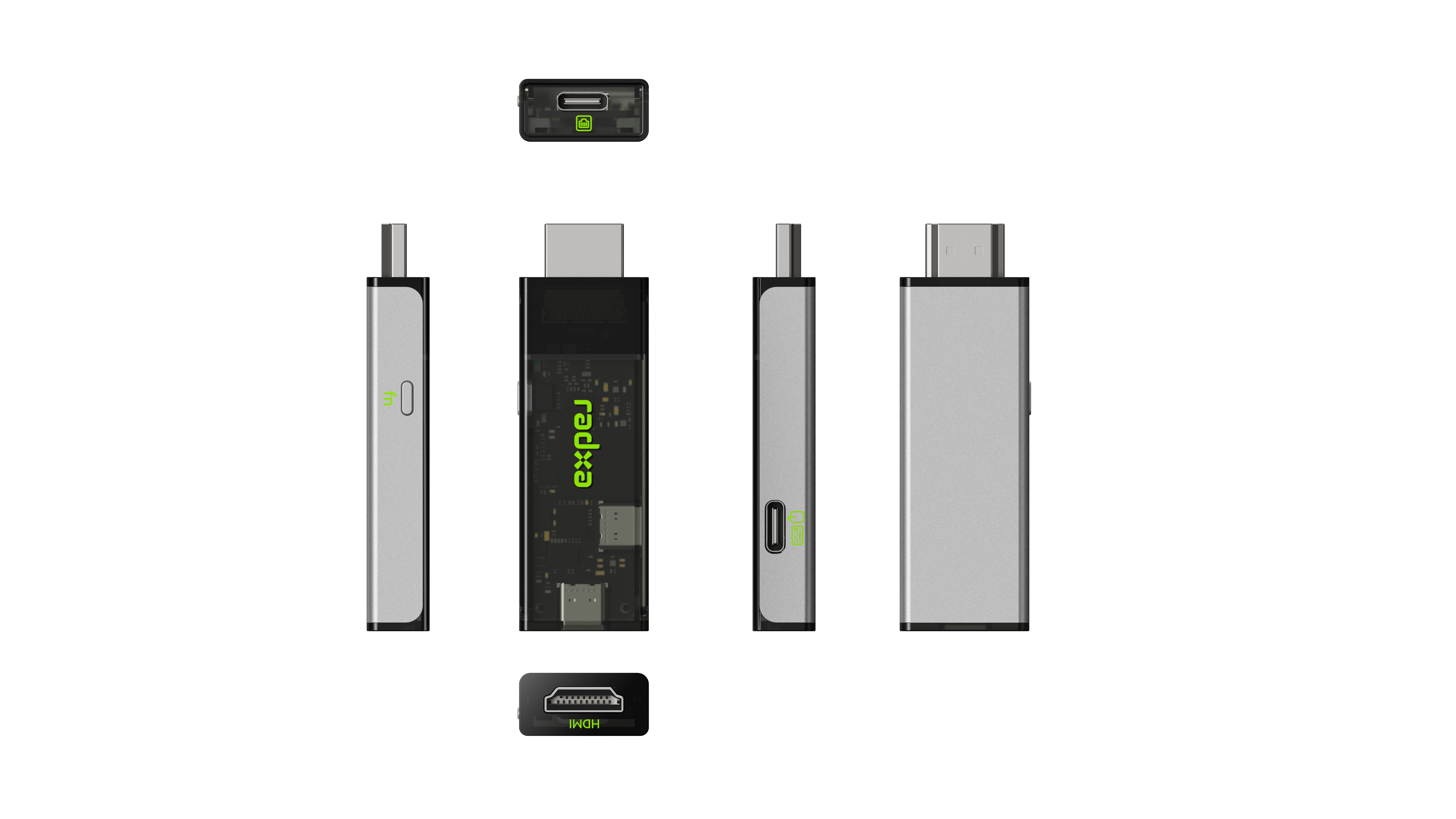
Interfaces and Connections
| Interface | Purpose |
|---|---|
| HDMI male port | Connects to the target host, captures the video signal |
| USB Type-C (OTG) | Power supply and data transfer (emulates keyboard, mouse, and other HID devices on the target machine) |
| USB Type-C (network) | Wired Ethernet communication |
| Wi-Fi | Connect to a wireless network |
| Hotspot | The device acts as an AP to share the network |
Connection Description
- HDMI male port: Connects to the HDMI video output of the target host to capture the video.
- USB Type-C (OTG): Provides both power and a data channel; emulates USB HID devices (keyboard/mouse) on the target machine.
- USB Type-C (network): 100 Mbps wired network for the KVM device's own network communication.
- Wi-Fi: Connects to an existing wireless network, eliminating the need for cabling.
- Hotspot: The KVM can act as a hotspot for other terminals to access the management interface or share the network.
Typical wiring: the HDMI port connects to the target machine's video output; the OTG Type-C port connects to the target machine's USB port (power + keyboard/mouse); the network Type-C port or Wi-Fi provides network connectivity.
LED Indicators
There is one indicator LED on each side of the device's FN key:
- The one closer to the HDMI side: Video (HDMI) status LED
- The one farther from the HDMI side: System status LED (RGB, indicates operating state by color)
System Status LED
| LED State | Description |
|---|---|
| Solid red | System is starting up |
| Solid blue | System is running normally |
| Solid green | In active use (an active connection exists) |
| Flashing white | Firmware is being upgraded |
| Solid white | System is being reset |
HDMI / Video Status LED
| LED State | Description |
|---|---|
| Off | No video signal |
| On | Video signal is present |
| Flashing | Video link is abnormal or in error |
By observing the indicator LEDs, you can quickly determine the state of the device and the video link without opening the web interface.
FN Button
| Action | Function |
|---|---|
| Long press for 10 seconds or more | Reset the system (restore all configuration to factory defaults) |
| Short press once | Device identification (used for the device discovery feature on linkr.now) |
A long-press reset of the FN key clears all local configuration (including network, account, Tailscale bindings, etc.). Make sure to back up any required information before performing this action.
Specifications
| Item | Description |
|---|---|
| Video encoding | Up to 2K@30fps, supports H.264 or MJPEG |
| Video transport | WebRTC, WebSocket |
| Ethernet | 100 Mbps |
| USB network | 100 Mbps |
| Storage | 16 GB eMMC |
| Onboard Wi-Fi | Supported |
| USB | 1× USB (Host/Device) |
| Power | USB 5 V |
Software Capabilities Overview
In addition to the hardware KVM capabilities, the Linkr KVM firmware and the web management interface also provide:
| Feature | Description | Documentation |
|---|---|---|
| Web remote console | Video, keyboard/mouse, screenshots, recording, virtual keyboard, etc. | User Interface Guide |
| Tailscale | Built-in VPN, access the device remotely without a public IP | Tailscale Remote Access |
| Wake on LAN | Send a magic packet on the LAN to wake the target host | Wake on LAN |
| Access tokens | API keys that support screenshot and control endpoints | Access Tokens |