Installing OS on microSD Card
File Download
Please go to Download Page to download the system image.
Preparation
Insert the microSD card into the microSD card reader, then plug the reader into the USB port of your PC.
Install OS
Balena Etcher is a cross-platform and user friendly image file burning tool that we recommend you use.
- Download Etcher and install it.
- Windows
- Linux
Please download balenaEtcher-2.1.4.Setup.exe After the download is complete, there is no need to perform any additional actions. After downloading, you can double click it to open it without any additional operation.
Please download balena-etcher_2.1.4_amd64.deb. Once the download is complete, please install it by executing the following command in the terminal:
sudo dpkg -i balena-etcher_2.1.4_amd64.deb
-
Open Etcher
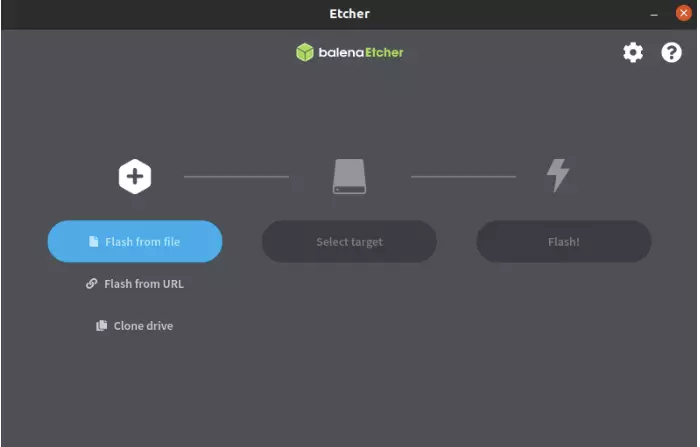
-
Click
Flash from fileto select the image to write to.
The downloaded system image is in compressed format. You must decompress it first before using Balena Etcher for image flashing.
-
Click
Select targetto select the device, please select carefully.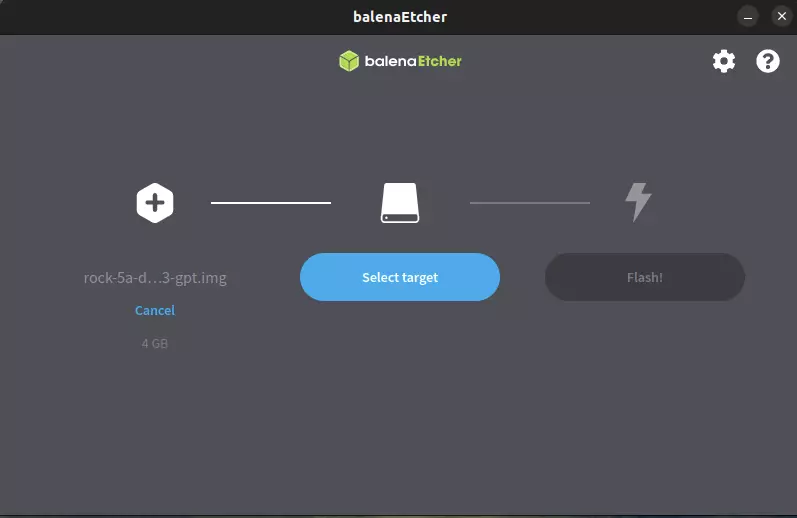
-
Click
Flash!Start writing and wait for the write progress bar to complete.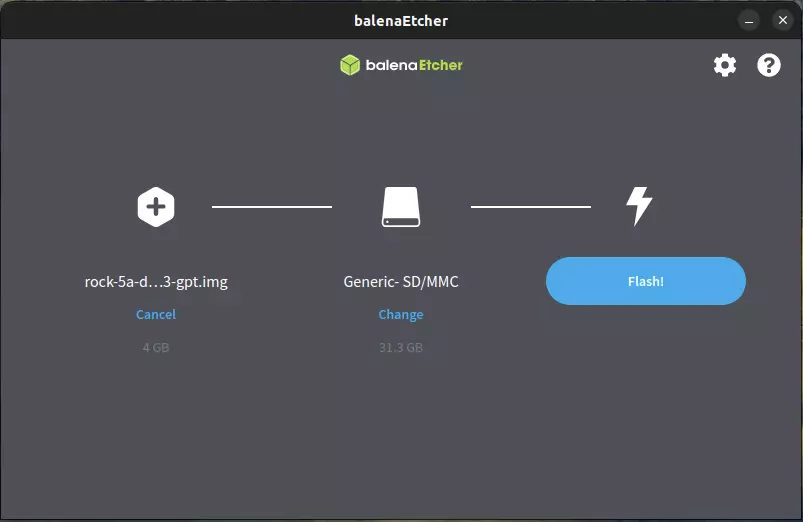
-
When writing the image successfully, Etcher will display
Flash Complete!.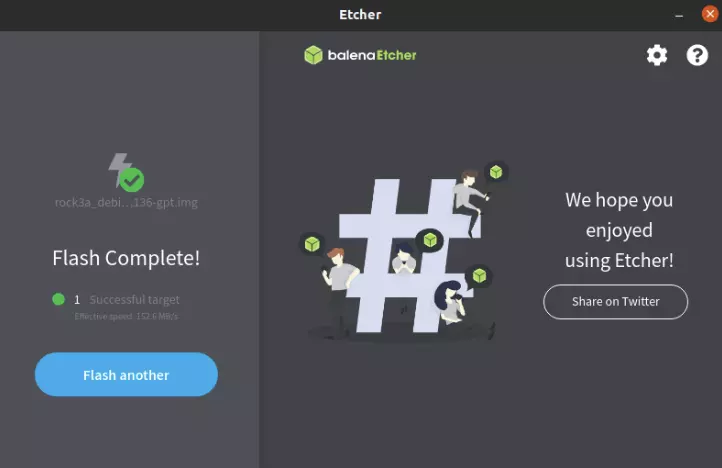
If there is an error in flashing, please try again.
System Boot-Up
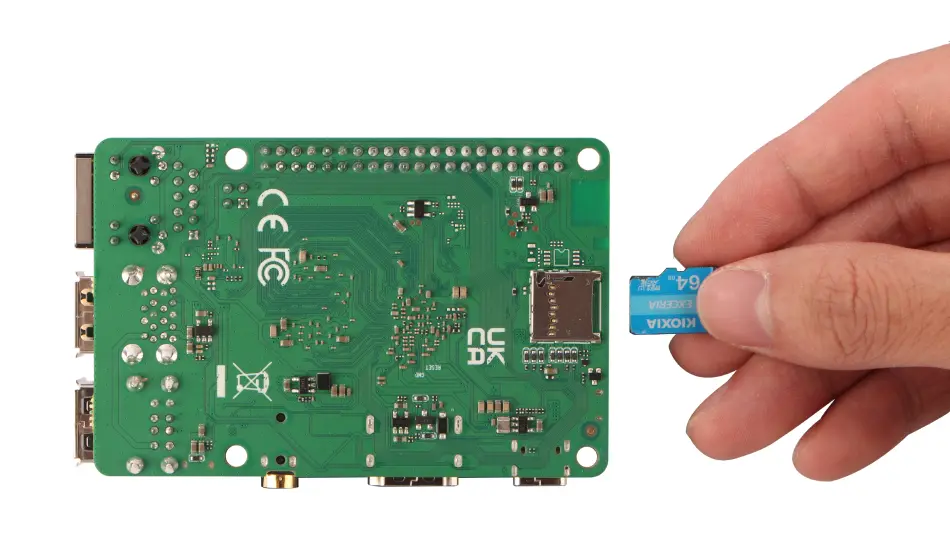
After successfully Install the image to the microSD card using the steps above, insert the microSD card into the microSD card slot (as shown in the image below). Then, power on the device, and the system will begin to boot up, displaying the desktop on the HDMI monitor.
Login
After the system boots up, login using the radxa account with the password radxa.
The entire process of powering up the system and booting it up lasts about 40 seconds before it enters the system desktop.