USB Mass Storage (UMS) Tutorial
This tutorial applies to Radxa devices that support USB Device / OTG mode, such as E25, E52C, ROCK4D, ROCK5B, and others. If you are not sure whether your device supports this feature, please refer to the hardware documentation of the corresponding SBC model for information about OTG / Device mode.
Before proceeding, connect the SBC's USB OTG port (usually a USB Type‑C connector) to the host (PC or other host device) using a USB data cable. It is recommended to use a USB 3.0 cable and port for better transfer performance.
If your device exposes the OTG port as a USB Type‑A connector, use a USB A‑to‑A data cable to connect the SBC and the host.
Overview
The USB Mass Storage Gadget (UMS) allows the device to expose storage to a host over USB, and the host will recognize it as a USB flash drive or external hard drive. Typical use cases include:
- Data exchange between the SBC and a PC
- File interaction in industrial control systems
- Mass production: using a virtual USB drive to install systems or write images
- NAS data bridging (the image file can be stored on a NAS)
UMS exposes a block device image (image file) to the host. The filesystem on that image is exclusively controlled by the host.
Prerequisites
Before you begin, make sure that:
- The device has successfully booted RadxaOS.
- The USB cable is correctly connected between the SBC's OTG port and the host.
Then run the following command to check whether the system supports Gadget mode:
ls /sys/class/udc
Example output:
fc000000.usb
This name corresponds to the USB Device Controller (UDC), referred to as gadget_name.
If multiple devices are listed:
- Choose the UDC that is bound to the USB Type‑C port.
- Plug/unplug the USB‑C cable and use
dmesg | grep -i udcto help identify the correct UDC.
If no UDC devices are shown, you may need to enable the USB OTG overlay using rsetup in RadxaOS.
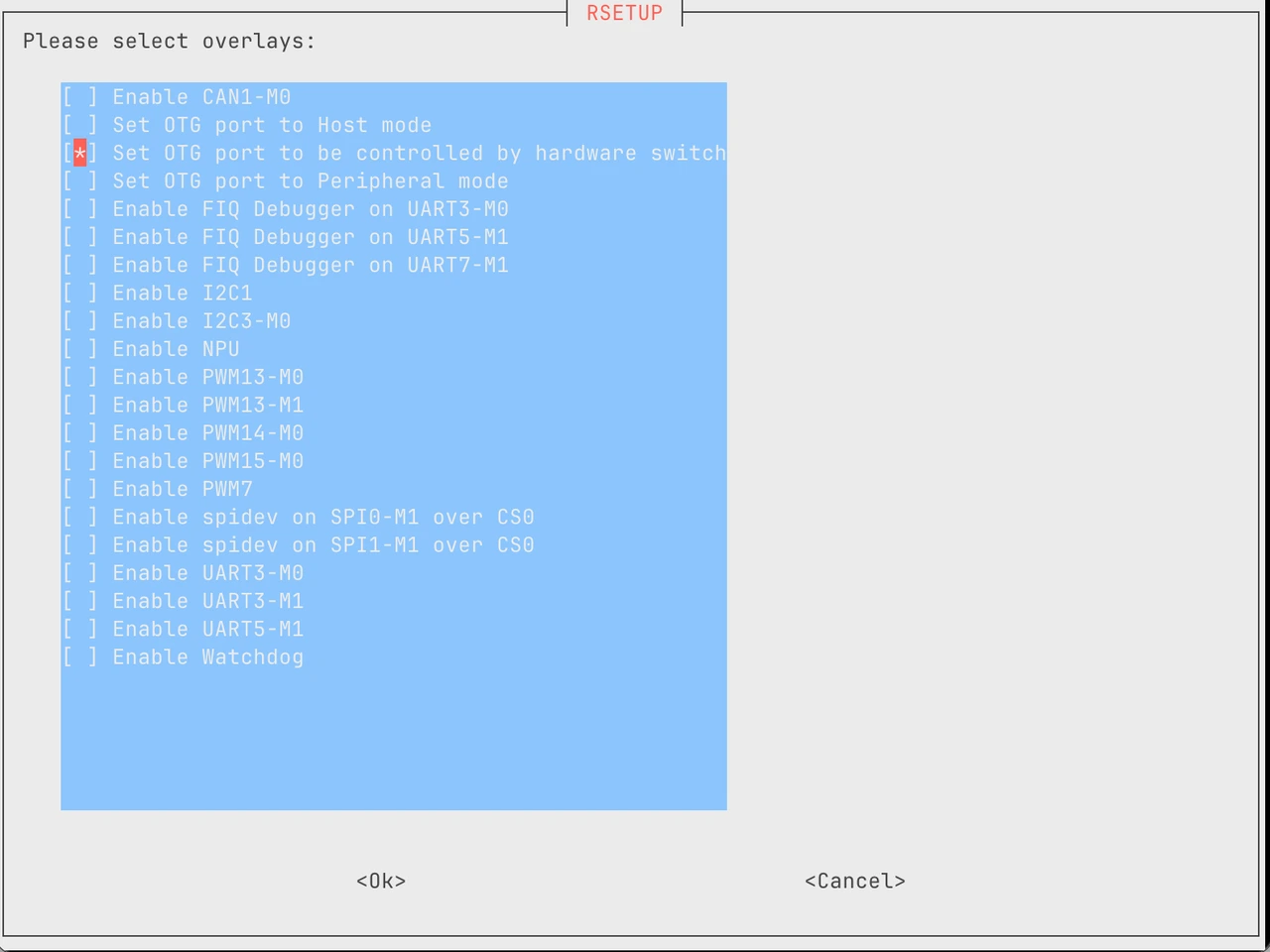
Please ensure your USB OTG is operating in client mode (Device mode), not host mode.
Get gadget_name
Run the following command:
ls /sys/class/udc
If the output is:
fc000000.usb
Then the gadget_name is:
fc000000.usb
This parameter must be passed to all scripts.
Create Gadget (Initialization Script)
This step only needs to be performed once. Save the following script as:
/usr/local/sbin/gadget-init.sh
#!/bin/bash
#
# Initialize USB Gadget, only needs to be executed once
#
set -euo pipefail
GADGET_NAME=${1:-}

if [[ -z "${GADGET_NAME}" ]]; then
  echo "Usage: sudo $0 <gadget_name>"
  exit 1
fi

if [[ $EUID -ne 0 ]]; then
  echo "Please run as root"
  exit 1
fi

# Ensure configfs is mounted
if ! mountpoint -q /sys/kernel/config; then
  mount -t configfs none /sys/kernel/config
fi

# Try to load the configfs gadget core.
# This is required when CONFIG_USB_CONFIGFS=m.
modprobe libcomposite 2>/dev/null || true

# Verify that the usb_gadget subsystem exists.
if [[ ! -d /sys/kernel/config/usb_gadget ]]; then
  echo "CONFIG_USB_CONFIGFS=m is enabled, but /sys/kernel/config/usb_gadget is missing."
  echo "Please make sure the libcomposite module is loaded correctly, or verify that the kernel modules are installed properly."
  exit 1
fi

G="/sys/kernel/config/usb_gadget/${GADGET_NAME}"

if [[ -d "${G}" ]]; then
  echo "Gadget already exists: ${GADGET_NAME}"
  exit 0
fi

mkdir -p "${G}"
cd "${G}"

echo 0x1d6b > idVendor
echo 0x0104 > idProduct

mkdir -p strings/0x409
echo "1234567890"        > strings/0x409/serialnumber
echo "Radxa"             > strings/0x409/manufacturer
echo "Radxa USB Gadget"  > strings/0x409/product

mkdir -p configs/r.1
mkdir -p configs/r.1/strings/0x409
echo "Radxa Config" > configs/r.1/strings/0x409/configuration

echo "Initialization complete: ${GADGET_NAME}"
echo "Next step: use ums.sh to enable UMS"
Grant execute permission and run:
sudo chmod +x /usr/local/sbin/gadget-init.sh
sudo /usr/local/sbin/gadget-init.sh fc000000.usb
After successful execution, you should see:
ls /sys/kernel/config/usb_gadget
fc000000.usb
Create UMS Enable/Disable Script
Save the following script as:
/usr/local/sbin/ums.sh
#!/bin/bash
#
# Control USB Mass Storage enable / disable
#
set -euo pipefail

ACTION=${1:-}
GADGET_NAME=${2:-}
IMG=${3:-}

if [[ $EUID -ne 0 ]]; then
  echo "Please run as root"
  exit 1
fi

G="/sys/kernel/config/usb_gadget/${GADGET_NAME}"

detect_udc() {
  if [[ -f "${G}/UDC" ]]; then
    local cur
    cur=$(cat "${G}/UDC" 2>/dev/null || echo "")
    if [[ -n "${cur}" ]]; then echo "${cur}"; return; fi
  fi

  if [[ -e "/sys/class/udc/${GADGET_NAME}" ]]; then
    echo "${GADGET_NAME}"; return
  fi

  local lst
  mapfile -t lst < <(ls /sys/class/udc || true)
  if [[ ${#lst[@]} -eq 1 ]]; then echo "${lst[0]}"; return; fi

  echo ""
}

disable_gadget() {
  if [[ ! -d "${G}" ]]; then return 0; fi
  local cur
  cur=$(cat "${G}/UDC" 2>/dev/null || echo "")
  if [[ -n "${cur}" ]]; then echo "" > "${G}/UDC" 2>/dev/null || true; fi
  rm -f "${G}/configs/r.1/mass_storage.usb1" 2>/dev/null || true
  rmdir "${G}/functions/mass_storage.usb1" 2>/dev/null || true
}

enable_gadget() {
  UDC=$(detect_udc)
  if [[ -z "${UDC}" ]]; then
    echo "Failed to determine UDC name"
    exit 1
  fi

  disable_gadget

  local loopdev
  loopdev=$(losetup -j "${IMG}" | cut -d: -f1 || true)
  [[ -n "${loopdev}" ]] && losetup -d "${loopdev}" || true

  mount | grep -q " ${IMG} " && umount "${IMG}" || true

  mkdir -p "${G}/configs/r.1"
  mkdir -p "${G}/functions/mass_storage.usb1"

  echo 0 > "${G}/functions/mass_storage.usb1/stall"
  echo 1 > "${G}/functions/mass_storage.usb1/lun.0/removable"
  echo 0 > "${G}/functions/mass_storage.usb1/lun.0/ro"
  echo 1 > "${G}/functions/mass_storage.usb1/lun.0/nofua"
  echo "${IMG}" > "${G}/functions/mass_storage.usb1/lun.0/file"

  ln -sf "${G}/functions/mass_storage.usb1" "${G}/configs/r.1/mass_storage.usb1"
  echo "${UDC}" > "${G}/UDC"

  echo "UMS enabled"
}

case "${ACTION}" in
  enable)
    enable_gadget
    ;;
  disable)
    disable_gadget
    echo "UMS disabled"
    ;;
  *)
    echo "Usage:"
    echo "  sudo $0 enable  <gadget_name> <image_file>"
    echo "  sudo $0 disable <gadget_name>"
    ;;
esac
Grant execute permission:
sudo chmod +x /usr/local/sbin/ums.sh
Prepare Image File
Example: mount a shared directory from a NAS:
sudo mount -t cifs -o username=user,password=pass \
  //192.168.1.100/share /mnt/nas
Create an 8GB image:
sudo dd if=/dev/zero of=/mnt/nas/pcdisk.img bs=1M count=8192
The image does not need to be mounted on Linux. The filesystem will be created and operated on the host.
When pcdisk.img is exported to the host via UMS for the first time, the host will treat it as a brand-new empty disk:
- On Windows, a prompt such as "You need to format the disk" will usually appear.
- On Linux / macOS, you can use tools such as
fdisk,parted, andmkfsto partition and create a filesystem.
This is expected, because the image created by dd if=/dev/zero does not contain a partition table or filesystem. Please complete partitioning and formatting on the host, and then use it as a normal USB drive on the host.
Enable and Disable UMS
Enable:
sudo ums.sh enable fc000000.usb /mnt/nas/pcdisk.img
The host will recognize it as a USB drive.
Before disabling, please eject the USB drive on the host first:
sudo ums.sh disable fc000000.usb
Notes
- Make sure the image file is not mounted on the device before enabling UMS.
- Before disabling UMS, always eject the USB device on the host to avoid data corruption.
- Both scripts must be run as root. Only use them in a trusted environment, and avoid exposing them to untrusted users or services to prevent data loss or misuse.
Execution Summary
First time:
gadget-init.sh → ums.sh enable → ums.sh disable
Subsequent operations:
ums.sh enable / disable