Linux Host
File Downloads
Download the ROCK 4A/4B/4SE system images from the resource download page
Install rkdeveloptool
rkdeveloptool is Rockchip's software for USB burning on Linux/macOS platforms.
The rkdeveloptool can be thought of as an upgrade_tool for the open source version.
If your operating system does not provide rkdeveloptool, you will need to compile and install it from source.
- Debian
- Ubuntu
- ArchLinux
Execute the following command from the command line to install:
sudo apt-get update
sudo apt-get install -y libudev-dev libusb-1.0-0-dev dh-autoreconf pkg-config libusb-1.0 build-essential git wget
git clone https://github.com/rockchip-linux/rkdeveloptool
cd rkdeveloptool
autoreconf -i
./configure
make -j $(nproc)
sudo cp rkdeveloptool /usr/local/sbin/
Execute the following command from the command line to install:
sudo apt-get updateOn Ubuntu 22.10 and later you can install it from the command line: sudo apt-get install rkdeveloptool
sudo apt-get install -y libudev-dev libusb-1.0-0-dev dh-autoreconf pkg-config libusb-1.0 build-essential git wget
git clone https://github.com/rockchip-linux/rkdeveloptool
cd rkdeveloptool
autoreconf -i
./configure
make -j $(nproc)
sudo cp rkdeveloptool /usr/local/sbin/
Enter to Maskrom
- With onboard eMMC
- Without onboard eMMC
Disconnect the board power and remove the microSD card.
Detailed steps:
① If the board has SPI Flash, connect the corresponding SPI Flash pins to GND
② Use a USB Type-A to USB Type-A cable to connect the board and computer
③ Press and hold the Maskrom button before powering the board
④ Power the board using the power adapter
⑤ Release the Maskrom button after the board is powered
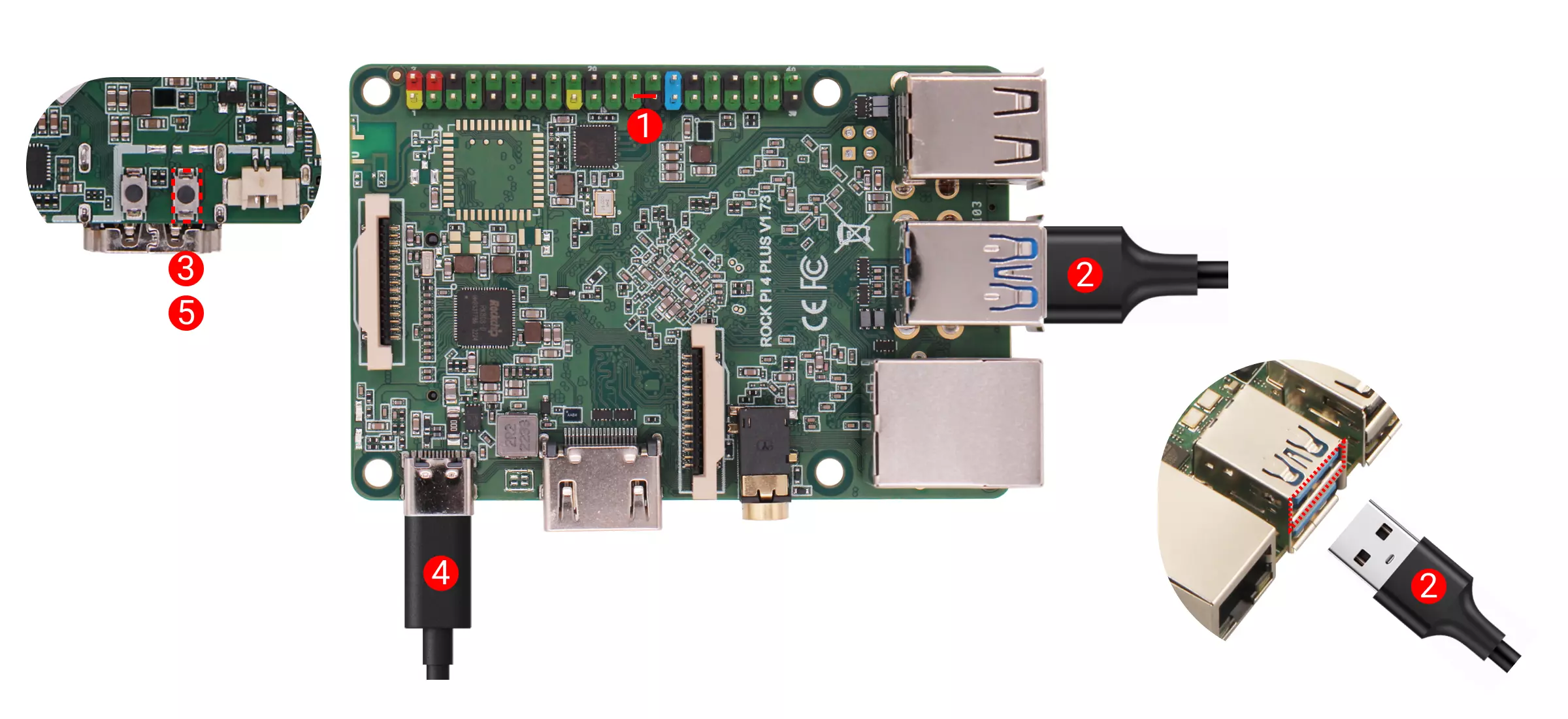
Disconnect the board power and remove bootable media (such as microSD card and eMMC module, etc.).
Detailed steps:
① If the board has SPI Flash, connect the corresponding SPI Flash pins to GND
② Use a USB Type-A to USB Type-A cable to connect the board and computer
③ Power the board using the power adapter
④ Install the eMMC module
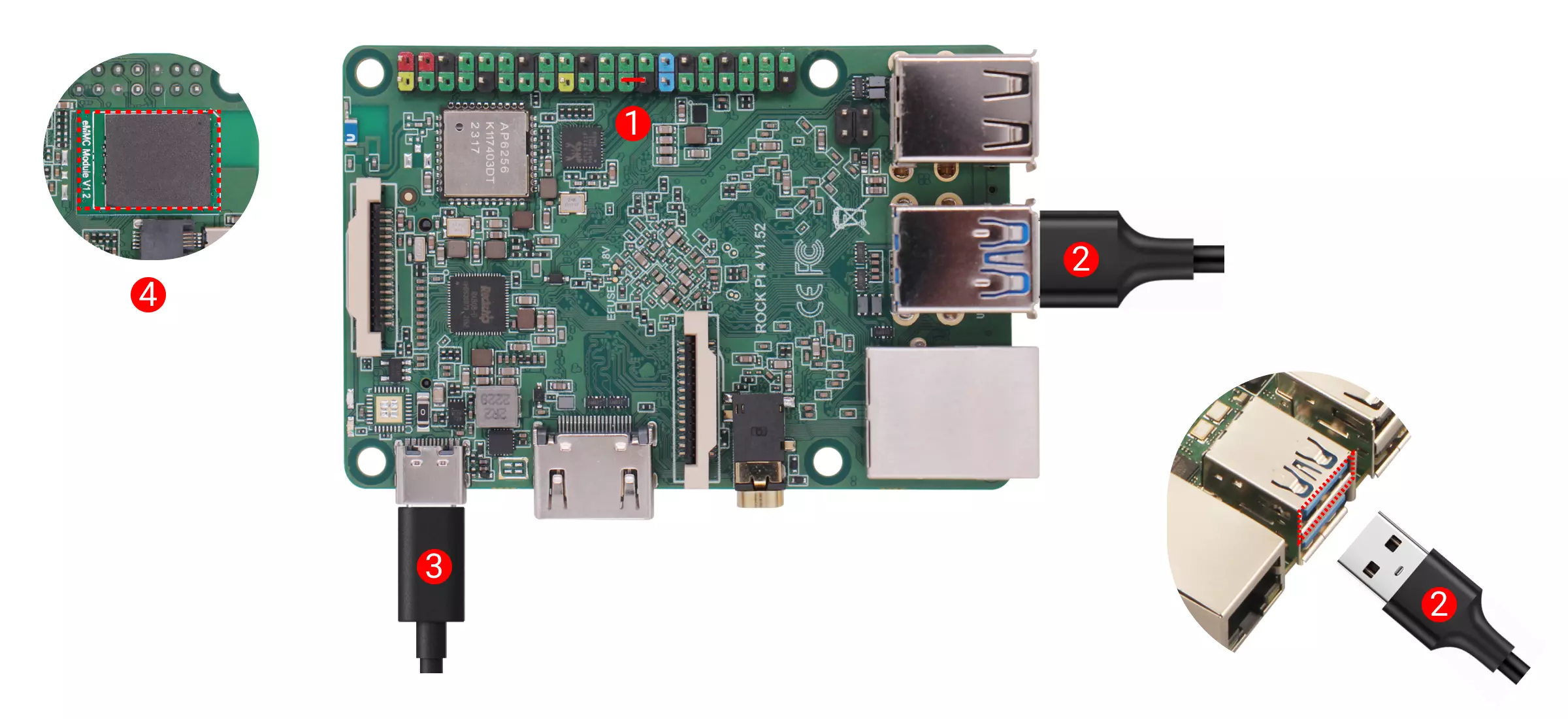
If the board power LED stays solid green, it indicates successful entry into Maskrom mode.
Using rkdeveloptool
Write to a file
rkdeveloptool does not automatically decompress compressed files when writing to them.
You must first extract the used files and specify the extracted files in rkdeveloptool.
rkdeveloptool does not support the selection of a Maskrom device, nor the selection of a storage medium to be written to. Normally, when using rkdeveloptool, only one device and one storage medium are connected in hardware. This step cannot be controlled by software.
If you need to write to multiple devices at the same time, use upgrade_tool.
1. Extract the image file (Download the image file from "File Download" part above, here rock-4se_debian_bullseye-test_xfce_38.img.xz is used as an example)
   xz -d rock-4se_debian_bullseye-test_xfce_38.img.xz
2. Flash Loader (Download the loader file from "File Download" part above )
   sudo rkdeveloptool db rk3399_loader_spinor_v1.15.114.bin
3. Flash System Image
   sudo rkdeveloptool wl 0 rock-4se_debian_bullseye-test_xfce_38.img
Reboot
sudo rkdeveloptool rd
Login
After rebooting the device, you can log in to the system via HDMI or serial port.
Account and password are both radxa.