Install System Using Card Reader
Only the ROCK 4D without SPI Flash version supports eMMC startup, and the version with on-chip SPI Flash does not support eMMC startup.
This guide explains how to use the Radxa eMMC/UFS module reader with an eMMC module to install the system onto the eMMC module.
Installing the system will format the eMMC module. Please back up any important data in advance!
Prerequisites
Hardware Requirements
You need to prepare the following hardware devices in advance:
- eMMC module
- Radxa eMMC/UFS Module Reader
Hardware Connection
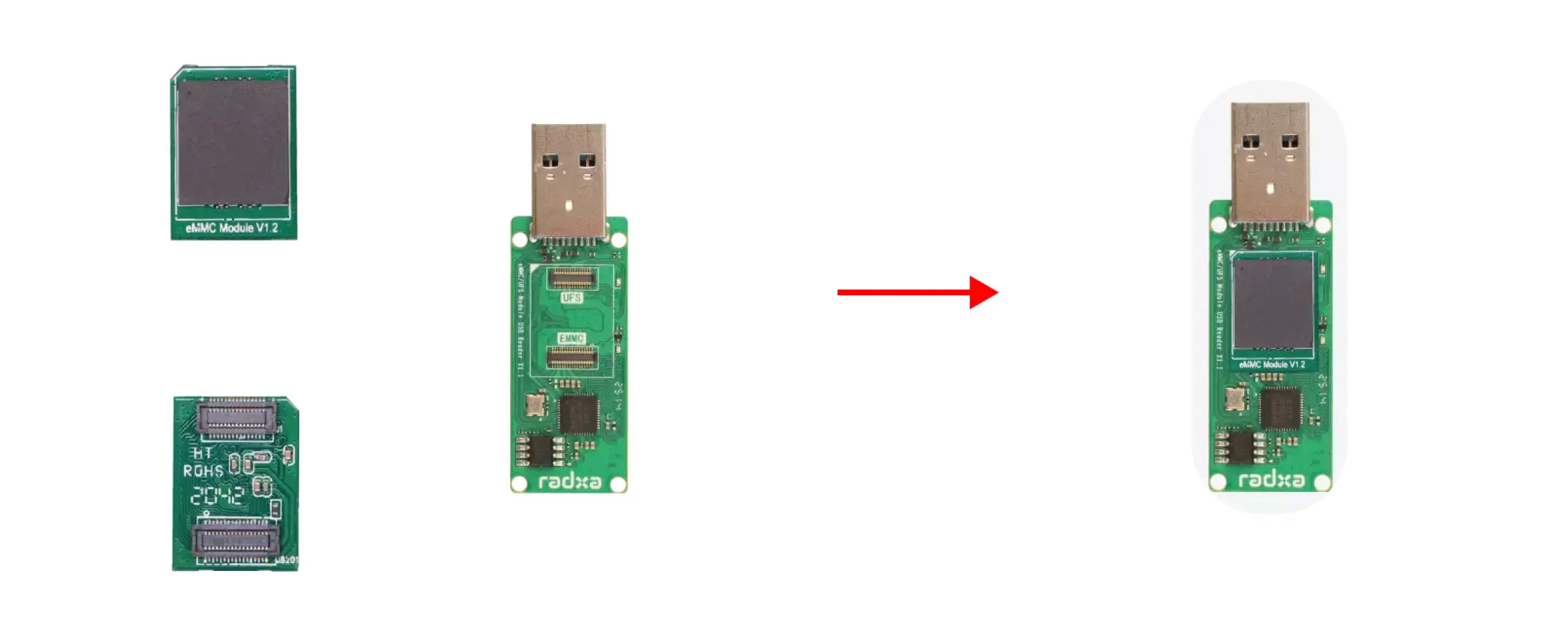
Insert the eMMC module into the Radxa eMMC/UFS Module Reader, then connect the reader to your computer.
eMMC Module Installation Steps:
- Ensure the notch on the eMMC module aligns with the interface direction of the module reader
- Make sure the slot interface at the bottom of the eMMC module aligns with the module reader's interface
- Gently press one end of the eMMC module until you hear a "click" sound, indicating successful installation. Use the same method to press the other end to ensure the eMMC module is properly installed.
System Installation
Download System Image
Use your PC to access the Resource Download page and download the system image file to your local machine.
The downloaded system image is a compressed file and needs to be extracted before use!
Install System Image
You can use Balena Etcher software to install the system image onto the eMMC module.
For installation and usage instructions of Balena Etcher, you can refer to the Etcher Usage tutorial.
Select System Image
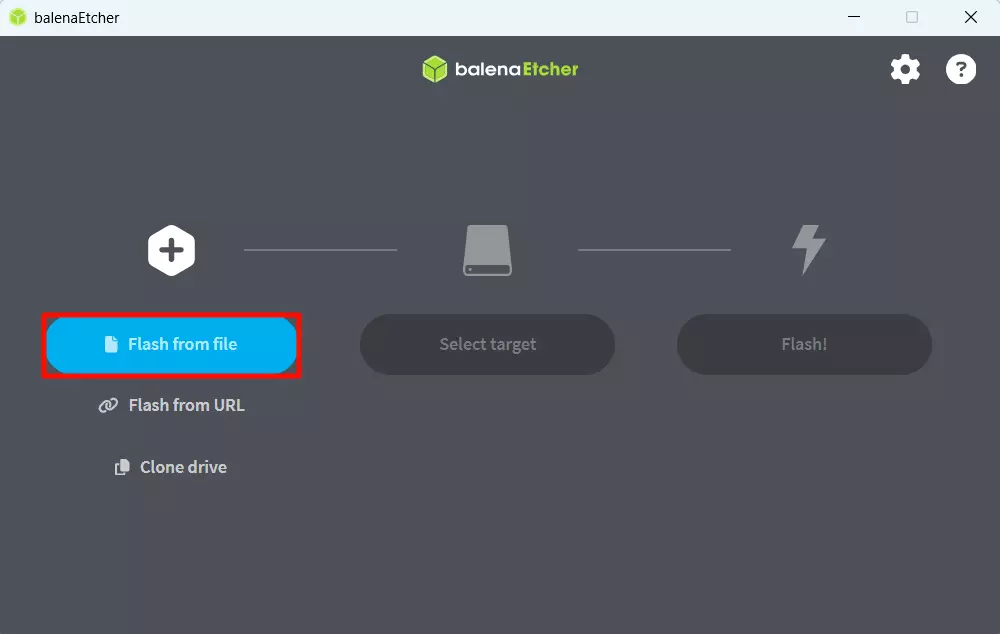
Click the Flash from file option and select the system image file you downloaded and extracted earlier.
Select Storage Device
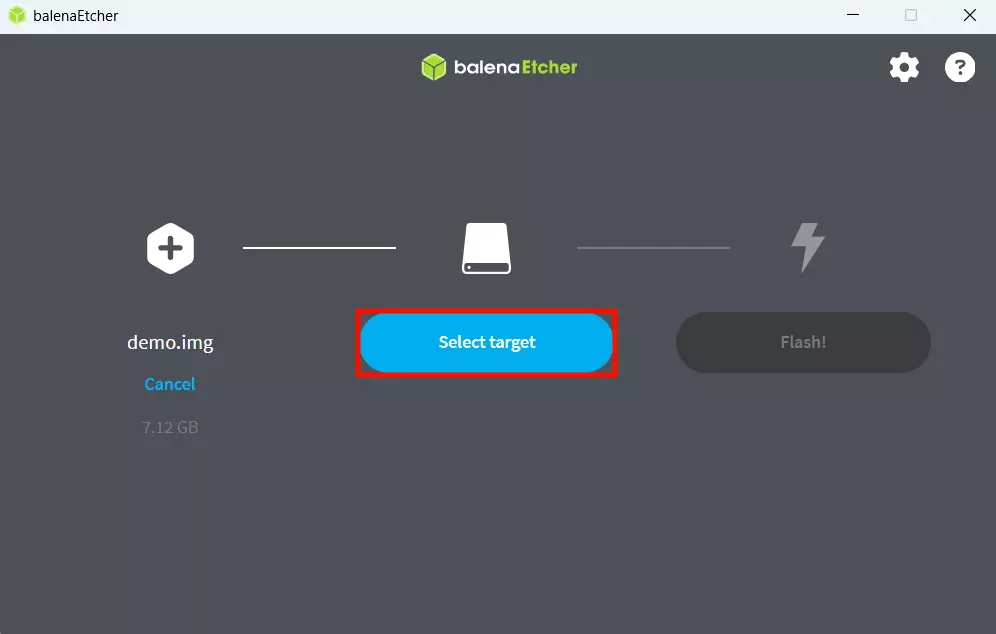
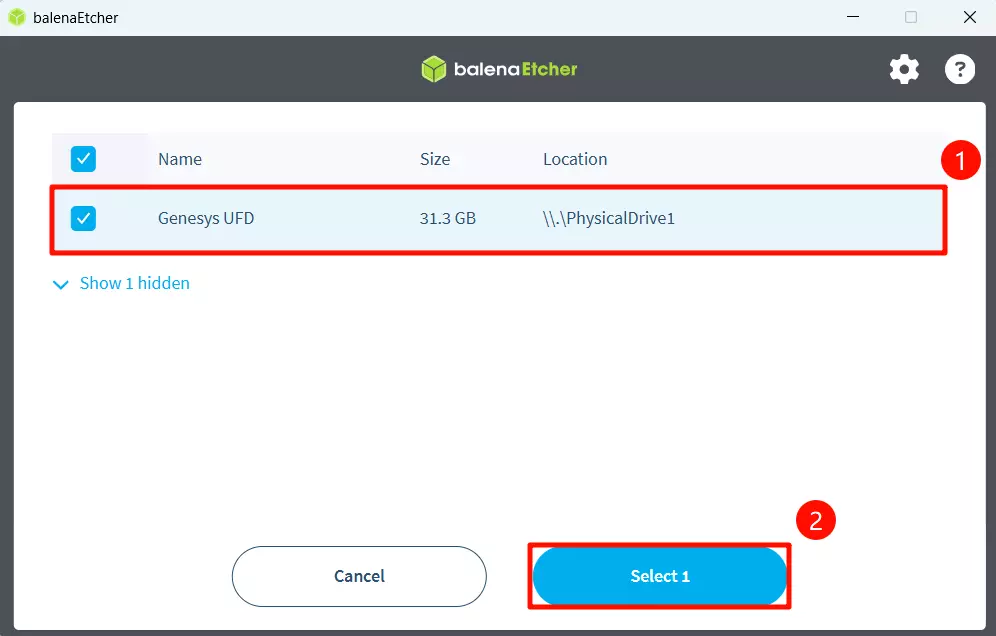
Click the Select target option and choose the eMMC module device.
Start Flashing
Click the Flash! option to begin writing the system image to the eMMC module.
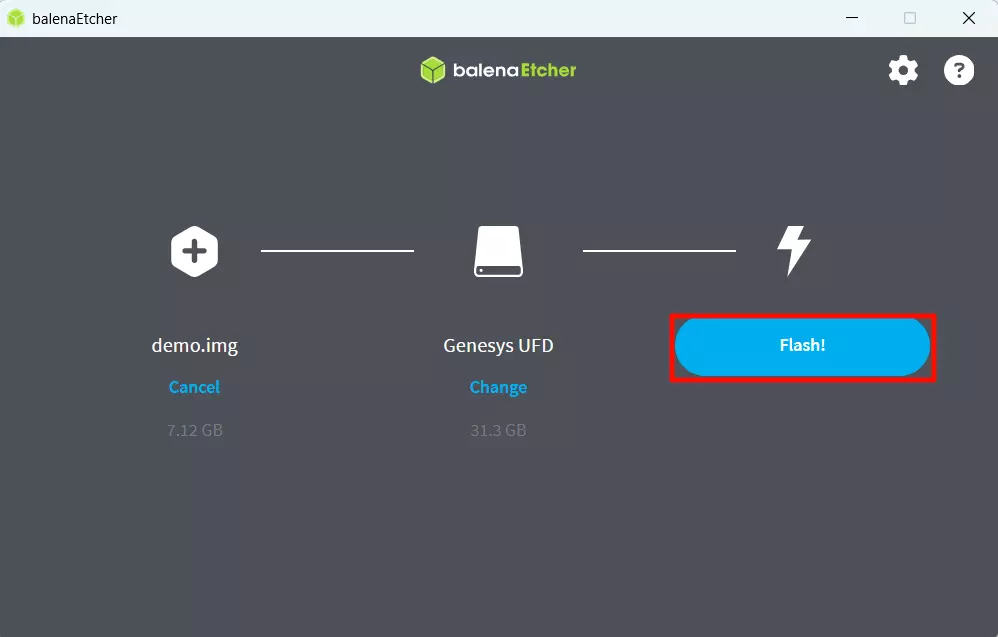
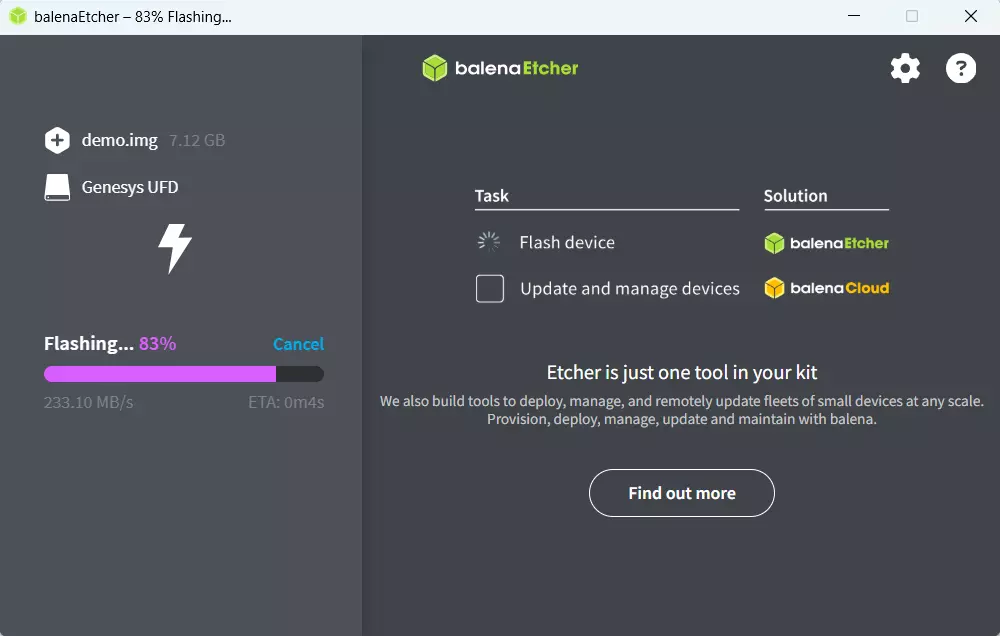
Waiting for system installation to complete
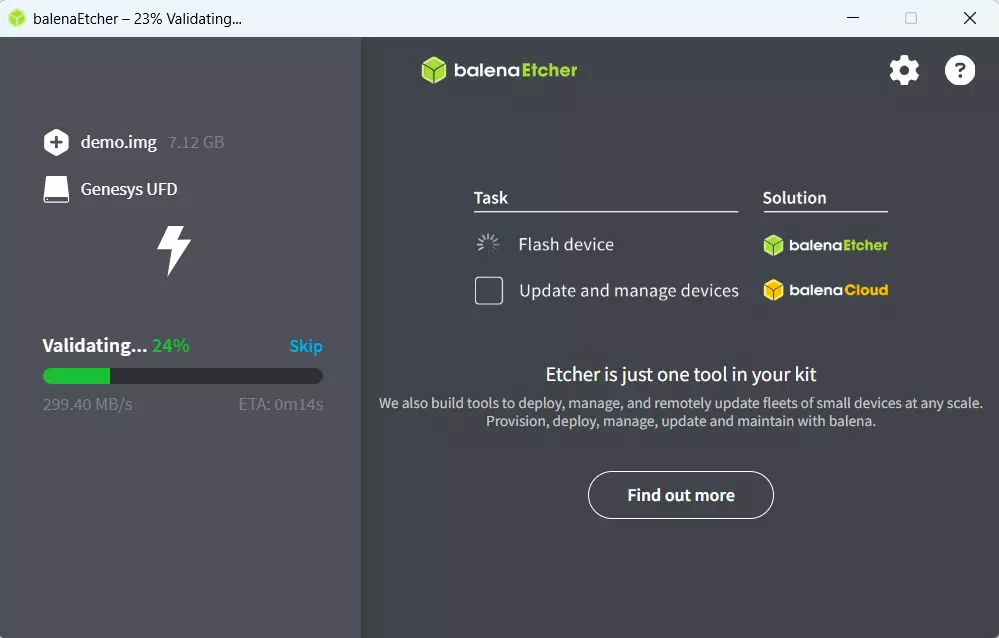
Waiting for system verification to complete
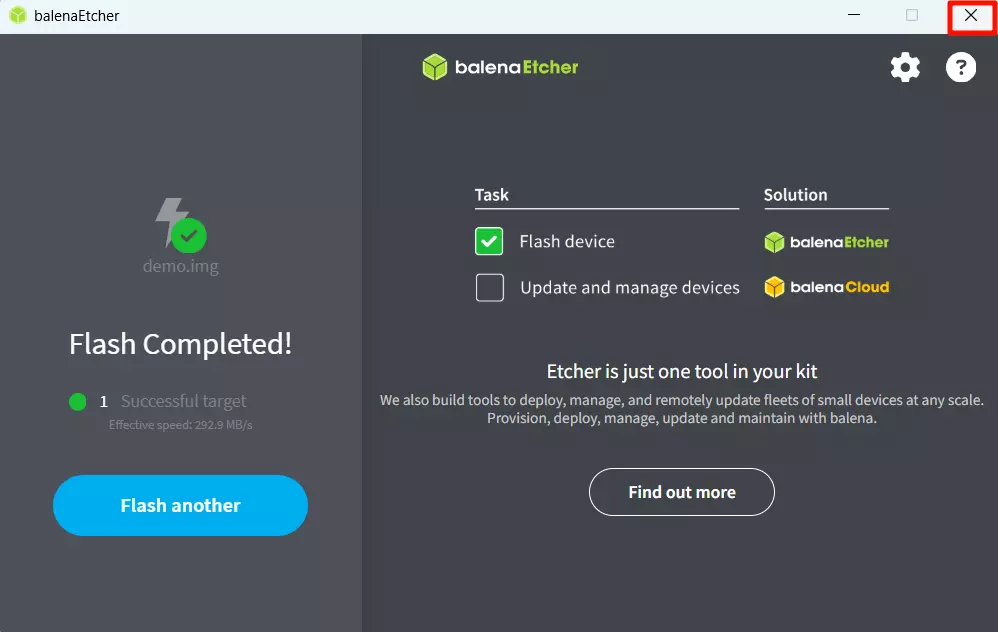
After successfully installing the system image, close the Etcher software!
Boot System
After completing the system installation, install the eMMC module to the eMMC module interface of ROCK 4D, then power on the ROCK 4D using the power adapter to boot the system.
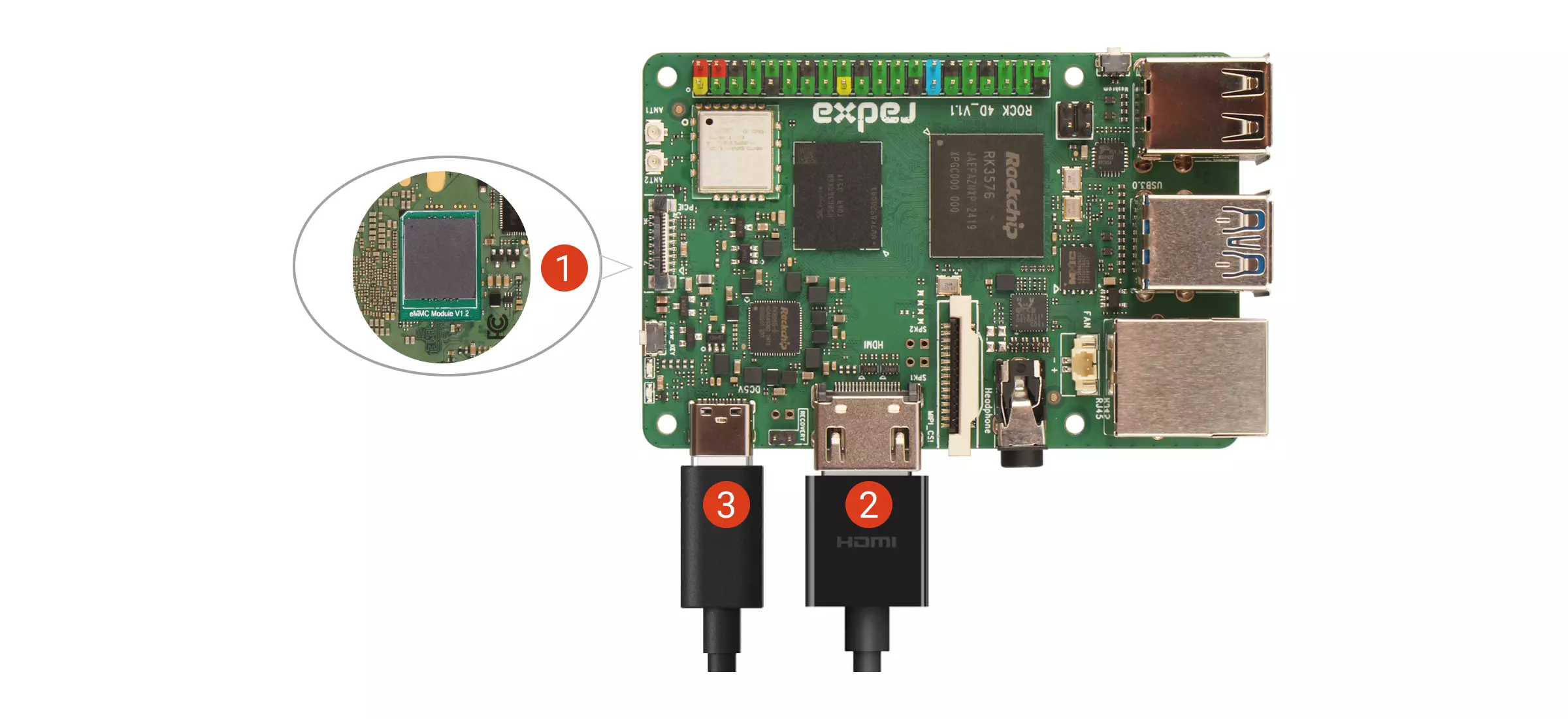
① : Install eMMC module
② : Connect display and motherboard using HDMI cable
③ : Power on ROCK 4D using power adapter
After the system boots successfully, the blue and green LED lights will light up simultaneously. After a few seconds, the green light will stay constant and the blue indicator light will flash.
Login System
When you boot the system for the first time, you need to log in using the default username and password.
The default credentials for Radxa OS are as follows:
| Item | Content |
|---|---|
| Username | radxa |
| Password | radxa |