VS Code Remote SSH Development
VS Code Remote SSH Guide
This document describes how to use Visual Studio Code (VS Code) + Remote SSH to connect from your local machine to a Radxa SBC for development. With this setup, you can keep using your familiar local IDE while building, running, and debugging on the real Radxa SBC hardware.
Applicable Scenarios
- Target device: Radxa SBC (running Radxa OS / Debian / Ubuntu, etc.)
- Local development host: Windows / macOS / Linux
- Use cases: need to access real hardware resources such as GPIO, peripherals, and on-board network
How It Works
VS Code connects to the Radxa SBC over SSH and automatically deploys VS Code Server on the remote side:
- Editor UI: runs on your local machine
- Code storage, build, and debug: run on the SBC
- File system: directly uses the SBC file system
Preparation
Local Environment
- VS Code is installed
- Your local machine can reach the Radxa SBC over the network (same LAN or routable IP)
Radxa SBC Environment
- System has booted and you can log in
- Network is configured (can access Internet or LAN)
- SSH service is available
Enable SSH on the Radxa SBC
Start the SSH service
On most systems, the service name is ssh:
sudo systemctl enable --now ssh
sudo systemctl status ssh
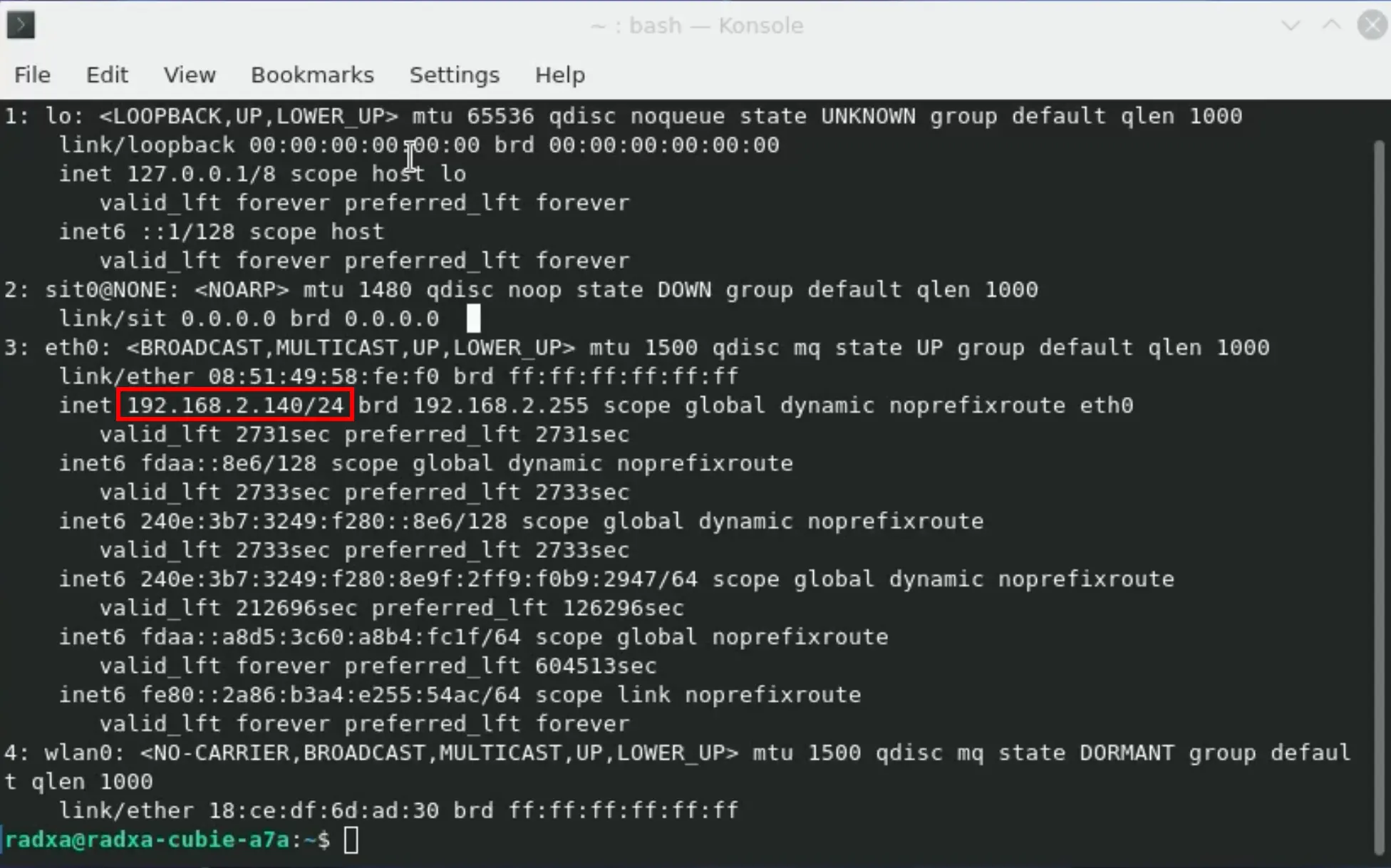
Get the SBC IP address
ip a
Record the SBC IP address; you will need it later in VS Code.
Serial console recommendation
In the following situations, a serial console is an essential recovery method:
- Network configuration errors
- SSH connection failures
- Firewall misconfiguration
- Some platforms do not support tty display output at the moment
When troubleshooting SSH/network issues, it is highly recommended to log in to the SBC via serial console first.
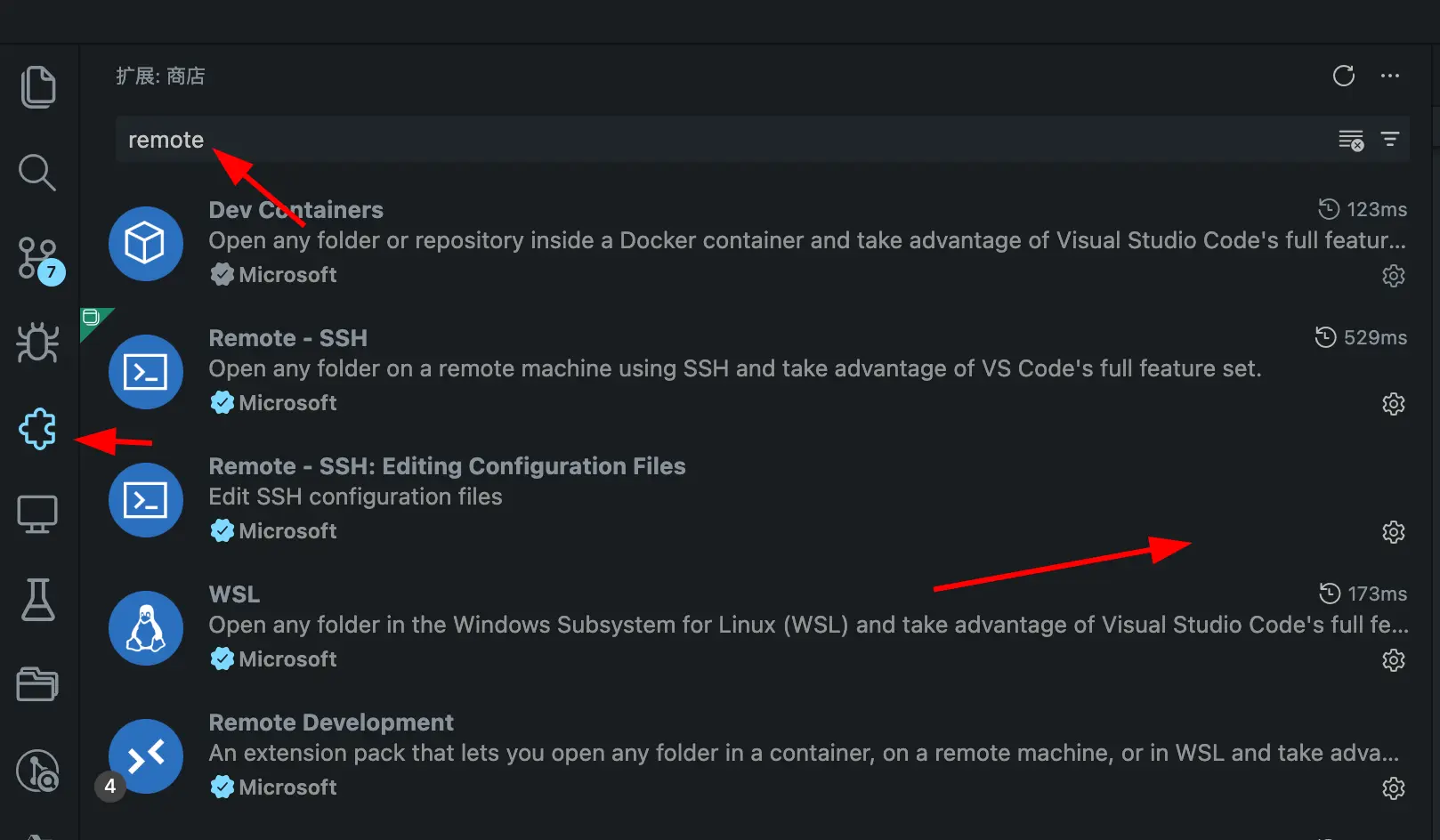
Install VS Code "Remote - SSH" Extension (Local)
- Open VS Code
- Go to the Extensions view
- Search for and install the Remote - SSH extension
Configure SSH Connection
Option 1: Add host in VS Code (recommended)
-
Press
Ctrl + Shift + P(macOS:Cmd + Shift + P) -
Select Remote-SSH: Add New SSH Host...
-
Enter the SSH command, for example:
Host$ssh radxa@<SBC_IP> -
Choose to save it to
~/.ssh/config
Option 2: Manually edit SSH config file
Edit ~/.ssh/config:
nano ~/.ssh/config
Example configuration:
Host radxa-sbc
   HostName 192.168.1.88
   User radxa
   Port 22
Configure SSH key login (recommended)
-
Generate an SSH key on your local machine:
Host$ssh-keygen -t ed25519 -
Copy the public key to the SBC:
Host$ssh-copy-id radxa@<SBC_IP> -
Verify that you can log in without a password:
Host$ssh radxa@<SBC_IP>
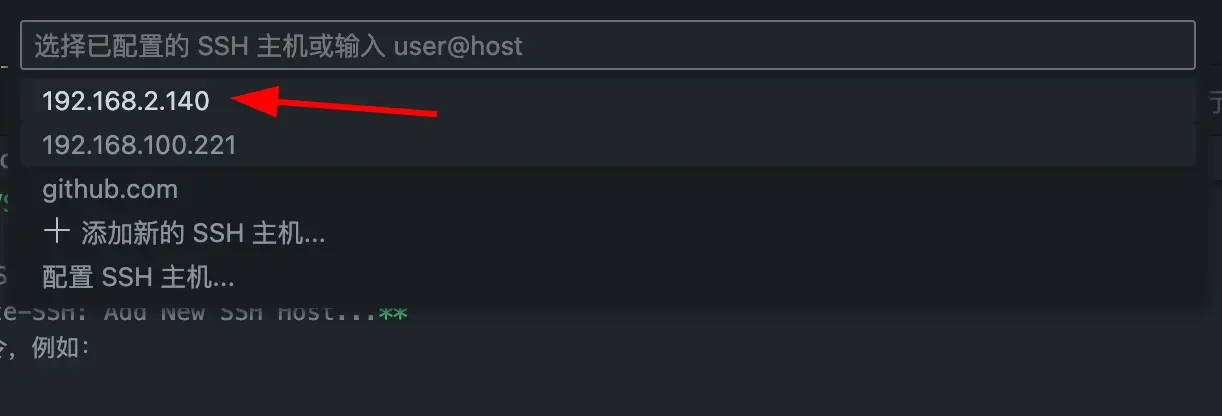
Connect to Radxa SBC from VS Code
- In VS Code, press
Ctrl + Shift + P - Select Remote-SSH: Connect to Host...
- Choose the host you configured (for example,
radxa-sbc)
On the first connection, VS Code automatically installs VS Code Server on the SBC. Just wait for the installation to complete.
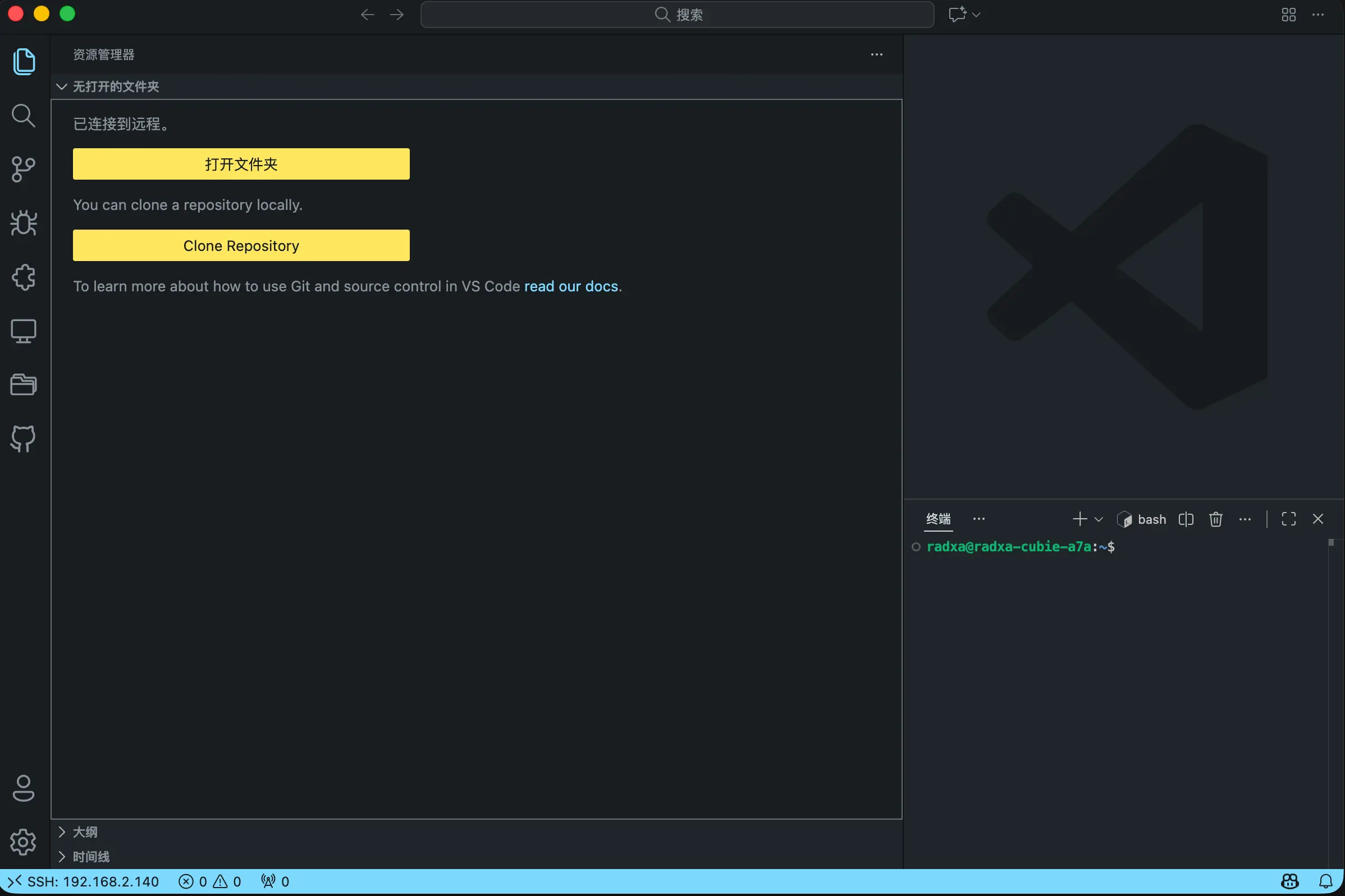
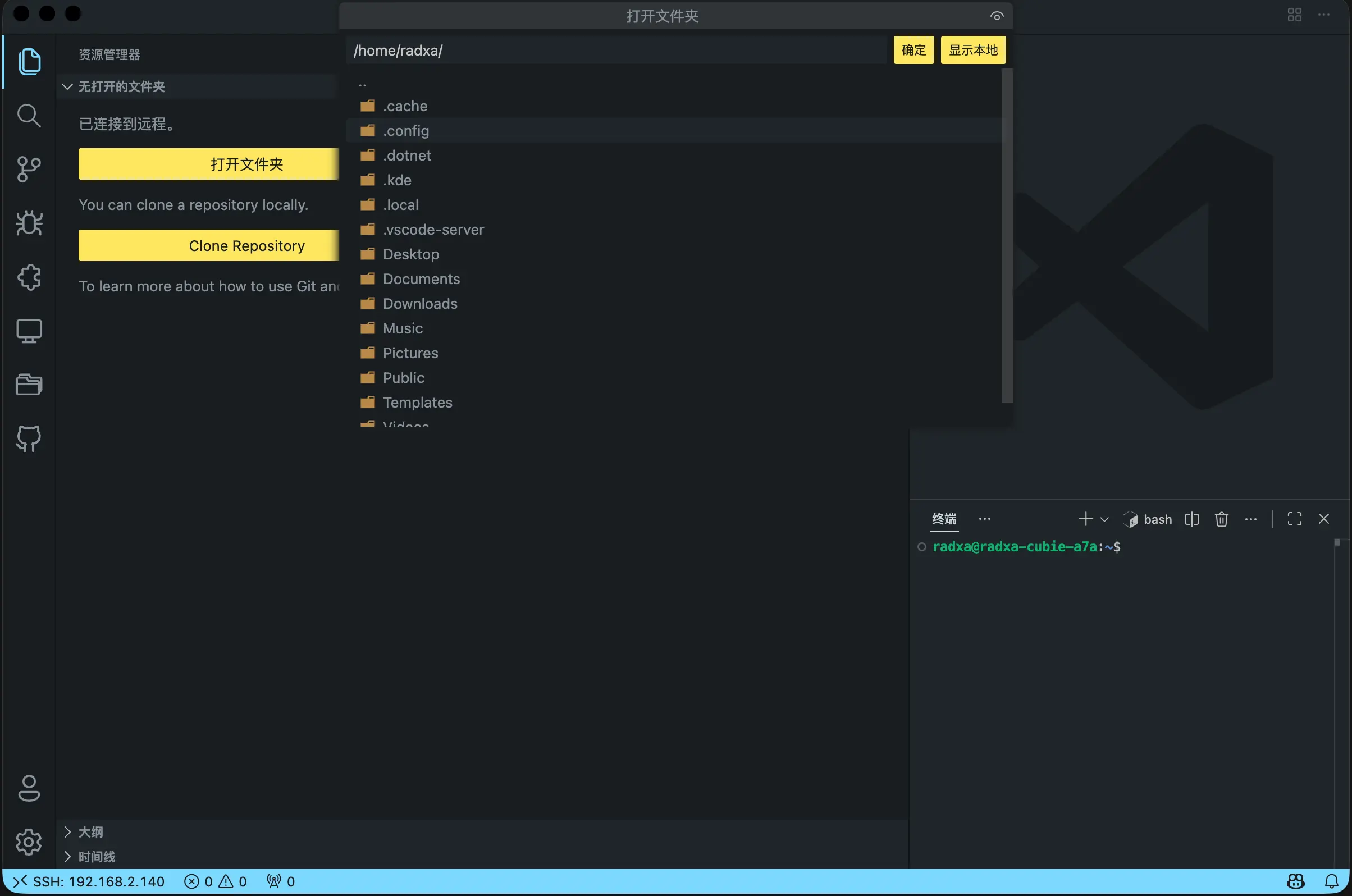
Open a Remote Project Folder
-
In the remote VS Code window, choose File → Open Folder...
-
Select a project directory on the SBC, for example:
radxa@device$/home/radxa/Dev/project -
Confirm, and VS Code will load the directory as the remote workspace.
Remote Terminal and Port Forwarding
Remote terminal
In the remote VS Code window, open a terminal. It is already connected to the SBC:
uname -a
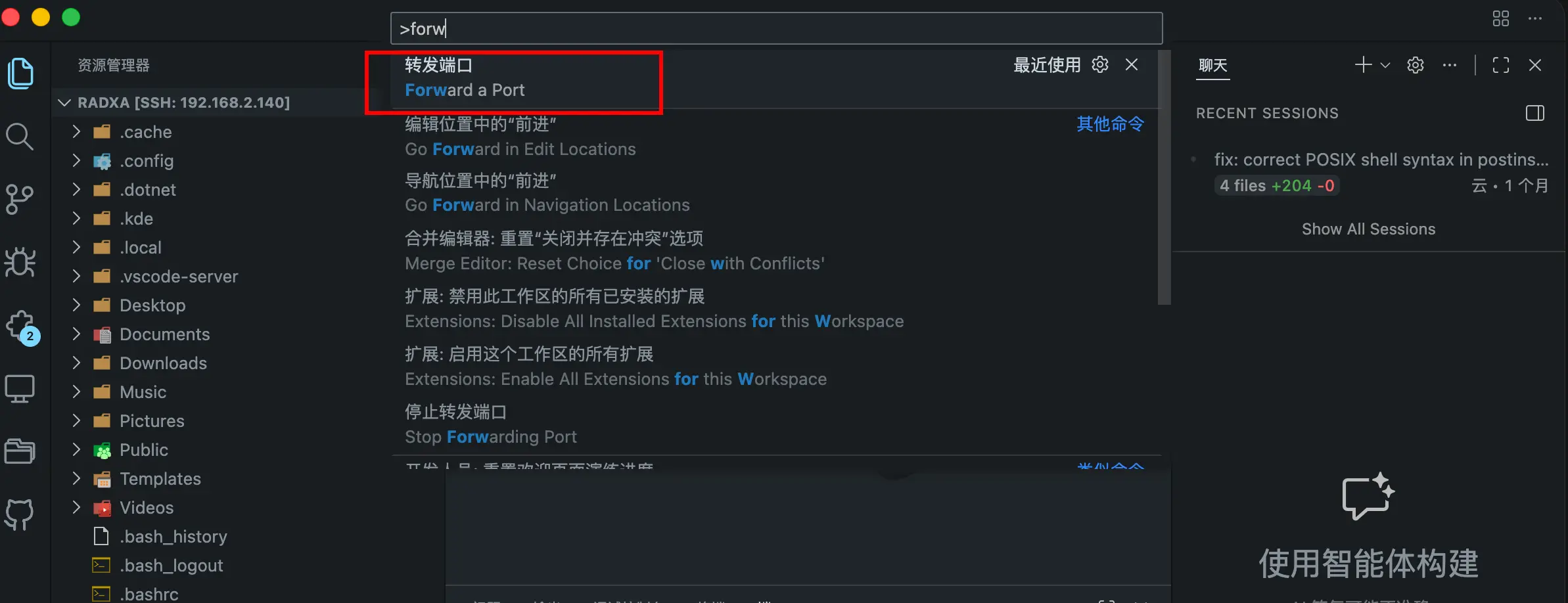
Port forwarding
When a web service or debug service is running on the SBC, you can use VS Code Port Forwarding to forward the port to your local machine, making it easy to access from a browser or debugging tools.
Troubleshooting
VS Code Server installation fails
On the SBC, remove the old VS Code Server directory and reconnect:
rm -rf ~/.vscode-server
Then, in the Remote SSH extension settings on your local machine, search for Remote.SSH: Use Local Server Download and set it to always.
SSH connection is unstable
In your local ~/.ssh/config, add the following for the corresponding host:
ServerAliveInterval 30
ServerAliveCountMax 3
This helps reduce unexpected disconnections when the network is unstable.
SSH cannot connect at all
Use a serial cable to connect to the SBC, log in, and then check and fix the network and SSH configuration.
Recommended Development Practices
- Use a unified project root on the SBC, for example:
/home/radxa/Dev - Separate build directories from source directories as much as possible
- Use
systemdto manage long-running services - Before changing network or SSH-related settings, make sure serial access is ready so you can recover quickly if something goes wrong