Linux USB Gadget - UVC
This tutorial applies to Radxa devices that support USB Device / OTG mode, such as E25, E52C, ROCK4D, ROCK5B, and others. If you are not sure whether your device supports this feature, please refer to the hardware documentation of the corresponding board model for information about OTG / Device mode.
Before proceeding, connect the board's USB OTG port (usually a USB Type‑C connector) to the host (PC or other host device) using a USB data cable. It is recommended to use a USB 3.0 cable and port for better transfer performance.
If your device exposes the OTG port as a USB Type‑A connector, use a USB A‑to‑A data cable to connect the board and the host.
Overview
The USB UVC Gadget allows the device to expose a UVC[0] device to the host over USB, and the host will recognize it as a webcam.
This tutorial briefly describes the configuration process. The information in this tutorial is mainly based on the following Linux documentation links. Please refer to the official Linux documentation as the authoritative source:
https://origin.kernel.org/doc/html/v6.19/usb/gadget_configfs.html
https://origin.kernel.org/doc/html/v6.19/usb/gadget_uvc.html
Prerequisites
Before you begin, make sure that:
- The device has successfully booted RadxaOS.
- The USB cable is correctly connected between the board's OTG port and the host.
Then run the following command to check whether the system supports Gadget mode:
ls /sys/class/udc
Example output:
fc000000.usb
This name corresponds to the USB Device Controller (UDC), referred to as gadget_name.
If multiple devices are listed:
- Choose the UDC that is bound to the USB Type‑C port.
- Plug/unplug the USB‑C cable and use
dmesg | grep -i udcto help identify the correct UDC.
If no UDC devices are shown, you may need to enable the USB OTG overlay using rsetup in RadxaOS.
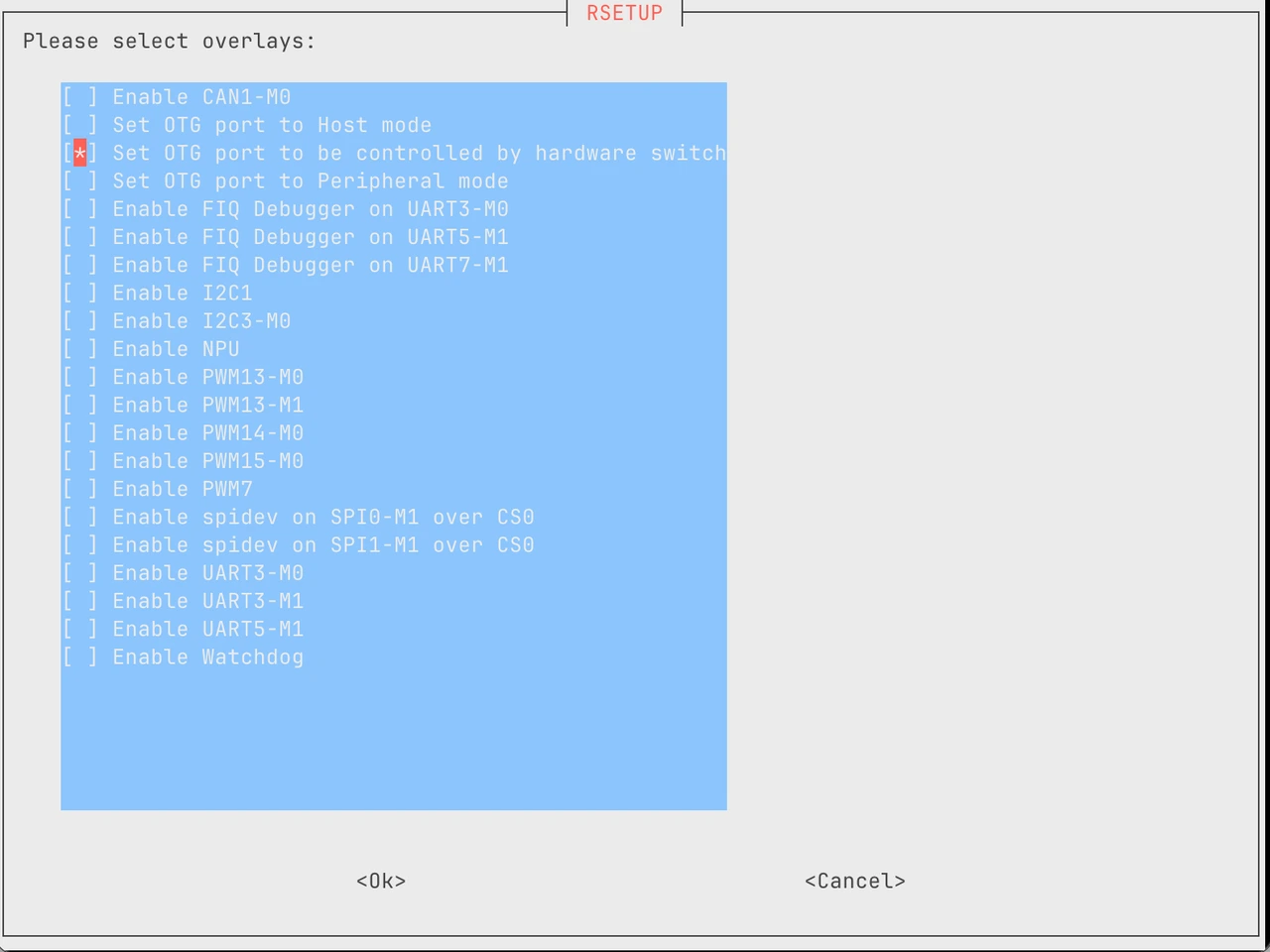
Please ensure your USB OTG is operating in client mode (Device mode), not host mode.
Get gadget_name
Run the following command:
ls /sys/class/udc
If the output is:
fc000000.usb
Then the gadget_name is:
fc000000.usb
This parameter must be passed to all scripts.
Create Gadget (Initialization Script)
This step only needs to be performed once. Save the following script as:
/usr/local/sbin/gadget-init.sh
#!/bin/bash
#
# Initialize USB Gadget, only needs to be executed once
#
set -euo pipefail
GADGET_NAME=${1:-}

if [[ -z "${GADGET_NAME}" ]]; then
  echo "Usage: sudo $0 <gadget_name>"
  exit 1
fi

if [[ $EUID -ne 0 ]]; then
  echo "Please run as root"
  exit 1
fi

# Ensure configfs is mounted.
if ! mountpoint -q /sys/kernel/config; then
  mount -t configfs none /sys/kernel/config
fi

# Try to load the configfs gadget core.
# This is required when CONFIG_USB_CONFIGFS=m.
modprobe libcomposite 2>/dev/null || true

# Verify that the usb_gadget subsystem exists.
if [[ ! -d /sys/kernel/config/usb_gadget ]]; then
  echo "CONFIG_USB_CONFIGFS=m is enabled, but /sys/kernel/config/usb_gadget is missing."
  echo "Please make sure the libcomposite module is loaded correctly, or verify that the kernel modules are installed properly."
  exit 1
fi

G="/sys/kernel/config/usb_gadget/${GADGET_NAME}"

if [[ -d "${G}" ]]; then
  echo "Gadget already exists: ${GADGET_NAME}"
  exit 0
fi

mkdir -p "${G}"
cd "${G}"

echo 0x1d6b > idVendor
echo 0x0104 > idProduct

mkdir -p strings/0x409
echo "1234567890"        > strings/0x409/serialnumber
echo "Radxa"             > strings/0x409/manufacturer
echo "Radxa USB Gadget"  > strings/0x409/product

mkdir -p configs/r.1
mkdir -p configs/r.1/strings/0x409
echo "Radxa Config" > configs/r.1/strings/0x409/configuration

echo "Initialization complete: ${GADGET_NAME}"
echo "Next step: use uvc.sh to enable the UVC function"
Grant execute permission and run the script (using fc000000.usb as an example):
sudo chmod +x /usr/local/sbin/gadget-init.sh
sudo /usr/local/sbin/gadget-init.sh fc000000.usb
After successful execution, you should see:
ls /sys/kernel/config/usb_gadget
fc000000.usb
Create USB UVC Gadget Enable/Disable Script
Linux USB UVC Gadget has several configurable parameters, such as video resolution, video pixels, video format, and more. The following script is mainly used as an example. For specific parameter configuration, refer to the official Linux documentation1.
Save the following script as:
/usr/local/sbin/uvc.sh
#!/bin/bash
#
# Control USB UVC Gadget enable/disable
#
set -euo pipefail

ACTION=${1:-}
GADGET_NAME=${2:-}
FUNCTION_NAME="uvc.0"

if [[ $EUID -ne 0 ]]; then
  echo "Please run as root"
  exit 1
fi

G="/sys/kernel/config/usb_gadget/${GADGET_NAME}"
F="${G}/functions/${FUNCTION_NAME}"

detect_udc() {
  if [[ -f "${G}/UDC" ]]; then
    local cur
    cur=$(cat "${G}/UDC" 2>/dev/null || echo "")
    if [[ -n "${cur}" ]]; then echo "${cur}"; return; fi
  fi

  if [[ -e "/sys/class/udc/${GADGET_NAME}" ]]; then
    echo "${GADGET_NAME}"; return
  fi

  local lst
  mapfile -t lst < <(ls /sys/class/udc || true)
  if [[ ${#lst[@]} -eq 1 ]]; then echo "${lst[0]}"; return; fi

  echo ""
}

disable_gadget() {
  if [[ ! -d "${G}" ]]; then return 0; fi
  local cur
  cur=$(cat "${G}/UDC" 2>/dev/null || echo "")

  if [[ -n "${cur}" ]]; then echo "" > "${G}/UDC" 2>/dev/null || true; fi

  rm -f "${G}/configs/r.1/${FUNCTION_NAME}" 2>/dev/null || true

  if [[ -e "${F}/streaming/header/h" ]]; then
    pushd ${F}/streaming/header/h
    rm yuyv
    cd ../../class/fs
    rm h
    cd ../../class/hs
    rm h
    cd ../../class/ss
    rm h
    cd ../../../control
    rm class/fs/h
    rm class/ss/h
    rmdir header/h
    popd
    rmdir ${F}/streaming/header/h
  fi

  if [[ -e "${F}/streaming/uncompressed" ]]; then
    rmdir ${F}/streaming/uncompressed/yuyv/720p
    rmdir ${F}/streaming/uncompressed/yuyv/1080p
    rmdir ${F}/streaming/uncompressed/yuyv/1200p
    rmdir ${F}/streaming/uncompressed/yuyv
  fi

  rmdir "${G}/functions/uvc.0" 2>/dev/null || true
}

enable_gadget() {
  UDC=$(detect_udc)
  if [[ -z "${UDC}" ]]; then
    echo "Unable to determine UDC name"
    exit 1
  fi

  disable_gadget

  mkdir -p "${G}/configs/r.1"
  mkdir -p "${F}"

  # You must configure the gadget by telling it which formats you support, as
  # well as the frame sizes and frame intervals that are supported for each
  # format.
  # https://origin.kernel.org/doc/html/v6.19/usb/gadget_uvc.html#formats-and-frames
  create_frame 1280 720 uncompressed yuyv
  create_frame 1600 1200 uncompressed yuyv
  create_frame 1920 1080 uncompressed yuyv

  # Header linking is required
  # https://origin.kernel.org/doc/html/v6.19/usb/gadget_uvc.html#formats-and-frames
  mkdir ${F}/streaming/header/h
  pushd ${F}/streaming/header/h
  ln -s ../../uncompressed/yuyv
  cd ../../class/fs
  ln -s ../../header/h
  cd ../../class/hs
  ln -s ../../header/h
  cd ../../class/ss
  ln -s ../../header/h
  cd ../../../control
  mkdir header/h
  ln -s header/h class/fs
  ln -s header/h class/ss
  popd

  # Maximize framerate
  # https://docs.kernel.org/usb/gadget_uvc.html#bandwidth-configuration
  echo 1    > ${F}/streaming_interval
  echo 3072 > ${F}/streaming_maxpacket
  echo 15   > ${F}/streaming_maxburst

  ln -sf "${G}/functions/${FUNCTION_NAME}" "${G}/configs/r.1/${FUNCTION_NAME}"
  echo "${UDC}" > "${G}/UDC"

  echo "USB UVC Gadget enabled"
}

create_frame() {
  # Example usage:
  # create_frame <width> <height> <group> <format name>

  WIDTH=$1
  HEIGHT=$2
  FORMAT=$3
  NAME=$4

  wdir=${F}/streaming/$FORMAT/$NAME/${HEIGHT}p

  mkdir -p $wdir
  echo $WIDTH > $wdir/wWidth
  echo $HEIGHT > $wdir/wHeight
  echo $(( $WIDTH * $HEIGHT * 2 )) > $wdir/dwMaxVideoFrameBufferSize
  cat <<EOF > $wdir/dwFrameInterval
666666
166666
100000
5000000
EOF
}

case "${ACTION}" in
  enable)
    enable_gadget
    ;;
  disable)
    disable_gadget
    echo "USB UVC Gadget disabled"
    ;;
  *)
    echo "Usage:"
    echo "  sudo $0 enable  <gadget_name>"
    echo "  sudo $0 disable <gadget_name>"
    ;;
esac
Grant execute permission:
sudo chmod +x /usr/local/sbin/uvc.sh
Prepare the Userspace Application
Enabling Linux USB UVC Gadget alone does not do much. It also needs to work with a suitable userspace application.
This section briefly demonstrates the uvc-gadget example application mentioned in the official Linux documentation2.
Clone and compile the code from this repository: https://gitlab.freedesktop.org/camera/uvc-gadget
Enable and Disable USB UVC Gadget
Enable:
sudo uvc.sh enable fc000000.usb
Then run the uvc-gadget application you just compiled:
./uvc-gadget/build/src/uvc-gadget
After that, you should see a camera device registered on the host.
Execution Order Summary
First run:
gadget-init.sh → uvc.sh enable → uvc-gadget