Auto Login
You can configure your system to automatically log in without entering the password.
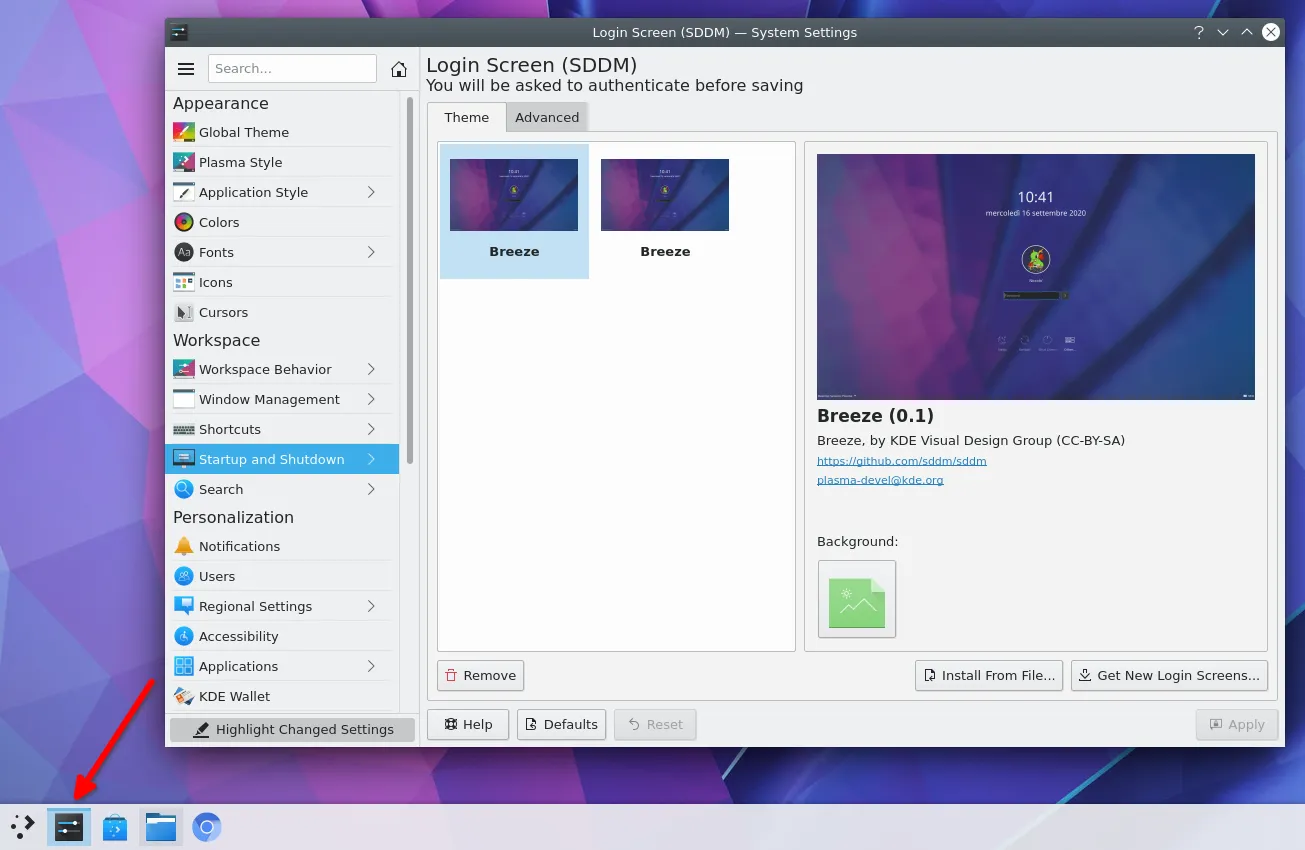
As shown in the figure, click the system setting interface and select Startup and Shutdown.
- Debian 11
- Debian 12
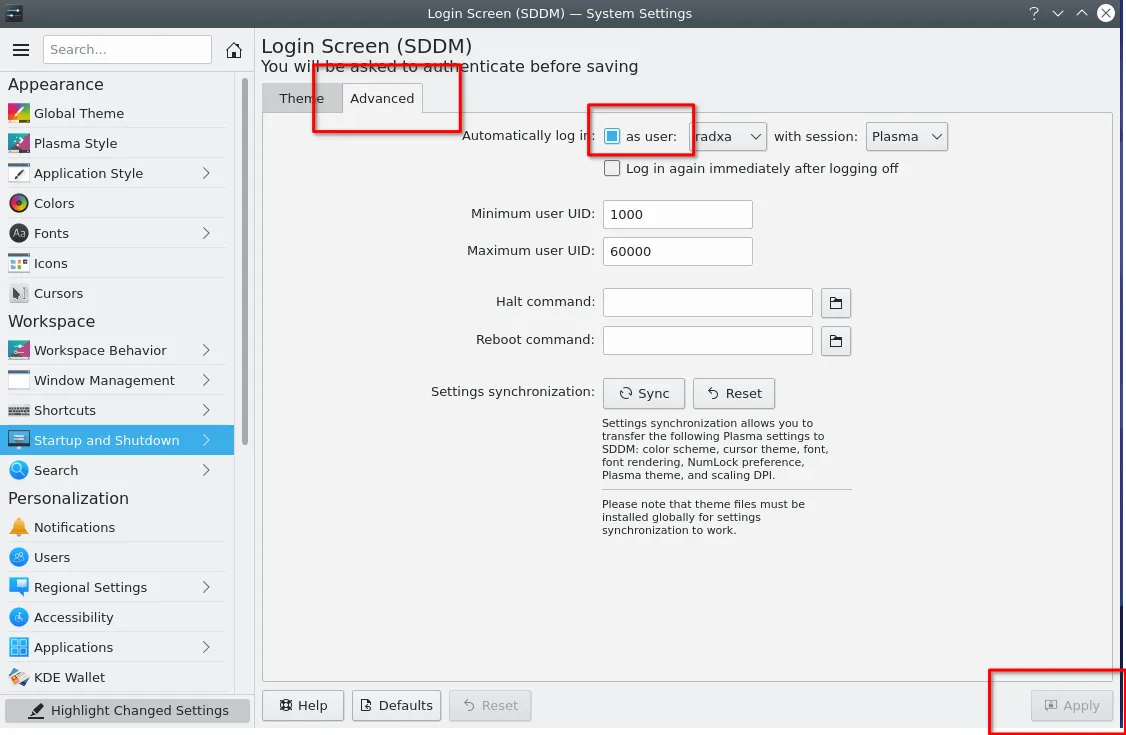
Switch to Advanced as shown in the figure, click the box to select the user who is automatically logged in, and then click apply to complete the automatic login setting. Restarting your computer now will no longer require you to enter your login password.
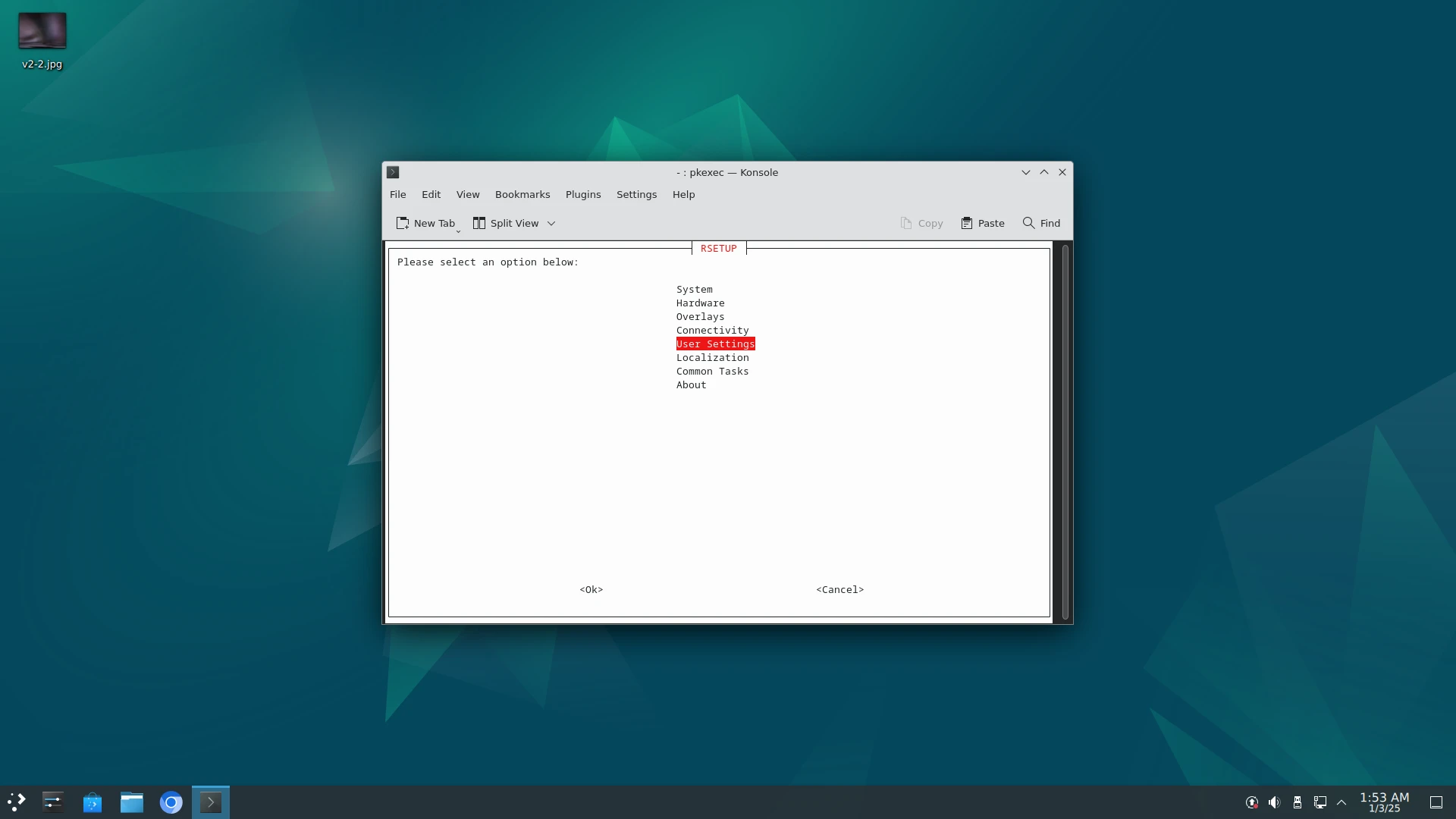
As shown , use Ctrl + Alt + T to open the terminal, then enter rsetup and select User Settings to configure.
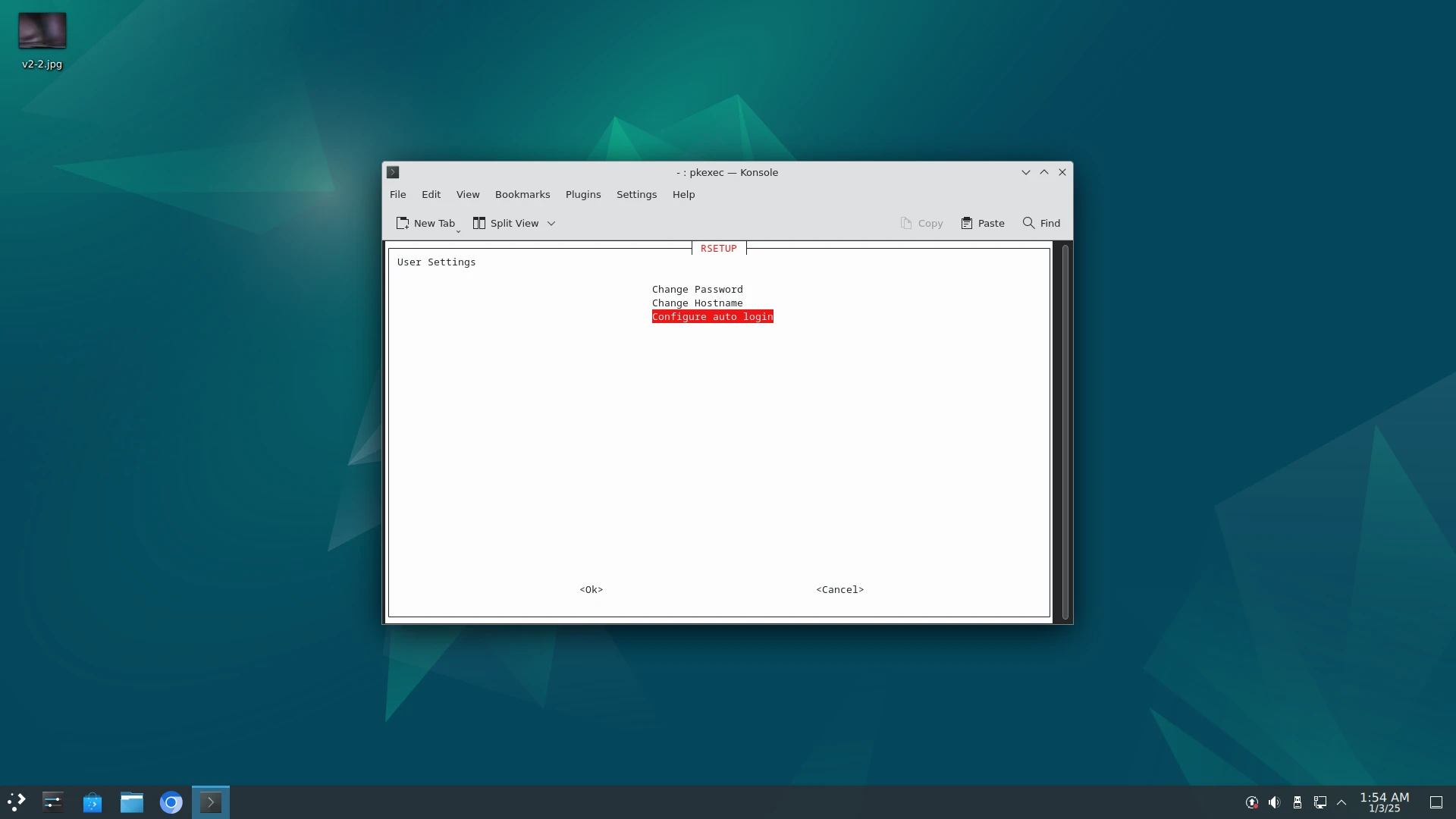
If the rsetup option does not show Configure auto login, please use the System -> System Update option in the rsetup tool to update and restart the system.
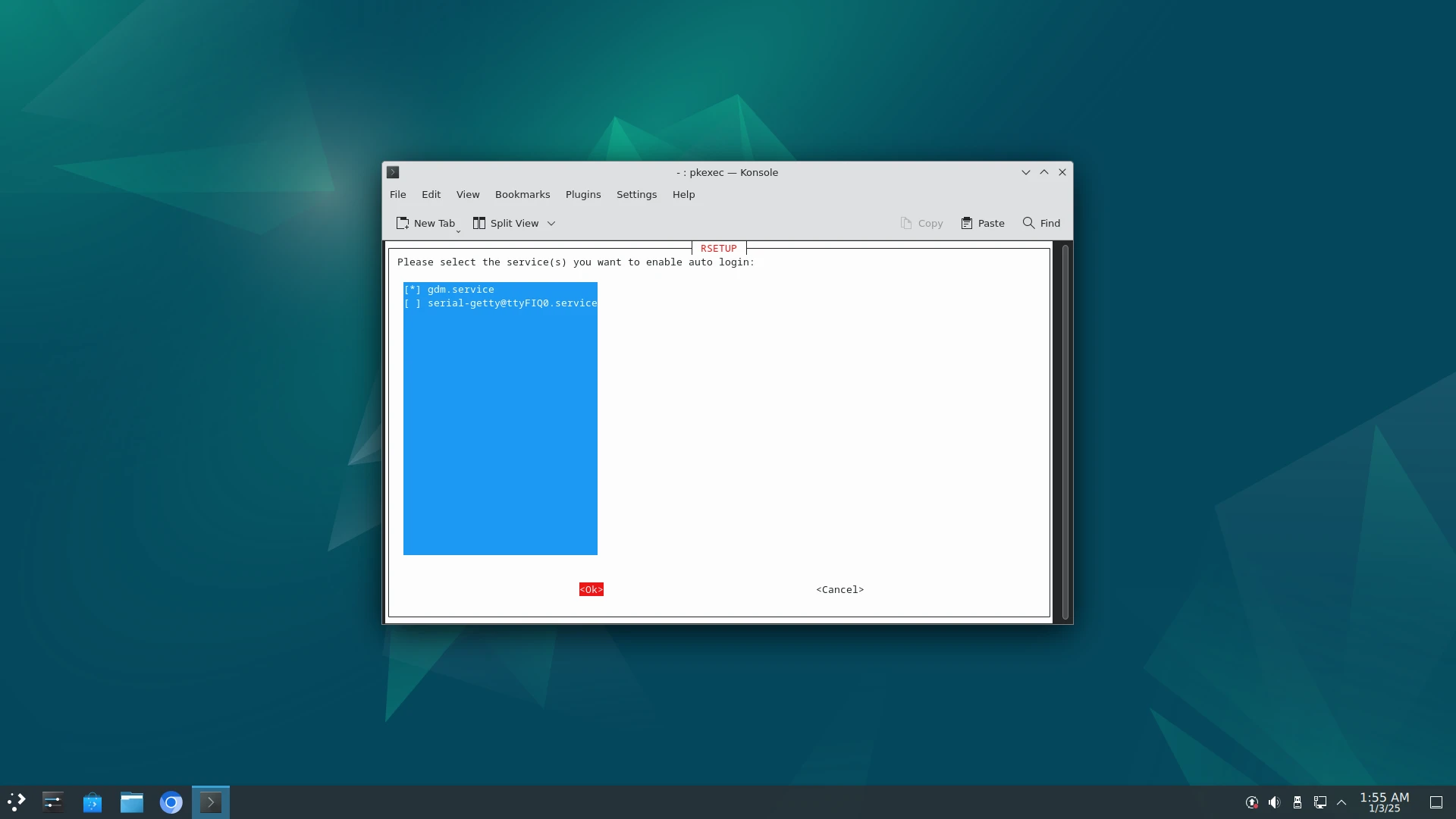
Select Configure auto login,
Select gdm.service by the space, and then select OK to complete the automatic login setup. Now restarting the computer will no longer require you to enter a login password.
If you are using the KDE Plasma desktop, autologin may still fail after configuring it via the rsetup GUI (e.g. the system gets stuck at the login screen after reboot).
This is usually caused by the session name being written as plasma, while KDE Plasma actually requires plasma.desktop.
Manually edit the autologin configuration file (KDE Plasma typically uses SDDM, and the config file is usually located at /etc/sddm.conf.d/kde_settings.conf) and change the session name to plasma.desktop, for example:
[Autologin]
Session=plasma.desktop
User=radxa
After editing, restart the system — autologin should work normally.