Erase eMMC or SPI Flash
Enter to Maskrom Mode
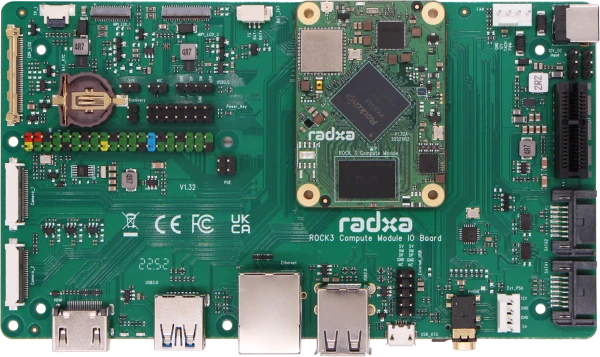
- Install the CM3 onto the CM3 IO board
- Remove (unplug) the microSD card from the CM3 IO board
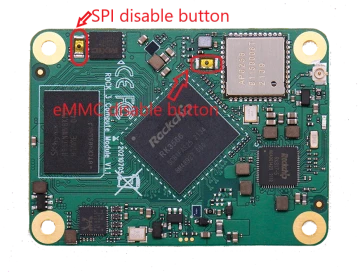
- Before powering on, press and hold the SPI Disable button or the eMMC Disable button on the CM3, and keep it pressed
- Connect a USB-A to Micro-USB cable to the OTG port (Micro-USB port) on the CM3 IO board, and the other end to the computer
- Connect the DC 12V power supply to power the CM3 IO board; if the green power LED stays on, it has successfully entered Maskrom mode (you can release the button at this point)
To erase eMMC, press and hold SPI Disable button; to erase SPI Flash, press and hold eMMC Disable button.
Erase eMMC
- Linux/MacOS
- Windows
-
Generate zero.img
dd if=/dev/zero of=./zero.img bs=1M count=64 -
Make sure the host recognises Maskrom
sudo rkdeveloptool ld
DevNo=1 Vid=0x2207,Pid=0x350a,LocationID=109 Maskrom -
Flash Loader
- Erase eMMC
sudo rkdeveloptool wl 0 zero.img
- Reboot
sudo rkdeveloptool rd
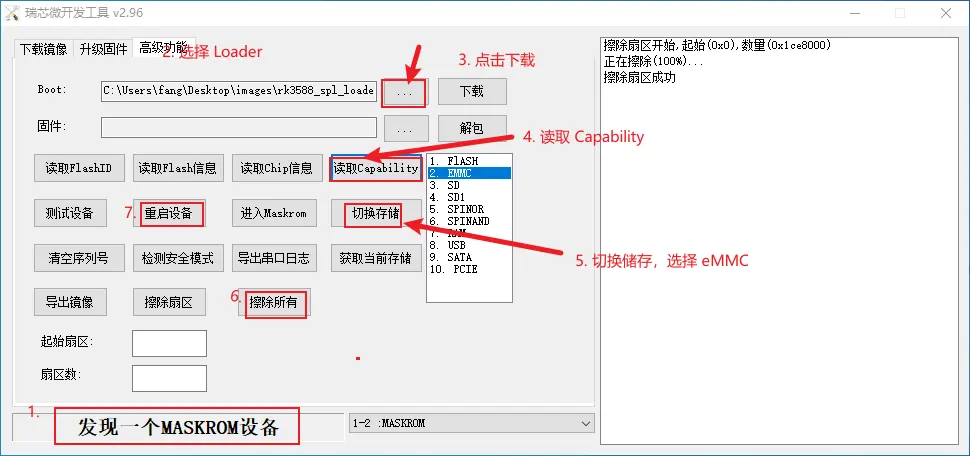
Open the RkDevTool tool and we'll use the RkDevTool to erase
-
Make sure the host recognises Maskrom
-
Click on the button to the left of "Download" to select the Loader
-
Click "Download" to flash the Loader (Go to download page to download file)
-
Click "ReadCapability" to get current storage
-
Click on "Switch storage" to switch the storage to eMMC
-
Click the "EraseAll" button to erase the eMMC
-
Click "ResetDevice"
Erase SPI Flash
- Linux/MacOS
- Windows
-
Make sure the host recognises Maskrom
sudo rkdeveloptool ld
DevNo=1 Vid=0x2207,Pid=0x350a,LocationID=109 Maskrom -
Flash Loader
sudo rkdeveloptool db rk3588_spl_loader_v1.15.113.bin
- Erase SPI Flash
sudo rkdeveloptool ef
- Reboot
sudo rkdeveloptool rd
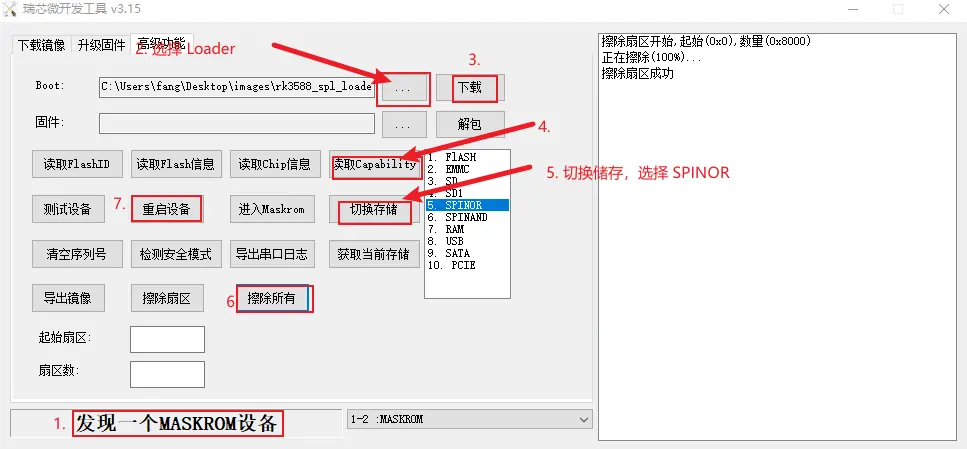
Open the RkDevTool tool and we'll use the RkDevTool to erase
-
Make sure the host recognises Maskrom
-
Click on the button to the left of "Download" to select the Loader
-
Click "Download" to flash the Loader (Go to download page to download file)
-
Click "ReadCapability" to get current storage
-
Click on "Switch storage" to switch the storage to SPINOR
-
Click the "EraseAll" button to erase the SPI Flash
-
Click "ResetDevice"