Windows Host
File Download
Please download the related System Images and Loader refer to Summary of resource downloads
Install RKDevTool
RKDevTool is Rockchip's software for USB burning on Windows platform. If RKDevTool is not installed on your Windows host, please follow the steps below to install it.
Please download and extract the following files to install RKDevTool:
- RKDevTool v2.96 (Includes Chinese documentation)
- DriverAssistant v5.14
Installation of drivers
Download and unzip DriverAssistant, then execute DriverInstall.exe and click the Install Driver button to install the driver.
If you have already installed another version of driver, please click Uninstall Driver to uninstall the driver first, and then reinstall it again.

Install RKDevTool
Unzip RKDevTool_Release_v2.96_zh.zip,Click RKDevTool.exe to Open.
Enter Maskrom mode
- Install the CM3 onto the CM3 IO board
- Remove (unplug) the microSD card from the CM3 IO board
- Before powering on, press and hold the SPI Disable button, and keep it pressed
- Connect a USB-A to Micro-USB cable to the OTG port (Micro-USB port) on the CM3 IO board, and the other end to the computer
- Connect the DC 12V power supply to power the CM3 IO board; if the green power LED stays on, it has successfully entered Maskrom mode (you can release the button at this point)
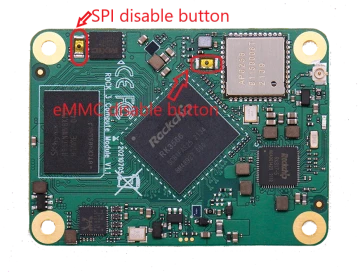
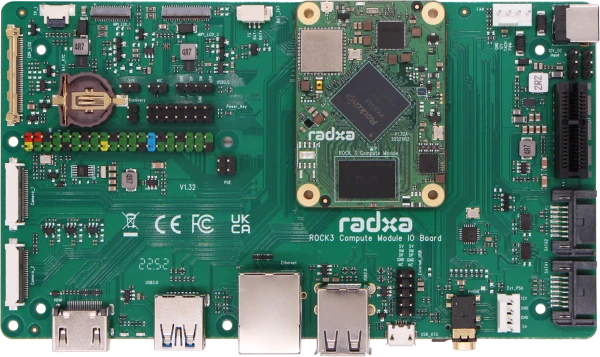
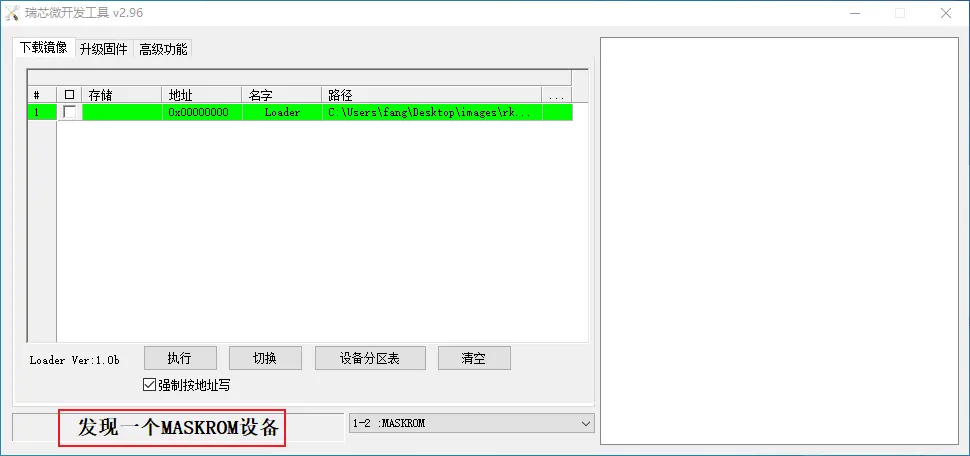
If the operation is normal, RKDevTool will prompt A MASKROM device was found.
Flash images into storage media.
eMMC
- Select Loader (see File Download section above).
- Right click, select Add item, select eMMC as the storage media.
- Select the system image (see above section on file download; Please unzip the downloaded file. Use the .img format image file).
- Click Execute to start burning
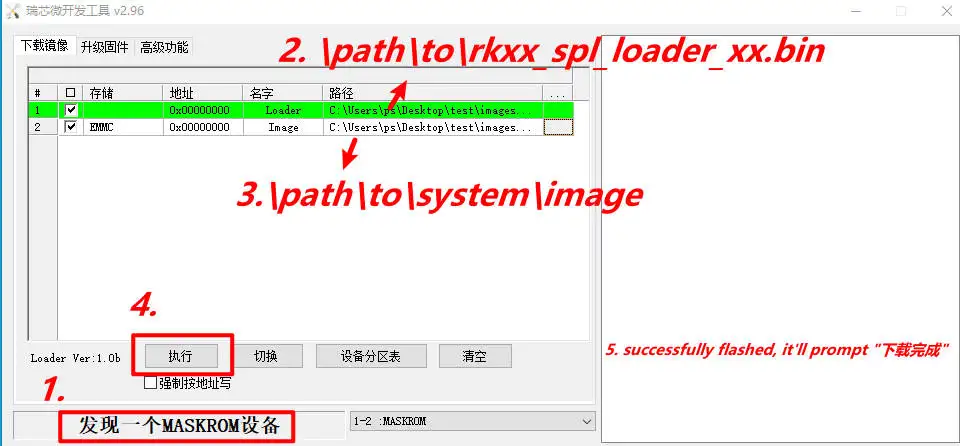
If there is a prompt Download complete, it means the burning is complete, the system will be restarted automatically after burning, and you can log in to the system via HDMI or serial port.
Account and password are both radxa