ROS1 Example (Turtlesim)
Use the Turtlesim example to quickly experience common basic concepts and features of ROS1.
This tutorial is based on the ROS1 Noetic Docker image but is not limited to Docker environments - any ROS1 environment can be used.
If you are operating in a Docker environment, it is recommended to first learn how to use Docker.
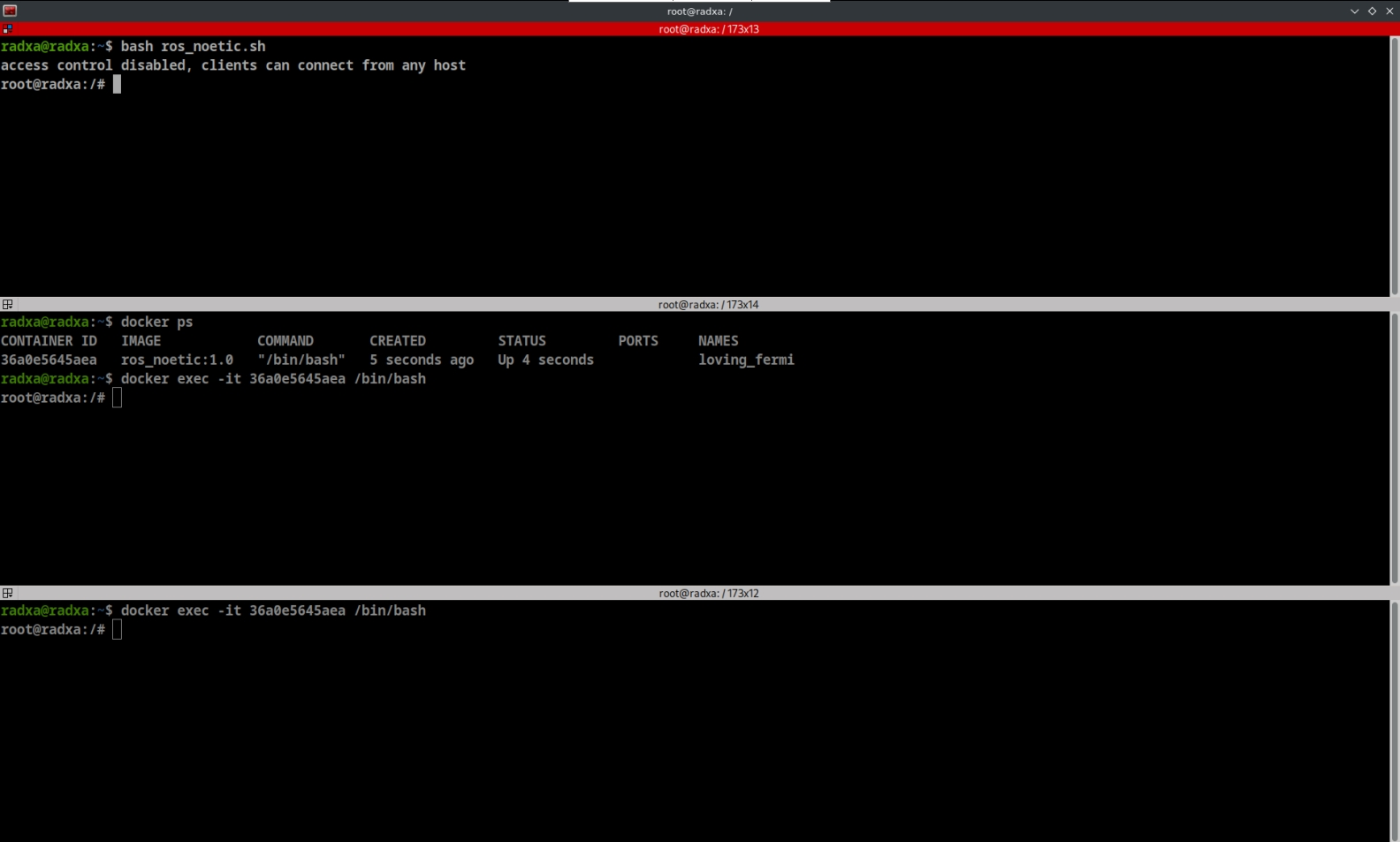
Start Docker Script
Use the following command to start the Docker script: ros_noetic.sh is the script created in the ROS1 environment setup.
bash ros_noetic.sh
It is recommended to use multiple terminals to enter the same Docker container for convenient subsequent operations.
Start Master Node
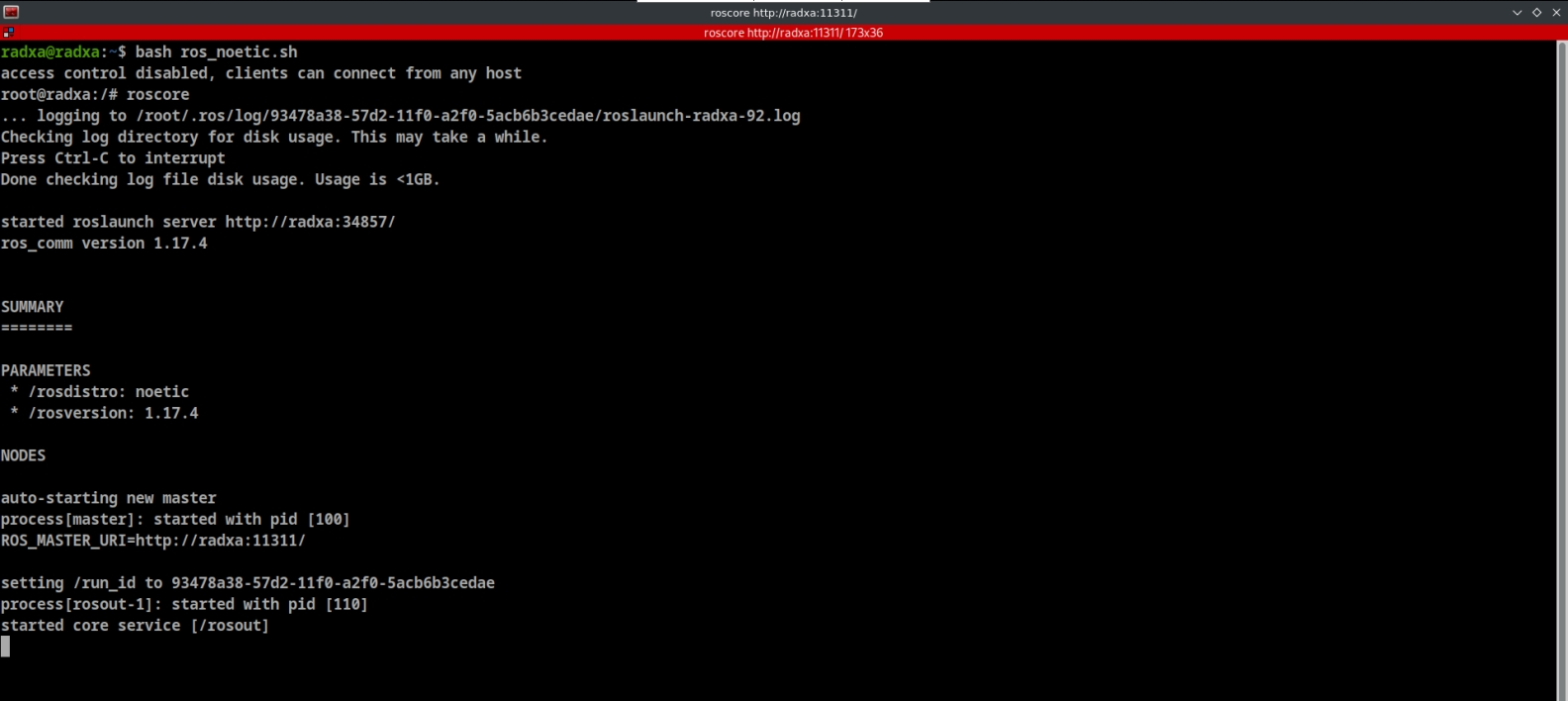
ROS1 needs to start the Master node first, then start the Turtlesim node.
roscore
Start Turtlesim
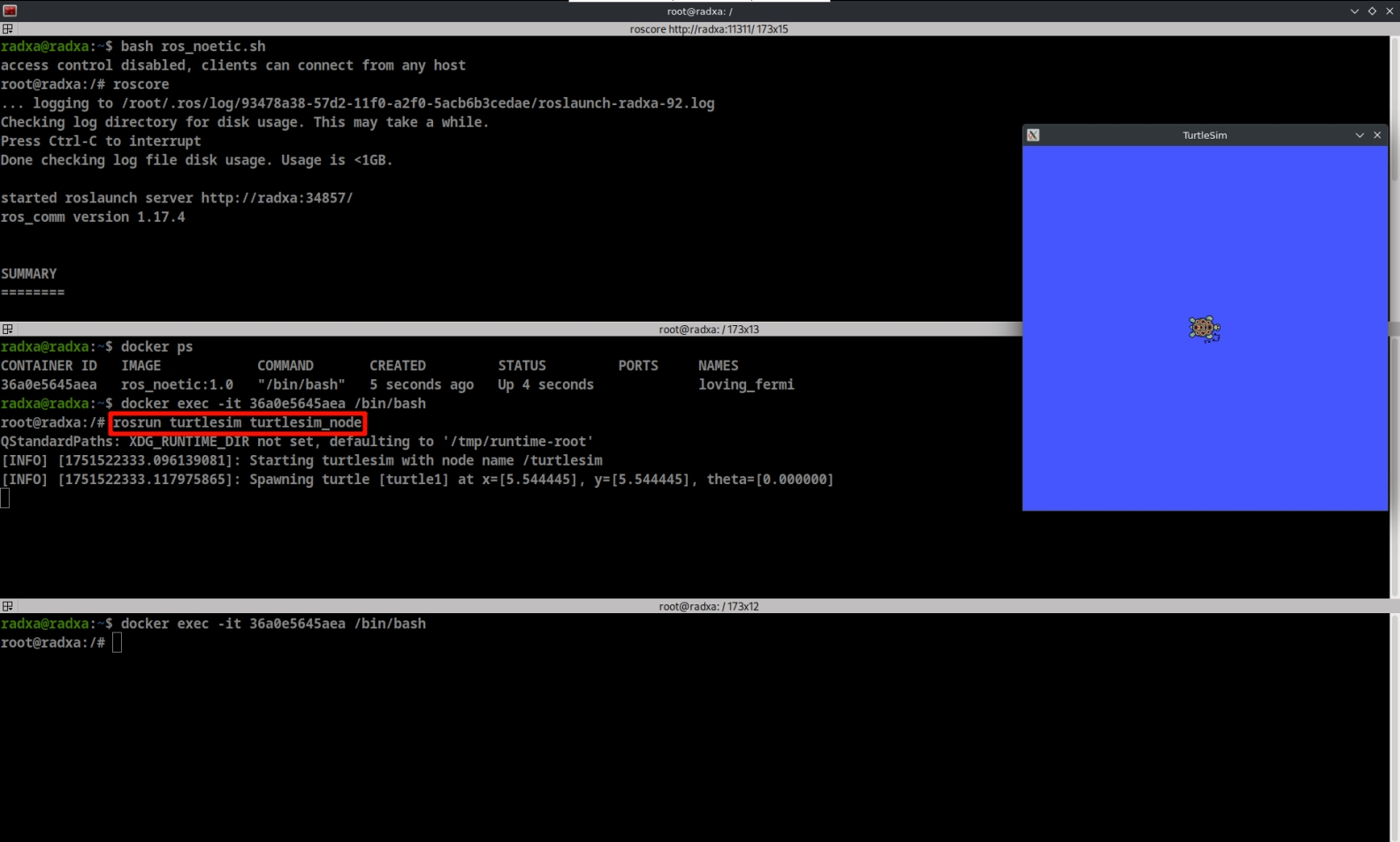
Use the following command to start Turtlesim:
rosrun turtlesim turtlesim_node
This command will create the /turtlesim node and display a window containing a small turtle.
Control Turtlesim
Use the following command to control the turtle's movement:
rosrun turtlesim turtle_teleop_key
This command will create the /teleop_turtle node.
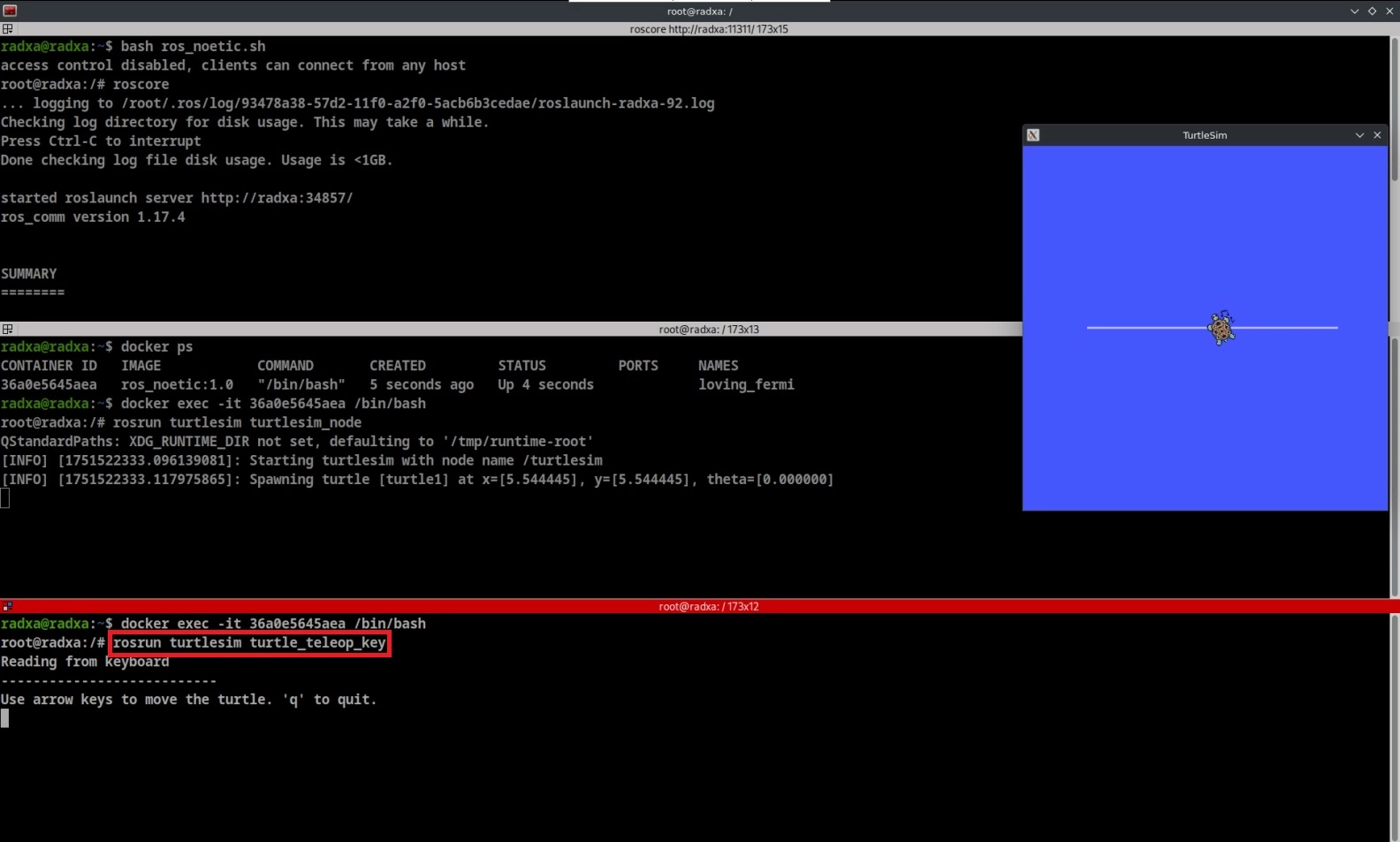
Click and keep the mouse focus on this keyboard control terminal window, then we can control the turtle's movement using the arrow keys on the keyboard.
ROS1 Basic Concepts
Through the Turtlesim example, we can further understand and use the basic concepts and commands of ROS1.
To stop a running ROS1 command, use the Ctrl + C key combination.
ROS1 Nodes
Nodes are the basic communication units in ROS1, interacting with other nodes through Publishers and Subscribers.
Key Components:
- Publisher: Interface for publishing messages to topics
- Subscriber: Interface for receiving messages from topics
View Nodes
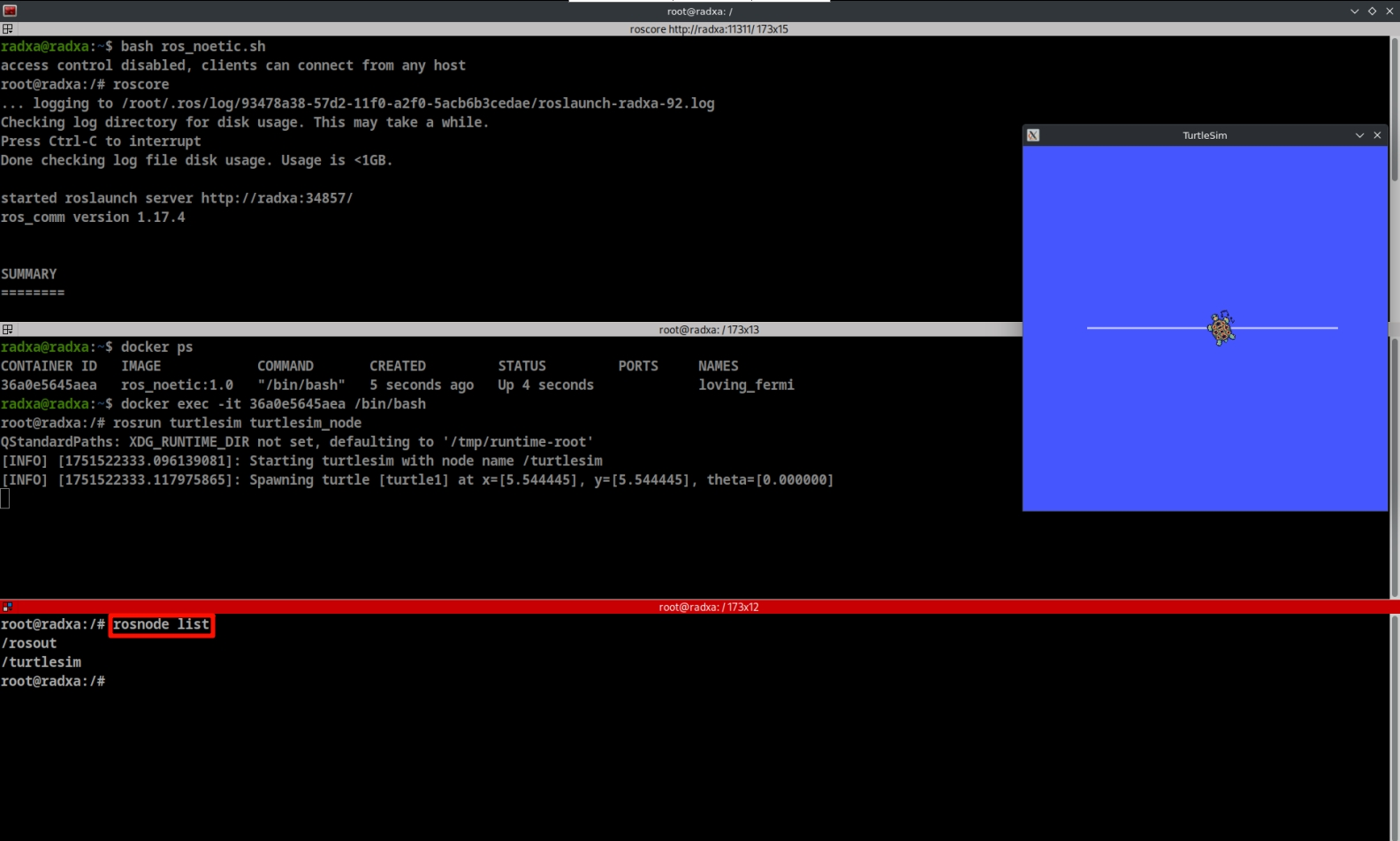
Use the rosnode list command to view nodes: currently only the command to start Turtlesim is running.
rosnode list
ROS1 Topics
Topics are the publish/subscribe communication mechanism in ROS1, enabling asynchronous data transfer between nodes.
Communication Roles:
- Publisher: Sends messages to specified topics
- Subscriber: Subscribes to topics and receives messages
View Topics
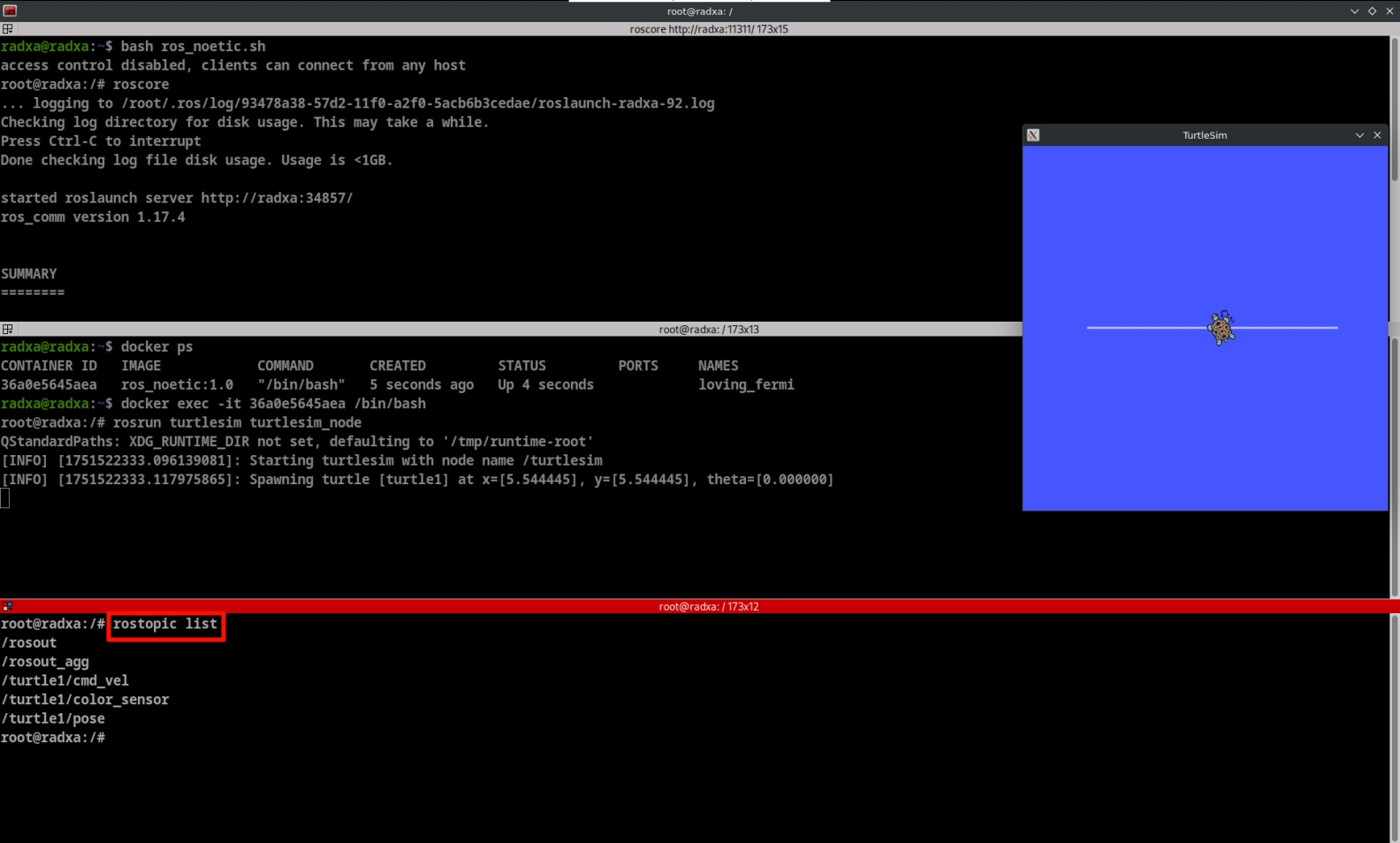
Use the rostopic list command to view topics:
rostopic list
Publish to Topics
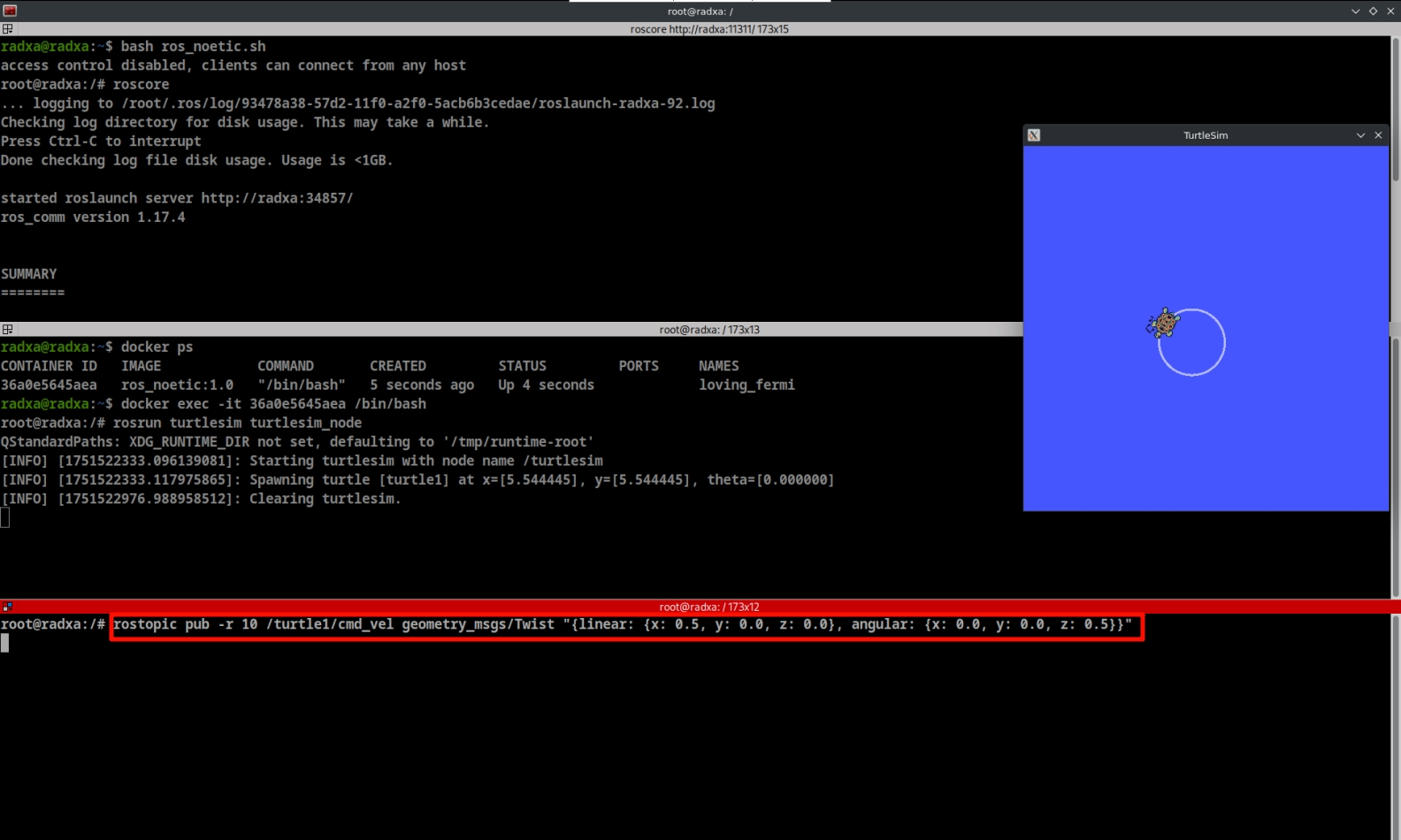
Use the rostopic pub command to publish velocity control messages to make the turtle move:
rostopic pub -r 10 /turtle1/cmd_vel geometry_msgs/Twist "{linear: {x: 0.5, y: 0.0, z: 0.0}, angular: {x: 0.0, y: 0.0, z: 0.5}}"
This command will make the turtle move with linear velocity 0.5 and angular velocity 0.5 at a frequency of 10 Hz.
Subscribe to Topics
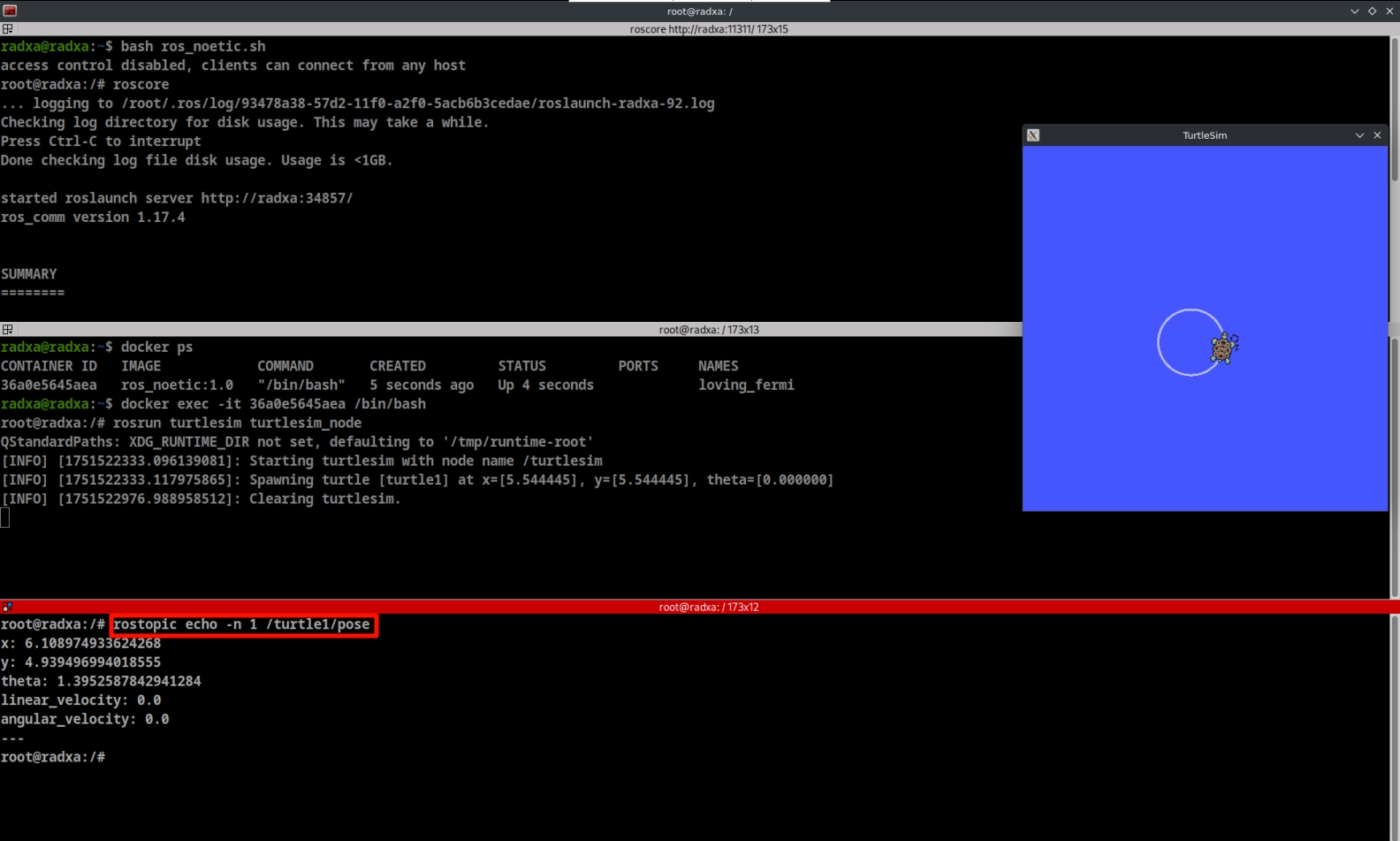
Use the rostopic echo command to subscribe to topics and view topic messages:
rostopic echo -n 1 /turtle1/pose
This command will print the turtle's position once in the terminal.
ROS1 Services
Services are the request/response communication mechanism in ROS1, used for synchronous calls between nodes (like remote function calls).
Interaction Flow:
- Client: Sends request
- Server: Processes the request and returns response
View Services
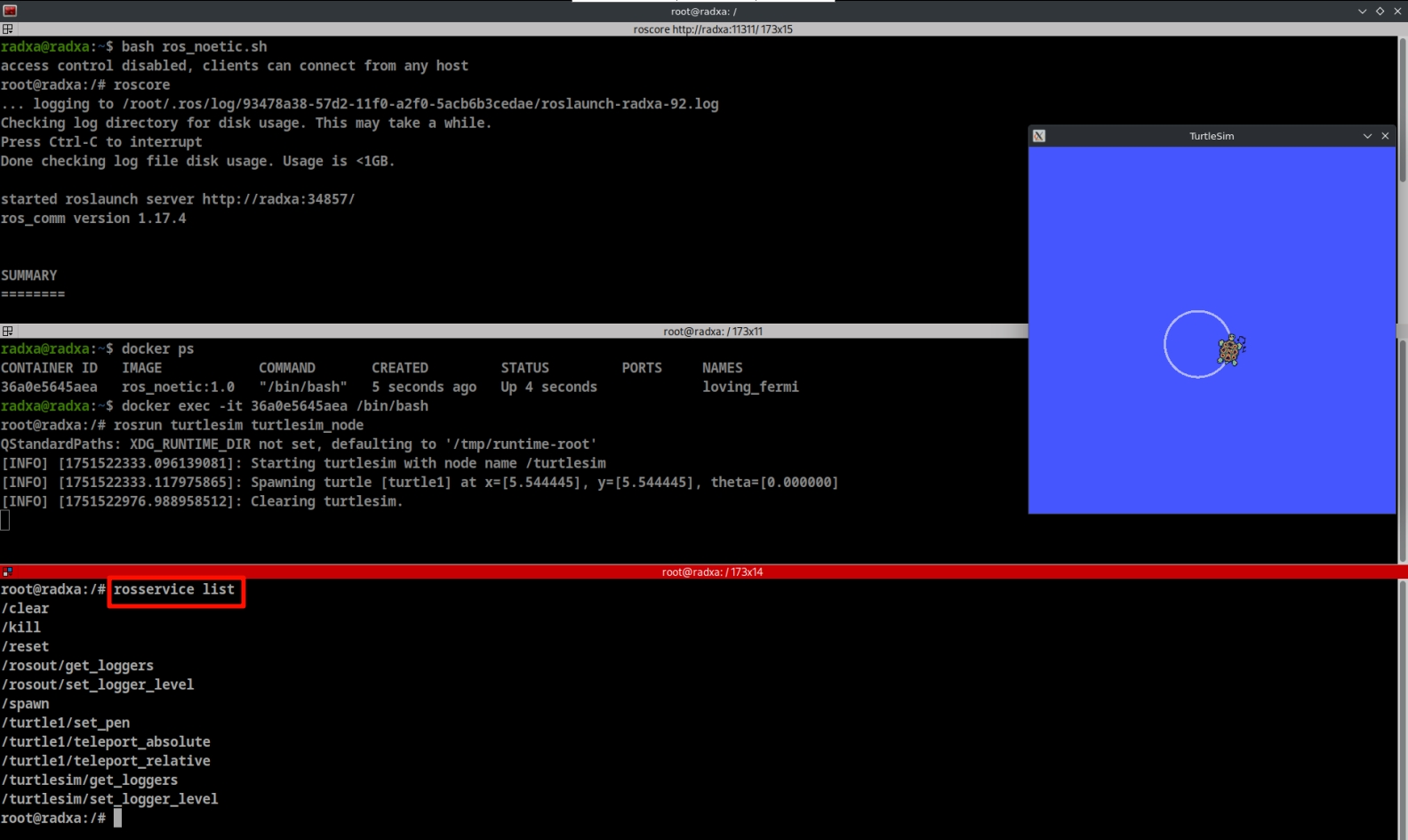
Use the rosservice list command to view services:
rosservice list
Call Services
Use the rosservice call command to call services to make the turtle clear the screen:
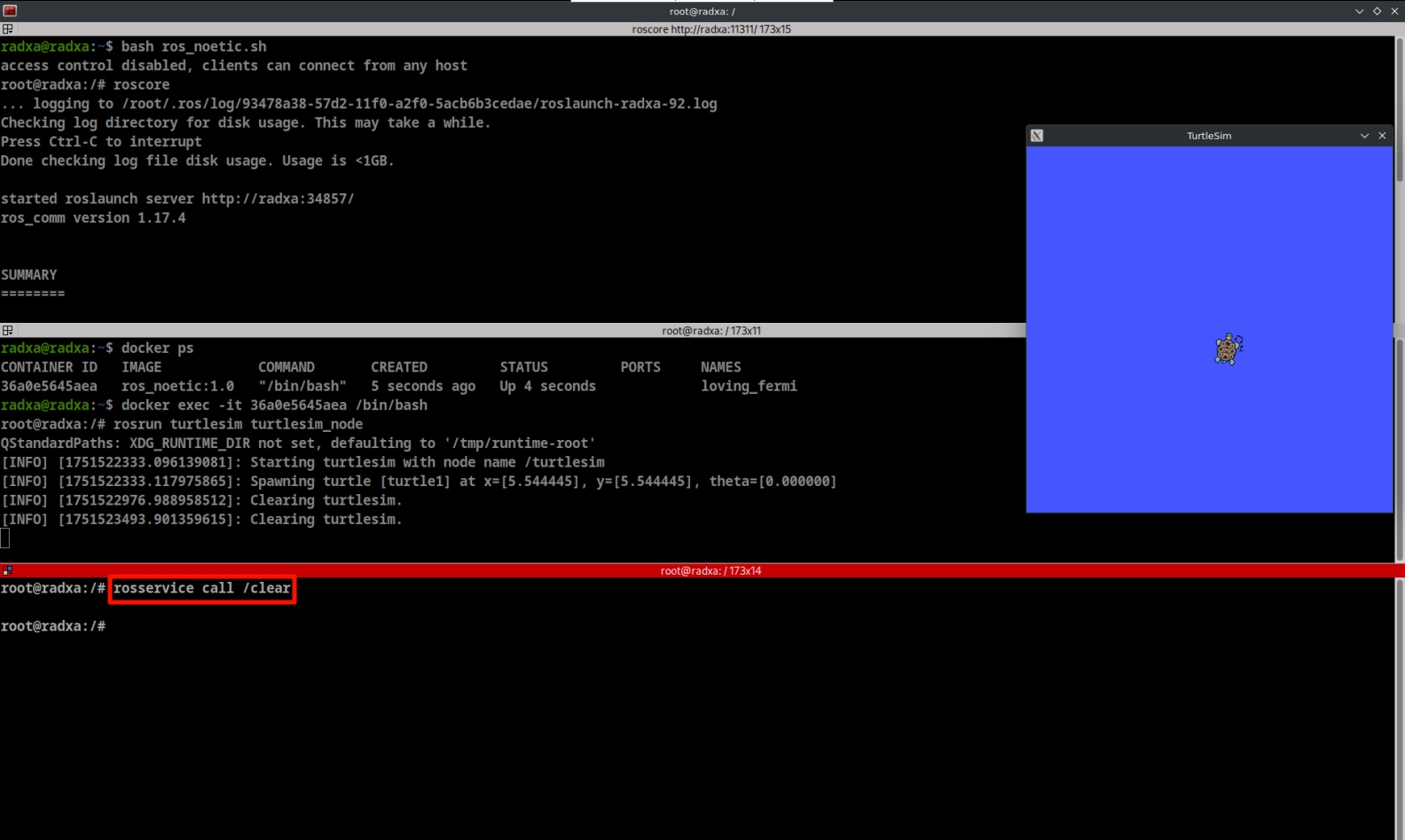
rosservice call /clear
This command will clear the background in the Turtlesim window.