Serial Login
Prerequisites
Serial login is a core method for interacting with embedded boards via the UART serial interface. With a serial terminal tool, you can view system logs and interact with the command line.
When using a USB-to-UART cable to debug the board, make sure the pins are connected correctly. Incorrect wiring may damage the hardware.
It is not recommended to connect the VCC wire (usually the red wire) of the USB-to-UART cable, to avoid damaging the board due to miswiring.
Connect the USB-to-UART cable to the UART header on the Radxa NX4 Development Kit, and connect the other end to a USB port on your PC.
Note: Wire the cable according to the pinout provided by your USB-to-UART cable vendor. The diagram shows a common pinout as an example.
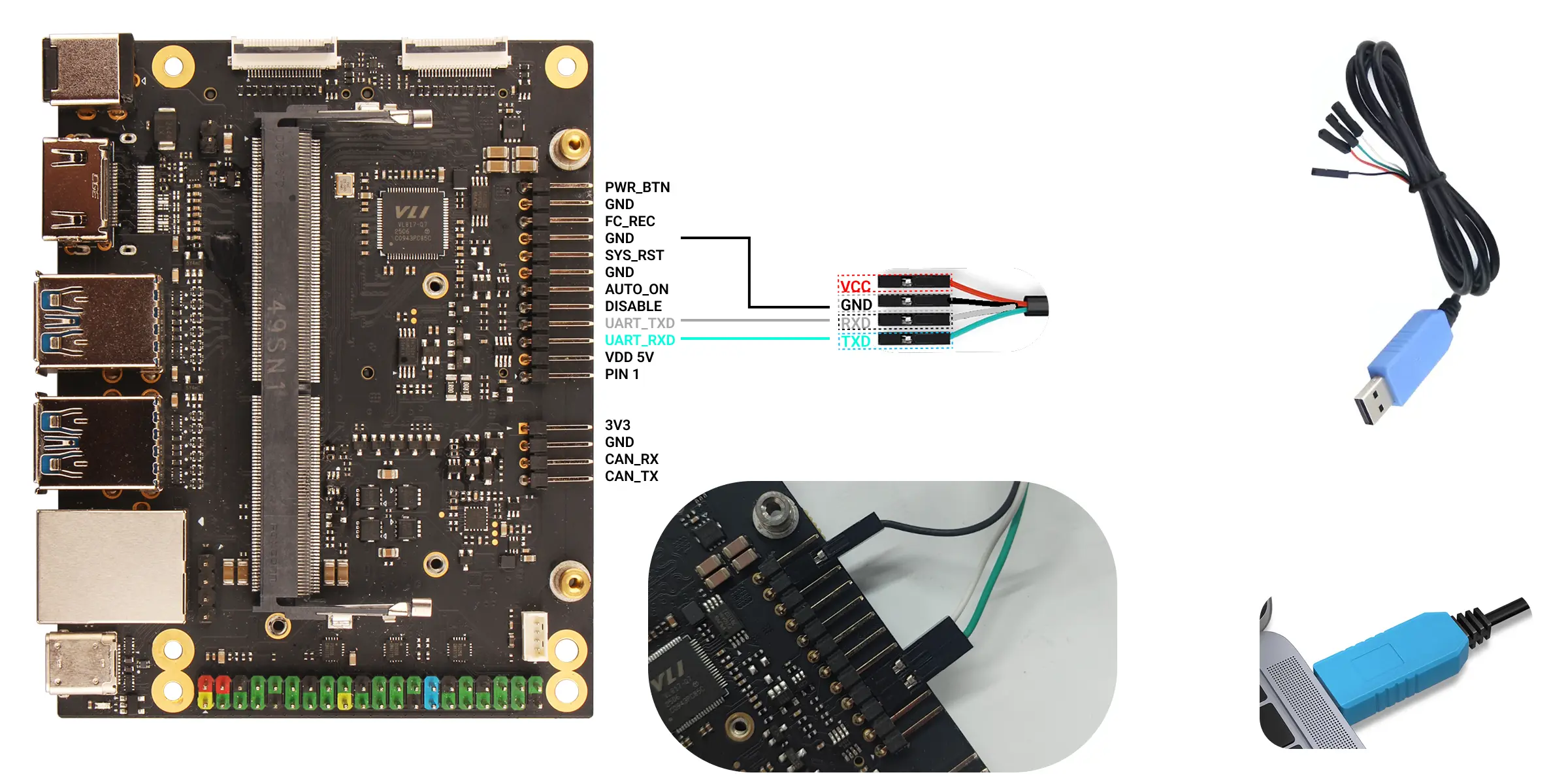
| Radxa NX4 Development Kit pin function | Connection |
|---|---|
| Radxa NX4 Development Kit: GND (Pin6) | Connect the GND pin on the Radxa NX4 Development Kit to the GND pin of the USB-to-UART cable (black Dupont wire). |
| Radxa NX4 Development Kit: UART0_TXD (Pin8) | Connect UART0_TXD on the Radxa NX4 Development Kit to RXD on the USB-to-UART cable (white Dupont wire). |
| Radxa NX4 Development Kit: UART0_RXD (Pin10) | Connect UART0_RXD on the Radxa NX4 Development Kit to TXD on the USB-to-UART cable (green Dupont wire). |
Serial login
Baud rate: 1500000
Data bits: 8
Stop bits: 1
Parity: none
Flow control: none
Using Tabby
We recommend using Tabby software for serial port login. Tabby is a powerful and user-friendly serial debugging tool that supports various protocols including serial and SSH. It is compatible with major operating systems such as Windows, macOS, and Linux.
Download Tabby
Visit the Tabby official website to download and install the Tabby software.
Install Tabby
- Windows
Select the appropriate .exe file for your system architecture.
- Linux
Choose the .deb file that matches your system architecture.
- MacOS
Download the .dmg file for your system architecture.
Using Tabby
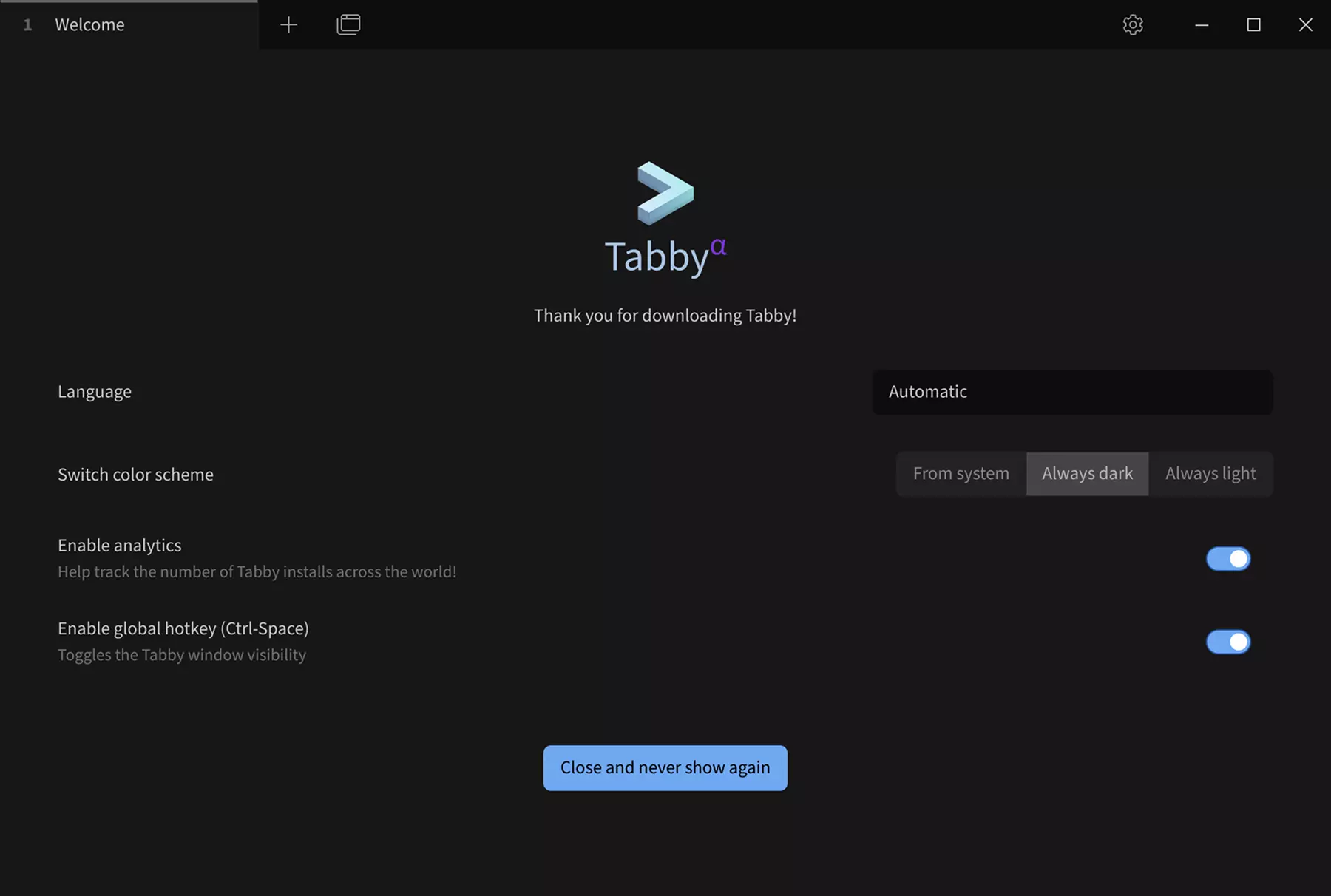
Double-click the Tabby icon to launch the application.
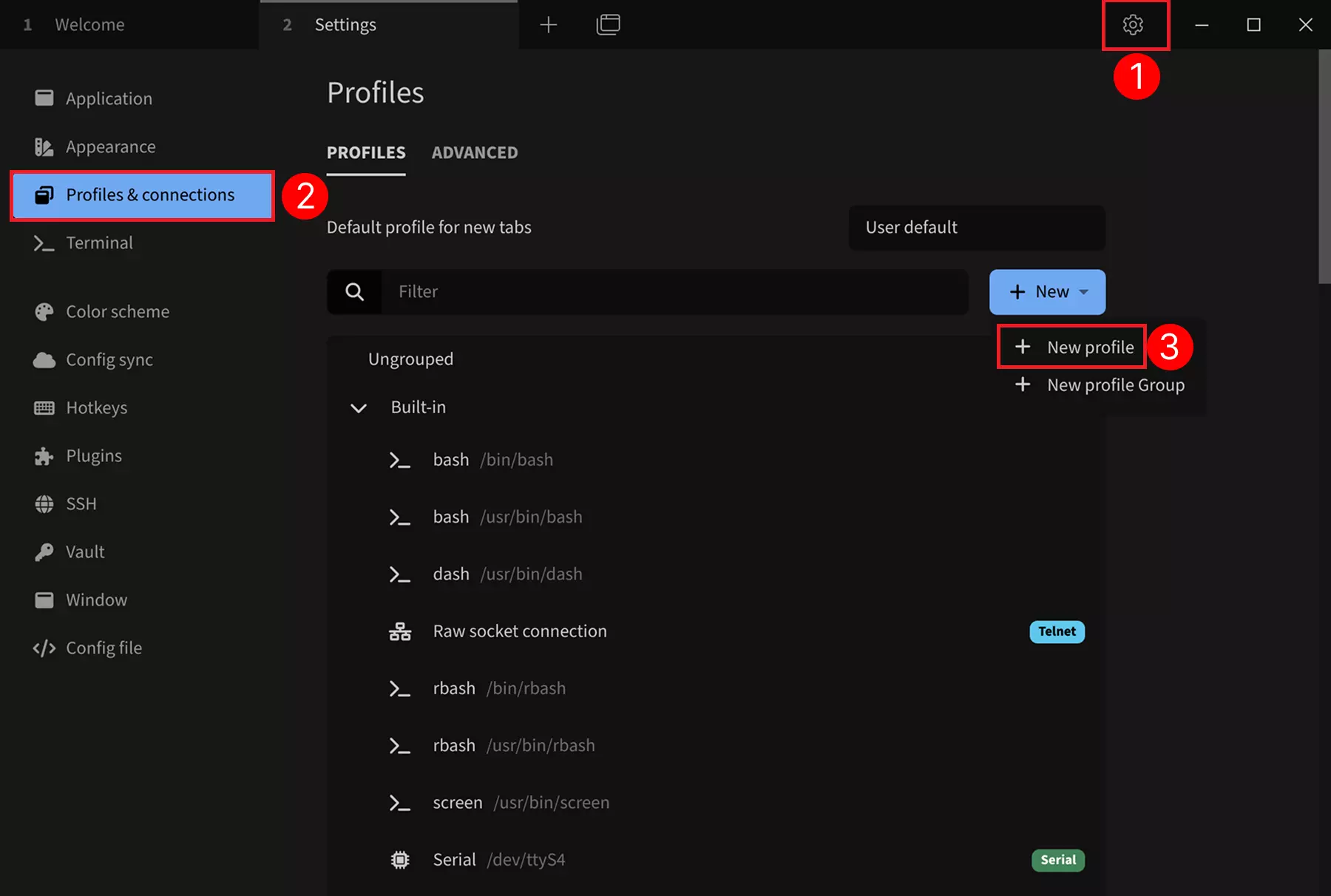
Serial Port Configuration
① → Settings: Click the settings option
② → Profiles & connections: Click to configure connection options
③ → New profile: Click to add a new configuration
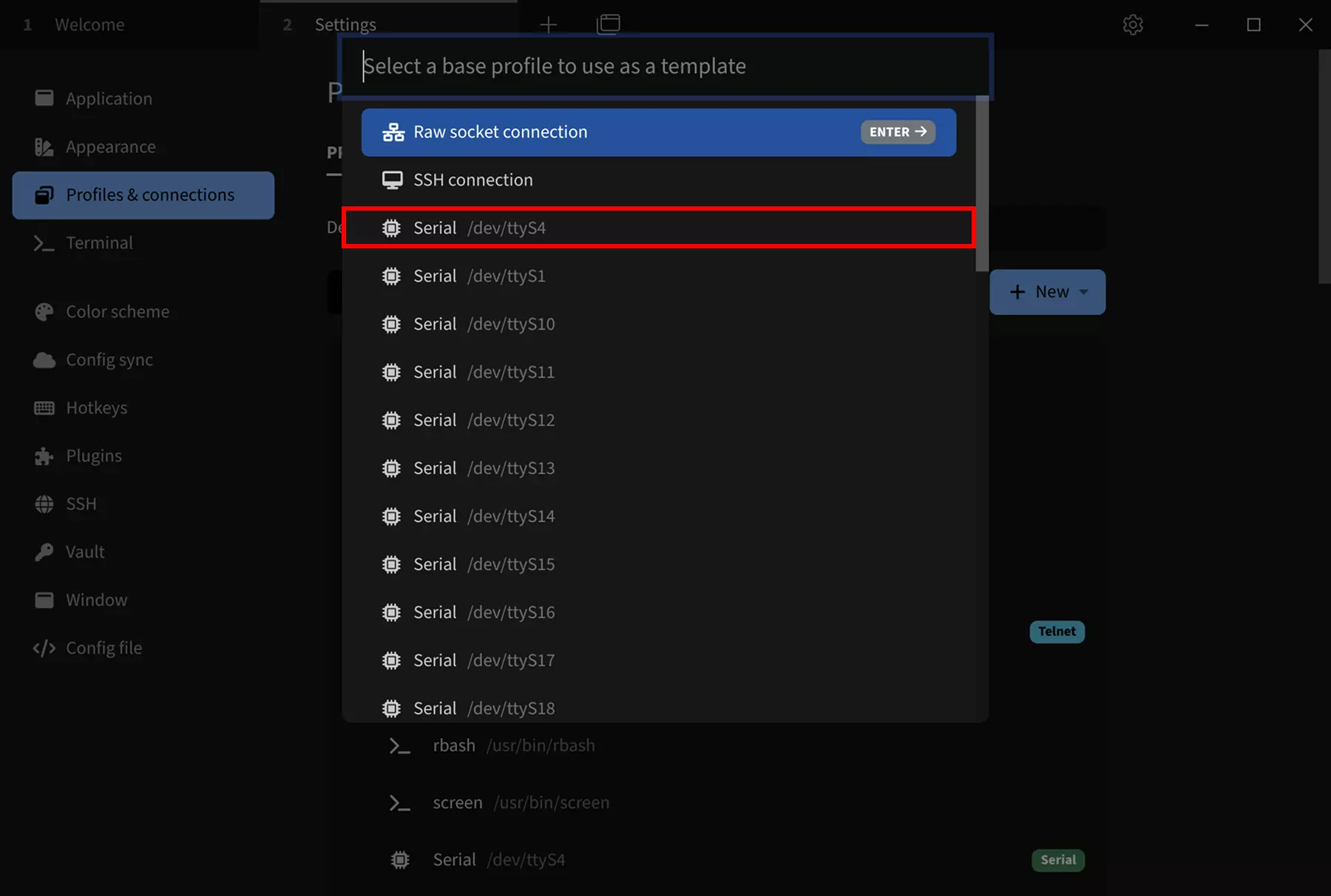
Select Serial Port Template
Choose a base configuration as a template: Select any Serial template. You can modify parameters such as device name, serial port device number, and baud rate in the subsequent configuration interface.
Modify Serial Port Parameters
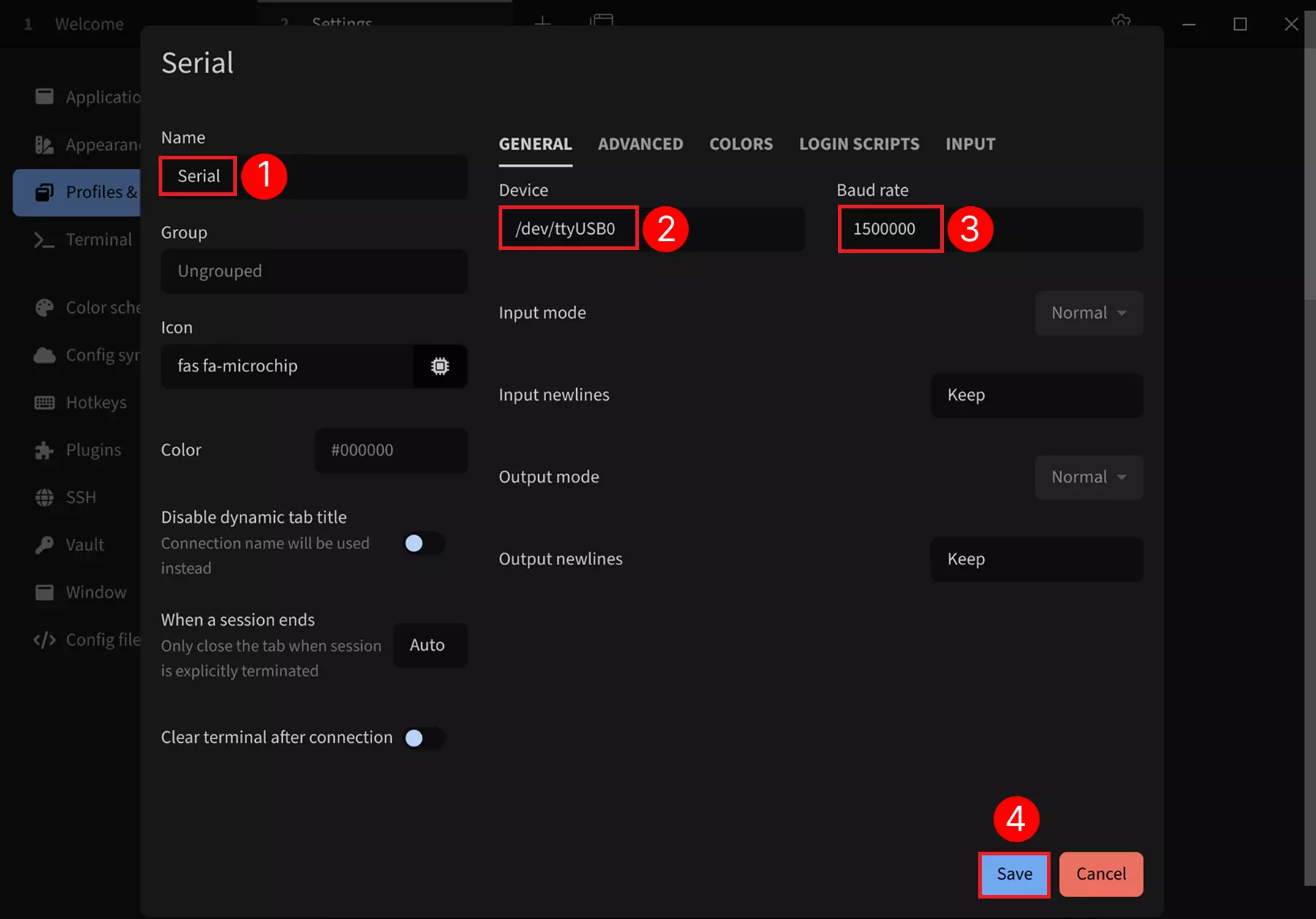
After selecting the Serial template, modify the following parameters:
① → Name: Set the connection name (recommended to use the product name)
② → Device: Set the serial port device number (typically /dev/ttyUSB0 if only one serial device is connected)
③ → Baud rate: Set the baud rate to 1500000
④ → Save: Save the configuration
Login to Serial Port
Click the run button to connect to the serial port device.
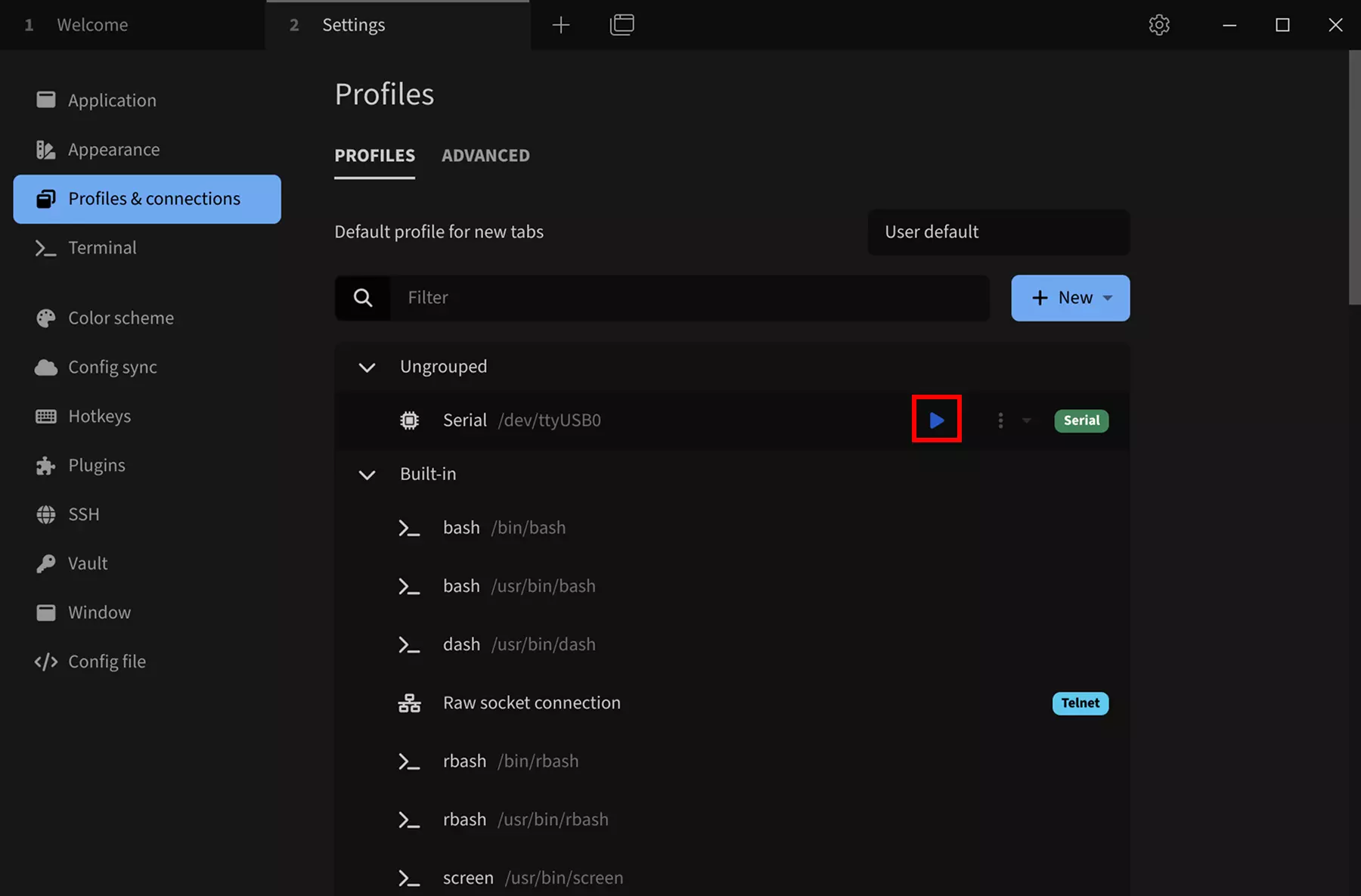
After a successful connection, press Enter to see the login prompt. Then use the system's username and password to log in (the password won't be displayed as you type; press Enter after entering it).

Serial Port Debugging
Once you've successfully logged in via the serial port, you can view system logs and run commands to test system functionality through the serial console.