Install System to NVMe SSD
The system installed using this method needs to be used with Radxa BIOS firmware.
This guide explains how to install the system to an NVMe SSD using an M.2 NVMe SSD enclosure.
Installing the system will format the NVMe SSD. Please back up any important data in advance!
Prerequisites
Hardware Requirements
You need to prepare the following hardware devices in advance:
- M.2 NVMe SSD
- M.2 NVMe SSD Enclosure
Hardware Connection
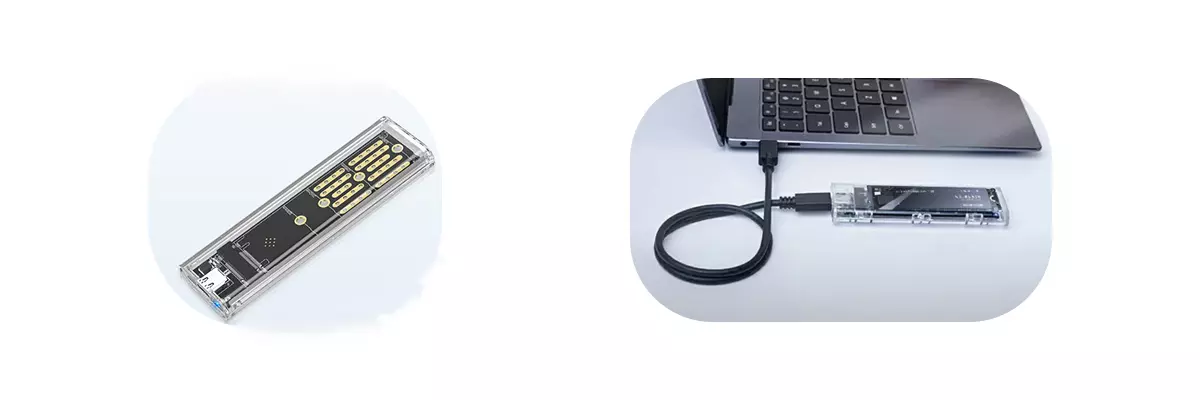
Install the M.2 NVMe SSD into the M.2 NVMe SSD enclosure, then connect the enclosure to your computer.
System Installation
Download System Image
Use a PC to access the Downloads page and download the system image file to your local machine.
The downloaded system image is a compressed file that needs to be extracted before use!
Install System Image
Use Balena Etcher software to install the system image to the M.2 NVMe SSD.
For installation and usage of Balena Etcher, please refer to the Etcher Guide tutorial.
Select System Image
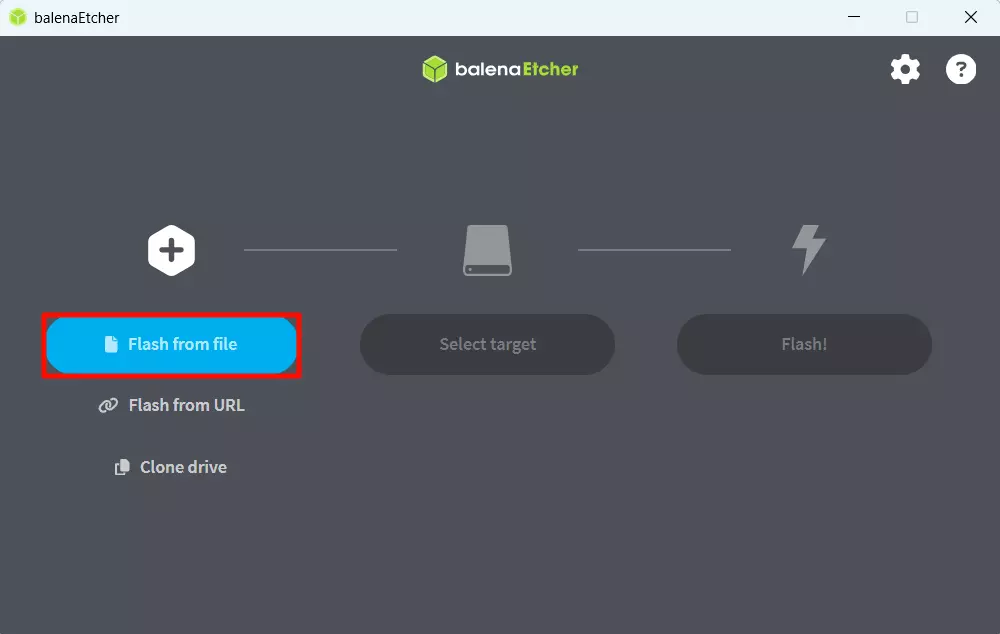
Click the Flash from file option and select the system image file you downloaded and extracted earlier.
Select Storage Device
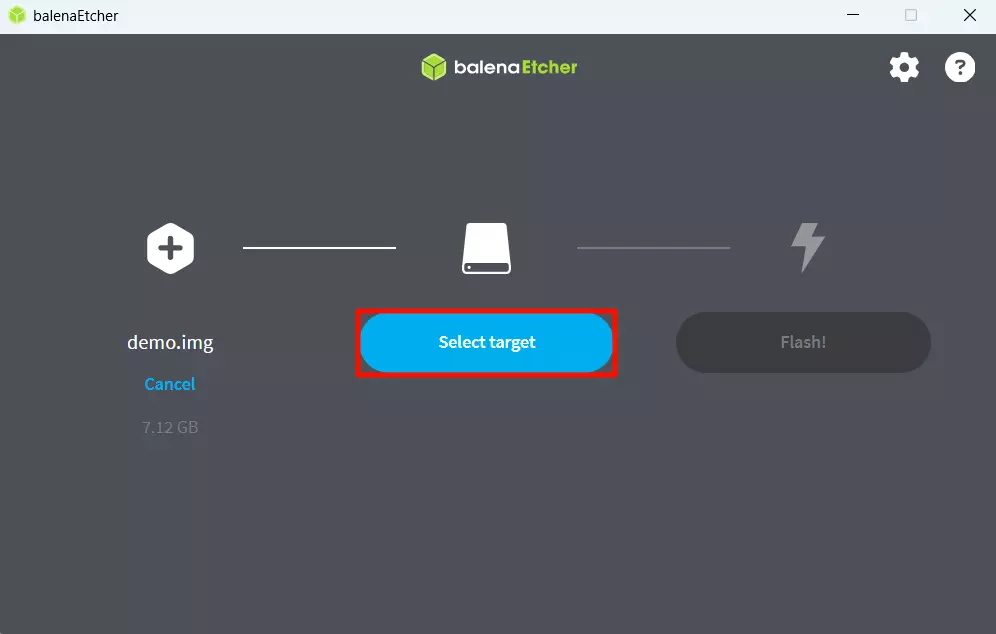
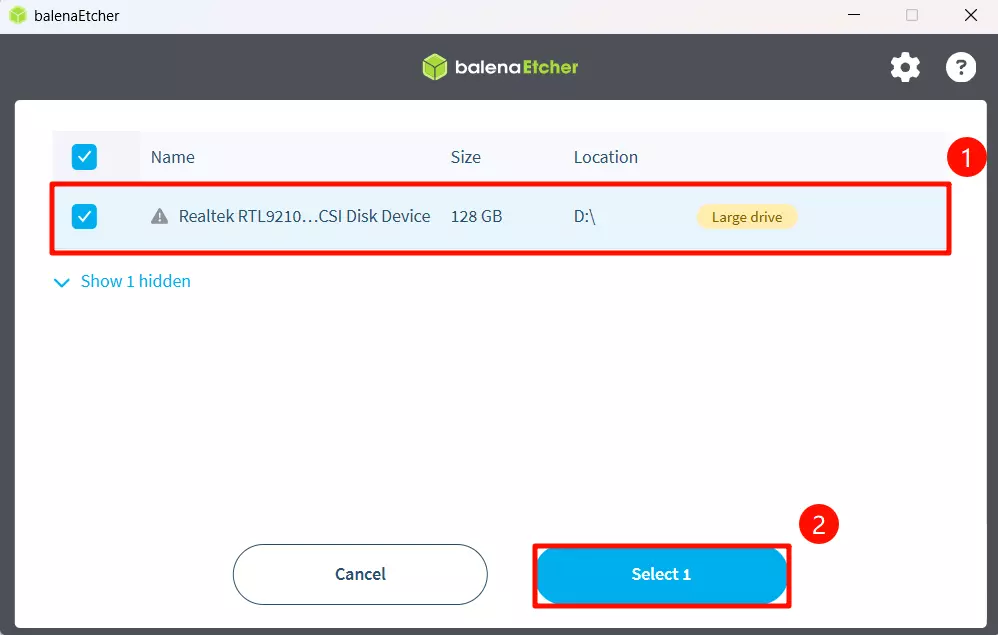
Click the Select target option and choose the M.2 NVMe SSD device.
Start Flashing
Click the Flash! option to start flashing the system image to the M.2 NVMe SSD.
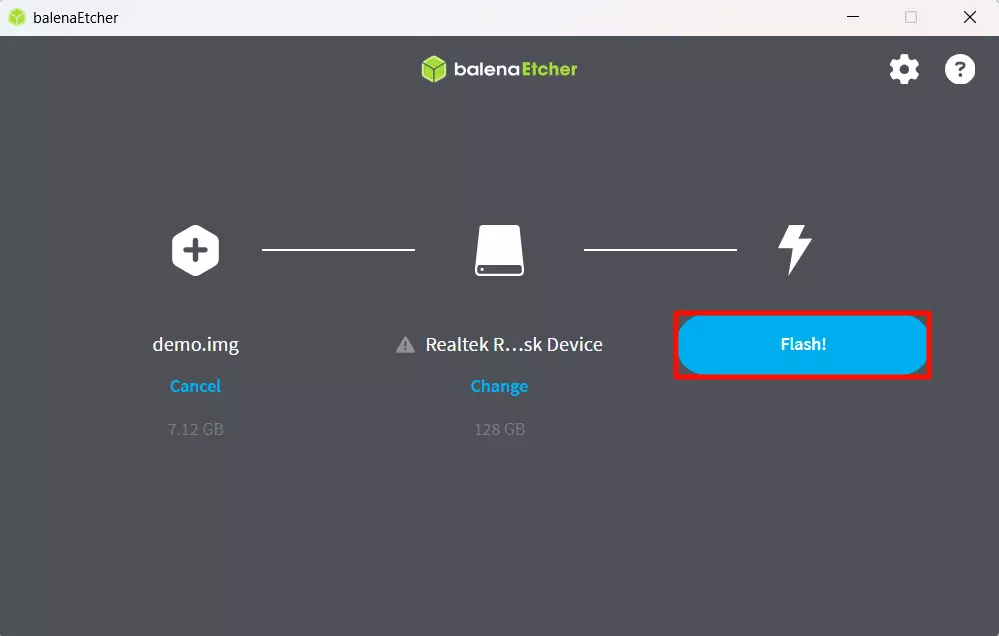
Waiting for system installation to complete
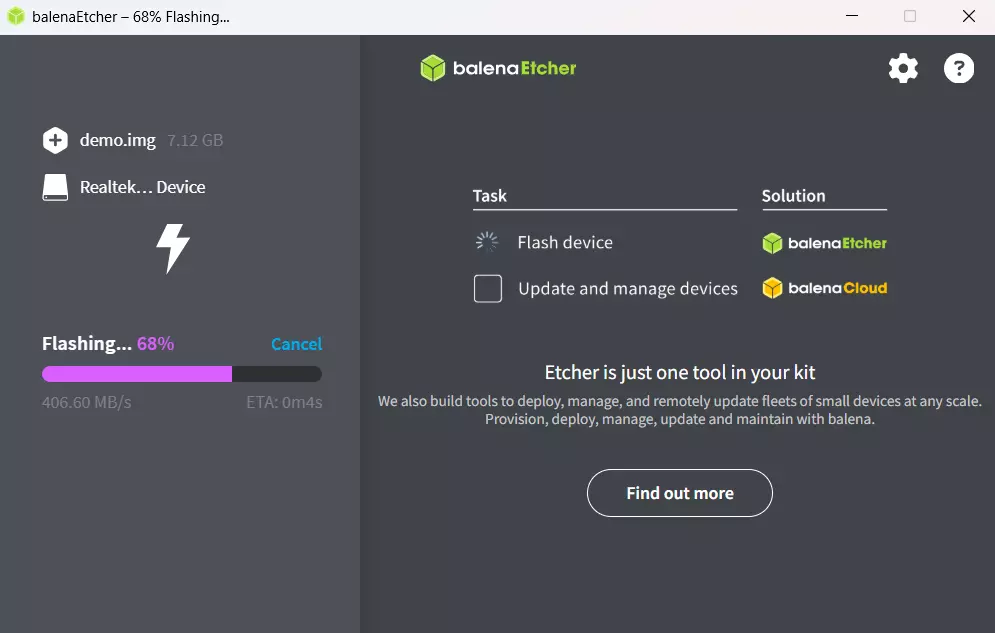
Waiting for system verification to complete
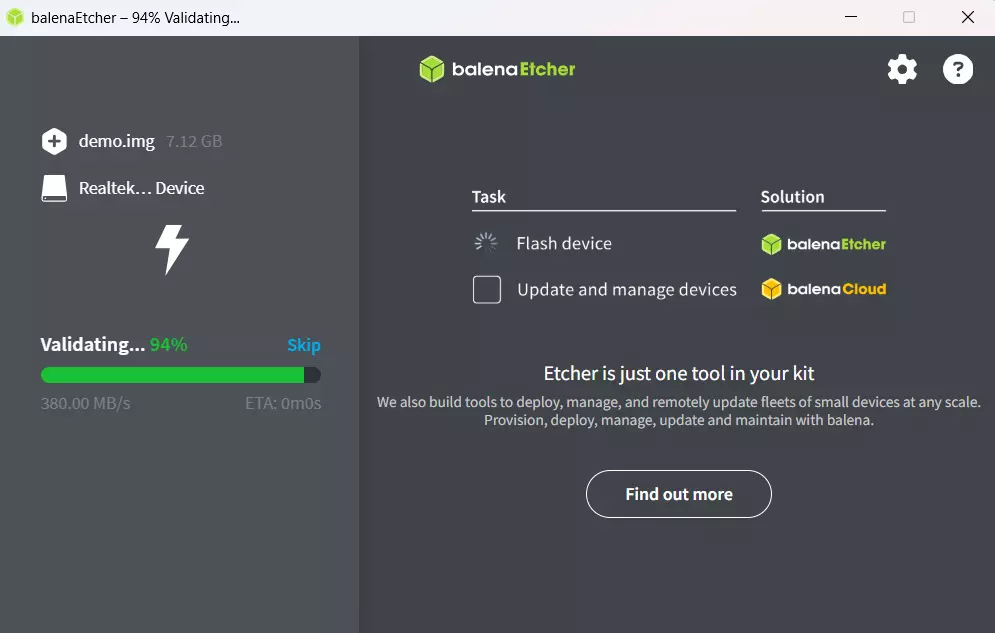
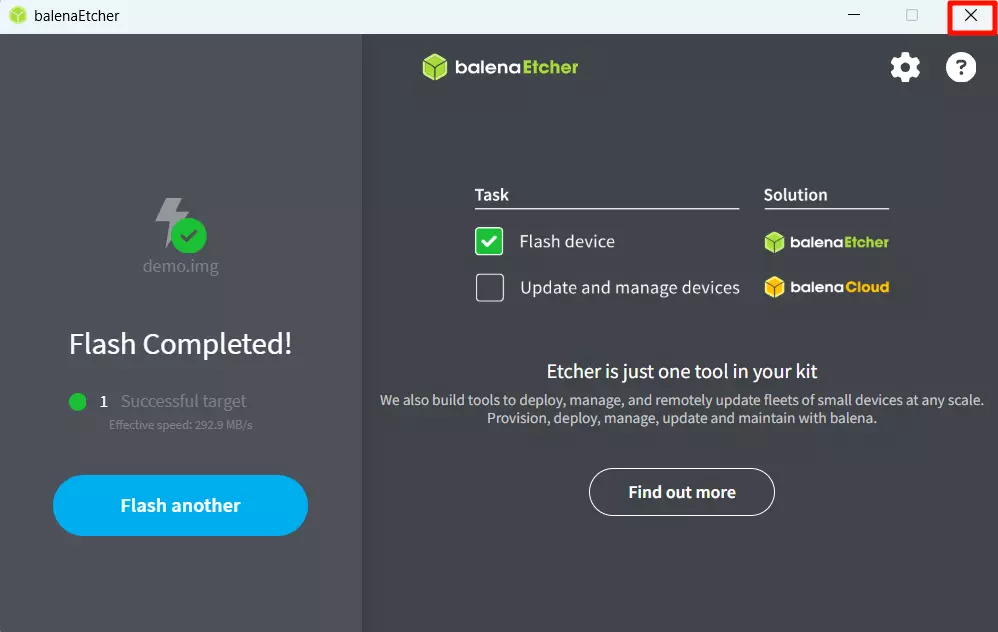
After successfully installing the system image, close the Etcher software!
Booting the System
After completing the system installation, insert the NVMe SSD into the M.2 M Key slot of the Radxa C200 Orin Development Kit, then power on the Radxa C200 Orin Development Kit using the power adapter to start the system.
Detailed steps:
-
Install the NVMe SSD
-
Connect the monitor to the Radxa C200 Orin Development Kit using a DP cable
-
Power on the Radxa C200 Orin Development Kit using the power adapter
When the system boots up normally, the power indicator will light up green.
Logging into the System
After the system starts up, you'll need to complete the initial system configuration by following the on-screen prompts.
Using the System
After successfully logging into the system, you can proceed with system configuration and development on the Radxa C200 Orin Development Kit.