Quick Start
This tutorial is designed to help you get started quickly with the Radxa C200 Orin Development Kit.
The Radxa C200 Orin Development Kit uses the system images provided by Radxa. You need to flash the BIOS firmware before you can boot the system from a USB drive or NVMe SSD.
For BIOS firmware flashing, please refer to one of the following tutorials:
- Use Radxa Prebuilt BIOS Firmware: Use the prebuilt BIOS firmware provided by Radxa, suitable for beginner users
- Compile / Flash Radxa BIOS Firmware: Compile and flash the BIOS firmware yourself, suitable for experienced users
This quick start guide only covers installing the system to a USB drive. For other boot media or installation methods, please refer to the System Installation tutorial.
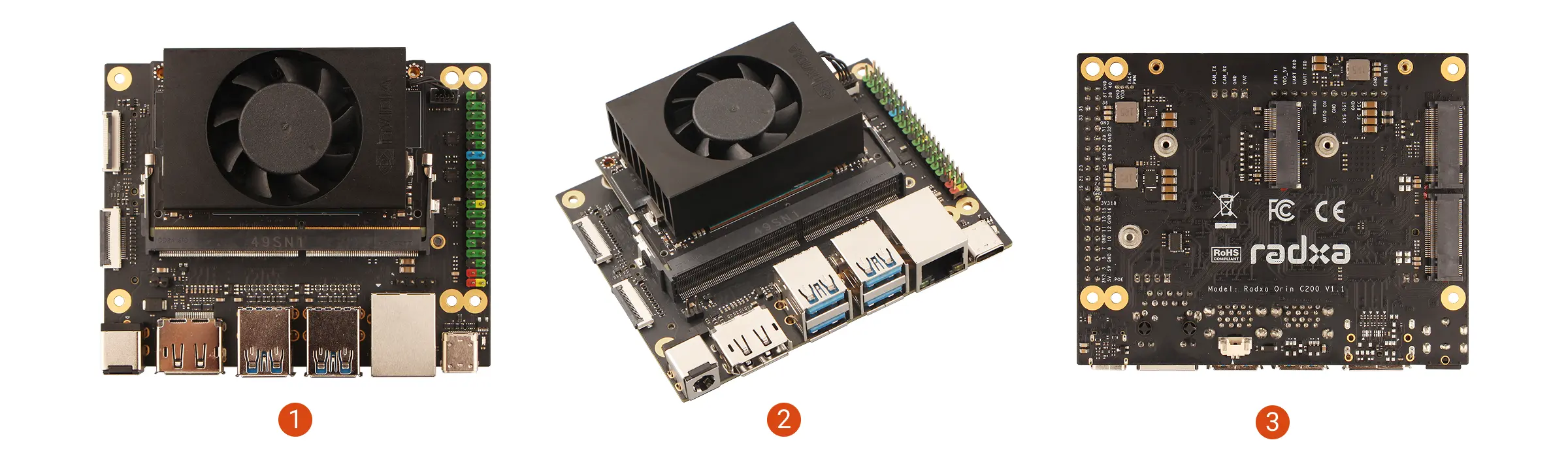
Product Overview
| Product | No. | View | No. | View | No. | View |
|---|---|---|---|---|---|---|
| Radxa C200 Orin Development Kit | ① | Top View | ② | Side View | ③ | Rear View |
Prerequisites
You will need to prepare the following hardware in advance:
- Radxa C200 Orin Development Kit
- Power supply: Power adapter
- System boot media: USB drive (minimum 16GB capacity for system installation and booting)
- Display: DP cable and monitor
- Input devices: Keyboard and mouse (for GUI operation)
- Radxa DC 60W Power Adapter (Recommended)
- DC power adapter supporting 9-20V input, recommended power 40W or above
System Installation
This section mainly introduces how to install the system to a USB drive.
Installing the system will completely format the USB drive, and all data will be permanently deleted!
Before proceeding, please confirm:
- The USB drive contains no important data or you have backed up all data
- You have selected the correct storage device to avoid formatting the wrong disk
Hardware Connection
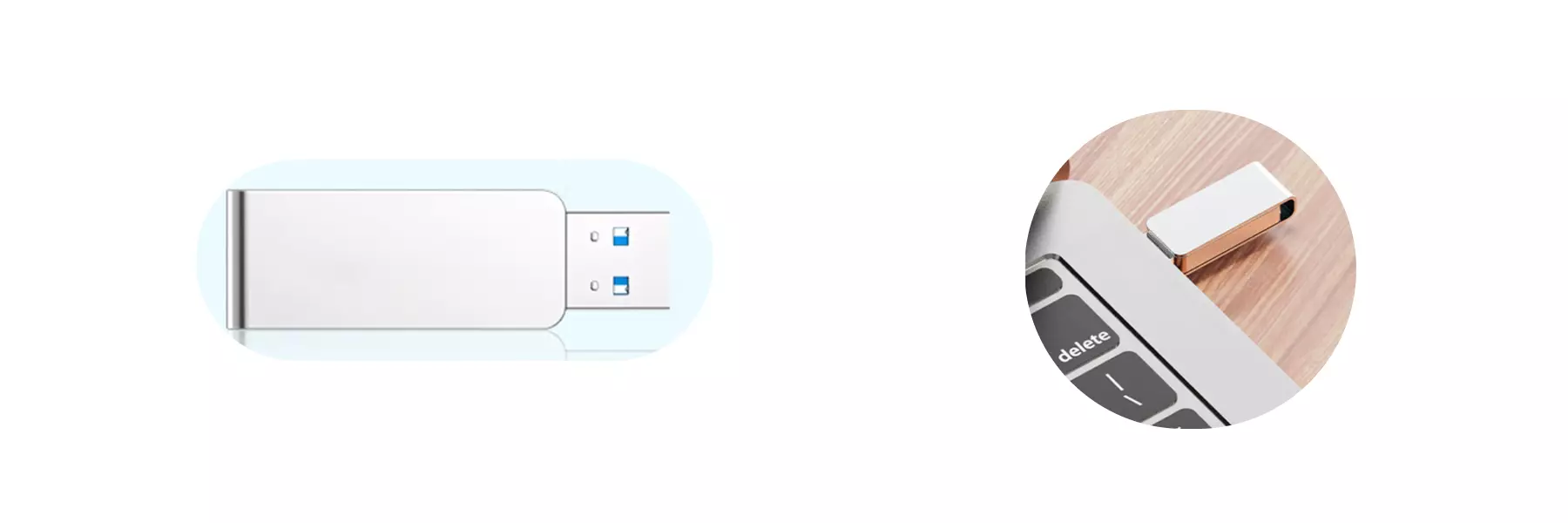
Insert the USB drive into your computer's USB port.
Download System Image
Visit the Resource Downloads page to download the System Image.
The image file is in .img.xz compressed format. After downloading, you need to extract it to get the .img format image file before use.
Install System Image
Use Balena Etcher software to write the system image to the USB drive.
For installation and usage of Balena Etcher, please refer to the Etcher Usage tutorial.
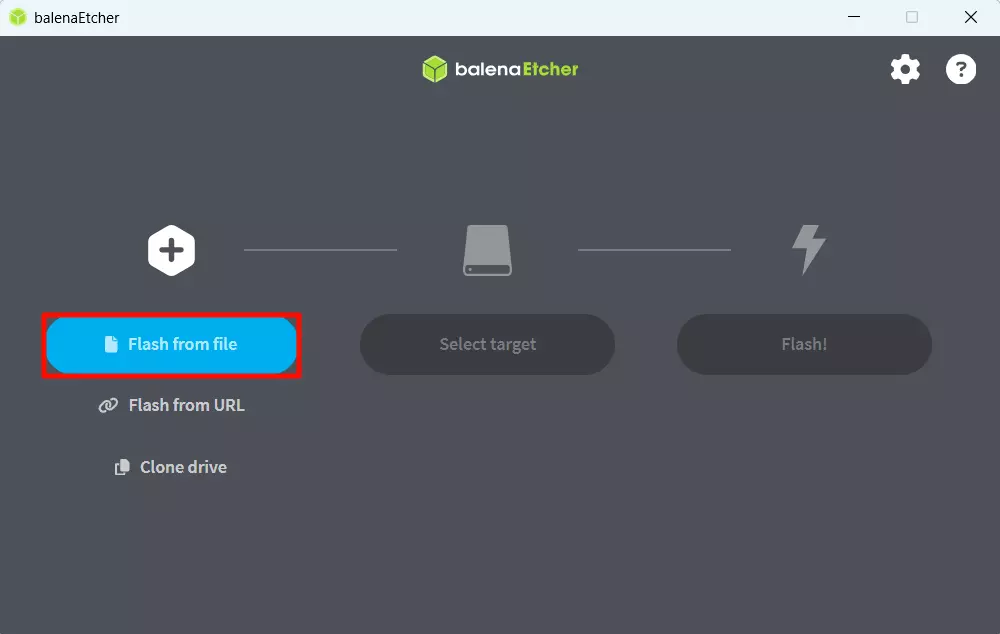
Select System Image
Click the Flash from file option and select the system image file you downloaded and extracted earlier.
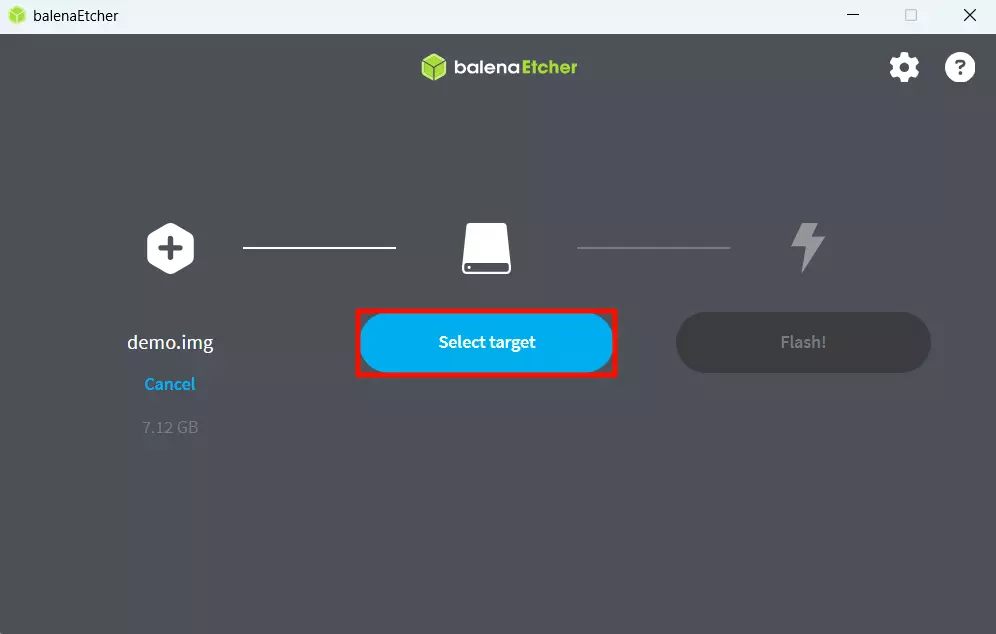
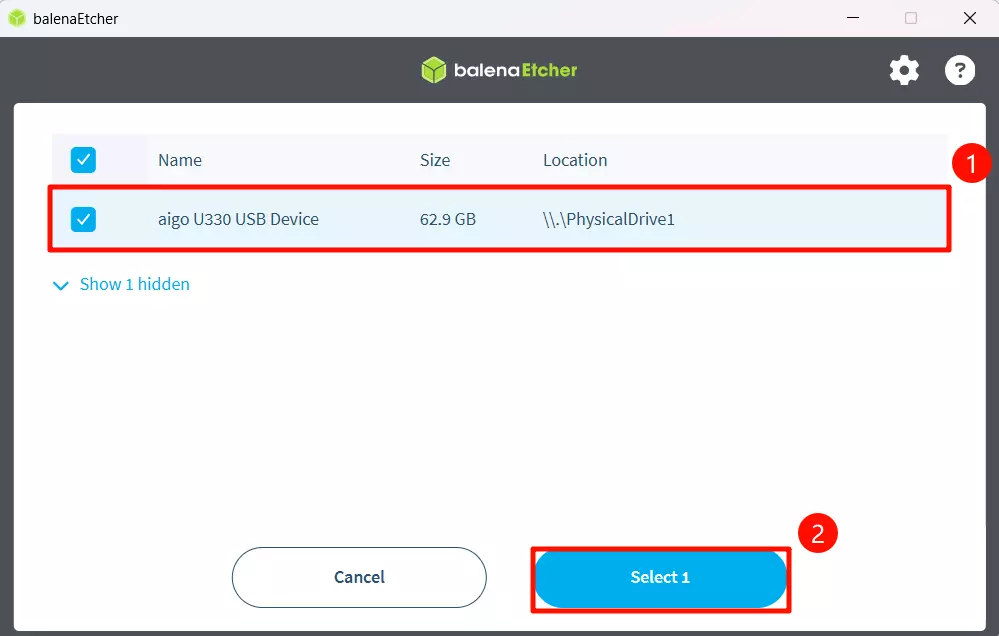
Select Storage Device
Click the Select target option and choose your USB drive.
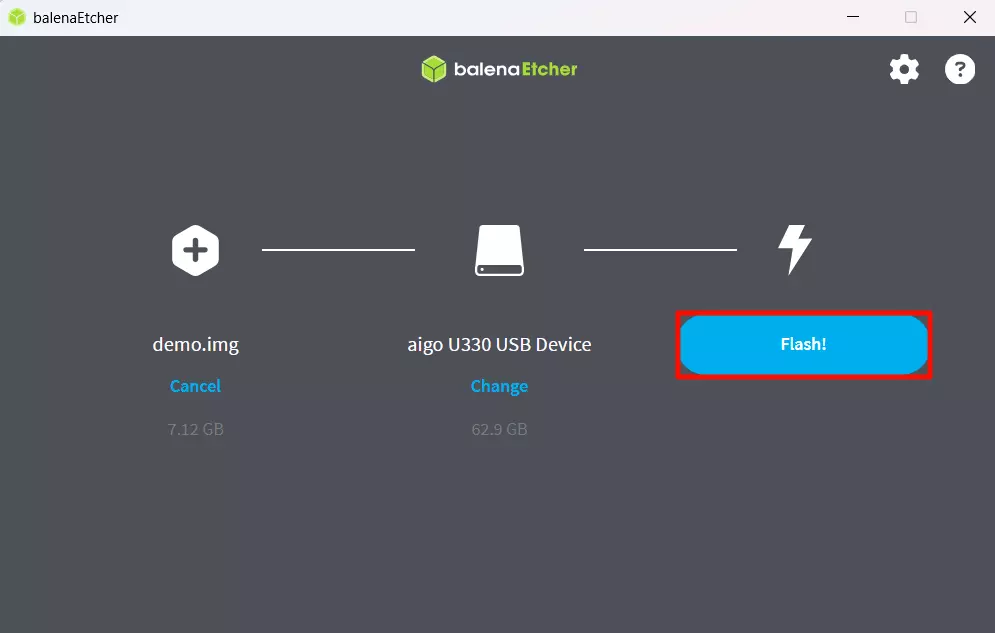
Start Flashing
Click the Flash! option to start writing the system image to the USB drive.
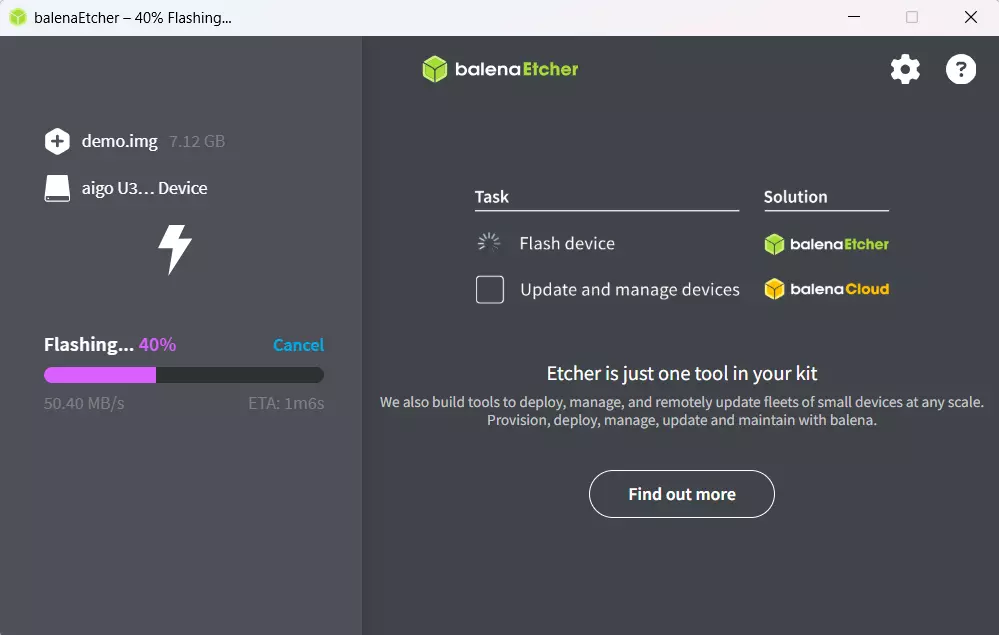
Waiting for system installation to complete
Waiting for system verification to complete
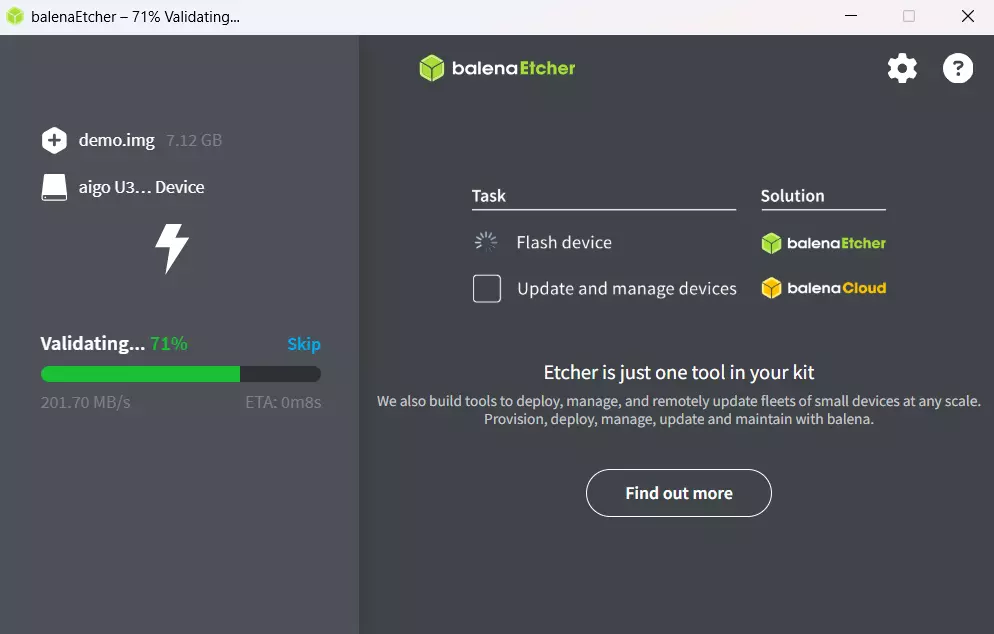
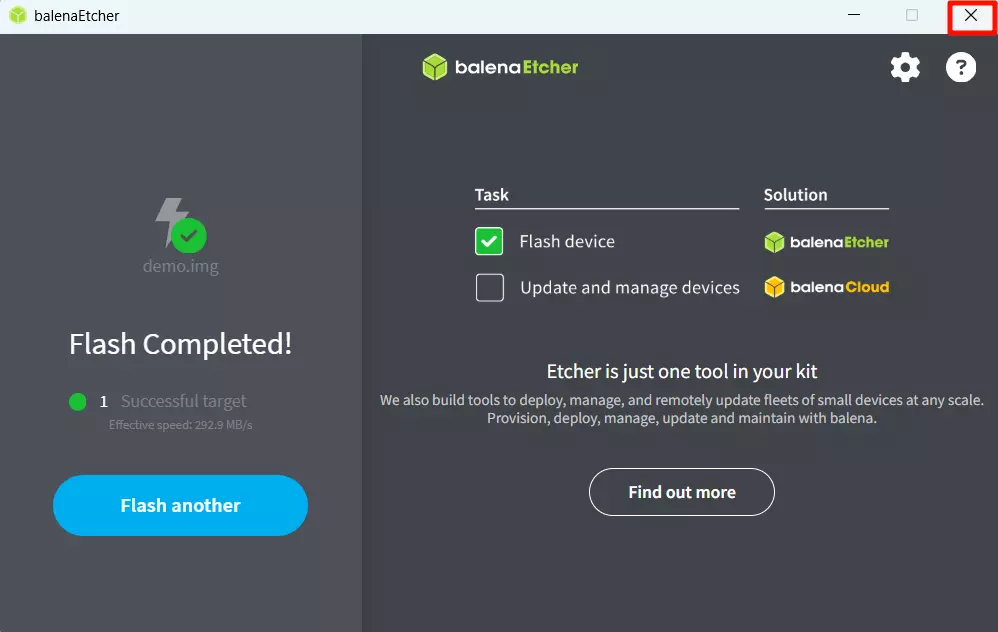
After successfully installing the system image, close the Etcher software!
Booting the System
After completing the system installation, insert the USB drive into the USB port of the Radxa C200 Orin Development Kit, then power on the device using the power adapter to boot the system.
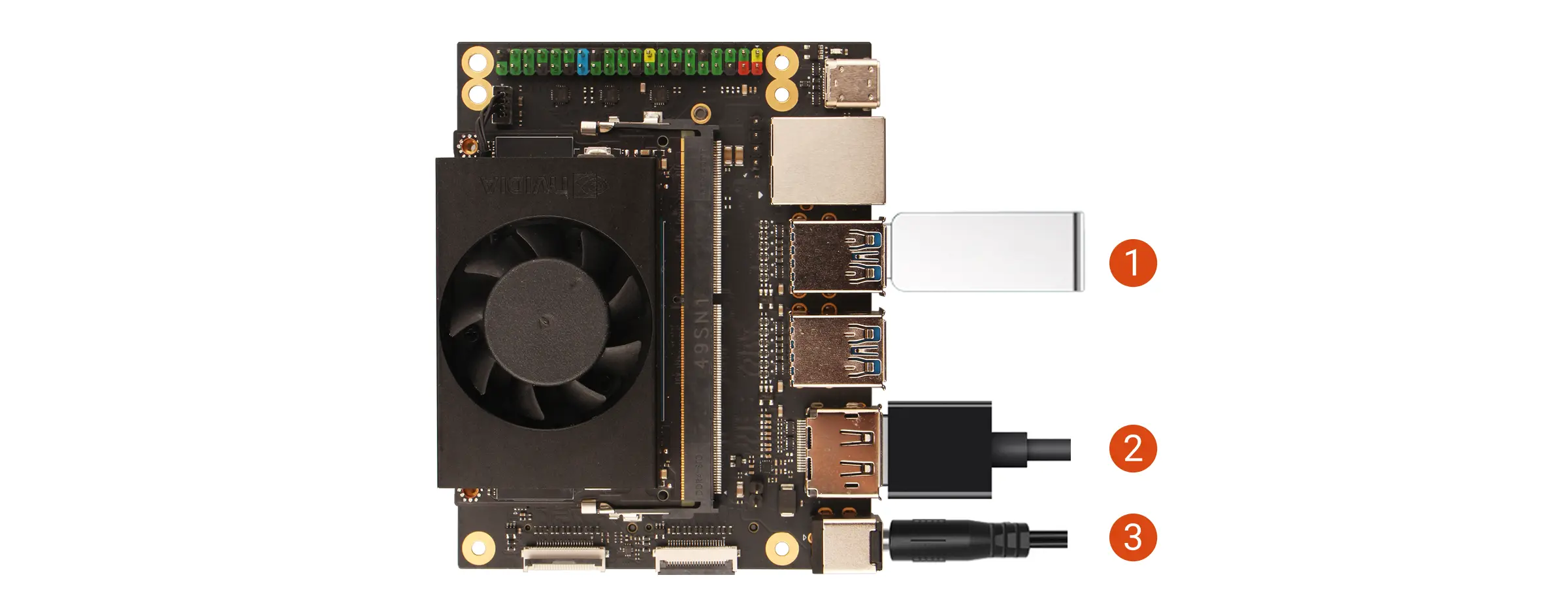
① : Insert the USB drive
② : Connect the monitor to the board using a DP cable
③ : Power on the Radxa C200 Orin Development Kit using the power adapter
After the system boots successfully, the power indicator will light up green.
System Login
After booting the system, you need to complete the initial system configuration following the on-screen prompts.
Using the System
After successfully logging in, you can proceed with system configuration and development on the Radxa C200 Orin Development Kit.