Buildroot
Preparation
We need one Ubuntu 20.04/22.04 x86_64 PC.
We can also use virtual machine
- ubuntu-22.04.5-live-server-amd64 virtual machine with 120G disk used.
Install build dependencies
sudo apt update
sudo apt install python2 git rsync gcc g++ make device-tree-compiler bc flex bison lz4 libssl-dev libgmp-dev libmpc-dev expect expect-dev file unzip bzip2 fakeroot bsdmainutils
sudo ln -s /bin/python2 /bin/python
Get rockchip original SDK
- Mega: https://mega.nz/file/JugCGDDC#NNL5_qRDRr-NL6TS3F1FSzkoXFwRCwDTNTW3KAiTtpI
- BaiduPan: https://pan.baidu.com/s/12rQmYaRMKwgz8cOBNjc4yQ?pwd=35mj
Extract SDK
On Ubuntu PC we use the following commands to extract the SDK.
tar xvf rk356x_linux5.10_rkr8_sdk.repo.tar
.repo/repo/repo  sync -l
Add board Zero 3E support
Note: Do not compile as root user, as this may cause permission issues. It is recommended to build as a regular user.
Use Radxa repository, rockchip.
cd device/rockchip
git remote add radxa https://github.com/radxa/device-rockchip.git
git fetch radxa
git switch -c rk3566_rk3568-linux-5.10 radxa/rk3566_rk3568-linux-5.10
Use Radxa repository, kernel.
cd kernel
git remote add radxa https://github.com/radxa/kernel.git
git fetch radxa
git switch -c linux-5.10-gen-rkr8-buildroot radxa/linux-5.10-gen-rkr8-buildroot
Build SDK
Navigate to the top-level directory of the SDK, run command.
./build.sh
And select defconfig rockchip_rk3566_radxa_zero_3e_defconfig.
The target images will be stored on rockdev directory.
Use the SDDiskTool to flash the image into the SDCard
SDDiskTool is Rockchip's official SD card flashing tool.
-
Download SDDiskTool
-
SDDiskTool currently only has a Windows version, so please use it on a Windows computer.
-
Download link:SDDiskTool_en_v1.74.zip
-
-
Flash SD card
-
We need to flash the corresponding complete image in RK format.
-
Complete image in RK format refers to The
update.imgimage compiled using a series of Linux SDKs released by Rockchip based on Buildroot -
Open the executable file
SD_Firmware_Tool.exeof SDDiskTool and insert the SD card.warningWhen multiple storage devices are connected, please ensure you select the correct SD card to flash, otherwise other storage devices may be overwritten.
-
Select the SD card to flash from the removable disk devices, choose SD Boot as the function mode, ensure that the firmware upgrade is a complete image in RK format, and finally click Create to flash the image.
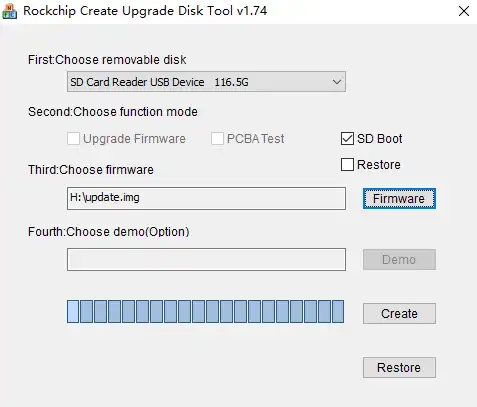
-
Please be patient during the flashing process. The image contains many partitions, and if the image is large, the flashing time will be longer.
-
If you encounter problems clearing the MBR while burning, you need to change the SD card disk label type from dos to gpt.
- Windows
- Linux
-
Delete all partitions and convert to gpt using command prompt under windows
-
Press Win + X and select Windows Terminal (Administrator) or Command Prompt (Administrator).
-
Enter the following command and press Enter:
-
diskpart
- Then, enter the following command to list all disks:
list disk
- Locate your SD card (assuming it is disk 3) and enter:
select disk 3
-
(If your SD card has a different disk number, change 3 to the correct number accordingly.)
-
Clear all partitions on the disk:
clean
-
(This deletes all partitions and data on the SD card.)
-
Converts a disk to GPT format:
convert gpt
- Type
exitto exit the diskpart utility.
-
Use the fdisk command to change the label format to gpt on Linux.
- Find your SD card (assuming it's /dev/sdb) and enter:
sudo fdisk /dev/sdb
-
Type
pand the label format and partition of the current disk will be displayed. -
Then type
gto convert the disk to gpt format -
Then just type
wqto save and exit.