USB Net
Most Radxa products reserve a USB port as an OTG port, and also as an ADB debug port when running Android. You can check the port definition of the corresponding product here. You can create a shared network by connecting two products via the OTG port. This document only applies to the latest officially released Radxa OS and Android images.
Preparations
Cable: First of all, you will need a cable to connect to the OTG port of your SBC, please refer to the hardware information page of the corresponding product for the specific port used.
Software: If your SBC does not have the latest software, please connect your SBC to the Internet and use rsetup to update the system:
OTG Settings
First, connect the OTG port of the SBC using the data cable.
Enable Set OTG port to Peripheral mode overlay using rsetup and reboot.
Enable NCM services
Use rsetup to enable the radxa-ncm@*.* Service.
To the Host machine
For sharing the network to device machine, host machine need to connect to the external network, both wired and wireless networks are available.
Next, we need to set up a shared adapter for the device machine connection, which can be set on the KDE Desktop and Terminal.
This guide you set it on terminal:
Set shared adapter:
Before operating, confirm if there is a new networkcard device:
ip a
The name of it may be different:
3: enxca5bfb533dd4: <BROADCAST,MULTICAST,UP,LOWER_UP> mtu 1500 qdisc pfifo_fast state UP group default qlen 1000
    link/ether ca:5b:fb:53:3d:d4 brd ff:ff:ff:ff:ff:ff
    inet6 fe80::b989:8daf:feb5:f020/64 scope link noprefixroute
       valid_lft forever preferred_lft forever
If there is no new NIC, check the previous steps: open Overlay, reboot, and start NCM service.
Network Manager Tool is the recommended tool to manage the network, typing the command to open the interface:
sudo nmtui
After identification, the setting interface appears:
                              NetworkManager TUI

                            Please select an option

                            Edit a connection
                            Activate a connection
                            Set system hostname

                            Quit

                                              <OK>
Select Edit a connection -- <Add> to add a Ethernet adapter:
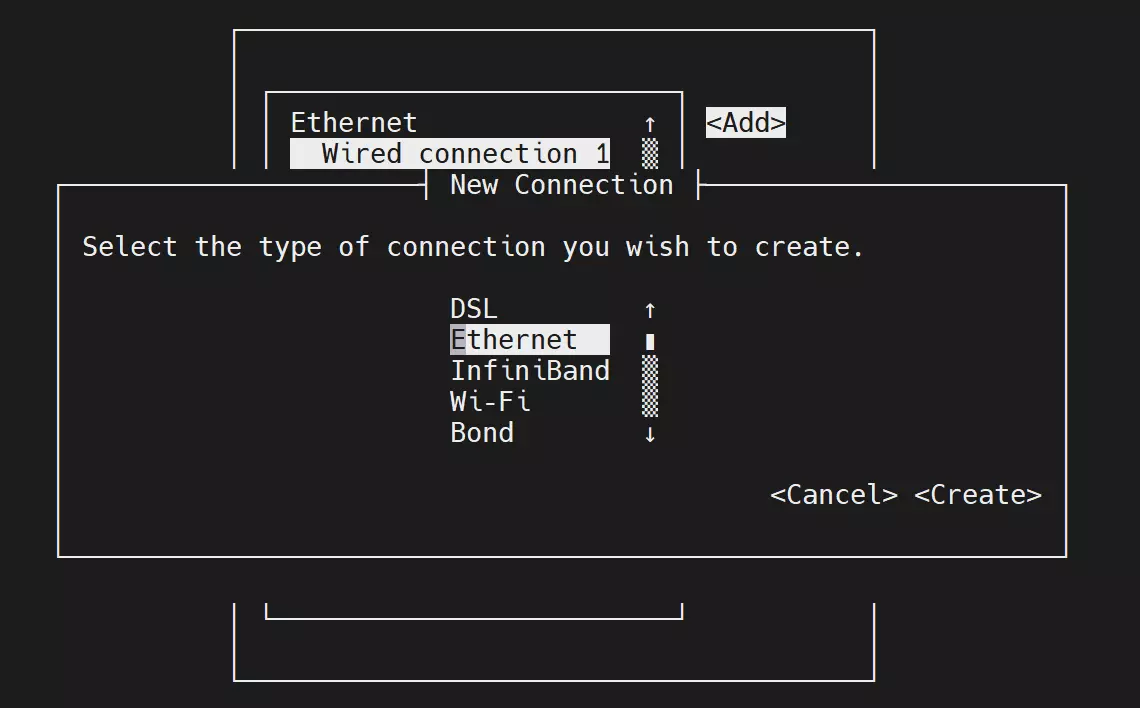
Of the many options, we only need to fill in two of them:
        Device____  # Enter the third network card name you get by 'ip a', like: enxca5bfb533dd4
        IPv4 CONFIGURATION <Shared> # Change <Automatic> to <Shared>
Save the configuration and return to setting interface to Activate a connection, select the option you just add.
It would be following if you apply it right:
                USB Ethernet
                    * Ethernet connection 1
Confirm adapter setting:
After you settings, check if there is a IP address of third network card:
ip a
The expected output result is like following:
3: enxca5bfb533dd4: <BROADCAST,MULTICAST,UP,LOWER_UP> mtu 1500 qdisc pfifo_fast state UP group default qlen 1000
    link/ether ca:5b:fb:53:3d:d4 brd ff:ff:ff:ff:ff:ff
    inet 10.42.0.1/24 brd 10.42.0.255 scope global noprefixroute enxca5bfb533dd4
       valid_lft forever preferred_lft forever
    inet6 fe80::e37c:5ced:58a8:ec32/64 scope link noprefixroute
       valid_lft forever preferred_lft forever
If it's similar with your result, time to set up device machine.
To Device machine
Enable usb network connection:
Relative to Host machine, it woulb be easy for device machine settings.
Typing ip a to confirm if a new device named usb0 like the following added:
3: usb0: <NO-CARRIER,BROADCAST,MULTICAST,UP> mtu 1500 qdisc pfifo_fast state DOWN group default qlen 1000
    link/ether 76:c7:9d:9e:d5:da brd ff:ff:ff:ff:ff:ff
If there is no new NIC, check the previous steps: open Overlay, reboot, and start NCM service.
Setup NCM adapter: Open the Network Manager Tool:
sudo nmtui
Select Edit a connection -- <Add> to add a Ethernet adapter:
Only the Device option should be modify, type 'usb0':
Device usb0
Other options remain default. Save the configuration.
Connect to Host device:
Return to setting interface to Activate a connection, select the option you just add.
                Ethernet (usb0)
                    Ethernet connection 1
It would take a few seconds to connect to Host device.
Check the connection:
Check if usb0 get the IP address like following:
$ ip a
1: lo: <LOOPBACK,UP,LOWER_UP> mtu 65536 qdisc noqueue state UNKNOWN group default qlen 1000
    link/loopback 00:00:00:00:00:00 brd 00:00:00:00:00:00
    inet 127.0.0.1/8 scope host lo
       valid_lft forever preferred_lft forever
    inet6 ::1/128 scope host
       valid_lft forever preferred_lft forever
2: eth0: <NO-CARRIER,BROADCAST,MULTICAST,UP> mtu 1500 qdisc mq state DOWN group default qlen 1000
    link/ether f2:44:7d:ac:20:85 brd ff:ff:ff:ff:ff:ff
3: usb0: <BROADCAST,MULTICAST,UP,LOWER_UP> mtu 1500 qdisc pfifo_fast state UP group default qlen 1000
    link/ether 76:c7:9d:9e:d5:da brd ff:ff:ff:ff:ff:ff
    inet 10.42.0.46/24 brd 10.42.0.255 scope global dynamic noprefixroute usb0
       valid_lft 3597sec preferred_lft 3597sec
    inet6 fe80::1031:1ee2:bcee:4855/64 scope link noprefixroute
       valid_lft forever preferred_lft forever
If the Host machine connect to ethernet, Device machine can also connect now.